





How to Reset an iPhone to Factory Settings: A Simple Guide

22/10/2025

5 Mins
Ever feel like your iPhone needs a fresh start, like when you first took it out of the box? The best way to do this is with a factory reset. You can find this option in your phone's settings. Just go to Settings > General > Transfer or Reset iPhone, and then choose Erase All Content and Settings. This is a big step that wipes everything off your phone, making it shiny and new again.
Why Reset Your iPhone to How It Was in the Factory?
Sometimes, a phone can start to get a bit slow or do funny things that turning it off and on again won't fix. A factory reset is like a magic spell that cleans everything up and gives your phone a brand-new beginning. It's also super important to do this before you sell or give your old phone to someone else. You don't want them seeing your private photos or messages, do you?
This guide will show you how to do it safely. We'll start with the most important thing: saving a copy of all your stuff. Then, we'll go through the final clicks that make it all happen. My goal is to make it really easy, so your phone is ready for whatever's next, whether you're fixing a problem or getting it ready for a new home.
For even more tips, this complete guide to an iPhone factory reset is another great place to look.
The Most Important Step Before You Do Anything!
Okay, before you even dream of pressing that reset button, stop! The number one, most important thing you must do is back up your iPhone. Imagine you have a box of your favourite toys. A backup is like taking a photo of every single toy before you let a friend borrow the box. If you don't do this, you could lose all your photos, messages, and contacts forever.
This is something lots of people have to do. iPhones are very popular, so you're not alone in figuring this out!
You have two main ways to make a copy of your stuff: you can use iCloud to save it all to the internet, or you can plug your phone into a computer and use a program called iTunes or Finder. Making a backup is a must-do, especially if you plan to sell your phone.
If you want to learn more about why making a copy of your things is so important, have a look at a comprehensive guide to backing up data.
Resetting Your iPhone Straight From the Settings App
Ready to make your phone feel brand new again? The easiest way to reset your iPhone is right from the Settings app, without needing a computer.
There's just one little thing you have to do first: switch off 'Find My iPhone'. This is a safety feature that proves you're the real owner of the phone and that you're allowed to wipe it clean.
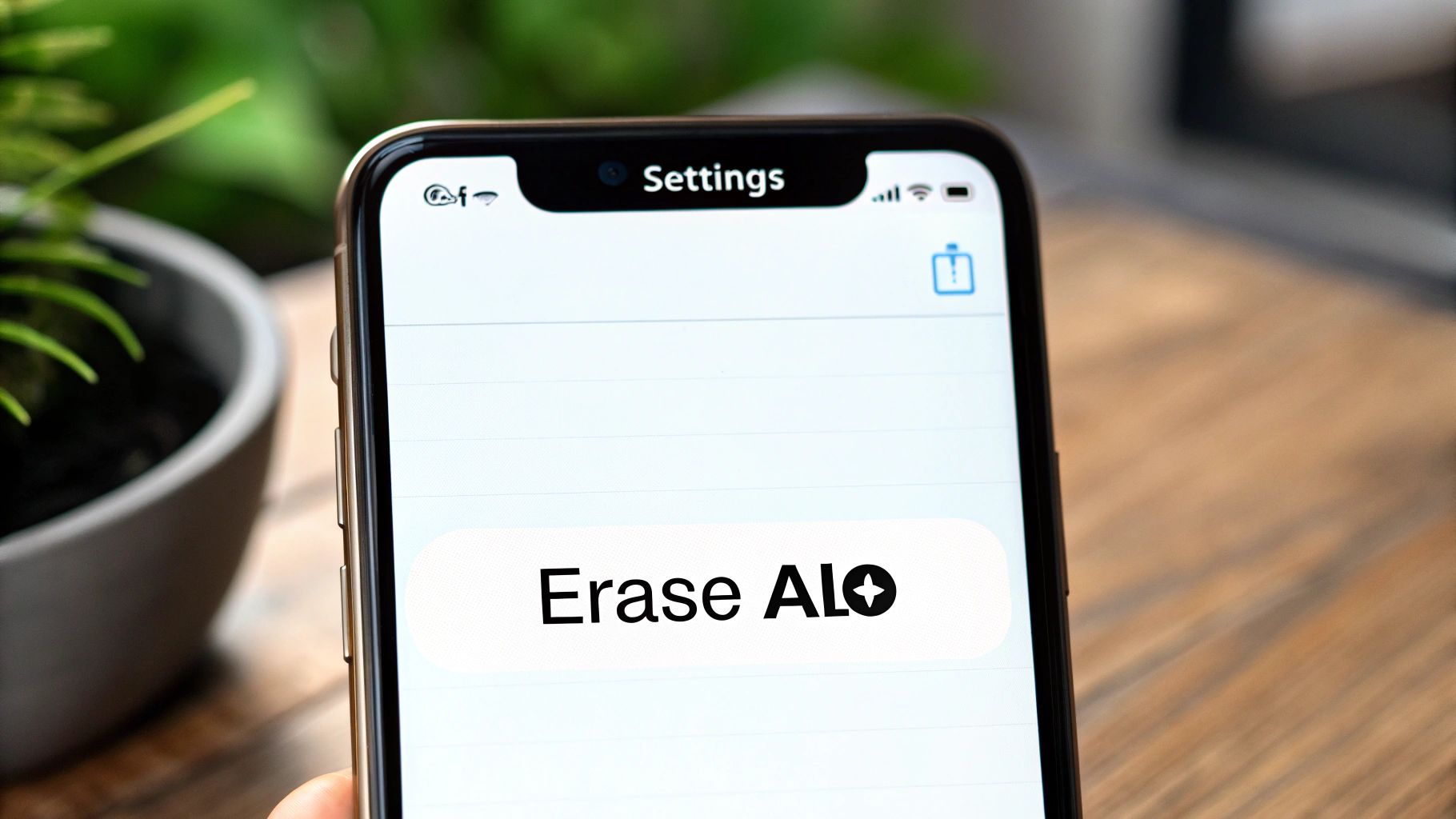
Once you've done that, the reset part is super simple.
Wiping Your iPhone using Settings
Here's a quick look at the steps. Don't worry, your phone will ask you if you're sure a few times before it deletes anything, so you can't do it by accident.
| Resetting Your iPhone From Settings | ||
|---|---|---|
| Step | What to Do | Why It's Important |
| 1 | Go to Settings > General | This is like the control room for your iPhone, where all the important settings live. |
| 2 | Scroll down and tap on Transfer or Reset iPhone | This is where you find the tools to get your phone ready for someone else or wipe it clean. |
| 3 | Choose 'Erase All Content and Settings' | This is the final button that starts the factory reset. Once you do this, there's no going back! |
| 4 | Type in your passcode and Apple ID password | These last checks make sure it's really you, and that you want to delete everything. |
After you've confirmed everything, the iPhone will start working its magic. It might take a few minutes, but when it's finished, it will restart and show the "Hello" screen, just like it did on its very first day.
You can also learn more about how refurbished iPhones' data is wiped in our other guide, which is a similar process to this. For more details, you can also check out the official Apple reset process on their support page.
Using a Computer for a Big iPhone Reset
Sometimes, you can't reset your iPhone from the Settings app. Maybe your phone is stuck showing the Apple picture, you've forgotten your passcode, or it's just not listening to you at all. If that happens, you'll need a computer to help out. This is the most powerful way to do a full factory reset.
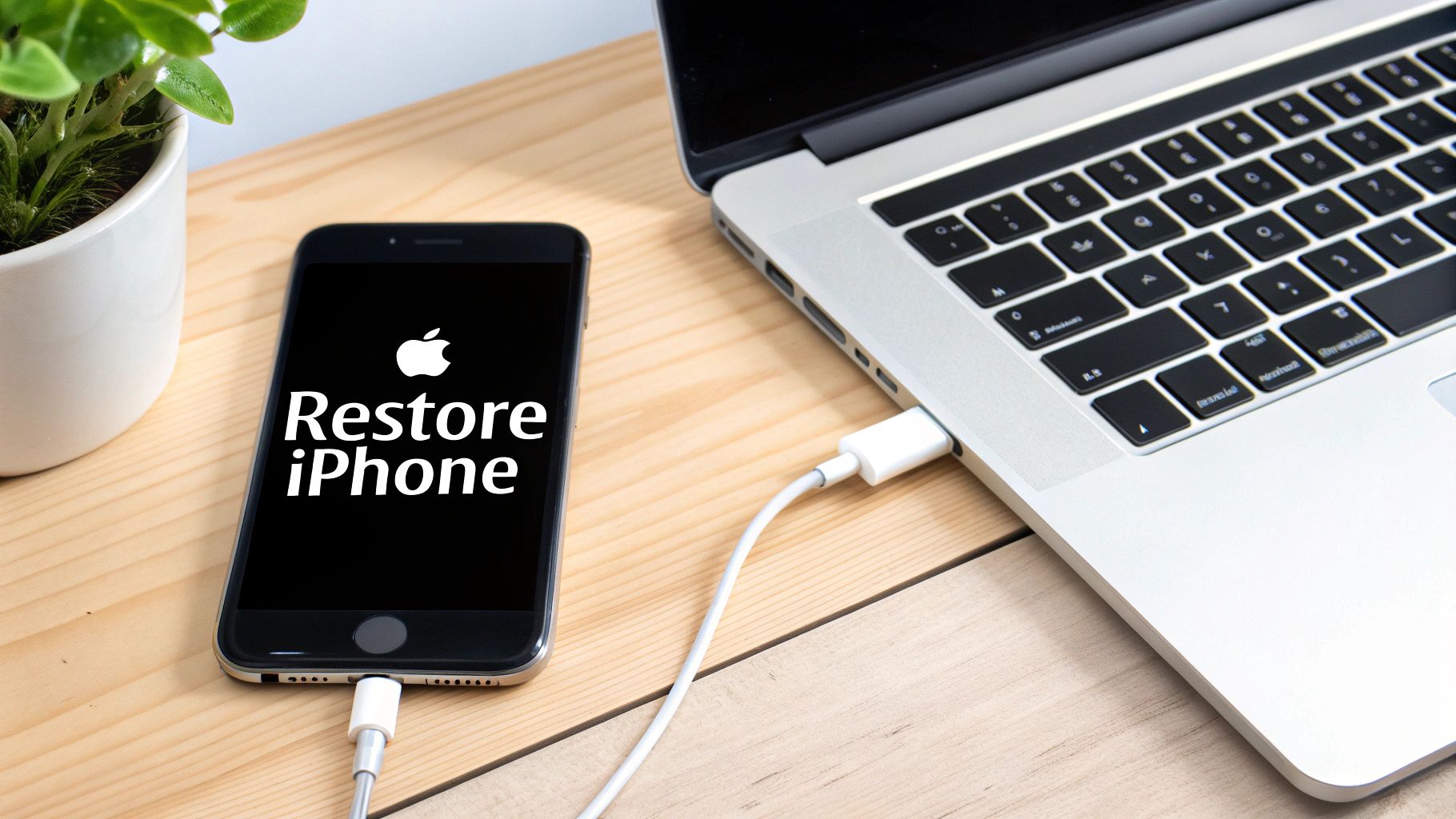
First, plug your iPhone into a Mac or a Windows computer. If you have a newer Mac, you'll just use Finder. If you're on a Windows computer or an older Mac, you'll need to have iTunes installed.
Next, you have to put your phone into a special 'recovery mode'. It sounds a bit grown-up, but it's just pressing a few buttons in the right order. This tells your iPhone it's ready for a full clean-up.
Once your computer sees the phone is in this mode, a little window will pop up with a 'Restore' button. Clicking this will wipe everything off the phone and put a fresh, new version of the iPhone software on it. It’s the best way to get a completely clean start.
What to Do After Your iPhone is Reset
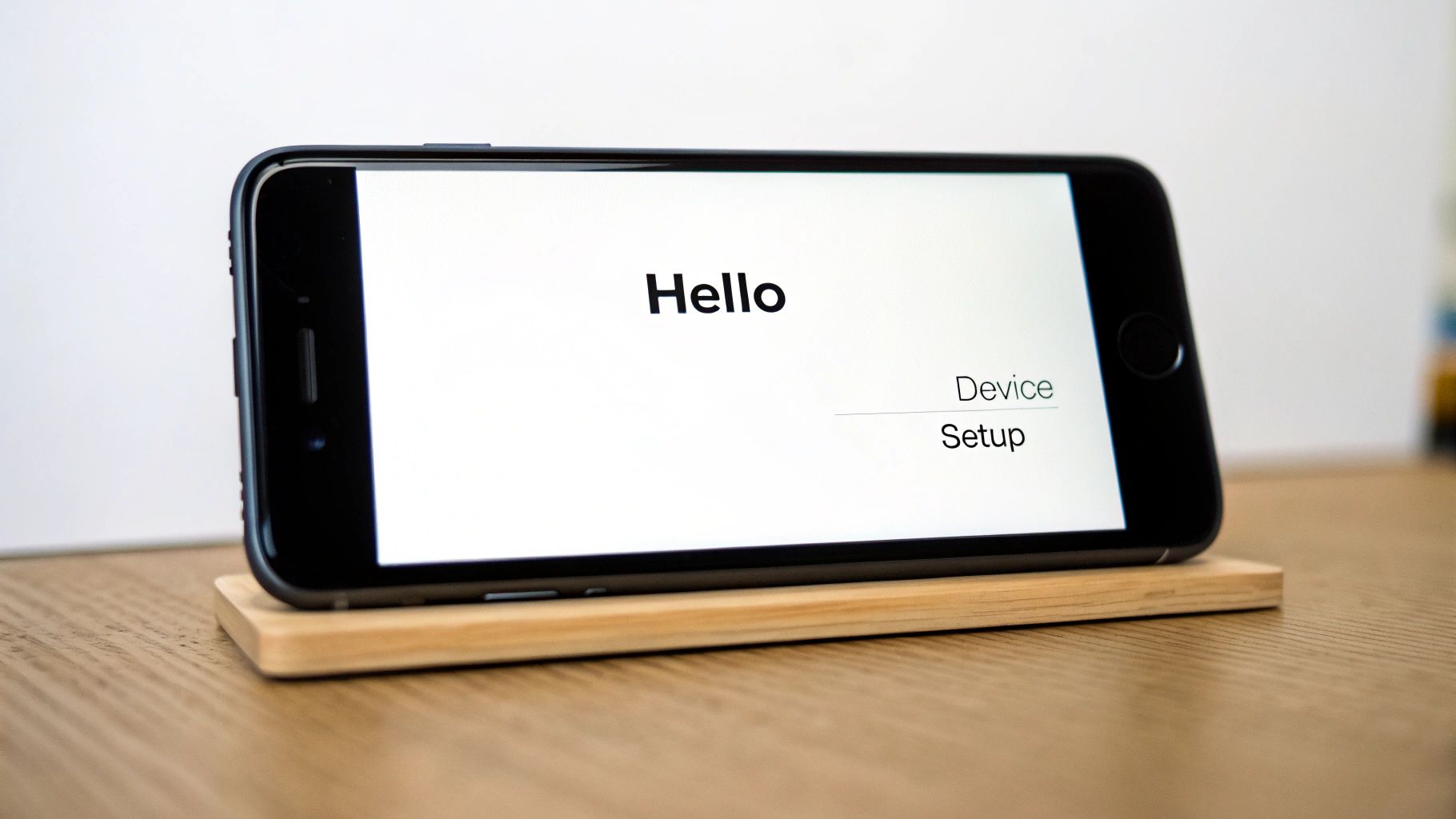
When your iPhone restarts and says ‘Hello’ to you on the screen, you know the reset is all done! What you do now depends on why you reset the phone.
If you’re selling your iPhone or giving it to a friend, your job is finished. You can turn it off and feel happy knowing that all your stuff is gone, and it's ready for its new owner. Easy peasy.
But, if you're keeping the phone, the next job is to get all your things back. This is where the backup you made earlier is your superhero. When you set the phone up, it will ask if you want to set it up as a new phone or bring back your stuff from a backup.
Choosing to restore from a backup is like moving all your toys into a new room. It brings back your apps, photos, and settings, so the phone feels like your own again in no time.
You can pick your recent iCloud backup right from the phone, or if you prefer, plug it into a computer to use a backup you saved there. For a bit more help with this, you can check out our guide on how to set up your second-hand iPhone without losing data.
Common Questions About Resetting Your iPhone
Thinking about resetting your iPhone can make you worry a little. People often ask if they will lose their Apple account or how long it all takes, and these are really good questions.
We've gone through the main steps, but you might still have a question of your own. For quick answers and extra help, you can always have a look at our full iPhone reset FAQs page.








