





UK Guide to Fixing an iPhone That’s Not Charging Properly

06/11/2025

14 Mins
When you plug your iPhone in and nothing happens, it’s a real pain. That blank screen can make your tummy do a flip-flop.
The good news? The reason your iPhone is not charging properly is often a super simple fix, like a bit of pocket fluff blocking the hole. Don't start saving up for a new phone just yet; we're here to help you figure it out.
Why Your iPhone Isn't Charging Properly
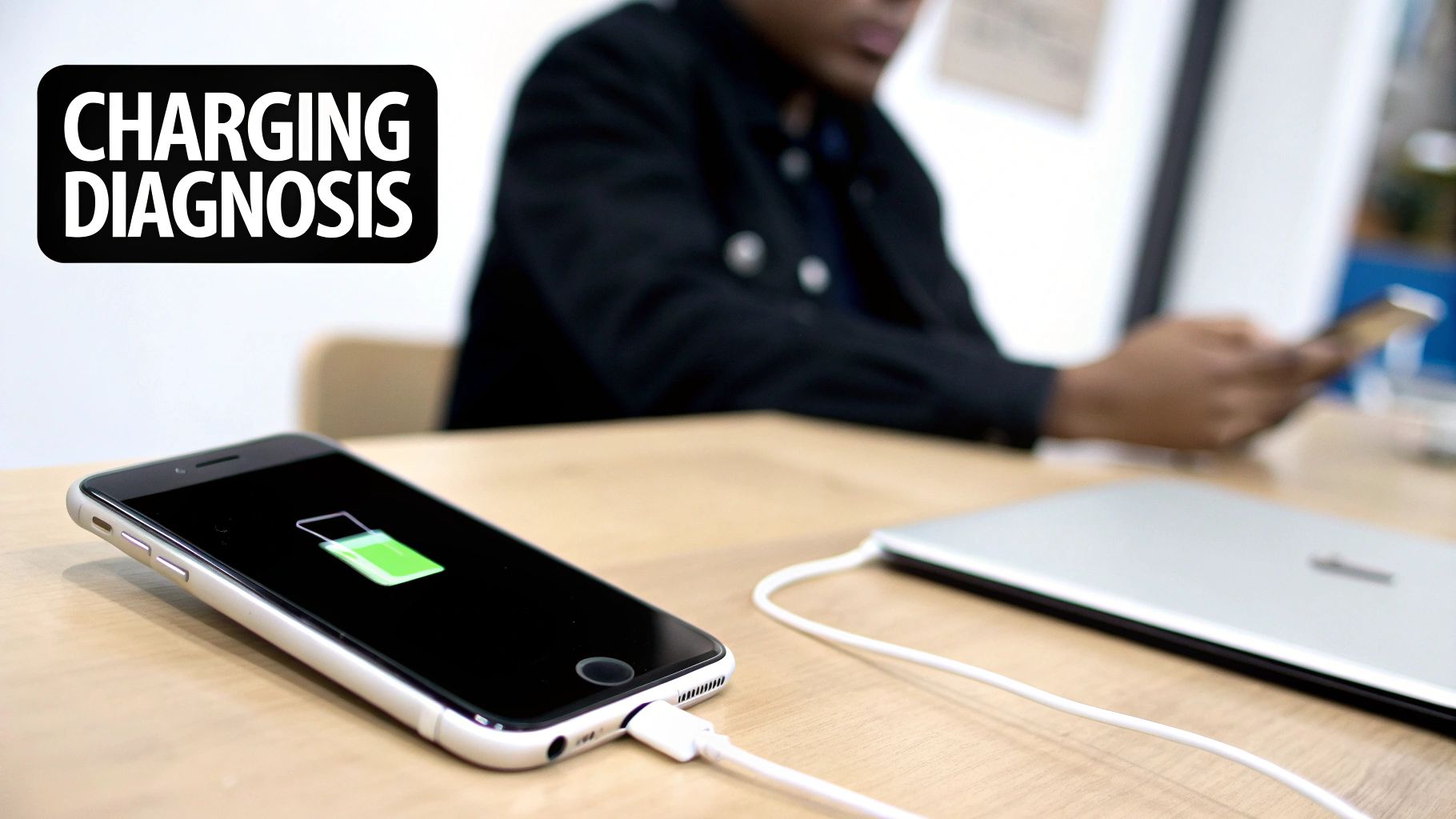
It’s that sinking feeling: you connect your charger, but the little battery picture stays stubbornly empty. Before you think the worst, let's play detective. Most of the time, the problem is something you can sort out yourself in just a few minutes.
The problem is usually one of three things: your charging stuff (the cable and plug), the charging hole on your phone, or a small computer-brain hiccup. It's very rare for the phone itself to be properly broken.
Common Charging Villains
Think of this as a quick checklist to find the baddie. We’ll look at each of these more closely, but here are the most likely suspects:
- A Dirty Charging Hole: Your iPhone's charging port is a magnet for pocket fluff, dust, and other tiny bits of gunk. Over time, enough can build up to stop the cable from making a good connection.
- A Broken Cable or Plug: Charging cables get bent, twisted, and thrown in bags. A tiny, invisible break inside the wire is all it takes to stop it from working.
- A Computer-Brain Fumble: Sometimes, your iPhone’s computer-brain just gets a bit confused. A quick restart is often all it needs to get things working again.
- Water Damage: Even a small splash can cause trouble. While newer iPhones are pretty good with water, they aren’t completely waterproof, and water can easily stop them from charging. If you're curious about this, you can learn more about whether second-hand iPhones are waterproof in our other guide.
A surprisingly common problem is just a build-up of fluff. I’ve seen lots of phone fixers find that a two-minute clean-out is all that's needed to get an iPhone charging perfectly again.
In fact, problems with the charging port are one of the most common grumbles from iPhone users in the UK. Many people say their cable feels loose or their phone gets hot when charging, which is often just because of dust and fluff.
To help you figure it out, here’s a quick table to match what you’re seeing with the likely problem.
Quick Problem-Solving Checklist
| What You're Seeing | What It Probably Means |
|---|---|
| Nothing happens when plugged in | Could be a broken cable, plug, or a completely flat battery. |
| Charges for a second, then stops | Usually a dirty charging hole or a broken cable. |
| Cable feels loose or won't click in | Almost certainly fluff or dirt blocking the hole. |
| Charges very slowly | Try a different plug or check for computer-brain issues. |
| Phone gets very hot while charging | Likely a problem with the cable or dirt in the hole. |
This table should give you a good start. Now, let's walk through how to check each of these things so you can find the right fix and get your phone powered up again.
Checking Your Charger and Cable
Before you start worrying that your iPhone itself is broken, let’s look at its teammates—the charging cable and the plug. These get used every single day, thrown in bags, and bent into all sorts of shapes, so it’s no surprise they’re often the first to give up.
Think of it like this: if your TV isn't working, you first check if it's plugged in properly, right? It's the same idea here. A broken cable is one of the most common reasons an iPhone is not charging properly, and luckily, it’s also the easiest to fix.
Look at Your Kit for Damage
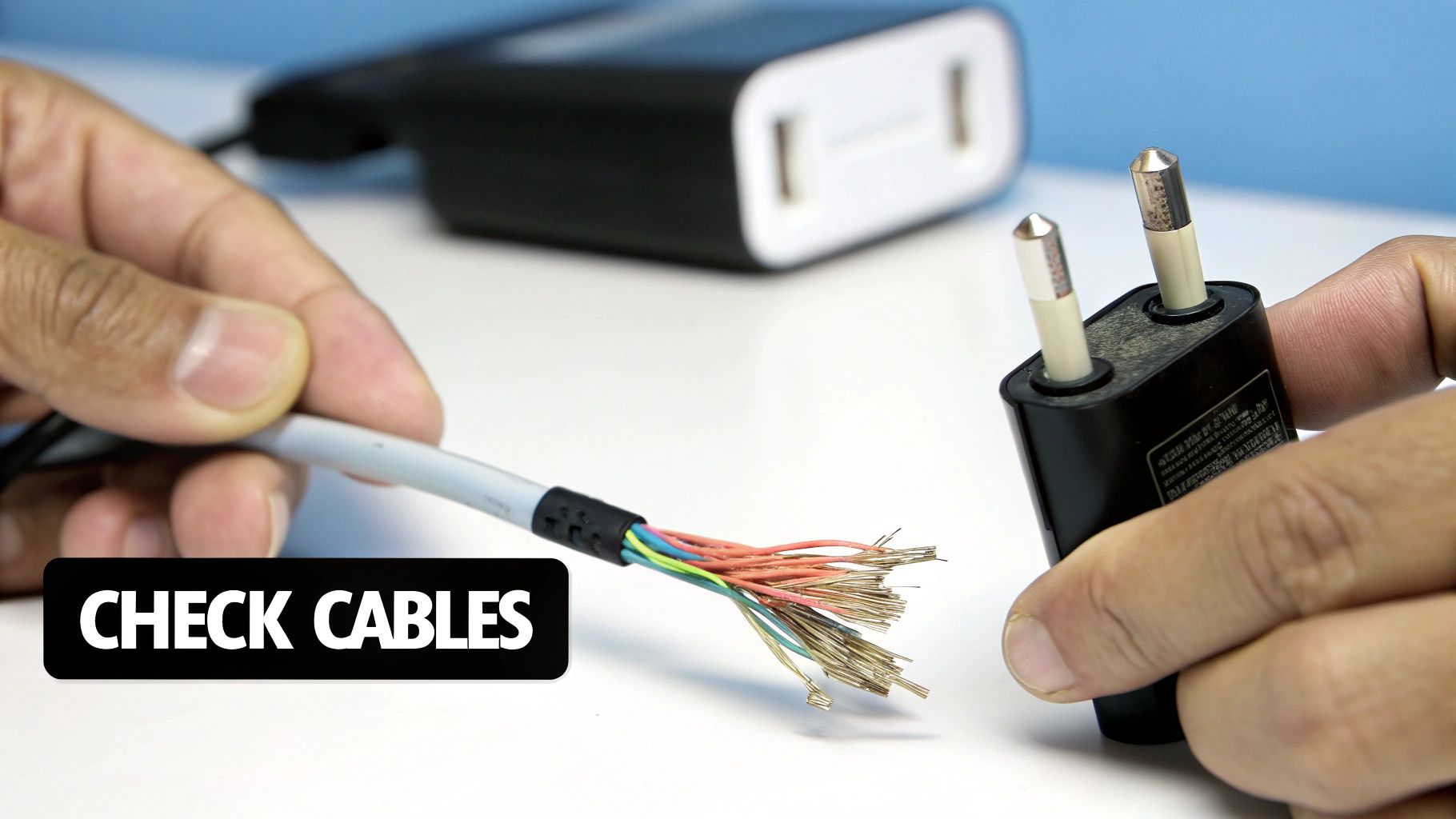
Take a really close look at your charging cable, especially at both ends where the wire meets the plastic bit. This is always the weakest spot. Do you see any small tears, wires poking out, or does the plastic look bent or a funny colour?
Even a tiny, almost invisible break can stop a cable from working. A friend of mine was sure his phone was broken, but after checking everything, we found a teeny-tiny split in the cable right by the end that plugs into the phone. You could barely see it, but it was the only thing stopping the phone from charging.
Here's what to look for on your kit:
- Frayed Wires: Look for any breaks in the white or black plastic coating, especially near the ends.
- Bent Pins: Check the metal end that plugs into your iPhone. The gold strips should be clean and perfectly straight.
- Cracked Plugs: Make sure the plastic part of the plug isn't cracked or showing any black burn marks.
Using dodgy, cheap chargers is like giving your expensive phone a really bad dinner. It might seem fine at first, but it can cause big problems later. In the UK, it’s a growing problem, with cheap cables leading to broken charging ports and battery troubles for lots of people.
If you ever see a message like "This accessory may not be supported," it's a massive clue that the cable is the problem.
The Simple Swap and Test Trick
The quickest way to figure out which part is broken is to do a simple test. It's like being a detective, and it will give you an answer in minutes.
First, try a different charging cable with your usual plug. If your iPhone starts charging, then you know your old cable was the baddie. Easy!
If that doesn't work, keep the new cable plugged in and try a different plug. If it suddenly sparks to life, then your old plug was the broken bit. If you’re in need of good replacements, our guide to the best accessories for refurbished iPhones can help you choose ones that will work properly.
Top Tip: Always try to use an MFi-certified cable. "MFi" stands for "Made for iPhone," and it's Apple's official stamp of approval. It means the cable is safe and built to last, protecting your phone's battery and charging port from getting damaged.
If you’ve swapped both the cable and the plug and your iPhone still won't charge, then we can be sure it's not them. The next step is to check the place where the cable connects to your phone: the charging port itself.
How to Safely Clean Your iPhone's Charging Port
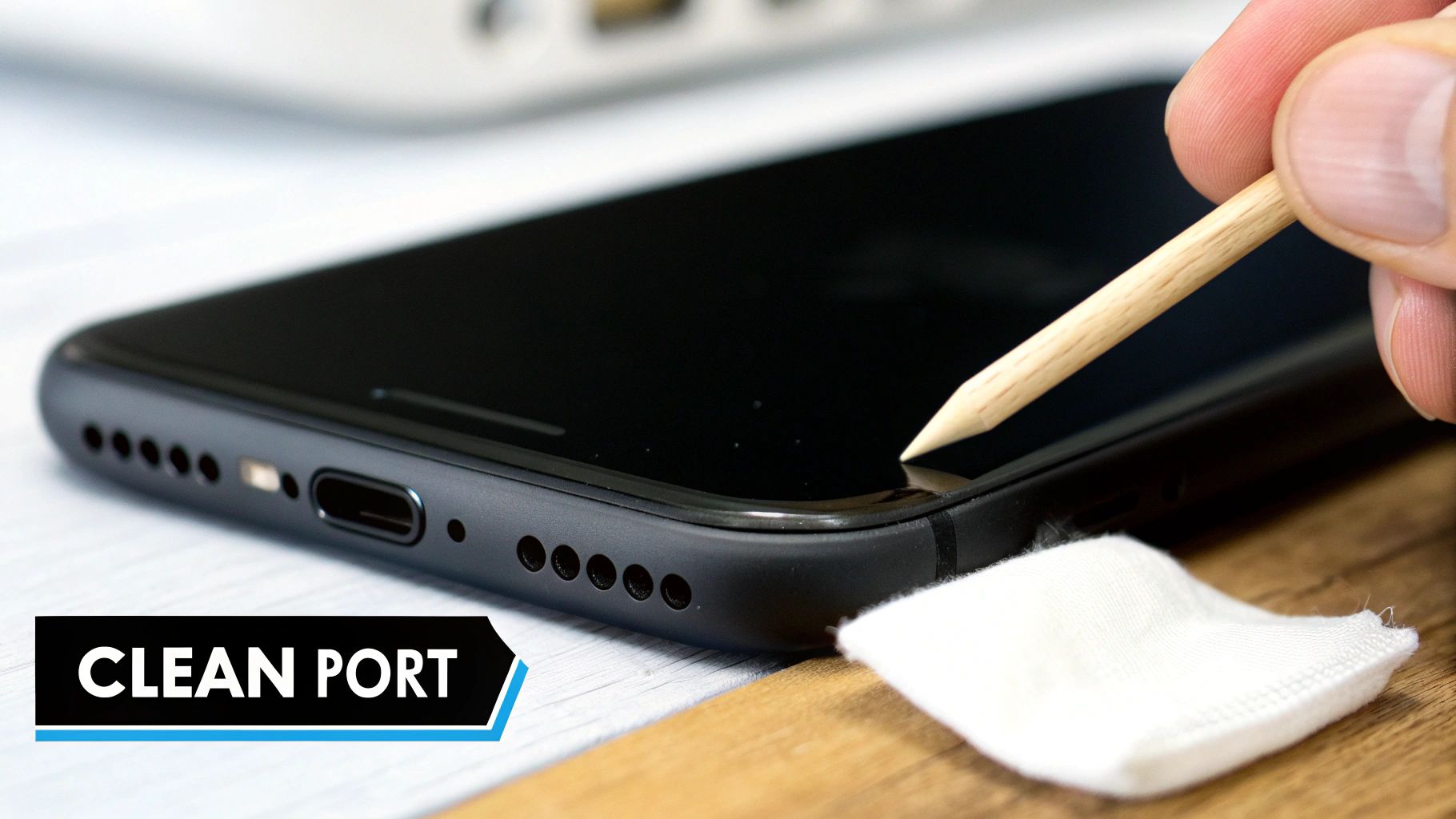
Think of your iPhone's charging hole like a tiny garage. After months of living in your pocket or rattling around in a bag, it gets packed with pocket fluff, dust, and all sorts of other gunk. This build-up stops your charging cable from parking properly, and it's one of the most common reasons for an iPhone not charging properly.
The good news is that giving this little garage a spring clean is surprisingly easy, and you've probably got everything you need at home already. Learning this simple trick could fix your problem in minutes and save you a trip to a repair shop.
The Right Tools for the Job
Before you start, it’s super important to grab the right tool. You need something that won’t send electricity where it shouldn't go or scratch the delicate metal bits inside the hole.
- What to use: A wooden or plastic toothpick is perfect. A cocktail stick, or even the little tool for getting your SIM card out (just use the non-pointy end) will also do the trick.
- What to AVOID: Never, ever use anything metal! A paperclip, safety pin, or needle can easily cause a short circuit and break your phone for good. It’s like trying to get toast out of a toaster with a metal fork—a seriously bad idea.
It’s also a good idea to have a torch handy, maybe from another phone, so you can get a proper look inside the hole before you start.
Cleaning the iPhone port is one of the very first things a phone fixer will try, and you'd be amazed how often it works—it solves the problem more than half the time. It’s incredible how much fluff can get wedged in there without you even noticing.
Your Gentle Cleaning Guide
Now that you have your wooden or plastic tool, it’s time to get that gunk out. The most important thing to remember here is to be gentle.
First things first, turn your iPhone completely off. This is a very important safety step to stop anything from getting damaged while you’re poking around in there.
Next, shine a light into the hole to see what you’re dealing with. You’ll probably spot a surprising amount of squashed dust and fluff.
Gently put the tip of your toothpick inside and carefully scrape along the inside walls of the hole. Don't poke straight at the back wall where the charging bits live. Instead, use a soft scooping motion to hook the rubbish and pull it out.
Be patient and work your way around all the edges. You might be shocked at how much comes out! Once you think you've cleared it all, give the phone a gentle tap, with the hole pointing down, to get any last loose bits out. Turn your iPhone back on, plug in your cable, and with any luck, you'll see that wonderful charging picture pop right up. This kind of regular care is one of the top tips to maintain a used mobile phone and keep it working like new.
Simple Software Fixes You Can Try
Sometimes, the reason your iPhone won’t charge has nothing to do with fluff in the hole or a dodgy cable. The problem can actually be hiding inside your phone's computer brain. Think of it like a computer getting a bit muddled—every so often, it just needs a little nudge to get back on track.
A software glitch can easily stop your iPhone from recognising that a charger is plugged in. This can happen right after an update, or just pop up randomly. Luckily, these are often the easiest problems to solve yourself, and you don't need any special tools.
Give Your iPhone a Fresh Start
The quickest and simplest trick in the book is a force restart. This isn't the same as just turning your phone off and on again. A force restart is a deeper reboot that clears out little computer bugs that might be causing the trouble, and the best part is it won’t delete any of your photos, games, or messages.
It’s a bit like when a video game freezes and you have to restart the console to get it working again.
- For iPhone 8 or newer: Quickly press and let go of the volume up button. Then, quickly press and let go of the volume down button. Finally, press and hold the side button until the Apple logo appears on the screen.
- For iPhone 7: Press and hold both the volume down button and the sleep/wake button at the same time. Keep holding them until you see the Apple logo pop up.
- For iPhone 6s or older: Press and hold both the sleep/wake button and the Home button together until the Apple logo appears.
Once your phone has restarted, plug it in again. This one simple step fixes a surprising number of charging problems.
Keep Your Software and Battery in Check
Computer bugs can sometimes cause big problems. We've seen bad updates stop a phone from charging altogether. After one update, for example, many people in the UK said their iPhones would not charge properly. One person even found their phone would only charge incredibly slowly on a wireless pad after the update—a clear sign of a computer bug causing trouble.
This is exactly why it's a good idea to keep your phone's software updated. Apple often releases fixes for bugs like this in new updates. You can check for one by going to Settings > General > Software Update.
Another important place to look is your battery's health. Your iPhone's battery is just like any other—it gets older and weaker over time.
Go to Settings > Battery > Battery Health & Charging. If the "Maximum Capacity" is below 80%, it might be time to think about a new battery, as it just can't hold a charge as well as it used to.
If a force restart doesn't work and your battery health seems okay, the software problem might be a bit more stubborn. For those trickier problems, a full reset might be what you need, but it’s a much bigger step. Before you go that far, you might want to look at other simple fixes for common phone charging issues. If you do decide a bigger reset is your last resort, our guide explains how to reset your iPhone to factory settings safely.
When to Call a Professional for Help
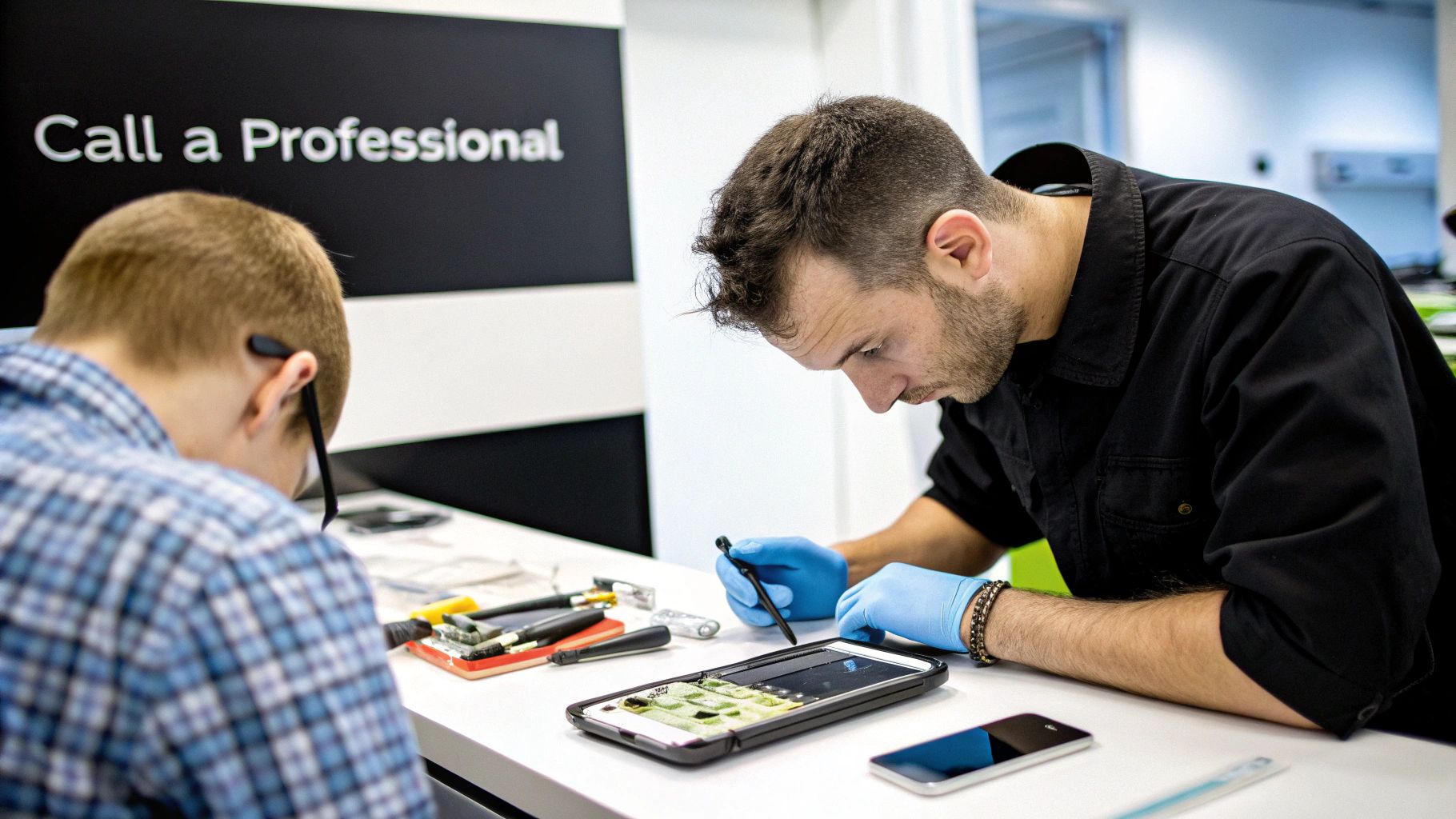
So, you’ve tried all the tricks in the book. You’ve swapped cables, carefully cleaned the charging port, and even given your iPhone a force restart, but it’s still refusing to power up. Sometimes, the problem is a bit bigger than a simple home fix, and that’s perfectly okay.
Knowing when to give up and let an expert take over is really important. Poking around too much when there’s a bigger problem can sometimes make things worse. If your iPhone is not charging properly after trying everything else, it’s a clear sign that it’s time to call in the professionals.
Signs of a Bigger Problem
There are a few warning signs that point to a problem you probably can’t fix yourself. If you notice any of these, it's best to get expert help straight away.
- Getting Super Hot: It’s normal for your phone to get a little warm while charging, but if it feels uncomfortably hot to the touch, unplug it immediately. This could be a sign of a serious battery or inside problem.
- Water Damage: If your phone has had a run-in with a puddle, a spilt drink, or even just a lot of rain, don’t try to charge it. Water and electricity are a dangerous mix, and a professional needs to check for damage inside.
- A Puffy Battery: Does your screen seem to be bulging or lifting away from the side? This is a very serious sign that the battery inside is swelling and needs to be replaced by a professional right away.
- The Battery Drains Super Fast: If your phone charges but then loses all its power in an hour or two, the battery is likely at the end of its life.
Remember, a professional phone fixer has the right tools and knowledge to safely find the problem. They can spot things you can't, like a broken charging chip on the phone's main brain, which is impossible to fix at home.
Apple Store or Local Repair Shop
Once you’ve decided to get help, you have a choice to make. Do you go to an official Apple Store or a trusted local repair shop in the UK? Both have their good and bad points.
Going to Apple means you’ll get proper Apple parts and a repair from an Apple-trained person, which is great for peace of mind. However, it can often be more expensive, and you might have to book an appointment and wait a while.
A good local repair shop can often be quicker and cheaper. Many fantastic independent shops across the UK use high-quality parts and have very clever people working there. Just make sure to choose one with great reviews.
If you're feeling brave, you might even think about fixing it yourself, but it's important to understand the risks. You can find out if you can repair a second-hand iPhone yourself in our other guide before you decide.
Your iPhone Charging Questions Answered
Still got a few worries buzzing around? That’s completely normal. When your phone stops behaving, it’s easy to feel a bit lost. Here are some quick, simple answers to the most common questions we hear when an iPhone is not charging properly.
Can I Use Any Charger for My iPhone?
While you can technically plug any cable that fits into your iPhone, it’s not always the best idea. Those cheap, uncertified chargers might look like a bargain, but they can be a real risk. They often don't have the same safety bits inside them as official or MFi-certified ("Made for iPhone") chargers.
Using a poor-quality charger can cause all sorts of headaches, like:
- Making your phone overheat.
- Damaging the battery over time.
- Even causing the charging hole to stop working completely.
It’s a bit like putting the wrong type of fuel in a car. It might work for a little while, but you’re setting yourself up for expensive damage later. It’s always best to stick with the charger that came in the box or one from a trusted, certified brand.
Why Is My iPhone Charging So Slowly?
Slow charging is a massive pain, especially when you’re in a rush. If your iPhone is taking ages to power up, it’s usually down to one of a few things.
The most common reason is using a low-power plug, like the small, old-fashioned square ones Apple used to give you, or plugging it into a computer's USB port. These simply don't push out enough power for modern iPhones. To get the fastest charge, you really need a more powerful plug, like a 20W USB-C plug.
Another thing to check is your software. There’s a clever feature called Optimised Battery Charging (you’ll find it in Settings > Battery > Battery Health & Charging) that on purpose slows down charging past 80%. This is designed to protect your battery’s health for a long time, but it can be confusing if you’re not expecting it!
A quick tip: If you need a fast boost, pop your iPhone into Aeroplane Mode while it charges. This turns off all the power-hungry wireless stuff, letting the battery fill up that little bit quicker.
Can a Dead Battery Be Brought Back to Life?
If your iPhone has been completely dead for a long time—we’re talking weeks or even months—it might seem like it’s gone for good. When you plug it in, you might just see a black screen for a while.
Don't panic just yet! This often happens because the battery is so empty that it needs a gentle trickle of power before it has enough energy to even show the charging screen.
Our advice? Leave it plugged into a good wall charger for at least an hour, sometimes even longer. In most cases, it will eventually flicker back to life. However, if a battery is left completely dead for too long, it can sometimes be damaged beyond repair and will need replacing.
Will Wireless Charging Work If the Port Is Broken?
Yes, in most cases, it will! If your charging hole is physically broken or so full of gunk that you can’t clear it, wireless charging can be a lifesaver. It’s a completely different technology that doesn't use the physical hole at all.
This makes it a fantastic temporary fix to keep you going until you can get the port properly repaired. It's also a great detective trick—if it charges wirelessly but not with a cable, you’ve almost certainly found your problem!
If you've tried everything and decided it's time for an upgrade, or if you're just looking for a reliable, tested replacement, check out the fantastic range of certified refurbished iPhones at Used Mobiles 4 U. All our devices come with a 12-month warranty for complete peace of mind. Find your next phone at https://usedmobiles4u.co.uk.







