





Resetting your iPad password: a simple guide for everyone

07/11/2025

14 Mins
Oh no! That feeling when your iPad asks for a password you just can't remember… we’ve all been there. The easiest way to fix this on newer iPads is using the “Erase iPad” button right on the lock screen. But don't worry if you don't see it; there are other ways to get back in.
Forgot Your iPad Password? Don't Panic
It’s like losing the key to your own digital house. One minute you’re ready to watch your favourite show or play a game, and the next, you're staring at a screen that won’t let you in. It happens to lots of people, so you’re definitely not alone.
The good news is that getting back into your iPad is usually quite easy. How you reset the password depends on a few important things:
- Your iPad's Software: Newer versions of iPadOS make it much, much simpler.
- Your Apple ID: You'll almost always need your Apple ID and password to prove you're the real owner.
- A Computer: Some of the older ways to fix this need you to plug your iPad into a Mac or a Windows PC.
Think of it like having a few different keys for different locks. I’ll help you find the right one for you, starting with the simplest way first. This guide will show you what to do without any confusing words.
To help you get started, here's a table to help you find the right method for your situation.
Choosing Your iPad Password Reset Method
This quick summary will help you find the right solution based on what you have.
| Your Situation | Best Method to Use | What You Will Need |
|---|---|---|
| "iPad Unavailable" or "Security Lockout" on screen | "Erase iPad" on the lock screen (iPadOS 15.2 or later) | Your Apple ID and password |
| Older iPad without "Erase" button on-screen | Recovery Mode using a computer (Mac or Windows PC) | A computer, a special cable, and your Apple ID |
| iPad works and you know the password | Change password in the Settings app | Your current password |
| iPad is from a school or work | Ask your IT person for help | Your work or school login details |
Have a look at the table to find what matches your problem, and then go to that section in our guide for the step-by-step instructions.
Why Your Password Is So Important
Your password is the main guard protecting all your personal stuff—photos, messages, games, you name it. When you type in the wrong password too many times, the iPad locks itself to keep you safe. You’ll see a message like "iPad Unavailable" or "Security Lockout."
This is a clever safety feature, but it can be a real pain when you’re the one locked out. Sometimes, a device can even freeze up after too many wrong guesses. You can learn more about this in our guide on common iPhone freezing fixes that refurbished buyers should know.
New and Easier Ways to Get Back In
Thankfully, Apple has made resetting your password much simpler for UK users over the years. Not long ago, if you forgot your iPad's password, the only way to fix it was to connect it to a computer and do a full reset.
Everything changed in late 2021 with iPadOS 15.2. This update added a brilliant feature that lets you reset your iPad using just your Apple ID, right from the lock screen—no computer needed. It was a massive help for millions of iPad owners who kept getting stuck.
Key Takeaway: Forgetting your iPad password isn’t the end of the world. As long as you have your Apple ID password and follow the right steps, you can get back in and set up a new, easy-to-remember password to keep your things safe.
Reset Your iPad Password Without a Computer
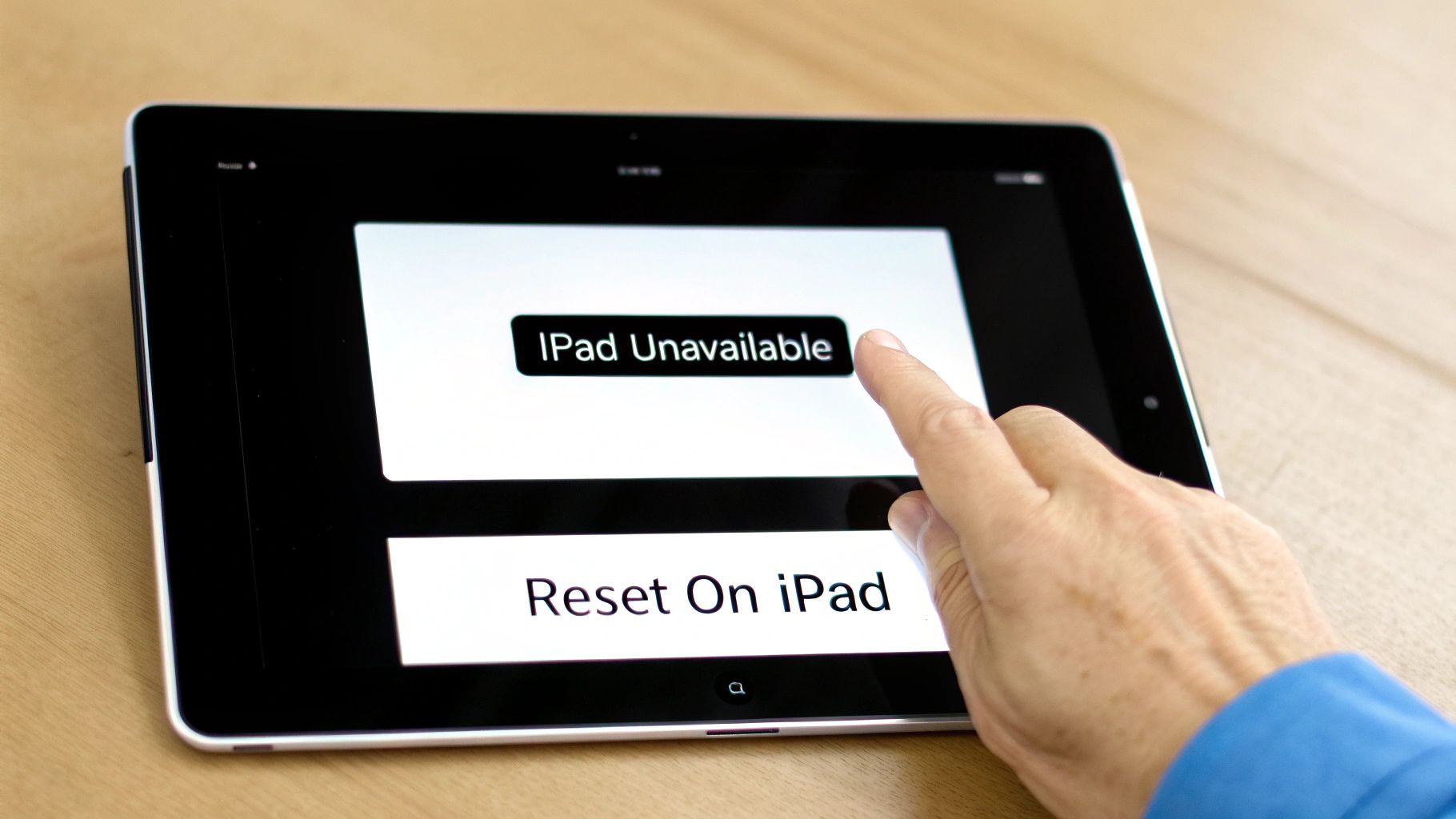
What if you could fix your locked iPad without having to find a computer or a cable? It might sound too good to be true, but with newer iPads, you really can. This is the most modern and simplest way of resetting the password on an iPad, and it all happens right on the iPad itself.
This clever fix works on any iPad using iPadOS 15.2 or a newer version. It’s perfect for when you're out, on holiday, or just don't have a Mac or PC nearby. Let's walk through exactly how to do it.
What to Look For on the Lock Screen
First, you’ll need to type the wrong password in a few times. Don't worry, you won't break anything! After a few wrong tries, your iPad will lock you out for your own safety, showing a message like "iPad Unavailable" or "Security Lockout".
This is exactly what you want to see. Now, look at the bottom corner of the screen. You should see a little button that says ‘Erase iPad’. If it’s there, you’re in luck—this is your magic button to start the reset.
If you don't see this button, it means your iPad is using older software. In that case, you'll need to try one of the other methods, like using a computer.
Using the Erase iPad Button
Ready to start? Once you tap the ‘Erase iPad’ button, your iPad will ask you to tap it again, just to be sure. It will remind you that this will delete all of your data and settings for good.
After you agree, it will ask for one very important thing: your Apple ID password. This is a safety step to make sure you’re the real owner and not someone else trying to get in.
Top Tip: Your Apple ID is nearly always the email address you use for the App Store and iCloud. Make sure you know the password for it before you start. If you can’t remember it, you’ll need to get a new password on another device first by visiting Apple's website.
Once you type in your Apple ID password correctly, the reset will begin. The iPad will start wiping itself clean, getting rid of the old password along with everything else.
What Happens Next
The erasing bit can take a few minutes, so be patient. You’ll see the Apple logo and a progress bar on the screen, just like when it’s doing an update. It's best to just let it finish its job completely.
When it's all done, your iPad will restart and show you the 'Hello' screen, just like it did when it was brand new. From here, you can set it up all over again. During the setup, you’ll be able to:
- Connect to your Wi-Fi.
- Create a new password that’s easy for you to remember but hard for others to guess.
- Sign back in with your Apple ID.
- Get your apps, photos, and other things back from a recent iCloud backup.
Choosing to restore from an iCloud backup is like moving all your old toys and books into a new room—everything will be put back right where you left it. Setting up a device from scratch can feel a bit tricky, but you can find some handy advice in our guide on how to set up your second-hand iPhone without losing data, as the steps are very similar for an iPad.
Use a Computer to Get Your iPad Working Again
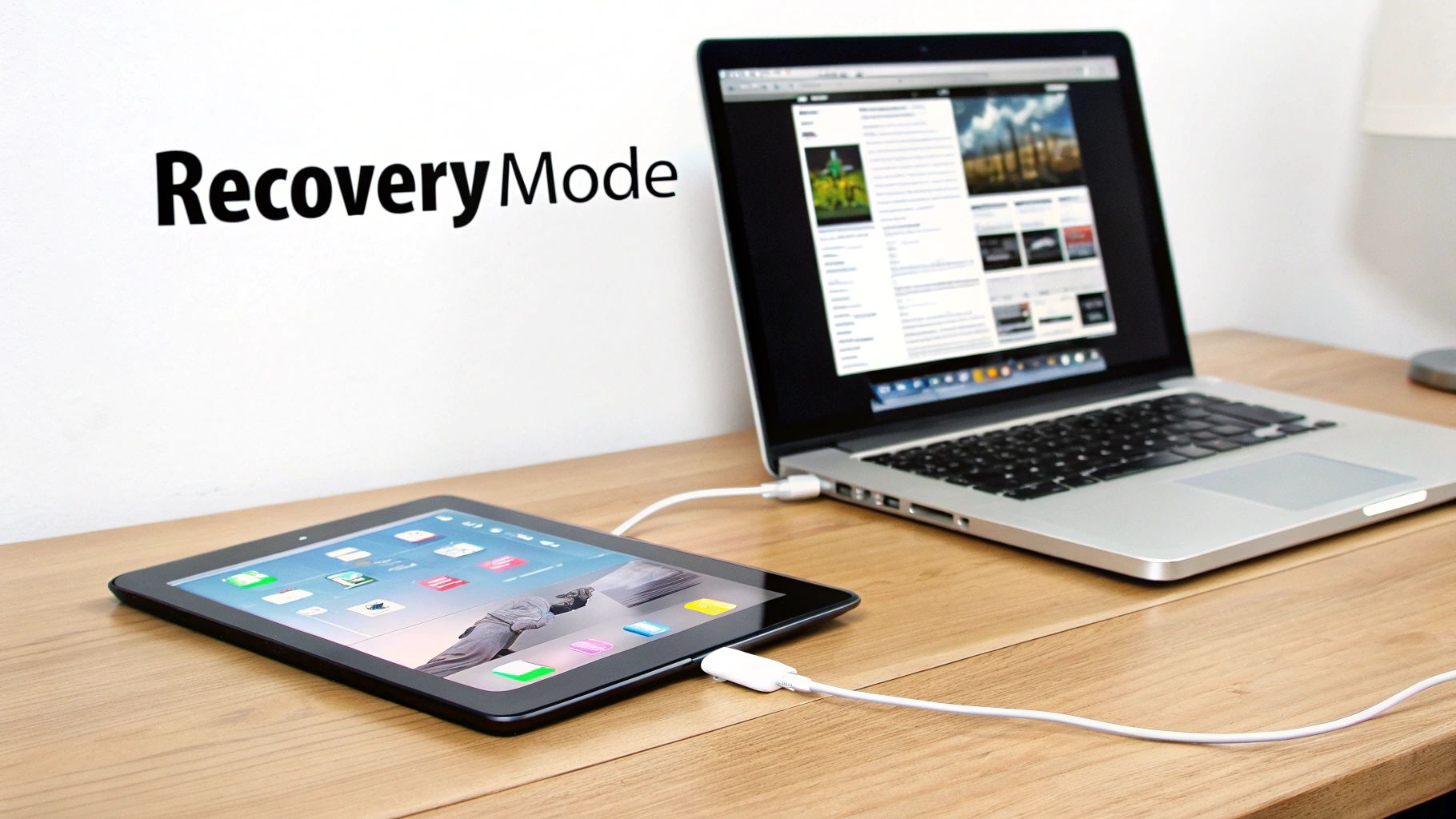
Sometimes, the simple on-screen reset just isn't an option. This usually happens when your iPad is running older software or when it's been locked after too many wrong password attempts. If that’s you, your next best friend is a computer.
Using a computer to put your iPad into Recovery Mode is the classic, sure-fire way to get things working again. It might sound a bit technical, but it’s really just a special way of starting up your iPad so that your computer can talk to it and fix it. This will completely wipe the iPad—including that forgotten password—giving you a totally fresh start.
This method works whether you're using a Mac or a Windows PC. The steps are almost the same, with just a small difference in the program you'll use. Let's get you connected.
Getting Your iPad into Recovery Mode
First things first, you'll need to connect your iPad to your computer with a cable. Once it's plugged in, you need to press a few buttons in the right order to get your iPad into Recovery Mode.
The exact buttons depend on which model you have. Think of it as a secret handshake between your iPad and your computer.
- For iPads with a Home button: Press and hold both the Home button and the top (or side) button at the same time. Keep holding them until you see the recovery mode screen.
- For iPads without a Home button (like newer iPad Pro or Air models): Quickly press and let go of the volume up button. Then, quickly press and let go of the volume down button. Finally, press and hold the top button until the recovery mode screen shows up.
Don't let go of the last button until you see a picture of a computer and a cable on your iPad's screen. That's the sign that it's ready and waiting for your computer.
Important Note: This process will erase all the data on your iPad. This is why having a recent backup is so important. If you’ve backed up your iPad to iCloud or your computer, you can get all your photos, apps, and settings back after the reset is finished.
Restoring Your iPad with a Computer
Now that your iPad is in Recovery Mode, your computer can do the hard work. You should see a window pop up on your computer screen.
- On a Mac: The window will appear in Finder. You should see your iPad in the list on the side.
- On a Windows PC: This will pop up in iTunes. If you don't have iTunes, you can download it for free from Apple's website.
The message will say something like, "There is a problem with the iPad that requires it to be updated or restored." You'll have two choices: ‘Update’ and ‘Restore’.
You need to choose ‘Restore’. This option erases everything on your iPad and puts the latest version of iPadOS on it. The computer will start downloading the software, which might take a little while. Just be patient and don't unplug your iPad while it's working.
Once the restore is finished, your iPad will restart and show you the 'Hello' screen, just like it was brand new. From there, you can set it up again, create a new password, and get your data back from a backup. The process is very similar to starting fresh with a mobile phone; you can find some extra tips in our guide on how to reset an iPhone to factory settings.
Erase Your iPad from Far Away with Find My
What if you’ve forgotten your password, but your iPad isn’t with you? Or maybe you just can’t get to a computer. There’s another brilliant way to reset the password on an iPad using a clever Apple feature called Find My.
This method lets you erase your locked iPad from anywhere, as long as it's connected to Wi-Fi or a mobile network. All you need is another Apple device (like an iPhone or Mac) or even a web browser on a friend’s computer. It’s like having a magic remote control for your iPad’s security.
How Find My Works
The Find My feature is made to help you find lost Apple devices, but it has a powerful tool that's perfect for this problem. For this to work, you must have turned on the 'Find My iPad' setting on your locked device before you forgot the password.
If you did, you’re all set. You can log into your iCloud account on another device and send a command to your iPad to erase itself. This deletes everything, including the password that’s locking you out.
A Quick Tip: Using Find My to erase your iPad deletes everything forever. It gets rid of all your photos, apps, and settings. Just like with the other methods, having a recent iCloud backup is your safety net to get everything back afterwards.
Using Another Device to Erase Your iPad
The easiest way to start is by using another Apple device that’s already signed into your Apple ID, like your iPhone.
- Open the Find My app (it’s the one with a green and blue radar circle).
- Tap on the ‘Devices’ tab at the bottom of the screen.
- You’ll see a list of all your Apple gadgets. Find your iPad in the list and tap on it.
- Scroll down until you see the option ‘Erase This Device’ and choose it.
As soon as your iPad connects to the internet, it will get the command and start the reset by itself.
If you don't have another Apple device, don't worry—you can use any web browser. Just go to iCloud.com on any computer or phone, sign in with your Apple ID and password, and click on the 'Find Devices' icon. The steps from there are very similar.
This process makes sure that even if your iPad is lost or stolen, your personal information is kept safe. You can read more about how data is wiped on refurbished iPhones if you want to know more about security.
After the Erase is Finished
Once the iPad has been erased from far away, it will restart to the setup screen. You can then set it up as new, create a fresh password, and get all your important information back from your most recent iCloud backup.
Set a New Password You Won’t Forget
Right, you’ve done the hard part and got back into your iPad. Now, the goal is to make sure you don’t get locked out again. Let’s set a new password that’s easy for you to remember but a complete puzzle for anyone else.
Think of your password like a secret knock to a clubhouse—it needs to be special and something only you would know. Stay away from obvious choices like "1234," your birthday, or "0000." Those are the first things someone would try to guess.
Make Your New Password Memorable
Instead of random numbers, why not try a pattern on the keypad that means something to you? It could be the shape of your first initial or a special number. A six-digit code is always better than a four-digit one, as it gives someone thousands more combinations to guess.
A clever trick is to use a memorable date but mix it up. For example, if your favourite holiday is Christmas Day (25th of December), you could use something like 251212 (day, month, month). It’s linked to something you won’t forget, but it isn’t easy to guess.
Lots of us forget our passwords. In the UK, it’s thought that around 44% of people hardly ever change their passwords, which makes them easier to forget when you need them. It's so common that almost half of us have to reset a password every single month.
Your Super-Secret Helper: Face ID and Touch ID
Honestly, the best way to never forget your password again is to not have to use it very often. This is exactly what Face ID and Touch ID are for. They work like a VIP pass for your iPad, using your face or fingerprint to let you in.
Setting them up is a brilliant idea because:
- It’s super quick: Just look at it or touch it, and you’re in.
- It’s really safe: Your face and fingerprint are one-of-a-kind.
- It’s a great backup: You’ll only need your actual password now and then, like after you restart your iPad.
Just go into your iPad’s Settings, find ‘Face ID & Passcode’ or ‘Touch ID & Passcode’, and follow the simple steps on the screen. It takes less than a minute and will save you a lot of trouble later.
Pro Tip: When you set up Face ID or Touch ID, your iPad will still ask you to create a password as a backup. This is your safety net, so make sure the one you choose is the strong, memorable one we've just talked about.
Never Forget a Password Again
If you’re trying to remember dozens of different passwords for websites and apps, it can feel impossible. This is where a password manager is a total lifesaver. Think of it as a super-safe digital box that remembers all your passwords for you.
To help you remember your new, strong password and keep all your other logins safe, you could look at getting a password manager. You can compare various password manager options like 1Password and LastPass to find one you like. They can make really strong, random passwords and even fill them in for you, so all you have to remember is one single main password.
Common Questions About Resetting Your iPad
You've got questions, and we've got the answers. When you’re doing something big like resetting your iPad's password, it’s normal to feel a bit worried. Let's clear up a few of the most common questions we hear.
Will I Lose My Photos and Games if I Reset My iPad?
In one word, yes. Wiping the password means erasing everything on your iPad. It’s a safety feature to protect your personal stuff if the iPad ever gets lost. It might sound scary, but it's not the end of the world.
If you’ve got a recent backup on iCloud or your computer, you can get all your things back once the reset is done. Think of it like moving house: you pack everything up, get the new keys, and then move all your photos, apps, and settings right back in.
What if I Have Forgotten My Apple ID Password Too?
This is a big one. Your Apple ID is like the master key for most of these fixes. If you've also forgotten that password, you’ll need to sort that out first before you can do anything else.
The best way to do this is to go to Apple's recovery website (iforgot.apple.com) using another device, like your phone or a laptop. You'll be asked a few security questions to prove it's really you. Once your Apple ID is sorted, you can get back to resetting the password on an iPad.
Why Does My iPad Say It Is Disabled?
This message pops up after someone types the wrong password too many times. It’s your iPad's way of protecting itself, locking down to keep strangers out and your information safe.
To fix this, you’ll nearly always need to connect your iPad to a computer. You’ll have to put it into Recovery Mode and use Finder (on a Mac) or iTunes (on a Windows PC) to restore it. This will completely erase the iPad, remove the old password, and let you set it up again from scratch.
For more quick answers to common problems, you might find what you're looking for by checking our Frequently Asked Questions page. We cover lots of different topics to help you get the most out of your device.
If your iPad is still giving you trouble or you're thinking about an upgrade, check out the fantastic range of certified refurbished iPads at Used Mobiles 4 U. Every device is fully tested and comes with a 12-month warranty, giving you peace of mind at a great price. Find your next iPad here: https://usedmobiles4u.co.uk








