





forgot my iphone passcode: a super simple guide to get back in

05/11/2025

15 Mins

Oops! It happens to everyone. You pick up your iPhone to play a game or message a friend, your thumb is ready to go, and… your mind goes totally blank. You’ve forgotten your passcode.
If you're now looking at a grumpy 'iPhone Unavailable' screen, don't worry. This guide is here to help you get back in, step-by-step.
What Happens When You Forget Your iPhone Passcode?
That sinking feeling is more common than you'd think. We’ll show you the official, safe ways Apple lets you unlock your phone, explaining each step in simple words.
The first thing to know is that fixing this means wiping your iPhone clean. It sounds a bit scary, but it's a super important safety feature to protect all your stuff. As long as you have a recent backup (like a copy of your phone's memory), we'll show you how to get all your photos, apps, and friends' numbers back where they belong.
Why You Must Wipe Your iPhone Clean
Think of your passcode as the only key to a super-secret treasure chest. If you lose that key, there's no magic way to open it. Apple made it this way on purpose—so if your phone is lost or stolen, nobody can peek at your private things.
Wiping the phone is like changing the locks on the treasure chest. It clears everything away, including the old passcode you can't remember. This is the only way to get in so you can set up a new one. For a closer look at resetting your phone, check out our guide on how to wipe your phone data before trading it in.
The good news is, you're not the only one! Lots of people in the UK have been locked out of their iPhones after guessing the wrong passcode too many times. Luckily, Apple has made it much easier to fix this with new updates.
New Tricks for Newer iPhones
If your iPhone is running iOS 15.2 or a newer version, you might be in luck. On these phones, you’ll often see a helpful “Forgot Passcode?” button right on the lock screen after a few wrong guesses.
This lets you reset your phone using your Apple ID password, so you don't even need a computer. It's a game-changer and makes the whole thing much less of a fuss. You can find more tips on these recovery features on YouTube.
The Quickest Way to Unlock Your iPhone Without a Computer
If you've forgotten your iPhone passcode, the best thing is to have a modern iPhone that's connected to the internet. Apple made a brilliant shortcut for this exact problem, letting you fix it right from the lock screen without needing a computer. It's a real lifesaver!
After a few wrong passcode guesses, your iPhone will show an "iPhone Unavailable" message. Look carefully at the bottom corner, and you should see a little button that says ‘Forgot Passcode?’. This is your magic key to get back in. Tapping it starts a process to wipe your phone clean—which sounds scary, but it’s the only official way to get rid of the old, forgotten passcode.
What You Need for This Method
Before you start, just make sure you have a couple of things ready. This way is super simple, but it won’t work without these key ingredients.
- Your Apple ID and Password: This is the same login you use for iCloud and the App Store. You'll need it to prove to Apple that you're the real owner of the phone.
- An Internet Connection: Your iPhone must be connected to a Wi-Fi network or mobile data (like 4G or 5G). It needs to talk to Apple's computers to check everything.
Once you tap the ‘Forgot Passcode?’ button, your iPhone will ask you to sign out of your Apple ID as a safety check. Just type in your password when it asks. This step proves it's really you and gives the phone permission to wipe itself, getting it ready for a fresh start.
The next screen will tell you that you're about to start the wipe. This is your last chance to change your mind. If you're ready, tap to continue, and the phone will begin resetting itself to how it was when it was brand new.
This whole thing usually only takes a few minutes, which is much quicker than finding cables and starting up a computer. This feature has been incredibly helpful in the UK since Apple added it with iOS 15.2 back in late 2021. Before that, a forgotten passcode meant you had to use a more complicated computer method.
What Happens During the Wipe
When the iPhone starts wiping itself, you’ll see the famous Apple logo with a little bar underneath showing its progress. It's really important that you don't turn the phone off or do anything to it during this time. Just let it do its job.
The phone is getting rid of everything—your photos, messages, apps, and settings. More importantly, it's also wiping the passcode you couldn't remember. Once it's finished, it will start up again and show you the ‘Hello’ screen, just like it did when it was fresh out of the box.
From here, you can set up your iPhone again. The setup screens will help you pick a language, connect to Wi-Fi, and set a new passcode. Make sure it's one you’ll remember this time! Soon, you’ll get to a screen that asks if you want to put your old stuff back from a backup. If you were saving your things to iCloud, you can sign in and get all your data back. If you get stuck, it might be worth checking some tips on how to troubleshoot your used iPhone.
How to Use a Computer to Get Back In
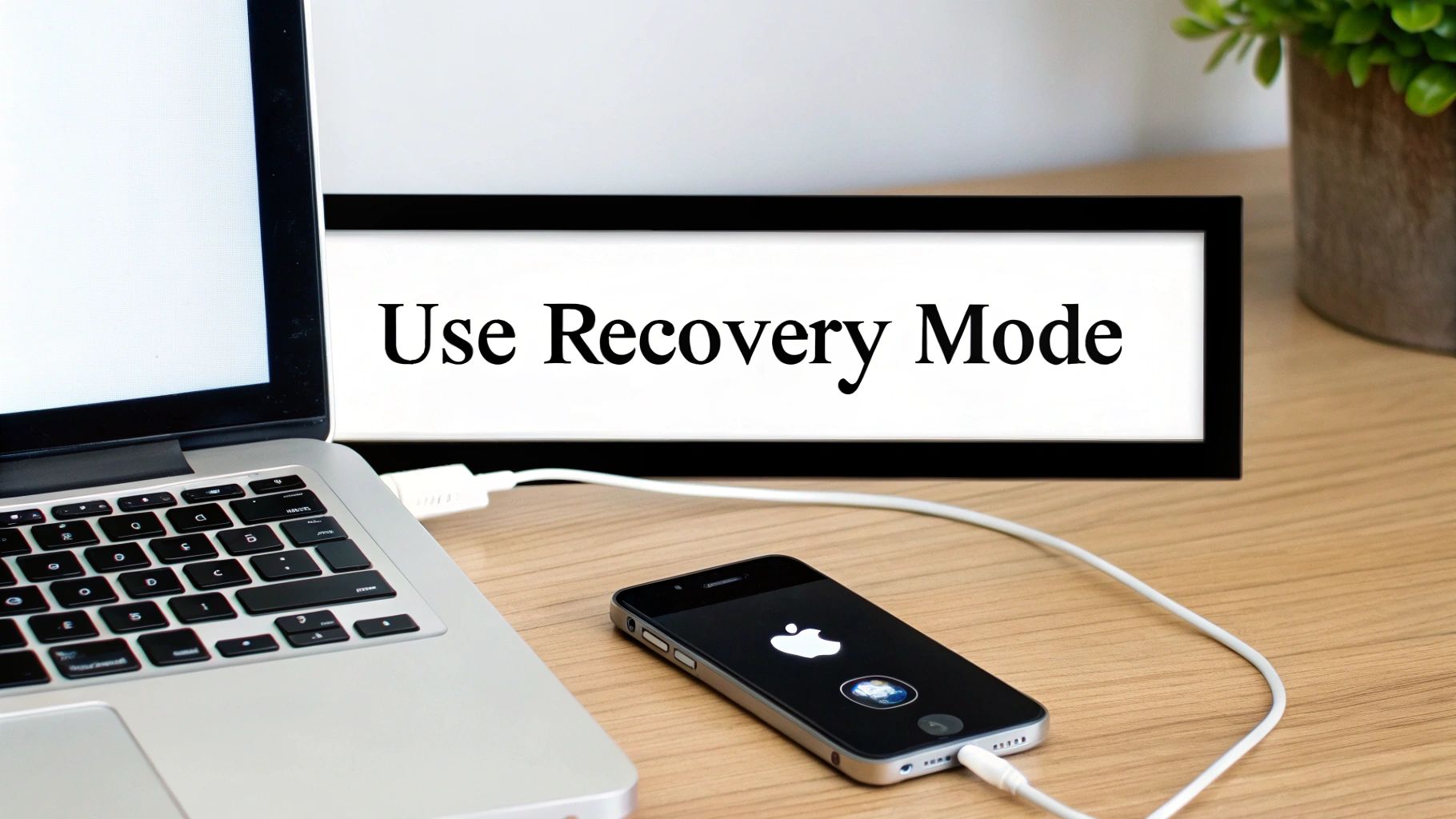
Sometimes the ‘Forgot Passcode?’ button just won't appear on your lock screen. This might happen if your iPhone isn't connected to the internet, or if it's an older model. Don't worry, there's another trusty way to get back in.
The next best method is using a computer. This might sound a bit grown-up, but Apple has made it pretty simple. All you need is your iPhone, its charging cable, and a Mac or Windows PC. We'll show you exactly what to do.
The plan here is to put your iPhone into a special mode called Recovery Mode. This mode lets your computer talk to the phone to do a full reset, which wipes the old passcode along with everything else.
Getting Your Computer Ready
First things first, let’s get your computer ready. Depending on whether you're using a Mac or a PC, the programme is slightly different, but it does the exact same job.
-
On a Mac, you don’t need to download anything special. The tool you need is called Finder, and it's already there. Just look for the smiling face icon in your dock.
-
If you're on a Windows PC, you’ll need to get a free programme from Apple called iTunes. If you don't have it, you can download it from Apple's website or the Microsoft Store. Once it’s installed, you’re ready to go.
Putting Your iPhone into Recovery Mode
This is the most important part of the plan. To get your iPhone into Recovery Mode, you need to press a special pattern of buttons. It's really important to follow the right steps for your phone, as the buttons are different for different models.
Remember, you need to press the buttons while you're plugging the phone into your computer. Don’t just plug it in and wait.
-
iPhone 8 and newer (including iPhone SE 2nd gen and later): Press and quickly let go of the Volume Up button. Straight away, press and quickly let go of the Volume Down button. Then, press and hold the Side button until you see the recovery mode screen.
-
iPhone 7 and iPhone 7 Plus: Press and hold both the Side button and the Volume Down button at the same time. Keep holding them until you see the recovery mode screen.
-
iPhone 6s and older (including iPhone SE 1st gen): Press and hold both the Home button and the Top (or Side) button together. Don't let go until the recovery mode screen pops up.
You'll know you’ve done it right when you see a picture on your iPhone of a cable pointing towards a computer symbol. That’s your signal that it’s ready.
Restoring Your iPhone with the Computer
With your iPhone in Recovery Mode and plugged in, a window should pop up on your computer in Finder (on a Mac) or iTunes (on a PC). It will say it has found an iPhone with a problem and that it needs to be restored.
You’ll see two choices: ‘Update’ or ‘Restore’.
You must choose Restore. ‘Update’ sounds friendlier, but it won’t work here because it tries to fix the phone without deleting your stuff—and that won’t get rid of the forgotten passcode. Clicking ‘Restore’ is the only way to move forward.
Your computer will now download the latest iPhone software and put it on your phone. This can take a little while, especially if the download is big, so just be patient. Don't unplug the cable until it's all finished. You'll see a progress bar on both your computer and your iPhone.
Once it's done, your iPhone will restart and show you the ‘Hello’ screen, just like it was new. From here, you can set it up all over again. The process is a lot like a normal factory reset; you can learn more in our guide on how to reset an iPhone to factory settings.
During setup, you’ll be asked to create a new passcode—pick one you’ll remember this time! Soon after, you'll get to a screen that lets you put all your data back from a recent iCloud or computer backup.
Getting Your Precious Stuff Back After the Reset
Phew, you’ve done it! You’ve managed to get back into your iPhone, even though you forgot the passcode. Your phone is now showing that friendly ‘Hello’ screen, just like it’s brand new. But wait… where are all your photos, games, and messages?
Don’t panic. Getting back into your phone was the hard part. Now for the fun bit: bringing all your precious things back home. This is where a backup is your superhero. If you've been saving a copy of your phone's data, you can put everything back just the way it was.
Choosing Your Backup: iCloud or Computer
As you set up your freshly wiped iPhone, you’ll come to a screen called ‘Apps & Data’. This is your magic door for getting everything back. You'll see a few choices, but the two most important ones are:
- Restore from iCloud Backup: This is perfect if you let your iPhone automatically save a copy of itself to the cloud. It’s super easy and doesn’t need any cables.
- Restore from Mac/PC: This is the one to choose if you've been plugging your phone into a computer and saving copies using Finder or iTunes.
Whichever you choose, the plan is the same: to turn your empty iPhone back into your iPhone. If you’re setting up a phone for the first time, our guide on how to set up your second-hand iPhone without losing data might be helpful.
Restoring From an iCloud Backup
If you choose to restore from iCloud, your iPhone will ask for your Apple ID and password. Once you sign in, it'll show you a list of your most recent backups. It’s usually best to pick the newest one to get back as much of your recent stuff as possible.
Here's a top tip: make sure you’re connected to a strong, steady Wi-Fi network. Restoring from iCloud means your iPhone is downloading all your information from the internet, and this can take a while, especially if you have lots of photos and videos.
Your iPhone will show a progress bar to let you know how it's getting on. You can start using your phone after the first bit of setup is done, but your apps will keep downloading in the background. Just keep it on Wi-Fi and plugged into a charger to speed things up.
What if You Used a Computer Backup?
If you chose to restore from a Mac or PC, the steps are a bit different. You'll need to plug your iPhone back into the same computer you used to wipe it.
Once it's plugged in, open Finder (on Mac) or iTunes (on PC) again. It should see your phone and give you the option to 'Restore from this backup'. Just like with iCloud, you can choose which backup you want to use. Pick the newest one, click 'Continue', and let your computer do the work. While you're at it, it’s a good time to learn more about overall data security practices when handling your gadgets.
What Does a Backup Actually Save?
It's good to know what you’ll get back. An iPhone backup is amazing, but it doesn't save absolutely everything. Here’s a quick look at what it brings back and what it might forget.
What you WILL get back:
- Your photos and videos from your Camera Roll
- Your contacts, calendars, and notes
- Your messages (iMessage and normal texts)
- How your apps were laid out on the Home Screen
- Your phone settings, like wallpapers and Wi-Fi passwords
What you might need to do again:
- Log back into some of your apps, like Instagram or your bank
- Re-download any music or films that weren't from Apple
- Set up your Face ID or Touch ID again for safety
After everything is restored, your iPhone should look and feel almost exactly the same as it did before you got locked out. Now you can get back to having fun, with all your memories safe and sound.
Tips for Not Getting Locked Out Again
Finally getting back into your iPhone is a massive relief. To make sure you don't end up in that sticky spot again, a few simple habits can make all the difference. The real trick is to create a passcode that’s easy for you to remember but a total puzzle for anyone else.
Let's start with the basics. A six-digit code is way safer than an old four-digit one. Think of it like this: a four-digit code has 10,000 possible combinations, but a six-digit one has a massive one million. That makes it much harder for someone to guess their way in.
Making a Stronger Passcode
For even better protection, you can set up a password using letters and symbols as well as numbers. This is called an alphanumeric code, and it could be a memorable phrase or a special mix of words and numbers that only you understand.
Want to set one up? Here's how:
- Go to Settings > Face ID & Passcode (or Touch ID & Passcode).
- Tap on Change Passcode.
- After typing in your old passcode, tap Passcode Options.
- From there, choose Custom Alphanumeric Code.
This gives you the strongest possible protection against anyone trying to get into your phone. Of course, keeping your phone safe is just as important. Looking after it is a big part of that, and you can find some great advice in our top tips to maintain a used mobile phone.
Make Friends with Face ID and Touch ID
Let's be honest, typing in a passcode every single time you unlock your phone can be a bit boring. This is where Face ID and Touch ID become your best friends. These clever features let you unlock your phone with just a look or a touch.
Using them means you won't have to type your passcode as much, which actually makes it less likely you’ll forget it. They're also brilliant for paying for apps or signing into your bank without having to remember another password.
A strong passcode is your main defence, especially with more phone thefts happening. Reports in the UK show that lots of phones are snatched every year. Using a unique six-digit passcode makes it much harder for a thief to guess it, and Apple now lets you lock important apps and settings behind Face ID to stop them from turning off location tracking. You can find out more about how to protect your iPhone from snatch thefts at cybersecurityspecialists.co.uk.
Protect Your Apple ID Password
Finally, and this is a big one, guard your Apple ID password like it's a secret treasure. It's just as important as your phone's passcode. As you’ve seen, your Apple ID is the master key to your whole digital world.
It's what lets you get to your iCloud backups, your bought apps, and the super important power to wipe your phone if you forget the passcode. If you lose your passcode AND your Apple ID password, getting your stuff back becomes almost impossible.
Keep your Apple ID password special—don't use it for other websites—and maybe even write it down and hide it somewhere safe at home. These simple habits will save you a world of trouble if you ever have another one of those "oops, I forgot" moments.
Common Questions About Forgotten iPhone Passcodes
Getting back into your iPhone can feel a bit confusing, and it's totally normal to have a few questions buzzing in your head. To make things easier, we’ve answered some of the most common ones with simple, straight-to-the-point answers.
Can I Get Back In Without Losing Everything?
This is the big one everyone asks, and sadly, the answer is no. If you've forgotten your iPhone passcode, the only way Apple lets you get back in is by completely wiping the phone clean. It's not a mistake; it's a powerful safety feature to keep your private information safe from nosy people.
Think of it this way: if someone could easily get past the passcode without deleting your stuff, all your photos, messages, and bank details would be in danger if your phone was ever lost or stolen. The wipe-and-restore plan is Apple's way of protecting you.
The only way to get your personal things back on your phone is by putting them back from a backup you made before you were locked out. This is why having regular iCloud or computer backups is so incredibly important—it’s your only safety rope.
What If I Forgot My Apple ID Password Too?
This definitely makes things trickier. Your Apple ID password is the master key to your digital life, and you need it for two very important things: wiping your iPhone from the lock screen, and getting your precious stuff back from an iCloud backup.
If this happens to you, your first job is to get your Apple ID password back. You can do this by going to Apple's iForgot website on a friend's phone or a computer. Just follow the instructions there to reset it.
Without your Apple ID password, you won't be able to turn off 'Find My'—a feature that must be switched off to reset your phone. It also means you won't be able to get to any of the backups you've saved in iCloud, leaving you without a way to get your photos and contacts back.
Can I Skip The 'iPhone Unavailable' Timer?
We've all been there—staring at a screen that says, 'iPhone Unavailable, try again in 1 hour'. It's annoying, but there's absolutely no way to skip this waiting time. This timer is another safety trick to stop someone (or even a machine) from trying hundreds of different passcode combinations really quickly.
Each time you type the wrong passcode, the waiting time gets longer. If you keep getting it wrong, the phone will eventually lock you out for good until you wipe it using one of the ways we've talked about. There are no secret tricks to skip the timer, so it’s best to just be patient.
Do Those 'Unlock Your iPhone' Websites Work?
You've probably seen them advertised online: websites and programmes that promise to unlock your iPhone if you forgot the passcode, often without losing any data. It’s best to be extremely careful with these. Apple's security is incredibly strong for a good reason.
Most of these other tools don't work like they say they do. Many are just scams to take your money, while others might try to put nasty viruses on your computer.
The only safe, guaranteed, and Apple-approved ways to get back into your iPhone are the ones we've explained in this guide. They all involve wiping your phone to protect your privacy and safety. Even after you get your iPhone working again, if you decide to get a new one later, knowing how to safely remove data before electronics recycling is super important to keep your information safe forever.
At Used Mobiles 4 U, we make it easy to get a high-quality, reliable refurbished phone without the brand-new price tag. All our devices are fully tested and come with a 18 Month Warranty, so you can buy with confidence. Explore our great deals today at https://usedmobiles4u.co.uk.
Looking for a refurbished phone?
Shop professionally tested refurbished iPhones and Samsung phones with 18 month warranty, 30 day returns and free UK delivery.
Browse Refurbished Phones






