





iPhone Not Turning On or Charging: A Practical Guide for UK Users

17/01/2026

13 Mins
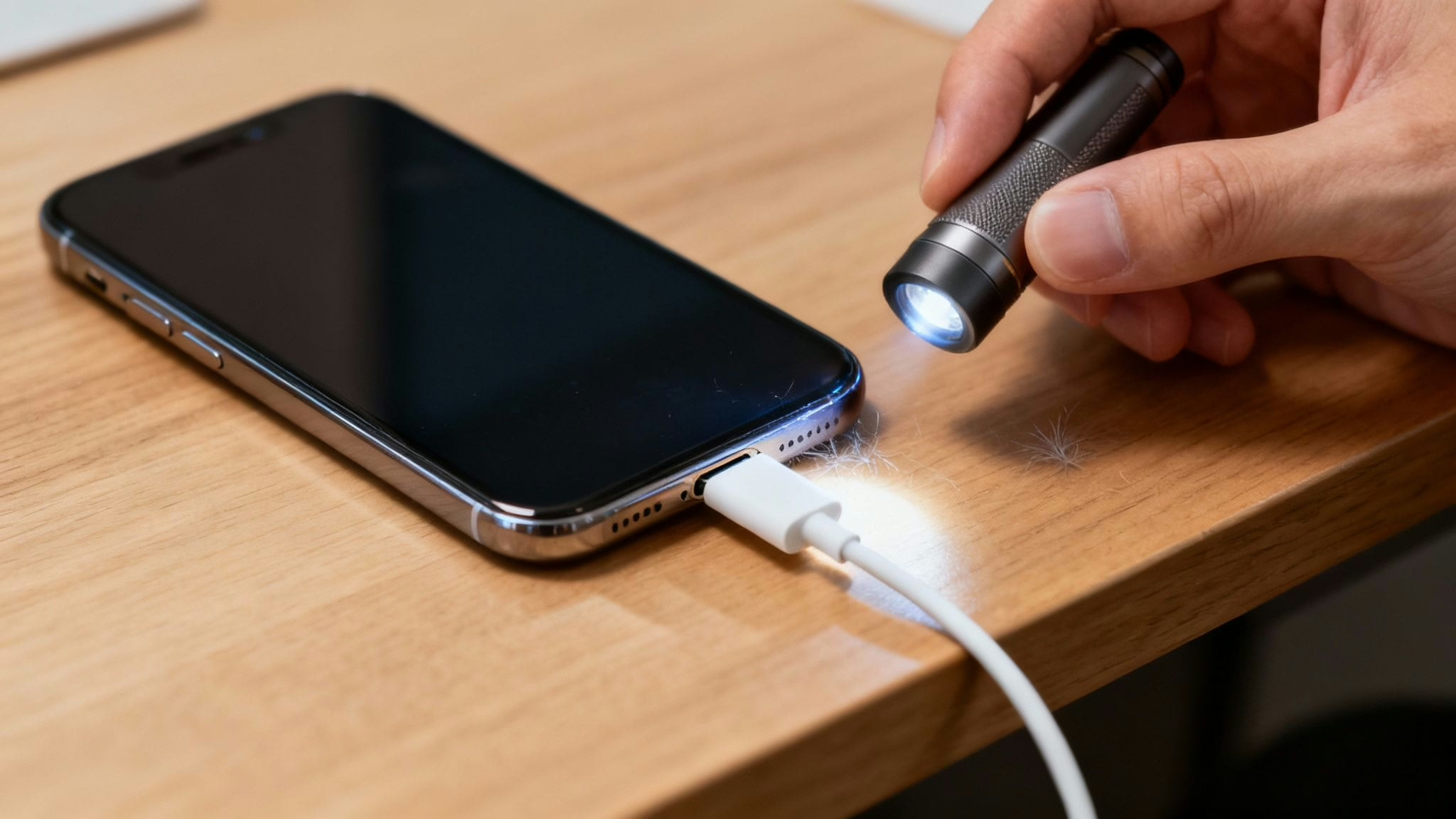
This guide will help you calmly and methodically work out why your iPhone won’t switch on or charge, and what you can do about it. We’ll cover simple checks, software fixes, and how to spot a bigger problem, especially if you have a used or refurbished mobile.
It’s a worrying moment: you press the side button on your iPhone, and nothing happens. The screen stays black. Plugging it in doesn’t bring up the charging symbol. If your iPhone has suddenly gone lifeless, don’t panic. More often than not, the fix is surprisingly simple and won't involve a trip to a repair shop.
When an iPhone is not turning on or charging, the most common cause is usually a combination of a completely flat battery and a minor problem with the charging process itself. Before fearing the worst, let's walk through the basics.
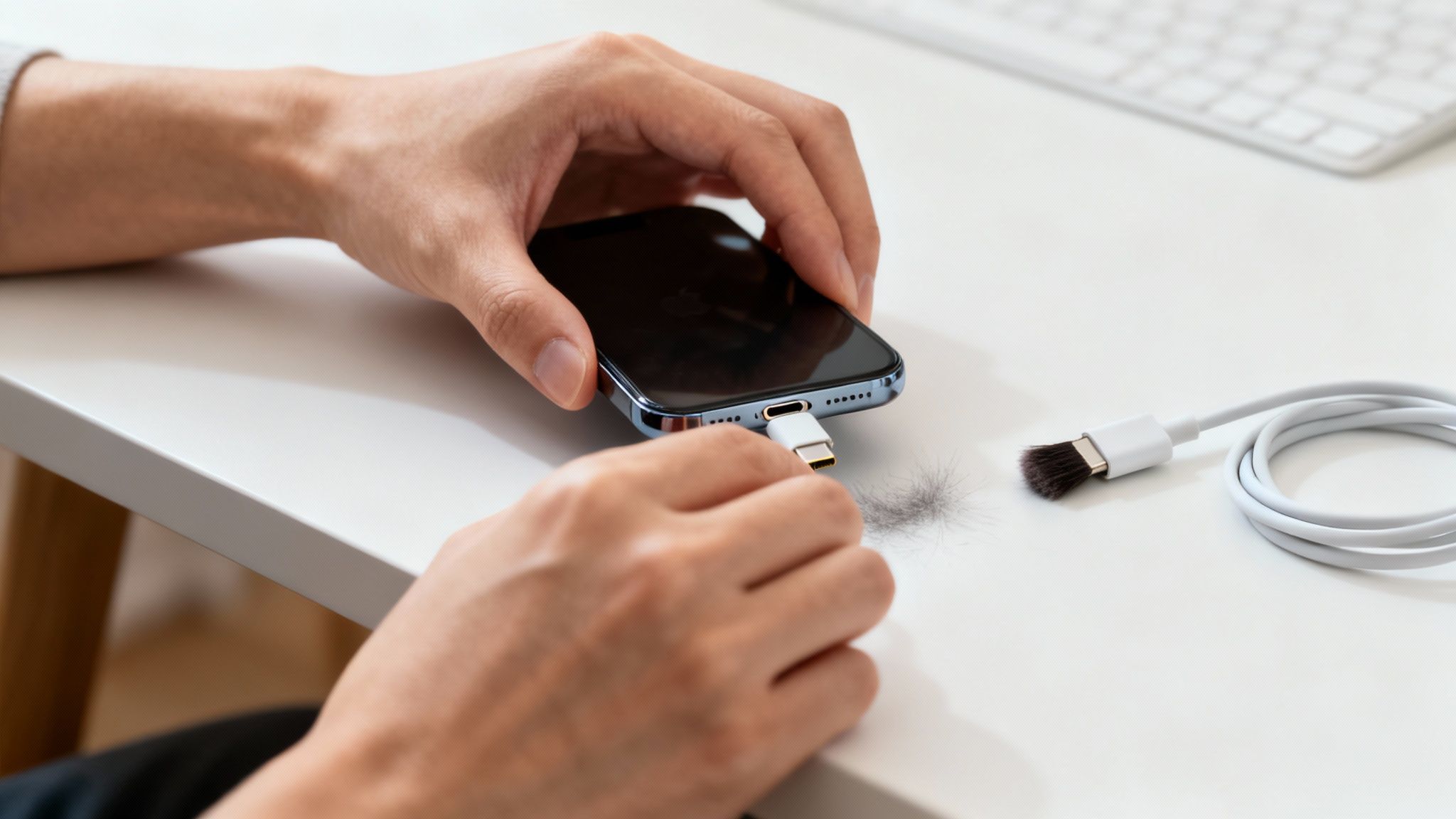
First, a quick tip: give the screen a good wipe. A very dim screen hidden under heavy smudges can sometimes look like it’s completely off. A decent iPhone screen cleaner spray can help make sure you're not missing anything.
First, Check Your Charging Setup
Before blaming the mobile, let's make sure power is actually getting to it. It’s amazing how often the problem lies with the cable or the wall plug.
- Try a different cable and plug: Grab a charging cable and wall adapter that you know are working. Borrow one from a family member if you have to. This is the quickest way to rule out faulty accessories.
- Test the wall socket: Plug a lamp or another appliance into the same socket to confirm it's delivering power. Sometimes the simplest check is the one we forget.
- Give it at least 30 minutes: If the battery is completely drained, it won't spring back to life instantly. Plug it into a reliable power source and leave it for half an hour. Be patient.
Next, Inspect the Charging Port
This is a common culprit, especially for used or refurbished phones. Pocket lint, dust, and other debris can get jammed in the Lightning port over time, forming a dense plug that stops the cable from connecting properly.
I remember a customer, David, who bought a refurbished iPhone 11 from us. A few weeks later, he called in a panic because it had stopped charging. He was ready to send it back, but a quick look inside the port revealed a solid clump of fluff from his work trousers. Once we carefully picked it out, it started charging perfectly.
How to Safely Clean the Port:
Do not stick anything metal in there like a paperclip or a pin, as you could damage the delicate charging contacts. Instead, use something non-conductive like a wooden or plastic toothpick to gently scrape out any debris. A few short bursts from a can of compressed air can also work well.
Initial Checks Quick Reference
This table provides a simple guide for what to do first when your iPhone's screen is black and it seems unresponsive.
These initial steps solve a surprising number of "dead" iPhone cases. If you’ve worked through all of the above and your phone is still unresponsive, it's time to dig a little deeper. For more general advice, you might find our guide on how to troubleshoot your used iPhone helpful as well.
Written by James Waterston — 24 years in the mobile phone industry from customer service to Sales Director of a global repair & recycling company; now running Used Mobiles 4 U for 8+ years. LinkedIn
How To Perform A Force Restart On Your iPhone
If you've checked all your charging gear and your iPhone is still unresponsive, don't worry. The problem is often not a hardware failure, but a simple software glitch that has frozen the operating system. A force restart is a highly effective way to solve this.
Think of it as the digital equivalent of unplugging your computer at the wall when it’s completely locked up. It momentarily cuts the power, forcing the iPhone to start up completely fresh. Most importantly, a force restart does not erase any of your data, making it a safe and effective step.
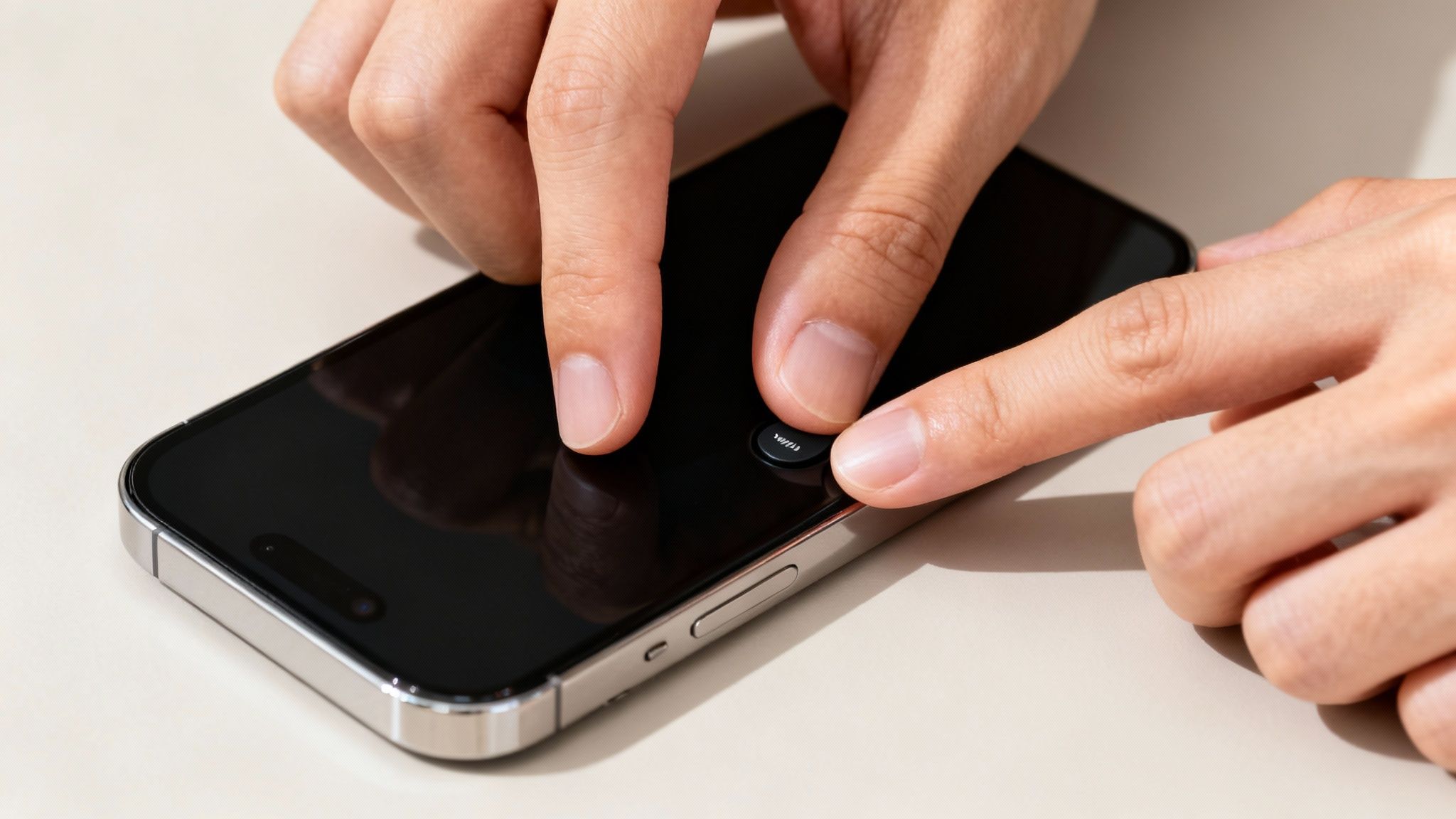
Many times when an iPhone is not turning on or charging, it's just a frozen screen making it appear dead. A force restart can often be the jolt it needs to spring back to life.
For iPhone 8, SE (2nd & 3rd Gen) and Later
Most modern iPhones—including popular refurbished models like the iPhone X, 11, and 12—use the same button combination. The key is to press them in a quick sequence.
- Press and quickly release the Volume Up button.
- Immediately after, press and quickly release the Volume Down button.
- Finally, press and hold the Side button (on the right-hand side).
- Keep holding the Side button until you see the Apple logo appear on the screen, then you can let go. This can take 10-20 seconds, so be patient.
For iPhone 7 and 7 Plus
The iPhone 7 and 7 Plus have a slightly different method because their Home button isn't a mechanical one.
- Press and hold both the Volume Down button and the Sleep/Wake button (on the right) at the same time.
- Keep holding them down together until the Apple logo appears, then release both buttons.
If a force restart does the trick, your hardware is probably fine. However, if you find your phone freezes frequently, it might be worth looking into some other common iPhone freezing fixes to stop it from happening again. If your iPhone is still not turning on or charging after trying this, it's time to dig a bit deeper.
Written by James Waterston — 24 years in the mobile phone industry from customer service to Sales Director of a global repair & recycling company; now running Used Mobiles 4 U for 8+ years. LinkedIn
Diagnosing Deeper Charging And Battery Issues
So, you’ve checked your charging gear and the force restart didn't work. It’s time to look deeper. At this stage, we’re usually looking at a problem with the charging port itself or a worn-out battery. Figuring out which one is the problem can help you decide what to do next if your iPhone is not turning on or charging.
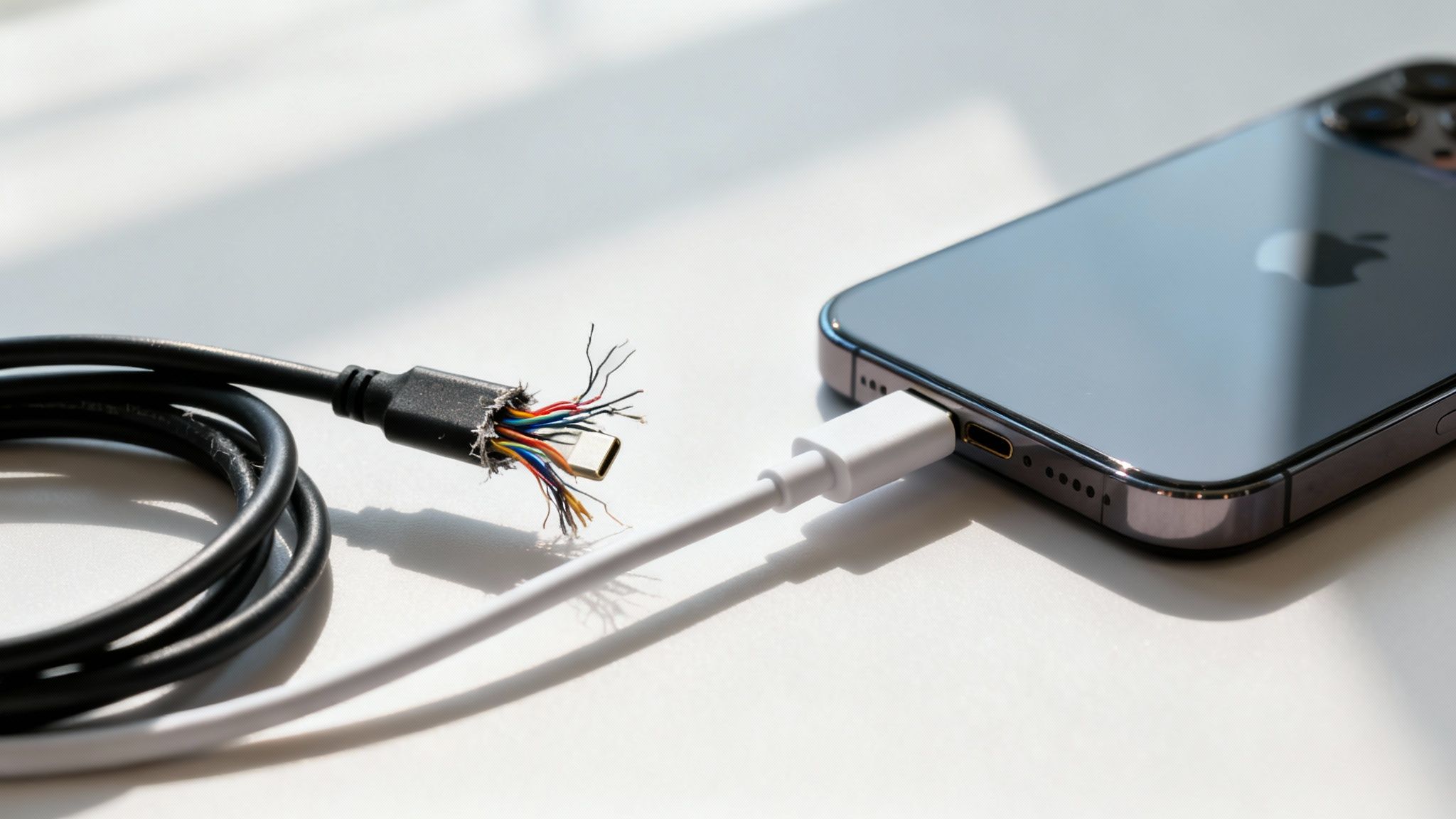
A dodgy charging port often gives you warning signs before it fails completely. Does the connection feel loose? Do you have to wiggle the cable just right to get it to charge? These are classic symptoms of physical wear and tear on the port’s internal pins.
The Dangers Of Cheap Cables
I can’t stress this enough: using cheap, non-certified charging cables is one of the quickest ways to damage your iPhone’s charging port or its internal circuitry. We see this all the time with used and refurbished mobiles where previous owners tried to save a few quid on accessories.
Genuine Apple cables (or MFi-certified ones) contain tiny microchips that communicate with your iPhone to ensure it gets a safe, regulated flow of power. Counterfeit cables often skip these vital safety features, leading to overheating and permanent damage.
Signs Of A Worn-Out Battery
If your cable and port seem fine, the battery is the next logical suspect. As a battery gets older, it loses its ability to hold a charge effectively. One of the biggest giveaways is when your iPhone suddenly shuts down, even though the battery indicator still shows plenty of power left—say, 30% or 40%.
This happens because an old battery can no longer provide the stable voltage the iPhone needs. When the power delivery becomes unstable, the mobile simply shuts off to protect its components. If the battery is completely worn out, it won't hold enough charge to even power on the screen.
Troubleshooting these kinds of power issues feels a bit like tracing a fault in a household appliance. You have to check each part of the system to find the failure, much like when you're fixing a lamp switch and have to test the plug, the wire, and the switch itself.
Signs Of Hardware Failure
This table should give you a better idea of what you’re dealing with. If the signs point to a battery problem, that's often a more straightforward fix than a damaged port. For more in-depth advice, our guide on what to do when your iPhone is not charging properly has some extra tips.
Written by James Waterston — 24 years in the mobile phone industry from customer service to Sales Director of a global repair & recycling company; now running Used Mobiles 4 U for 8+ years. LinkedIn
Using Recovery Mode for Serious Software Problems
If a force restart hasn't worked and you're sure the hardware is okay, you might be facing a deeper software problem. This is where Recovery Mode comes in. It’s a powerful tool that lets your computer communicate with your iPhone, even when the operating system (iOS) can't load properly.
Think of Recovery Mode as your next step when a failed update or a software glitch is the likely culprit behind your iPhone not turning on or charging. It creates a lifeline between your seemingly dead phone and a potential software fix.
Understanding Your Options: Update vs. Restore
Before you start, it's vital to know the two choices you'll face in Recovery Mode. Your computer will ask if you want to ‘Update’ or ‘Restore’.
- Update: This is the option you should always try first. It attempts to reinstall iOS without wiping your personal data. Your computer downloads a fresh copy of the operating system and tries to fix the issue while leaving your photos, messages, and apps intact.
- Restore: This is the last resort. It will completely erase your iPhone, deleting all your data and settings before installing a fresh version of iOS. It is a factory reset for a phone that won't even switch on.
CRITICAL DATA WARNING: Always back up your data regularly. Although the 'Update' option is designed to be safe, there's always a small risk when dealing with a faulty device. If you don’t have a recent backup and the 'Update' fails, you may be forced to 'Restore' and will lose everything on the mobile.
How to Enter Recovery Mode
You'll need a computer (a Mac, or a Windows PC with iTunes or the Apple Devices app installed) and your iPhone's charging cable. The process is similar to a force restart, but you keep holding the final button.
For iPhone 8, SE (2nd Gen & later), and Newer Models:
- Connect your iPhone to your computer using a USB cable.
- Press and quickly release the Volume Up button.
- Press and quickly release the Volume Down button.
- Press and hold the Side button. Keep holding it even when you see the Apple logo.
- Only release the Side button when you see the Recovery Mode screen on your iPhone—it looks like a cable pointing towards a computer icon.
Once your iPhone is in Recovery Mode, a window should appear on your computer asking you to 'Update' or 'Restore'. Always choose 'Update' first. If that fails and your iPhone still won't work, you may have to repeat the steps and consider 'Restore'—but only if you have a backup. For more details on resetting, our guide on how to reset an iPhone is a useful resource.
Written by James Waterston — 24 years in the mobile phone industry from customer service to Sales Director of a global repair & recycling company; now running Used Mobiles 4 U for 8+ years. LinkedIn
Identifying a True Hardware Failure
If you’ve tried a force restart and Recovery Mode, but your iPhone is still unresponsive, it’s time to consider that this isn't a software glitch. When an iPhone won't turn on or charge after you've exhausted all software fixes, you’re likely looking at a genuine hardware failure.
This could be a completely dead battery, a faulty charging port, or something more serious inside, like an issue with the main logic board. While every refurbished mobile we sell is thoroughly tested, electronic components can fail over time. The habits of a previous owner—perhaps they consistently used cheap chargers—can create weaknesses that don’t show up for months.

Common Signs of Hardware Problems
Sometimes, the phone gives you physical clues. Does your charging cable feel loose when plugged in? Or maybe the area around the port gets unusually hot? These are classic signs of a hardware fault. Across the UK, port issues—from impacted lint to simple wear and tear—are one of the most common jobs repair technicians tackle. You can read more about common iPhone repair issues from UK experts if you're curious.
Here are the main tell-tale signs to watch out for:
- Absolutely no signs of life. You've plugged it into a charger you know works, but the screen stays black. No dead battery icon, no vibration, nothing.
- Visible damage. Take a close look at the charging port. Can you see any pins that look bent or broken? Any discolouration that might point to heat damage?
- Overheating. If the phone gets unusually hot when plugged in, unplug it immediately. This could signal a short circuit in the port or the battery.
If you suspect a hardware problem, stop trying to force it to charge, as you could cause more damage. This is where having a solid warranty is crucial, as it gives you a clear path to getting the phone inspected and fixed without surprise costs. If you do get a replacement phone, our guide on how to transfer data to a new iPhone will come in handy.
Written by James Waterston — 24 years in the mobile phone industry from customer service to Sales Director of a global repair & recycling company; now running Used Mobiles 4 U for 8+ years. LinkedIn
Deciding Your Next Steps: Repair Or Replace?
If you’ve worked through all the software tricks and hardware checks, and your iPhone is still unresponsive, you’re almost certainly looking at a hardware fault. The big question now is a practical one: do you repair it, or is it time to replace it?
When your iPhone is not turning on or charging because of a confirmed hardware problem, your next steps depend on its warranty status, the potential repair cost, and the age of the phone.
Check Your Warranty Status
Before you spend any money, the very first thing to do is check if your iPhone is still under warranty.
- Apple Warranty: If your iPhone is less than a year old, or you have AppleCare+, contact Apple Support. You can check your coverage status on Apple's official website.
- Seller Warranty: If you bought a refurbished mobile, it should have come with a seller's warranty. Here at Used Mobiles 4 U, for example, every device includes a 18 Month Warranty. Check your original purchase details.
A warranty is your best friend in this situation, as a repair or replacement will likely be covered at no cost to you.
Weighing Up Repair Costs
If your mobile is out of warranty, you must decide if a repair is financially sensible. Some fixes, like a new battery or charging port, are relatively affordable. But if the problem is the main logic board, the cost can spiral and get close to the phone's value.
We’ve put together a detailed guide to help you figure out the costs involved. You can read it here: comparing iPhone repairs vs. refurbished phones. It will give you a clearer idea of when a repair is worth it.
Is It Time for a Replacement?
Sometimes, replacing the device is the most logical choice, especially for an older model where a costly repair doesn't make long-term sense. This is where choosing a high-quality refurbished iPhone becomes a brilliant alternative to buying brand new. You get a fully tested, reliable device with a fresh warranty at a much better price.
According to data from Uswitch, Apple has been the UK's market leader for nearly 14 consecutive years. This long-standing popularity means there’s a great supply of top-quality devices for the refurbished market, making a refurbished iPhone a smart and reliable choice.
When an older iPhone fails, pouring money into a significant repair can be a false economy. Often, putting that same money towards a certified refurbished model from a trusted seller gives you a better device with a fresh warranty, offering greater long-term value.
If you've decided it's time for a new device, explore our range of certified refurbished iPhones at Used Mobiles 4 U. All our mobiles come with a 18 Month Warranty and free next-day delivery, giving you a reliable and affordable upgrade.
Written by James Waterston — 24 years in the mobile phone industry from customer service to Sales Director of a global repair & recycling company; now running Used Mobiles 4 U for 8+ years. LinkedIn
Looking for a refurbished phone?
Shop professionally tested refurbished iPhones and Samsung phones with 18 month warranty, 30 day returns and free UK delivery.
Browse Refurbished Phones






