





What Samsung Phone Do I Have? Find Your Model in Seconds
Trying to figure out exactly which Samsung phone you have can be tricky, especially with a used or refurbished model. This guide will show you a few simple and reliable ways to identify your device, whether you're looking to sell it, buy accessories, or troubleshoot a problem.
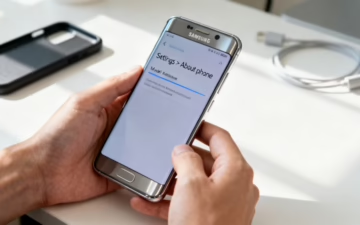
The quickest way to solve the mystery is to look in your mobile's settings. Just go to Settings > About phone. In there, you'll see the Model name (like Galaxy S23) and the Model number (which will look something like SM-S918B).
Getting familiar with both of these is surprisingly useful, whether you're planning to sell your mobile, hunt for the perfect case, or get to the bottom of a technical issue.
Why Knowing Your Samsung Model Matters
So, why does this matter so much? While the common name like "Galaxy S22 Ultra" is great for a quick search, that specific model number is where the real details are hiding. It tells you everything from the region the mobile was intended for to its exact hardware specifications.
This level of detail is especially critical if you're navigating the used and refurbished market. For instance, a customer recently bought what he thought was a UK-spec Galaxy S21 from an online marketplace. By checking the model number, he confirmed it was an 'SM-G991B'—the correct version for UK networks. That simple check gave him peace of mind that it would get the right software updates and work flawlessly with his SIM card.
There are plenty of everyday situations where you'll be glad you know your mobile's exact identity.
Common Reasons You Need to Know Your Samsung Model
| Reason | Why It Matters | Example Scenario |
|---|---|---|
| Selling or Trading In | You'll get a more accurate and fair price if you can provide the precise model details. | Listing a "Galaxy S21" is vague, but an "SM-G991B/DS" tells a buyer it's a UK/European dual-SIM model. |
| Buying Accessories | A perfect fit is everything. Cases and screen protectors are designed for specific dimensions. | A case made for the Galaxy A54 is just slightly different from one for the A53, and it simply won't fit. |
| Troubleshooting & Repairs | To find the right support guides or order correct repair parts, the model number is essential. | A replacement screen for a US model (SM-S908U) might not be compatible with a UK model (SM-S908B). |
| Checking Compatibility | Knowing the model ensures your mobile will work with new software or specific network technologies. | Confirming if your device supports a new carrier feature or the latest Android update often requires the model number. |
At the end of the day, knowing your model isn't just trivia; it's practical knowledge that helps you get the most out of your device.
Samsung offers a massive range of devices, from the high-end S-series flagships to the incredibly popular mid-range A-series. Being able to pinpoint which one you have is a genuinely useful skill. For over a decade, Samsung has been a powerhouse in the UK mobile market, a fact you can even see reflected in UK government data.
We'll show you exactly how to find the information you need, so you can manage your device with confidence. And if you're thinking about an upgrade, feel free to explore our range of refurbished Samsung Galaxy phones.
Check Your Phone's Settings for an Instant Answer
The quickest and most reliable way to figure out which Samsung phone you have is to look in the device's own software. Forget searching for the original box or receipts; the answer is already in your pocket. This method works on any functioning Samsung and gives you the exact details straight from the source. It’s always the first place I tell people to look.
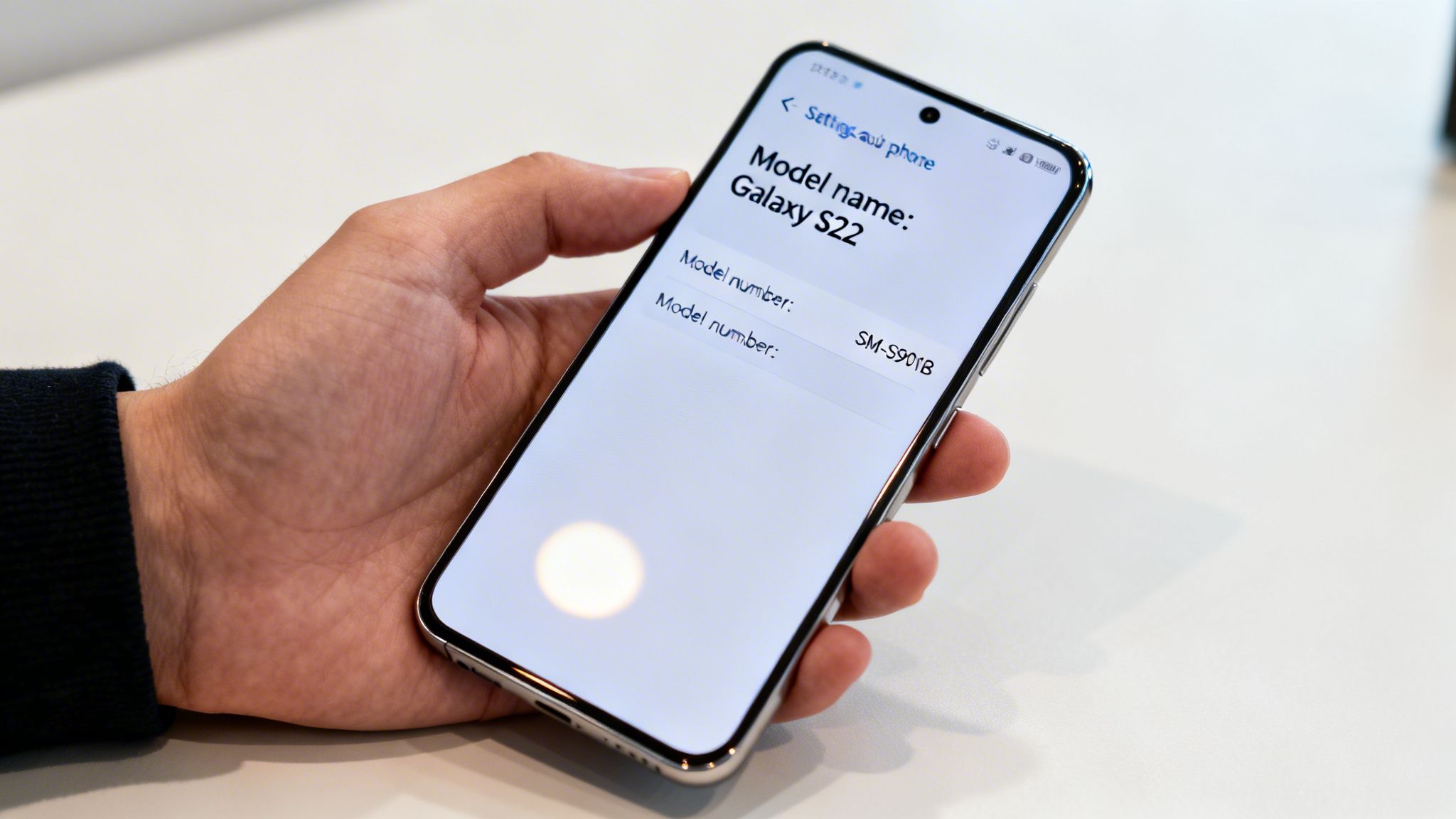
Just unlock your mobile and head straight to the settings. It’s a simple path:
- Tap the Settings icon (it looks like a cog).
- Scroll all the way down to the bottom of the menu.
- Tap on About phone.
On this screen, you’ll find everything you need. The two most important bits of information here are the Model name and the Model number.
Understanding Model Name vs Model Number
At first glance, these two might seem like the same thing, but they serve different purposes. Understanding the difference is important, especially if you’re dealing with a used or refurbished mobile.
Model Name: This is the common marketing name you’ll instantly recognise, like "Galaxy S22" or "Galaxy A53 5G". It’s perfect for general searches, like finding video tutorials or reading reviews.
Model Number: This is a much more specific code, something like "SM-S901B". This code is the real identifier, revealing the exact hardware, region, and sometimes even the original mobile network it was sold for.
That model number is the key to getting things right. For instance, it confirms whether your mobile is a UK or European variant (which often ends in 'B'). This is vital for making sure it’s compatible with local network bands and that it receives the correct software updates on time.
Real-World Example: Sarah just bought a refurbished Galaxy S23 online. Before she starts moving her data over, she heads straight to Settings > About phone. She checks and confirms the model number is SM-S911B, which gives her confidence that she’s received the genuine UK model she paid for and that it will work perfectly with her O2 SIM card.
While you're poking around in your phone's settings, it's a great time to brush up on other useful skills. For example, knowing how to capture a screenshot on your Android phone is handy for saving important info or sharing something with a friend.
Use the IMEI Number for a Deeper Device Check
What happens if your mobile won’t switch on, or the screen is too smashed to use? In those situations, you can’t exactly pop into the settings menu. Thankfully, there's another way to figure out which Samsung you have by using a unique code called the IMEI.
Every single mobile has a 15-digit International Mobile Equipment Identity (IMEI) number. The easiest way to think of it is as your mobile's fingerprint—it's completely unique to your device. This number becomes your best friend when the screen is broken or the battery is completely dead.
How to Find Your IMEI
You can usually find this number in a few different places, even if the mobile itself isn't working.
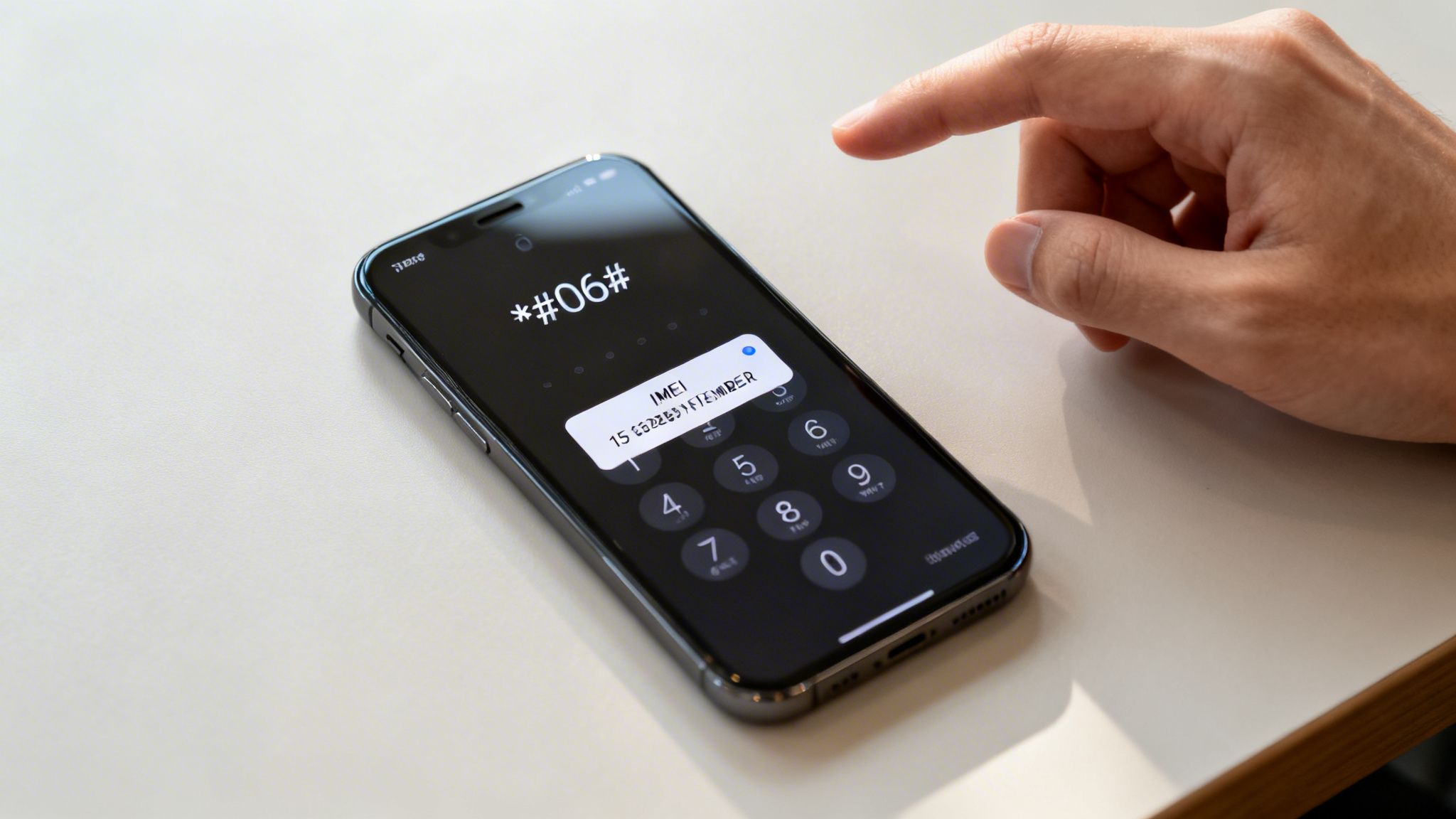
- Dial a Code: If your mobile does turn on and the screen works, the quickest method is to open the phone dialler and type in *#06#. A small box will instantly pop up showing your IMEI. You don't even need to press the call button.
- Check the SIM Tray: A common hiding spot for the IMEI is printed on the SIM card tray itself. Carefully pop it out with a SIM tool or the end of a paperclip, and you'll often find the 15-digit number printed in tiny text.
- Look on the Back: On some older Samsung models, the IMEI is printed right on the back of the mobile, usually in very small font towards the bottom.
- Find the Original Box: If you still have the box your mobile came in, look for a sticker on the side. The IMEI, serial number, and model number are almost always printed there.
Using an Online IMEI Checker
Once you've got the IMEI, you can use a free online tool to uncover more information. Websites like IMEI.info let you enter the number and get an instant report. This is particularly useful for anyone buying a used or refurbished device.
As you can see, you just type your number into the box and click 'Check'. The report it provides can tell you a lot more than just the model name.
You can often see things like the original network the mobile was locked to, its manufacturing date, and its warranty status. Crucially, it's also a way to check if a mobile has been reported as lost or stolen and blacklisted—a vital step before buying any second-hand mobile.
Warning: Before performing any troubleshooting steps, always back up your data if possible. While just checking an IMEI is perfectly safe, getting into the routine of backing up your mobile can prevent data loss if something goes wrong.
Using the IMEI gives you a powerful way to identify your mobile when other methods fail. For more tips on what to look for when buying second-hand, our guide on troubleshooting used phones can be a massive help.
Find the Model Number on the Device Itself
If you can't get into your mobile's settings—maybe it won't power on or the screen is broken—a quick physical check might be all you need. On many Samsung models, the model number is printed in tiny text directly on the back of the device. It's often the fastest way to figure out which Samsung you have without turning it on.
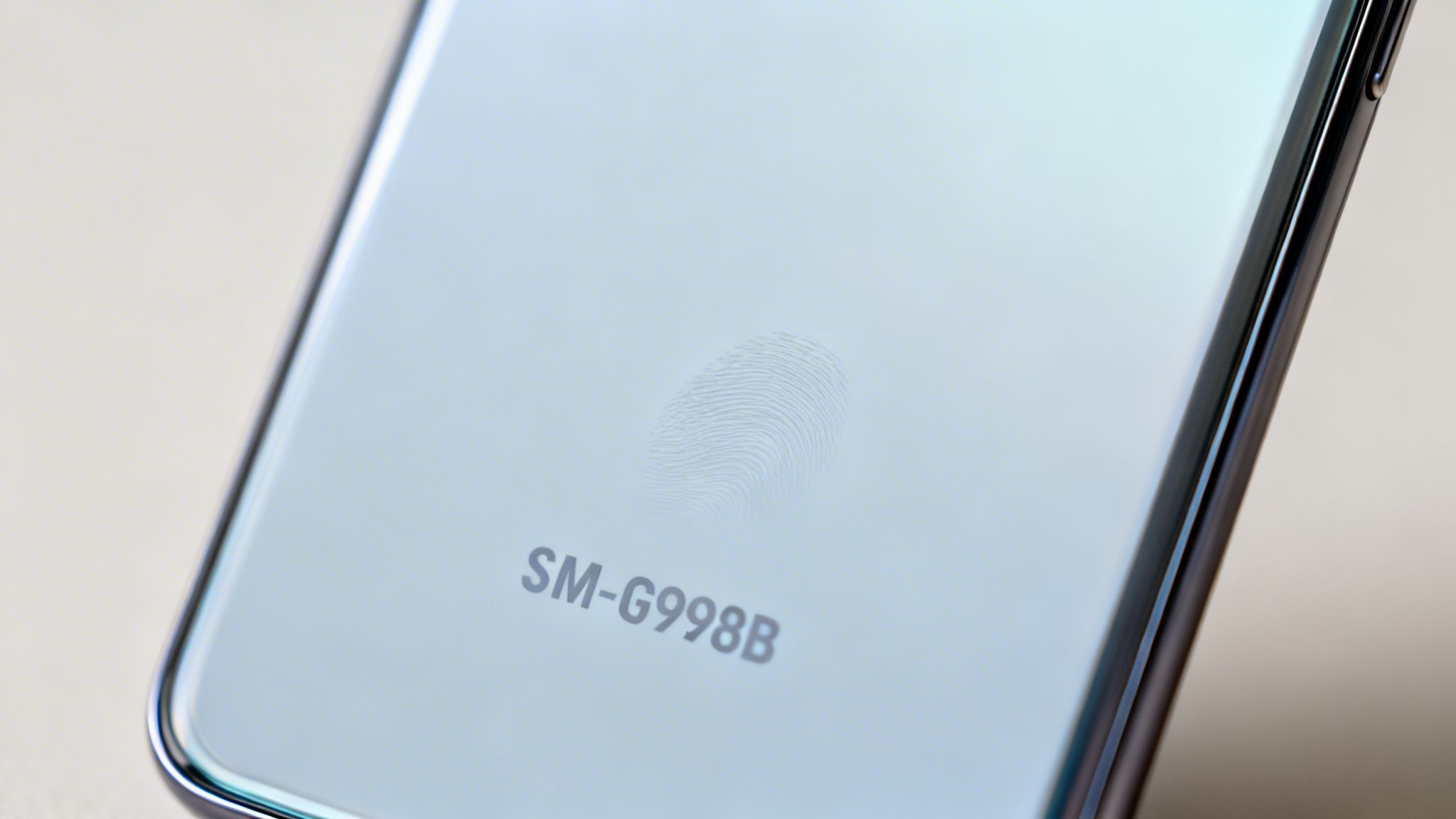
Grab your mobile and pop it under a good light source. You might need to tilt it a bit, but you're looking for a code near the bottom of the back panel. It'll almost always start with "SM-" followed by a string of letters and numbers, like SM-G998B. That's the exact model number.
Reading the Code
That code isn't random; it tells you a lot. For UK and European models, for instance, the final letter is often a 'B'. Seeing that is a good first sign the device was meant for our region, which is important for things like network compatibility and getting the right software updates.
Samsung has a huge presence in the UK, holding a significant market share. This brand loyalty is solid, and you can dig into more stats on UK mobile trends in this industry analysis from Netguru.
However, you should treat this physical check with a bit of caution.
A Note on Refurbished Phones: This method isn't foolproof, particularly with second-hand mobiles. If the mobile has been repaired, the back glass could have been swapped with a part from a different model. The printed code might not match what’s actually inside.
We’ve seen it happen. A customer buys a used mobile where the back casing was replaced during a repair with one from a different regional variant. The phone worked, but they had problems with software updates because the physical model number didn't match the software's identity.
Because of this risk, it's always best to verify the information in the software (Settings > About phone) if you can. If you suspect the parts have been changed, our guide on troubleshooting used phones has more advice on what to look out for. Think of the physical print as a helpful clue, but the software as the final word.
Confirm Hardware Specs with Diagnostic Apps
Sometimes, the 'About phone' screen doesn't quite tell the whole story. This is particularly true if you're checking out a used or refurbished mobile. For anyone who wants to be absolutely certain about the internal components, diagnostic apps give you a much deeper look. It’s a great step if you’re tech-savvy or just want peace of mind that the mobile has the exact parts it should.
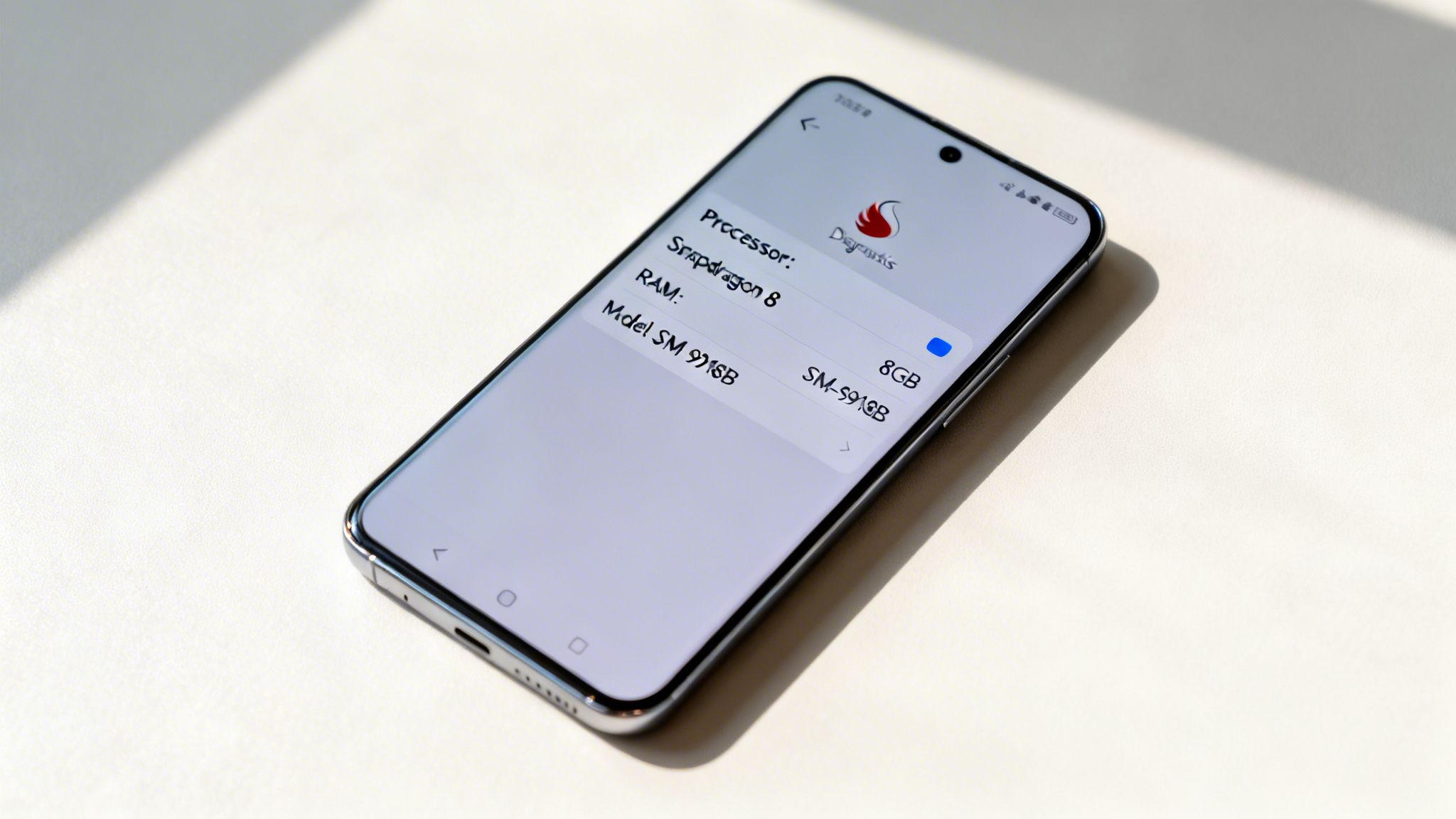
Free apps from the Google Play Store can give you a complete, detailed report on your mobile’s hardware, far beyond what you find in the standard settings menu.
Trusted Diagnostic Apps
Two of the most popular and trusted choices are brilliant for this:
- AIDA64: A well-respected tool that provides a breakdown of every single component, from the specific CPU model down to the screen resolution and sensor types.
- CPU-Z: Another excellent option, well-known for its clear and straightforward interface that shows key system information at a glance.
Using these apps couldn't be simpler. Just download one from the Google Play Store, open it up, and it will automatically scan your device. Within moments, you'll have a detailed list of all the hardware tucked away inside your mobile.
Here’s a real-world example: Imagine Tom is buying a refurbished Samsung Galaxy A52. The seller has advertised it as having 6GB of RAM. Before finalising the deal, Tom installs AIDA64. The app confirms the correct model number and shows 6GB of RAM, giving him confidence that the device is exactly as described.
This step is a great way to answer the question "what samsung phone do i have" with complete certainty about its internal specs. The Samsung Galaxy A52 is a popular mid-range model where confirming the specs can be particularly important.
Using Samsung Members
Another useful tool is Samsung's own Samsung Members app, which often comes pre-installed on their devices. If you're logged into a Samsung account, this app can provide official device information and run diagnostics, offering another layer of confirmation directly from the manufacturer.
Samsung has a long history of producing popular mobiles with varied specifications. Using a diagnostic app helps ensure you know exactly which one you're holding.
Putting Your Samsung Model Info to Good Use
Right, so you've nailed down exactly which Samsung phone you've got. What now? Knowing your precise model name and number isn't just for trivia; it's genuinely useful information you can use straight away.
Get an Accurate Quote for Selling or Trading In
Thinking of selling your mobile or trading it in for an upgrade? Your model number is the most important piece of information you can have.
Trying to get a quote with a vague description like "a blue Samsung Galaxy" just won't work. But if you provide the exact model number, like SM-A546B, anyone buying it knows precisely what they’re getting. This means you’ll get a much faster, more accurate valuation without any guesswork.
Find Accessories That Actually Fit
If you're planning on keeping your mobile, the model name is your best friend for finding cases, screen protectors, and other extras. A quick search for a "Galaxy S23 case" or a "Galaxy A14 screen protector" will show you products specifically designed to fit your device perfectly, ensuring it's properly protected.
This applies across the whole Samsung ecosystem, too. For example, if you're trying to find a new strap for your smartwatch, knowing the model is key. This handy guide to Samsung Galaxy Watch 4 straps shows just how important it is for getting the right fit.
Troubleshooting and Upgrades Made Easy
When something goes wrong or you need technical help, your model number is the key to finding a solution online. Searching for a "how-to" guide with your specific model number means the instructions and diagrams you find will match your device exactly. No more confusion.
Real-World Scenario: Let's say you've just bought a new Samsung and need to move everything over from your old one. Knowing the exact models is step one. For instance, a common upgrade path is moving from an older Galaxy S20 (SM-G980F) to a newer Galaxy S24 (SM-S921B).
Having this info makes the whole process smoother. If you get stuck, our guide on how to transfer data from used Samsung phones to a new Android walks you through it without any fuss.
Common Questions Answered
When you're trying to figure out exactly which Samsung you're holding, a few common questions always pop up. Let's clear up some of that confusion.
Can I Trust the Box My Phone Came In?
In a perfect world, yes. But if you’ve picked up a used or refurbished mobile, you should never take what’s on the box as the final word. It’s surprisingly common for mobiles to end up in the wrong packaging during a resale or after being repaired.
The only way to be 100% certain is to check the details in the mobile’s software. The information you find in Settings > About phone will always be more reliable than what’s printed on any packaging.
Why Are There So Many Model Numbers for the Same Phone?
This is a really common question. Samsung creates slightly different versions of the same headline model for various global regions and specific mobile networks. For example, a Galaxy S24 sold in the UK will have a different model number (like SM-S921B) compared to one sold in America.
These small differences can affect which network technologies the mobile supports (like 5G bands) and how quickly it gets software updates. That's why checking for a UK-specific model is so important when buying second-hand. It's the key to answering the question, "what Samsung phone do I have?"
As a rule of thumb for UK devices, keep an eye out for a model number ending in 'B'. This usually signals that the phone was made for the UK and European market, guaranteeing full compatibility over here.
What if the Phone Won’t Turn On and I Don't Have the Box?
Even if the screen is completely dead, you're not out of luck. You still have a couple of solid options to identify it.
First, take a very close look at the tiny print on the back of the mobile. The model number is often etched right there, though you might need good lighting to see it.
If you can't spot it, your next best bet is the SIM tray. Carefully pop it out using a SIM tool or an unfolded paperclip. On many Samsung models, the 15-digit IMEI number is printed directly on the tray itself. You can then put this number into an online IMEI checker to reveal the exact model.
For more helpful advice, check out our guide on buying used Samsung phones in the UK.
Written by James Waterston — 24 years in the mobile phone industry from customer service to Sales Director of a global repair & recycling company; now running Used Mobiles 4 U for 8+ years. LinkedIn







