





What Make Is My Phone? A Simple UK Guide to Find Out

31/01/2026

7 Mins
This guide gives you clear, practical steps to identify your mobile phone's make and model, whether you're selling an old device, buying a used one, or just need to find a compatible accessory. We'll show you how to find the answer in under a minute using your phone's settings or by checking its physical details if it won't turn on.
Why Knowing Your Phone’s Make Matters
Before you can sell your phone, buy a compatible accessory, or even troubleshoot a problem, you need to know exactly what device you’re holding. This guide gives you clear, practical steps to identify your phone quickly and without any fuss.
We’ll walk you through finding the answer using:
- Your phone’s built-in software settings (for both Apple and Android devices)
- Physical clues like logos and model numbers if it won’t power on
Just the other day, a customer wanted to sell us their old iPhone but wasn’t sure if it was a standard model or a Pro version. By following the simple steps we've laid out here, they confirmed the exact model in seconds and got a precise quote. This guide will help you do the same.
Using Your Phone's Settings — The Most Reliable Method
If your phone still powers on, the quickest and most reliable way to find out what make and model it is lies right inside its own software. This method is always accurate, even if the outer casing has been swapped out during a repair, as the information is pulled directly from the phone's hardware.
Checking an Apple iPhone
On an iPhone, this process is very straightforward and consistent across recent iOS versions. This screen will show you the official name Apple uses for marketing, so there's no confusion.
Here’s the exact path to follow:
- Open the Settings app (the grey cogwheel icon).
- Tap General.
- Tap About.
Right at the top of the screen, you'll see the Model Name listed clearly, such as "iPhone 14 Pro". This is the definitive answer.
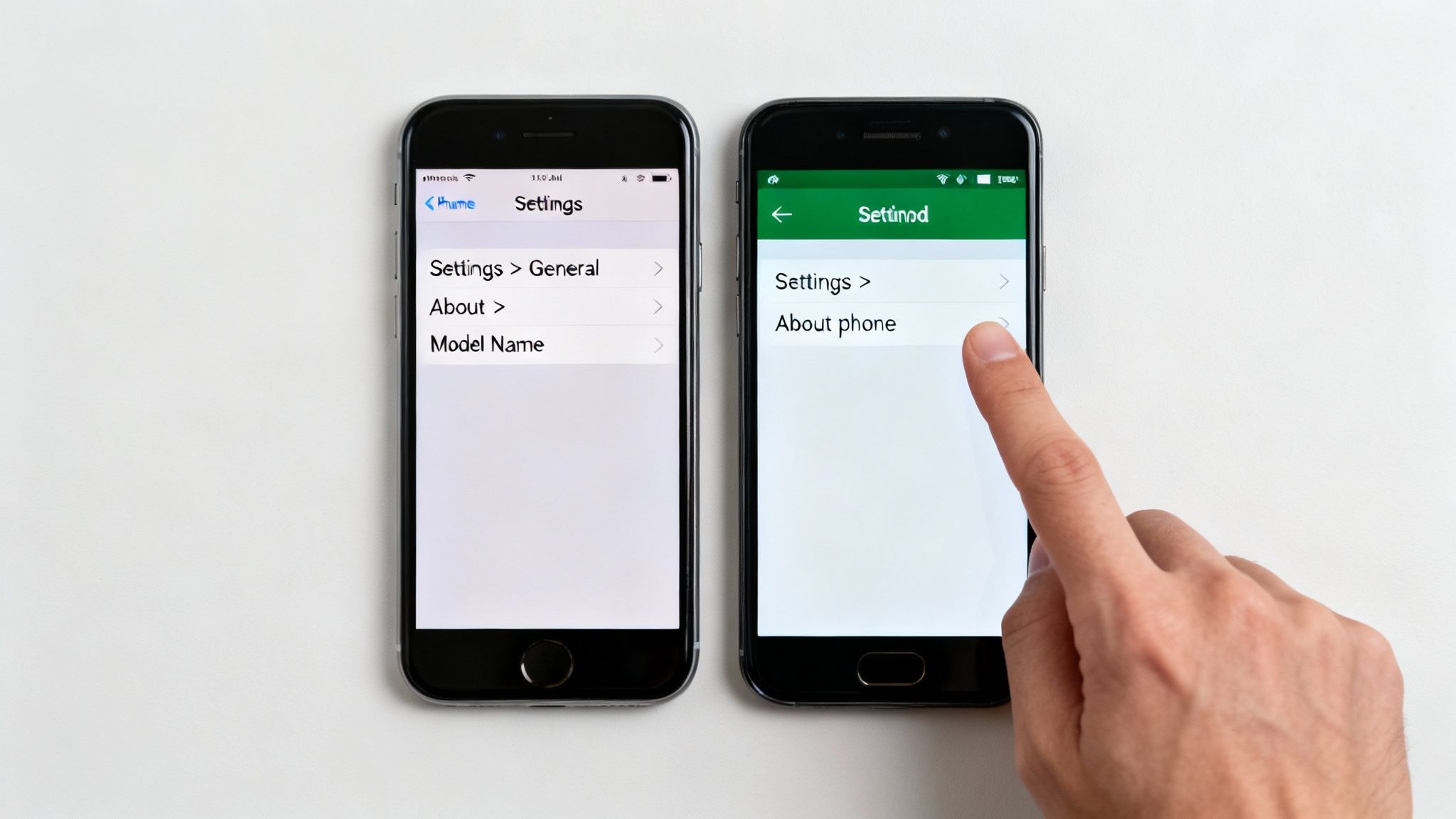
This screen gives you the definitive answer—like "iPhone 14 Pro"—leaving no room for guesswork. If you need to dig a little deeper into model numbers, you can learn more about how to determine the model of an iPhone in our separate guide.
Finding Details on an Android Phone
For Android devices from brands like Samsung, Google, or OnePlus, the steps are very similar, though the menu names can sometimes differ slightly between manufacturers. Almost every brand puts this information under a menu called "About phone."
The usual path is:
- Go to Settings > About phone.
Once there, you'll find the Model or Device name, which will plainly state what you're holding (for example, Samsung Galaxy S23). If you have trouble finding it, use the search bar at the top of your Settings menu.
Finding Clues on the Outside of Your Phone
What happens if your phone’s battery is completely dead, or the screen is too damaged to use? Even if you can’t get into the settings, you can still figure out what make is my phone by looking at its physical features.
Almost every phone has its manufacturer’s logo printed clearly on the back. You can usually spot the familiar Apple silhouette or the brand names of Samsung, Google, Huawei, or others. This tells you the ‘make’ straight away, but not the specific model.
Finding the Model Number
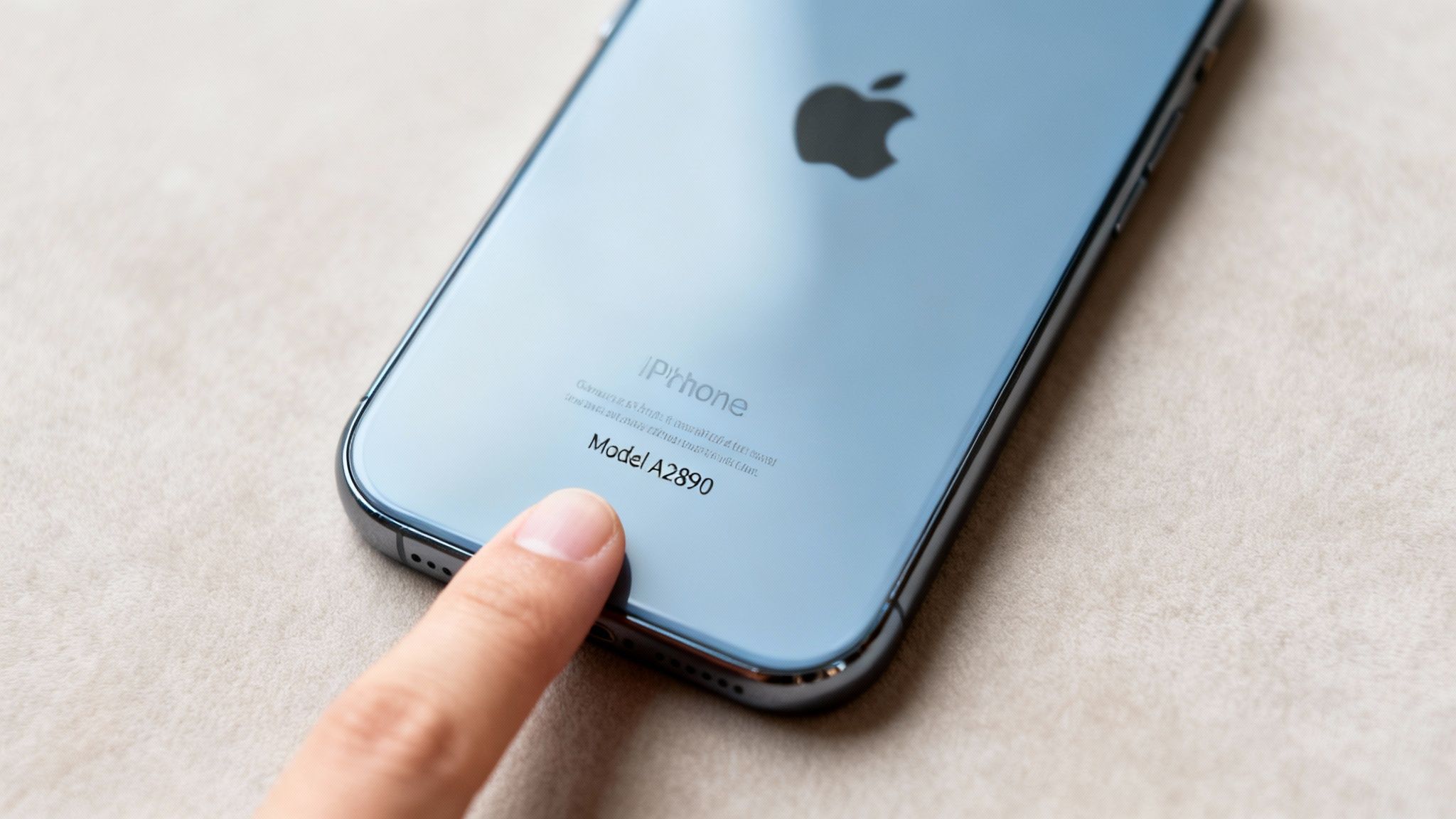
For a more precise identification, you need to find the model number. This is a small code that identifies the exact version of the handset you’re holding.
Look for it in these places:
- On the back casing: Many phones have this printed in tiny text at the bottom. For iPhones, it often starts with the letter 'A' followed by four numbers (e.g., A2890).
- Inside the SIM tray: Carefully eject the SIM card tray using a SIM tool or paperclip. The model number is sometimes etched onto the tray itself or just inside the slot.
Once you find this code, a quick online search for "phone model A2890" will instantly tell you it’s an iPhone 14 Pro. For example, a customer recently brought in a phone that wouldn't turn on. By finding the model number on the back, we confirmed it was a high-spec iPhone X and could give them an accurate quote for the repair. You can explore more about the specifications of the iPhone X on our blog.
Why Certain Phone Brands Dominate the UK Market
If you’re trying to figure out what make is my phone, there’s a very good chance it’s one of just two brands. In the UK, the mobile market is dominated by Apple and Samsung, built on years of brand loyalty and slick software ecosystems.
According to data from Ofcom's 2023 Communications Market Report, Apple is the most popular manufacturer, followed by Samsung. This popularity means there’s a huge market for buying, selling, and repairing iPhones and Samsung Galaxy devices.
What This Means for You
This market dominance has a direct effect on the world of used and refurbished mobiles. Because there are so many iPhones and Samsung devices out there, they tend to hold their value well and have excellent availability of spare parts for repairs.
This ecosystem provides a few key benefits for you:
- Higher Resale Value: Popular models from Apple and Samsung are always in demand, meaning you’ll likely get a better price when you decide to sell.
- Wide Availability: Finding a high-quality refurbished model that suits your budget is much easier when dealing with these top brands.
- Easier Repairs: Technicians are familiar with these devices, and parts are easy to get hold of, making repairs quicker and often cheaper.
So, if you discover you’ve got an iPhone or a Samsung, its widespread use makes it a straightforward device to sell or trade in. This is something we look at more closely in our guide to Samsung vs Apple and which is best for you.
Understanding Your Phone's Model Number and IMEI
Beyond the brand name, every phone has two unique identifiers: the model number and the IMEI number. Knowing these is key when you're trying to figure out exactly what make is my phone.
The model number tells you the specific version of the device. The IMEI (International Mobile Equipment Identity) is a 15-digit code that is completely unique to your handset. No other phone on the planet shares it.
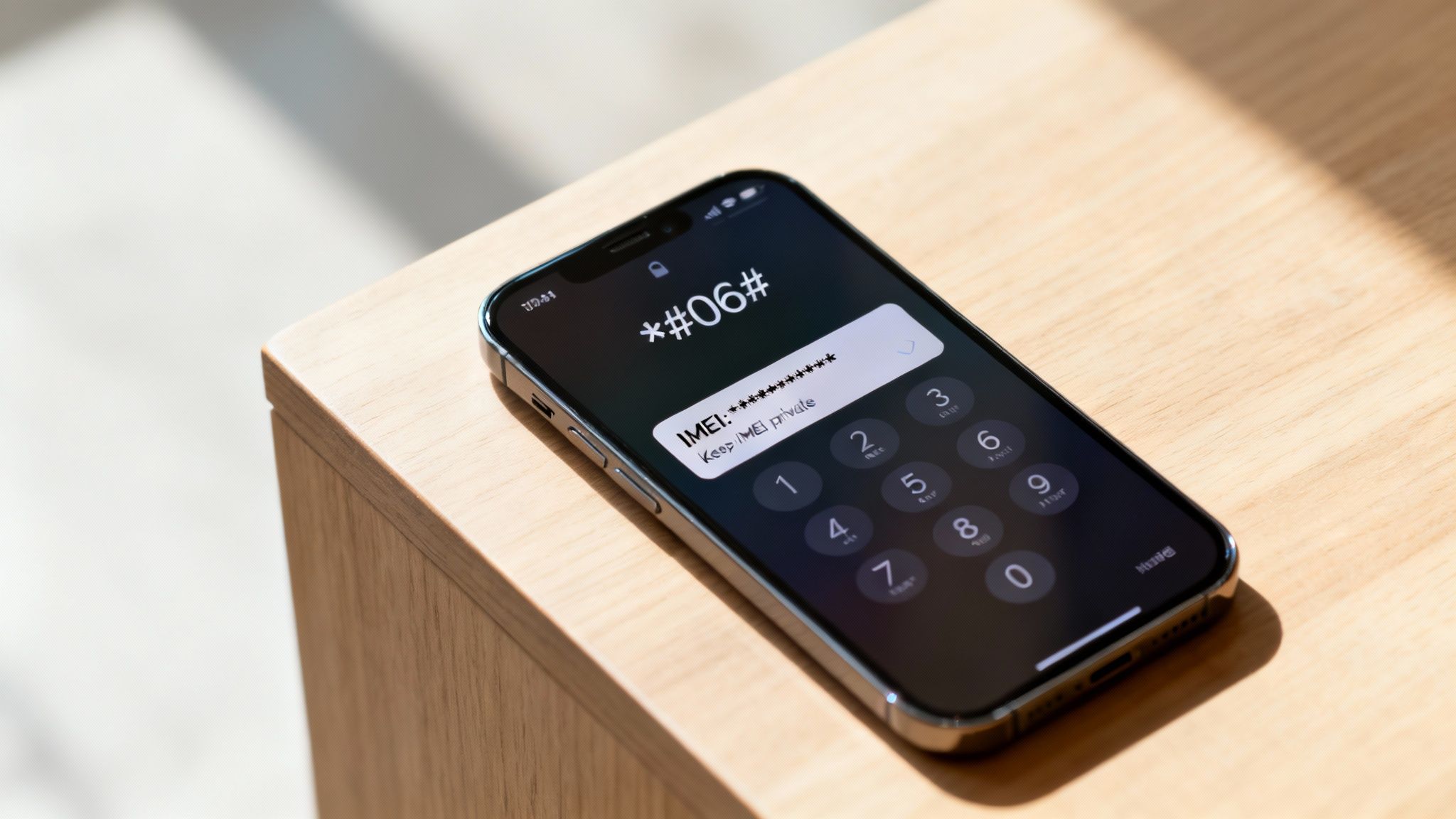
How to Find Your IMEI Quickly
Thankfully, there’s a universal shortcut to find your IMEI that works on almost any phone, no matter the make or model.
- Open your phone's keypad, as if you were about to make a call.
- Type in this code: *#06#
- Your IMEI number will instantly appear on the screen.
You can also find it in your phone’s settings menu, usually in the same 'About' section where you found the model name.
Important Warning: Your IMEI is sensitive information. Never share it publicly on social media or forums. It can be used to block your phone from network services, so only give it to trusted parties like your mobile network or a reputable repair shop.
The IMEI is essential if your phone is lost or stolen, as your network provider can block the device. It's also the number you'll need to check a device's warranty status or verify the history of a refurbished phone before you buy it. If you are preparing to sell your mobile, you might need to factory reset it, but always back up your data first.
What to Do After You Identify Your Phone
Now that you’ve successfully figured out what phone you’re holding, you can take the next step. Knowing the exact model is vital whether you're getting to know a new device or preparing an old one for sale.
If you plan to upgrade, the model name is essential for getting an accurate quote. You can easily find out what your mobile is worth by selling your old phone in the UK through a trusted trade-in programme.
If you've just bought a refurbished phone, your next steps might be to transfer data from your old mobile or check its warranty status. Whatever your goal, identifying your phone is always the key that unlocks what comes next.
Common Questions About Identifying Your Phone
Here are a few common questions we get from customers trying to figure out what make is my phone.
What if the model number in settings is different from the one on the phone's back?
This can happen if the phone has been repaired using parts from another model, like a new back casing. In these cases, the information in the software is always the most reliable source. The details in Settings > General > About come directly from the phone’s main logic board, which is the ultimate source of truth.
I found the make, but how do I check if my phone is unlocked?
The easiest way to check is to insert a SIM card from a different mobile network. If the phone registers the network and you can make a call, it's unlocked.
You can also find this information in the settings:
- On an iPhone: Go to Settings > General > About. Scroll down to ‘Network Provider Lock’. If it says ‘No SIM restrictions’, it's unlocked.
- On an Android: This can vary, but you'll usually find it under Settings > Network & internet > SIMs. Check for an option related to 'Network lock' or 'SIM lock status'.
Can an online IMEI checker tell me the make and model?
Yes, this is a very accurate method. Dial *#06# to get the 15-digit IMEI number, then enter it into a reputable online IMEI checker service. These tools are linked to global databases and can instantly pull up the exact make, model, colour, and storage capacity of your device.
Written by James Waterston — 24 years in the mobile phone industry from customer service to Sales Director of a global repair & recycling company; now running Used Mobiles 4 U for 8+ years. LinkedIn







