





How to Find Out Which iPhone Model You Have: A Super Simple Guide

04/11/2025

10 Mins
Have you ever been asked which iPhone you have and just stared back with a blank look? It happens to the best of us! Knowing your exact model is really useful, whether you're buying a new case that actually fits or just checking if you can get the latest cool update.
Luckily, finding out is super easy. The quickest way is to dive into your phone’s Settings app, where the ‘Model Name’ is waiting for you just a few taps away. You'll have your answer in seconds.
Why Knowing Your iPhone Model Is Helpful
It might seem like a small thing, but being able to tell which iPhone model you have comes in handy more often than you’d think. Trying to buy a new phone case? The wrong one just won't do. Wondering if you can download that cool new iOS update? Some older models can't run the newest software, so a quick check saves you a lot of bother.
This is also really important if you're planning to sell your phone or looking to buy a second-hand one. You need to be certain you're getting exactly what you're paying for. For more on this, our guide on what to check before buying a used iPhone is packed with brilliant tips.
Finding Your Place in the iPhone Family
Knowing your model also gives you a better idea of its special features. For example, only the newer 'Pro' models have that amazing three-camera setup on the back for taking brilliant photos. It's always interesting to see which iPhones are the most popular too.
In the UK, the iPhone 13 is still the firm favourite for 15.93% of users, with the iPhone 15 and iPhone 14 Pro not far behind. This tells us a lot of people are using recent models that often have similar designs and features. You can look at more stats about iPhone popularity from TelemetryDeck's latest survey.
Think of your iPhone model like your home address. It helps you get the right accessories, the correct software updates, and the proper support when you need it most.
To make things even clearer, let's break down the easiest ways to check your model right now.
Here's a quick summary of the simplest checks you can do to find out which iPhone you have in just a few moments.
Quick iPhone Model Check via Settings
These methods are the easiest and will give you a clear answer without any fuss.
Using the Settings App for a Clear Answer
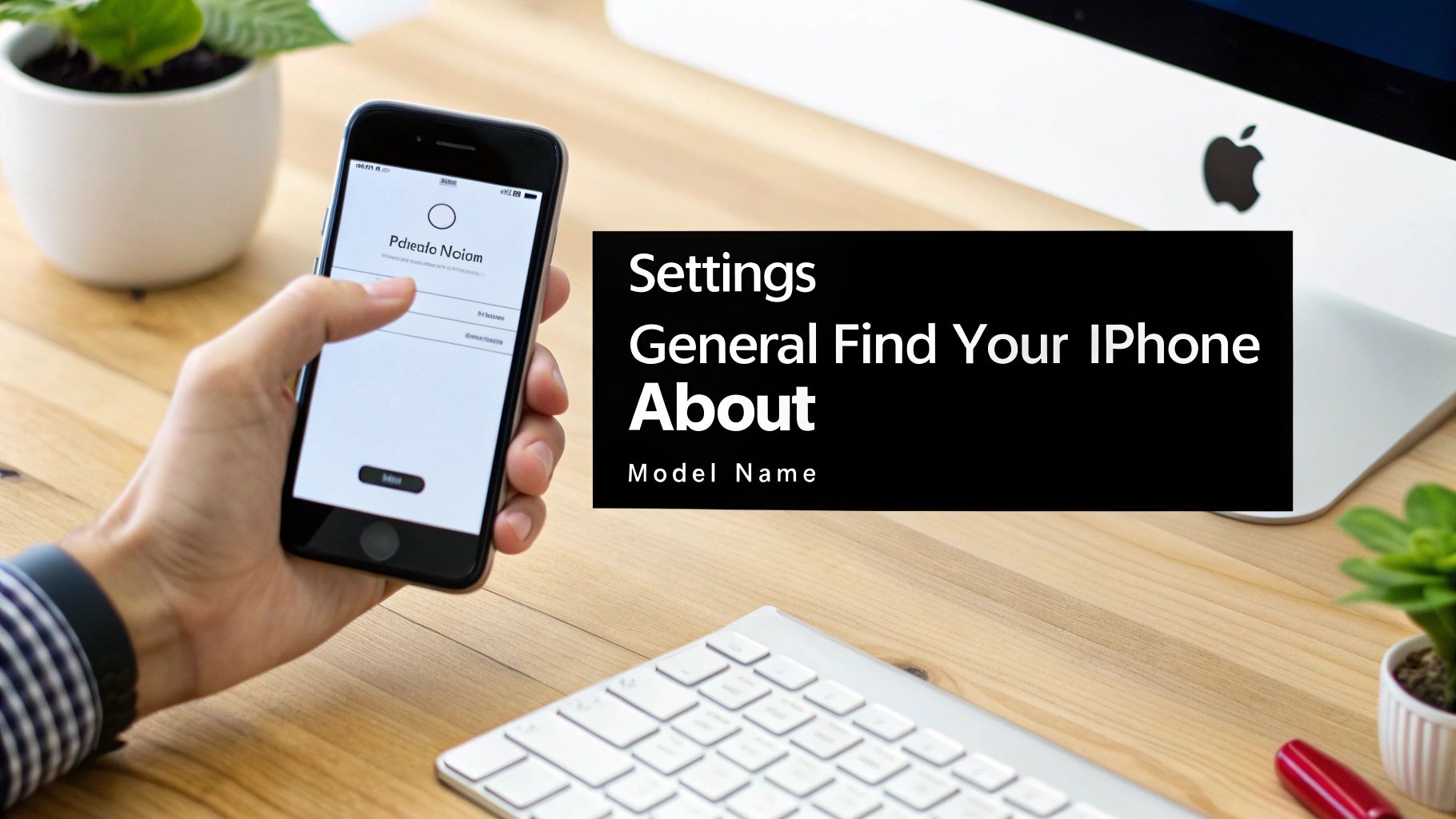
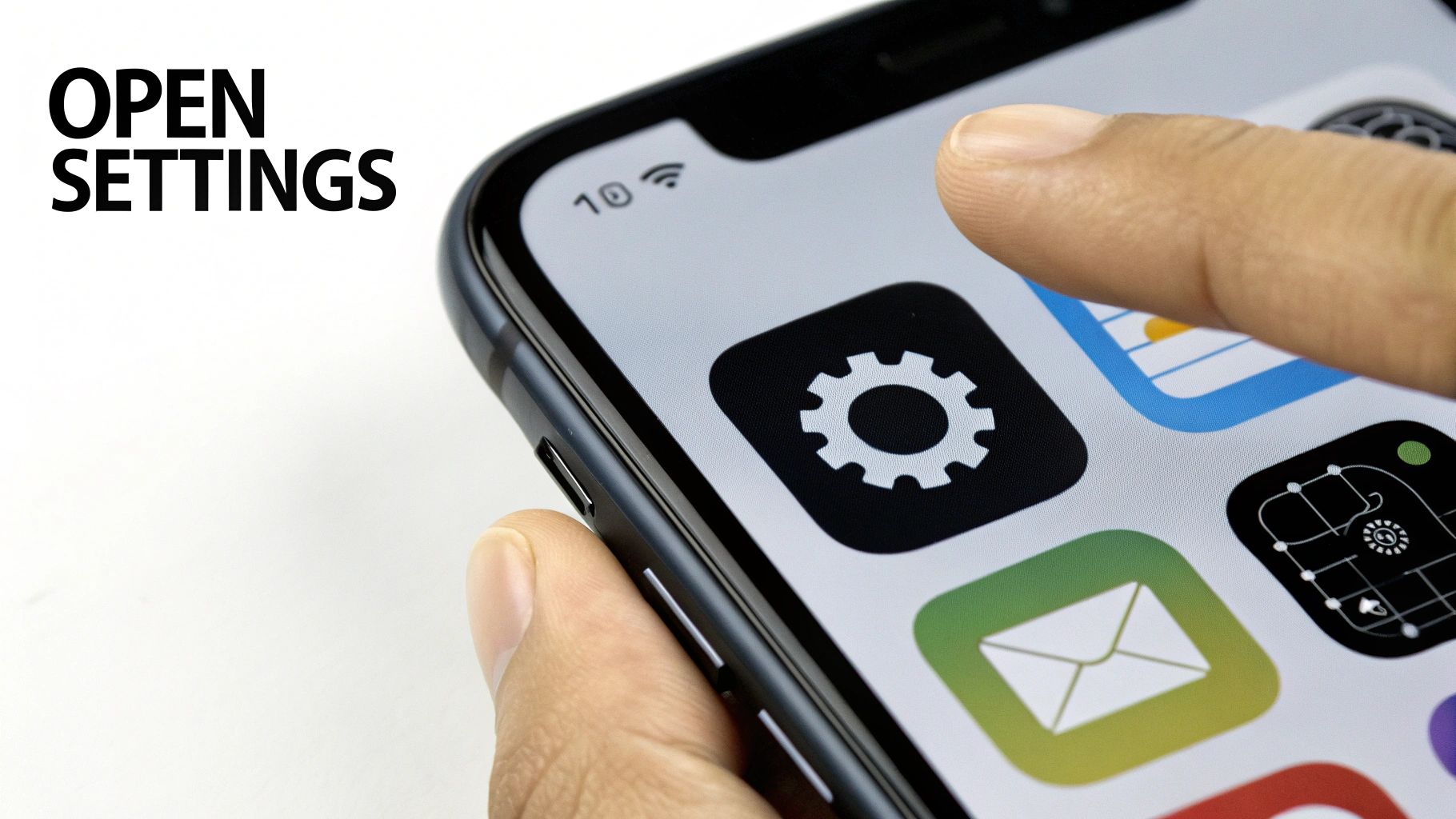
The most trustworthy way to figure out which iPhone you have is hiding right inside your phone. Think of the Settings app—the one with the grey gear picture—as your iPhone's passport. It holds all the official details about your phone, so you know the information is 100% correct.
Finding it is super simple. Just tap on the Settings icon on your home screen. From there, scroll down a little bit until you see General and give that a tap. Finally, tap on About at the very top of the next screen.
Right at the top, you’ll see Model Name, which will tell you straight away if you have an "iPhone 14" or "iPhone 15 Pro". Easy peasy.
What the Model Number Means
Just below the name, you’ll spot the Model Number. This little code tells a much deeper story about your phone's history and where it came from. The first letter is a secret clue.
- M: This means your iPhone was bought new from Apple or an authorised shop. This is the most common one you'll see.
- F: This tells you the iPhone is a refurbished model, professionally fixed up by Apple to work like new.
- N: This means it’s a replacement phone, given to you by Apple if your original iPhone had a fault and was swapped.
- P: This stands for a personalised iPhone, one that has a special message carved on the back.
If you tap on this model number, it will switch to a shorter code starting with 'A', like 'A2634'. This 'A' number is the most specific way to identify different iPhone versions. For instance, there are a few different 'A' numbers for the iPhone 13, such as A2482, A2631, and A2634, all depending on the country it was first sold in.
Knowing this is really helpful if you're ever selling your phone or need to reset your iPhone to factory settings.
Identifying Your iPhone by How It Looks
What if your iPhone won’t switch on, leaving you unable to check the settings? Don’t worry. You can often figure out which model you have just by looking at it—a bit like telling different cars apart from their shape alone.
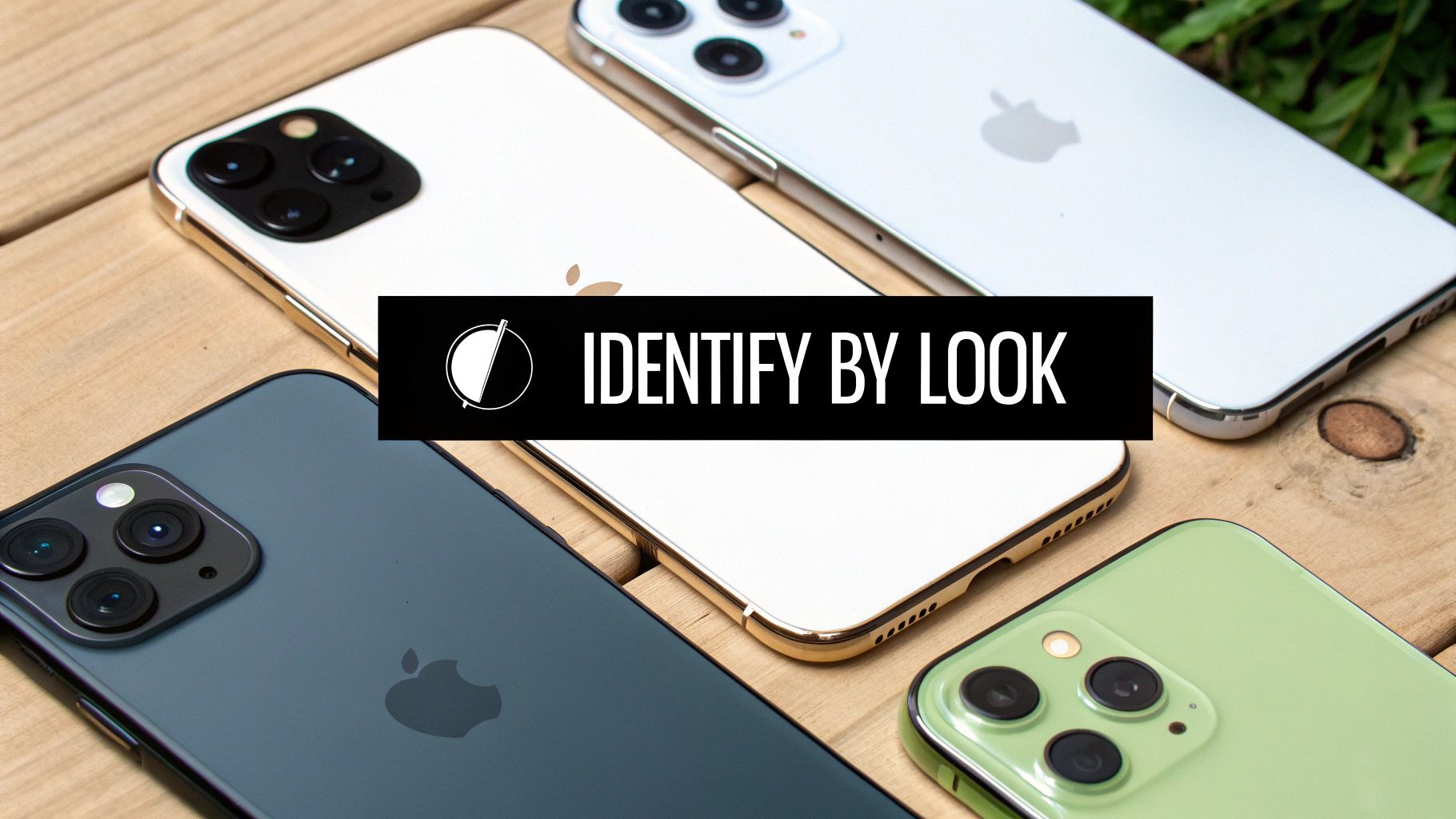
A brilliant clue is the shape of the edges. If your iPhone has really flat, sharp sides, you’re almost certainly looking at a newer model from the iPhone 12 family or later. On the other hand, if it has smooth, rounded edges, you're likely holding an older model like an iPhone 11 or the classic iPhone X. You can find more details on the distinctive design of the iPhone X in our specifications guide.
Sometimes, this detective work comes down to tiny measurements. For example, the iPhone 13 is 146.7 mm tall, while the iPhone 15 is slightly larger at 147.6 mm. These small differences can be the final piece of the puzzle you need.
Look at the Lenses
The number of camera lenses on the back is another massive giveaway. In fact, it's one of the easiest ways to tell different models apart with a quick look.
- One lonely lens? You might have an iPhone SE or an older standard model like the iPhone 8.
- Two lenses, one above the other? This vertical setup often points to an iPhone X, XS, or 11.
- Two lenses arranged diagonally? This is a signature look for the standard iPhone 13 or 14.
- A square of three lenses? Congratulations, you’ve got a Pro model, like the iPhone 11 Pro, 12 Pro, or something newer.
To make things even clearer, here’s a quick rundown of some of the most common physical differences.
iPhone Physical Clues at a Glance
These simple visual clues—the edges, the size, and especially the cameras—can turn you into an expert at spotting different iPhone models in the wild, even when they’re switched off.
Think of the camera layout as the phone's fingerprint. Each arrangement tells a story about which generation it belongs to, making it a quick and reliable way to identify your iPhone.
Using a Serial Number or IMEI for 100% Certainty
If you need to be absolutely sure what model you’re holding, your iPhone's serial number or IMEI is the only way to get a 100% accurate answer. Think of these numbers as a unique fingerprint for your phone; no two iPhones in the world have the same one.
This method is brilliant because it cuts out all the guesswork and gives you the official details straight from Apple’s own records.
Getting the Official Answer from Apple
You can find these special codes tucked away in the Settings app. Just head to General > About and you’ll see them listed. Sometimes, they’re even printed on the SIM card tray or on the original box your iPhone came in.
Once you have the serial number, you can use Apple's own tool to check it. This is a game-changer if you’re buying a second-hand phone and want to be certain it is what the seller says it is. The check will confirm the model and can even tell you about its warranty.
Here’s a look at Apple's official "Check Coverage" page where you can pop in your serial number.
As you can see, you just type your serial number into the box, and Apple will pull up all the details for that specific phone. It’s that simple.
The IMEI (International Mobile Equipment Identity) is another crucial number. It's a 15-digit number that every mobile phone has. Mobile networks use this number to spot valid phones, which also means it can be used to block a phone if it's been reported stolen.
Using the serial number or IMEI is like asking Apple directly, "What iPhone is this?" It’s the best way to get a guaranteed, accurate answer every single time.
This step is really important when you’re looking at a used phone. It helps you check the phone is real and makes sure it hasn't been reported as lost or stolen. It also confirms that the previous owner has done their bit to prepare it for a new home. If you want to know more about that, you can learn about how refurbished iPhones’ data is wiped to ensure they are completely clean and ready for a new owner.
What to Do When Your iPhone Will Not Turn On
It’s a horrible feeling, isn’t it? Your iPhone is completely dead, the screen is black, and you can't figure out which model you have. So, where do you start?
The simplest method is to go on a hunt for the original box it came in. The label on the back is a little treasure map, listing the model name, serial number, and that all-important IMEI.
If that box was chucked out with the recycling years ago, don’t panic. The next best place to look is the SIM card tray. Pop it out using a paperclip or a special SIM tool and have a really close look. On many iPhones, a tiny IMEI number is carved right on the tray itself. You might need a magnifying glass or the torch on another phone, but it’s usually there!
Checking the Phone Itself
For some of the older models, Apple printed key information directly on the phone’s body. Very old iPhones, from the original right up to the iPhone 5, had this information carved on the back.
From the iPhone 6 all the way to the iPhone X, you can often find the model number (a code starting with 'A') printed in tiny text on the back, just underneath the word "iPhone".
Remember, even a dead iPhone has a story to tell through its physical markings. The model number or IMEI is the key to unlocking its identity when the screen can't help you.
Finding these details is particularly useful when you need to troubleshoot your used iPhone and need the correct model for repair guides or parts.
Ultimately, the packaging of each iPhone is a reliable source, as it includes unique numbers you can check with Apple's official database. In fact, over 80% of iPhone users in the UK rely on these physical and packaging details to confirm their phone model, especially when it comes to repairs or upgrades.
Common Questions About Finding Your iPhone Model
Still got a few questions buzzing around? That’s perfectly normal. When you’re trying to work out which iPhone model you have, a few common queries always seem to pop up. Let’s clear them up so you can feel like a true expert on your own phone.
One of the biggest questions people ask is, "Why does my model matter so much anyway?" Think of it like knowing your shoe size. If you want the right fit for accessories like cases or screen protectors, you need the exact model. It also decides which new software updates your phone can get, as older iPhones can’t always run the latest and greatest features from Apple.
What If I Still Can't Find My Model?
Sometimes, even after checking the settings and looking for physical clues, you might still feel a bit stuck. What if the phone is damaged, or the text on the back is just too tiny to read?
If you've tried everything and are still drawing a blank, your best bet is to connect the iPhone to a computer. When you open iTunes (on older PCs or Macs) or Finder (on newer Macs), it will often show the iPhone's model name right there on the summary screen. This is a brilliant backup plan when all else fails.
Another common question is about software. People often wonder, "Does my iPhone model affect how long I get updates?" Yes, it absolutely does.
Apple is fantastic at supporting older phones, but they can't do it forever. Generally, an iPhone gets major iOS updates for about five to six years. Knowing your model helps you figure out how many more cool updates you can expect to receive.
For example, a newer model like an iPhone 14 will get updates for much longer than an older iPhone X. This is simply because newer phones have more powerful chips inside them that can handle all the new software.
At Used Mobiles 4 U, we make it easy to find a brilliant, fully-tested refurbished iPhone, whatever your budget. Find your next device with us today.
Looking for a refurbished phone?
Shop professionally tested refurbished iPhones and Samsung phones with 18 month warranty, 30 day returns and free UK delivery.
Browse Refurbished Phones






