





Buy iPhone 13 Tips and Tricks: 25 Hidden Features to Get the Most From Your Phone

22/03/2026

6 Mins
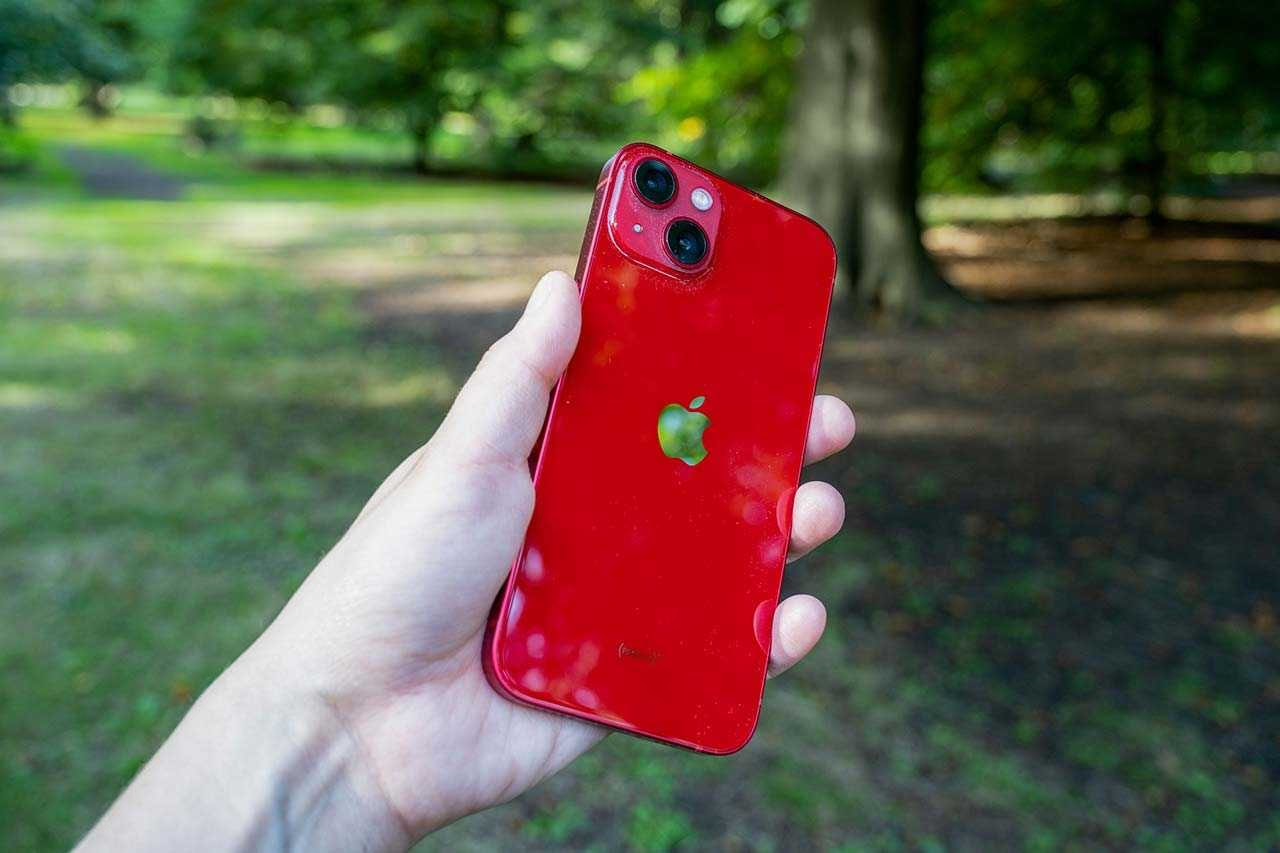
Buy iPhone 13 Tips and Tricks: 25 Hidden Features to Get the Most From Your Phone
The iPhone 13 continues to be one of Apple’s most reliable and popular smartphones. Even though newer models have been released, the iPhone 13 still delivers excellent performance, powerful cameras, and long battery life that easily meet the needs of most users.
For many people looking to buy iPhone 13, the device offers the perfect balance between premium Apple features and affordability. This is especially true when purchasing a refurbished or used model from a trusted retailer like Used Mobiles 4 U.
With Apple’s powerful A15 Bionic chip, advanced camera system, and smooth iOS experience, the iPhone 13 still competes with many newer smartphones. If you plan to buy iPhone 13, knowing these hidden features will help you get the most value from your device.
In this guide, we’ll explore 25 useful iPhone 13 tips and tricks that will help you unlock the full potential of your device.
1. Use Cinematic Mode for Professional Videos
One of the standout features you’ll notice when you buy iPhone 13 is Cinematic Mode. This camera feature allows you to record videos with professional-looking depth-of-field effects.
Cinematic Mode automatically changes the focus between subjects while recording, giving your videos a cinematic style similar to movies.
How to use Cinematic Mode
-
Open the Camera app
-
Swipe to Cinematic Mode
-
Start recording
-
Tap subjects on the screen to change focus
You can even edit the focus after recording.
2. Improve Your Photos With Photographic Styles
Another great feature available when you buy iPhone 13 is Photographic Styles. This feature lets you customise the tone and colour of your photos before you take them.
Unlike traditional filters, Photographic Styles adjust the image processing while keeping skin tones natural.
Styles available
-
Rich Contrast
-
Vibrant
-
Warm
-
Cool
How to enable them
-
Open Settings
-
Tap Camera
-
Select Photographic Styles
This helps keep your photos consistent and personalised.
3. Use Live Text to Copy Text From Photos
If you decide to buy iPhone 13, one of the most useful productivity tools is Live Text.
Your iPhone can detect text from images or the camera and allow you to copy or translate it instantly.
For example, you can:
-
Copy text from documents
-
Save phone numbers from business cards
-
Translate foreign signs
-
Extract text from screenshots
How to use Live Text
-
Open the Camera
-
Point it at text
-
Tap the Live Text icon
-
Highlight the text
This feature saves time when working with documents or notes.
4. Reduce Distractions With Focus Mode
When you buy iPhone 13, you’ll get access to Apple’s Focus Mode system, which helps reduce distractions by controlling notifications.
Focus Modes allow you to choose which apps and contacts can send notifications depending on what you’re doing.
Examples include:
-
Work mode
-
Sleep mode
-
Personal mode
-
Driving mode
Set up Focus Mode
-
Open Settings
-
Tap Focus
-
Choose a mode or create a new one
This helps improve productivity and concentration.
5. Use Back Tap for Quick Shortcuts
Many people who buy iPhone 13 don’t realise the phone includes a hidden shortcut feature called Back Tap.
This allows you to double or triple tap the back of the phone to activate actions.
Examples
-
Take a screenshot
-
Turn on the flashlight
-
Open Control Centre
-
Launch an app
Enable Back Tap
-
Open Settings
-
Tap Accessibility
-
Select Touch
-
Tap Back Tap
It’s a simple feature that can save time during daily use.
6. Extend Battery Life With Low Power Mode
Battery life is another strong reason many users choose to buy iPhone 13.
However, you can extend battery performance even further by enabling Low Power Mode.
This feature reduces background activity to conserve battery.
Enable Low Power Mode
-
Open Settings
-
Tap Battery
-
Toggle Low Power Mode
This is particularly useful when travelling or away from a charger.
7. Customise the Control Centre
After you buy iPhone 13, you can customise the Control Centre so your most-used features are always easily accessible.
How to customise
-
Go to Settings
-
Tap Control Centre
-
Add or remove controls
Useful shortcuts include:
-
Screen recording
-
Calculator
-
Notes
-
Low Power Mode
8. Scan Documents With the Notes App
The iPhone 13 also works as a portable scanner.
Anyone who plans to buy iPhone 13 for work or study will find the built-in document scanner extremely useful.
Scan documents
-
Open Notes
-
Tap the camera icon
-
Choose Scan Documents
The phone automatically crops and enhances the document.
9. Switch Between Apps Faster
Multitasking is smooth thanks to the A15 chip included when you buy iPhone 13.
To quickly switch apps:
-
Swipe up and hold to open the app switcher
-
Swipe left or right along the bottom bar
This allows you to move between apps instantly.
10. Record Your Screen
Screen recording is another useful tool available when you buy iPhone 13.
Enable screen recording
-
Go to Settings
-
Tap Control Centre
-
Add Screen Recording
You can record tutorials, gameplay, or app demonstrations.
11. Take Better Low-Light Photos
The iPhone 13 includes Night Mode, which helps capture clear images in dark environments.
Night Mode automatically activates in low lighting.
If you’re planning to buy iPhone 13 for photography, this feature is particularly useful.
12. Measure Objects With Your Camera
The built-in Measure app allows you to estimate the size of objects using augmented reality.
This can be useful for measuring furniture or room dimensions.
Many people who buy iPhone 13 are surprised by how accurate this feature can be.
13. Send Files Instantly With AirDrop
AirDrop allows Apple users to share files instantly between devices.
Once you buy iPhone 13, you can quickly send:
-
Photos
-
Videos
-
Documents
-
Contacts
Simply tap the Share icon and choose AirDrop.
14. Improve Privacy With App Tracking Control
Privacy is another important reason many users decide to buy iPhone 13.
Apple allows users to control how apps track their activity.
Manage tracking permissions
-
Open Settings
-
Tap Privacy & Security
-
Select Tracking
You can disable tracking for individual apps.
15. Use Siri to Save Time
Siri can perform many tasks using voice commands.
Examples include:
-
Sending messages
-
Setting alarms
-
Opening apps
-
Checking the weather
People who buy iPhone 13 often use Siri daily for convenience.
16. Add Widgets to Your Home Screen
Widgets allow you to see useful information without opening apps.
You can add widgets for:
-
Weather
-
Calendar
-
Battery
-
News
If you buy iPhone 13, customising widgets can make your phone more efficient.
17. Hide Apps to Declutter Your Home Screen
You can hide apps from your home screen without deleting them.
Simply remove the app from the home screen and access it through the App Library.
This is a useful organisation trick after you buy iPhone 13.
18. Lock Notes With Face ID
The Notes app allows you to protect sensitive information with Face ID.
This feature is useful for storing private details securely.
Users who buy iPhone 13 often use this feature for passwords or personal notes.
19. Enable Dark Mode
Dark Mode changes the interface to darker colours, making the screen easier to view in low light.
It may also help improve battery efficiency.
This is another feature you’ll appreciate when you buy iPhone 13.
20. Mirror Your iPhone Screen to a TV
You can display your phone’s screen on a TV using AirPlay.
This allows you to share videos, photos, or presentations on a larger screen.
Many users who buy iPhone 13 use this feature for entertainment.
21. Use Optimised Battery Charging
Optimised Battery Charging helps extend the lifespan of your battery by learning your charging habits.
This feature automatically slows charging after 80%.
Anyone who plans to buy iPhone 13 should keep this setting enabled.
22. Use Spotlight Search
Spotlight Search allows you to quickly find apps, contacts, messages, and files.
Simply swipe down on the home screen.
This makes navigation much faster after you buy iPhone 13.
23. Use the Magnifier Tool
The Magnifier feature uses the camera to zoom in on small text or objects.
This can help read labels, menus, or instructions.
Many people discover this feature after they buy iPhone 13.
24. Edit Photos With Built-In Tools
The Photos app includes powerful editing features.
You can adjust brightness, contrast, and sharpness without installing additional apps.
This is perfect if you buy iPhone 13 for photography.
25. Keep Your iPhone Updated
Apple regularly releases software updates that improve security and performance.
Once you buy iPhone 13, make sure you keep iOS updated to get the best experience.
Why the iPhone 13 Is Still a Smart Choice
Even today, the iPhone 13 remains one of the best smartphones for everyday users.
It offers:
-
Powerful A15 Bionic processor
-
Excellent camera system
-
Long battery life
-
High-quality OLED display
For many people, the best way to buy iPhone 13 is through a trusted refurbished retailer.
Buy iPhone 13 From Used Mobiles 4 U
If you’re ready to buy iPhone 13, choosing a refurbished device can help you save money while still enjoying premium Apple performance.
At Used Mobiles 4 U, every device is fully tested to ensure quality and reliability.
When you buy iPhone 13 from a trusted refurbished retailer, you can enjoy flagship features at a much lower price.
Looking for a refurbished phone?
Shop professionally tested refurbished iPhones and Samsung phones with 18 month warranty, 30 day returns and free UK delivery.
Browse Refurbished Phones






