





Finding an Easy to Use Refurbished iPhone for the Elderly in the UK: A Simple Guide

31/12/2025

10 Mins

This guide will help you choose a suitable refurbished iPhone for an older relative, understand what to look for when buying, and show you how to set it up to be as simple and stress-free as possible.
Why a Refurbished iPhone is a Great Choice for Seniors
When you’re trying to find the right mobile for an older family member, the choice often seems to be between overly simple "big button" phones and the latest, most complex smartphones. A refurbished iPhone hits a practical middle ground. It offers useful features in an intuitive package, but at a much more affordable price. Plus, the consistent design of Apple's iOS software makes it one of the most straightforward systems to learn from scratch.
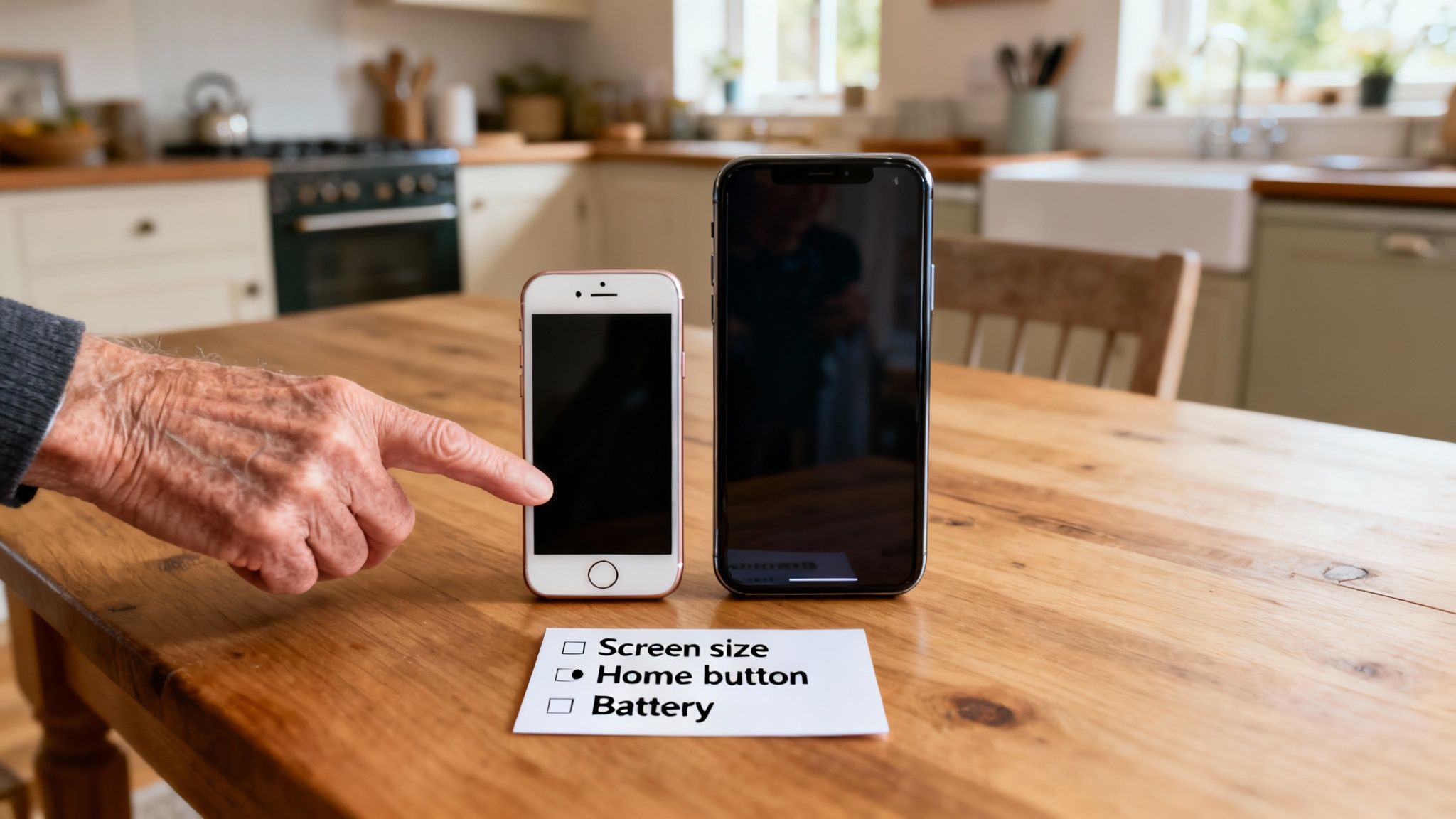
More older adults in the UK are now using smartphones. This shows that with the right device and a bit of setup, technology can be accessible to everyone. A well-chosen, easy to use refurbished iPhone for elderly UK customers can help bridge the digital divide, making it simple to stay in touch with family and friends.
Key Benefits for Elderly Users
Opting for a refurbished iPhone brings some practical advantages that are particularly helpful for seniors:
- Familiarity and Simplicity: Many older users find the iPhone's simple grid of icons much easier to get the hang of compared to the more varied interfaces on Android devices.
- Excellent Accessibility Features: iPhones are packed with built-in tools like larger text options, a screen magnifier, and voice commands (Siri). These can be a massive help for anyone with vision or hearing difficulties.
- Cost-Effectiveness: You get a top-quality, reliable phone for a fraction of what a new one would cost. It's a sensible investment without the hefty price tag. For more ideas on affordable models, check out our guide to the best refurbished iPhones for beginners.
- Peace of Mind: When you buy from a trusted UK seller, a refurbished iPhone will include a warranty, has been fully tested, and is completely data-wiped. It works perfectly and is totally secure from the moment it arrives.
A Quick Example
A common scenario we see is someone buying a mobile for their parent. Take David, who bought an iPhone SE for his mum, Margaret. She was used to an old button phone but was keen to see photos of her grandchildren on WhatsApp. The physical Home button on the SE felt familiar, and after David set up larger text, she found it surprisingly easy to manage calls and messages. This is a perfect example of how the right device can make a real difference.
What to Check When Buying a Refurbished iPhone
Buying a refurbished mobile shouldn’t feel like a gamble. When you know what to look for, you can buy with confidence, knowing you're getting a reliable phone that’s ready to go straight out of the box. This is especially true when choosing an easy to use refurbished iPhone for elderly UK relatives, where reliability is everything.
The first things to look at are the seller’s reputation and the promises they make. A trustworthy UK-based seller should be completely open about their policies. Look for three key things: a solid warranty, a clear returns policy, and reliable delivery. A minimum 18 Month Warranty is a great sign, as it shows the seller stands by the quality of their phones.
Understanding Refurbishment Grades
You'll come across terms like 'Like New', 'Very Good', or 'Good' when browsing. It's important to realise these grades refer purely to the cosmetic appearance of the phone, not its inner workings. Every phone, no matter the grade, should be fully tested and working perfectly.
- Like New: The device will look pristine, with virtually no signs of being used.
- Very Good: You might find some very faint, minor scratches or marks, but you'd have to look for them. This grade often offers the best value.
- Good: The phone will have some visible signs of wear, like light scratches or small scuffs, but it will still be in full working order.
If you want to get into more detail, our guide on what to look for when buying a refurbished iPhone offers more advice.
Before you finalise any purchase, always double-check that the phone is unlocked. This just means it will work with any UK network provider (like O2, Vodafone, or EE). It’s also a good idea to ask about the seller's battery health policy. A reputable seller will ensure the battery holds a strong charge, which is vital for a phone you can depend on.
Setting Up the iPhone Before Handing It Over
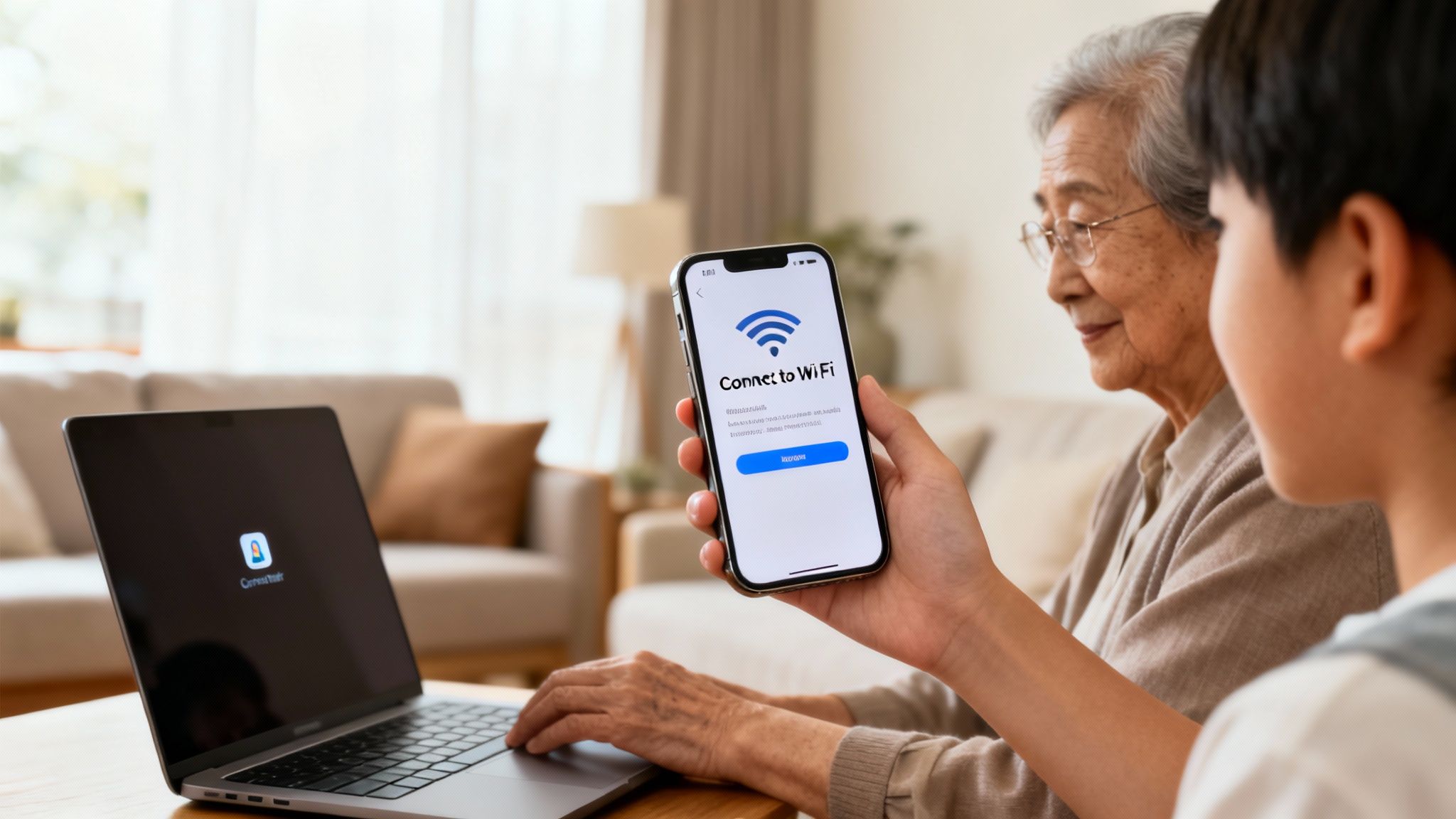
A little preparation goes a long way in making a new mobile feel approachable and friendly. Before giving the iPhone to your relative, it's always best to handle the initial setup yourself. This simple step avoids any early frustration and ensures the device is ready to use straight out of the box.
Warning: Back Up First to Avoid Data Loss
If you're transferring personal information from an old device, always perform a full backup before you begin. This is a simple step that prevents any risk of losing precious contacts, photos, or messages during the switchover.
Creating an Apple ID and Connecting to Wi-Fi
An Apple ID is the key to the iPhone experience, acting as their account for the App Store and iCloud. If your relative doesn’t have one, you can create it for them during the initial setup screens. It's a wise move to write down the email address and password you choose and keep it somewhere safe for them.
Once the Apple ID is sorted, connect the phone to their home Wi-Fi network.
- Go to Settings > Wi-Fi.
- Make sure Wi-Fi is toggled on.
- Select their home network from the list and enter the password.
This ensures they won't accidentally use up mobile data when they're at home, which is a common worry for many first-time smartphone users.
Transferring Contacts and Installing Key Apps
Nothing makes a new phone feel more foreign than an empty contacts list. Transferring numbers from their old mobile is a crucial step. Depending on the old device, you can do this via a SIM card, Bluetooth, or by using Apple's 'Move to iOS' app if they're coming from an Android phone. For a detailed guide, you can follow our walkthrough on how to set up your second-hand iPhone without losing data.
With their contacts in place, install a few key apps they're likely to use. Good starting points often include:
- WhatsApp: Perfect for easy messaging and video calls with family.
- NHS App: Handy for managing appointments and prescriptions.
- A simple weather app: For checking the daily forecast.
Enabling the 'Find My' Feature
One of the most valuable features to activate is 'Find My'. This lets you track the phone's location from another Apple device or a web browser, which can be a real lifesaver if the mobile is ever misplaced.
To set it up, head to Settings > [your relative's name] > Find My. Tap on Find My iPhone and make sure the toggle is switched on. This single step provides enormous peace of mind and is an essential part of creating a truly easy to use refurbished iPhone for elderly UK users.
Customising iOS for Simplicity and Accessibility
An iPhone’s real strength is its built-in accessibility settings. With just a few tweaks, you can transform the standard interface into something much simpler and more comfortable to use, creating a truly easy to use refurbished iPhone for elderly UK users. These small changes make a massive difference, turning a device that might seem intimidating into one that feels welcoming and straightforward.
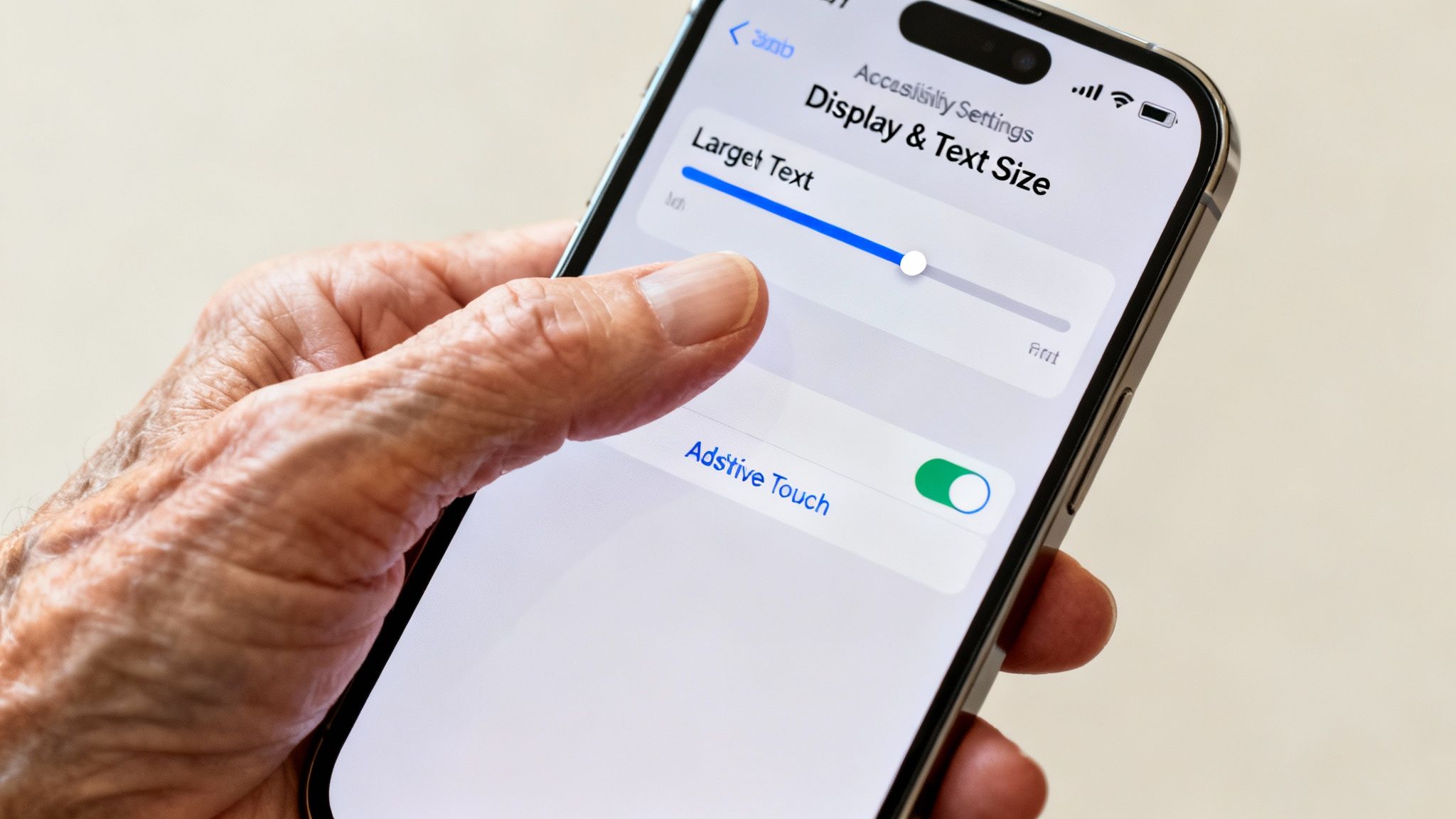
Many of the most effective settings are all about improving what you can see on the screen. Tiny text can be a real headache, but thankfully, it’s an easy fix.
Making Everything Easier to See
The first port of call for better readability is to increase the text size across the entire phone. You can find this setting by following this path:
- Go to Settings > Accessibility > Display & Text Size.
- Tap on Larger Text.
- Flick the switch for Larger Accessibility Sizes.
- Drag the slider at the bottom until the text feels comfortable to read.
While you're in that same 'Display & Text Size' menu, it’s also a great idea to switch on Bold Text. It's a simple change, but it makes words and numbers stand out much more clearly. Another useful tool is the Zoom feature. To get it working, head to Settings > Accessibility > Zoom and toggle it on.
Simplifying On-Screen Actions
For someone who struggles with tapping small buttons or finds swiping tricky, AssistiveTouch is a helpful feature. It puts a permanent, customisable button on the screen that can be set up to handle common actions like going back to the Home Screen or changing the volume.
To enable it, navigate to Settings > Accessibility > Touch > AssistiveTouch and switch it on. A small floating button will pop up, offering a simple, one-tap way to control the phone without needing to press the physical buttons.
Decluttering the Home Screen
The final touch is to create a clean, minimalist Home Screen. A new iPhone comes loaded with apps that might never be used, creating a cluttered screen. A tidy layout with only the essentials is much easier to navigate.
First, get rid of any apps that won't be needed. Press and hold on an app icon, then tap Remove App > Delete App. Do this for anything that could cause confusion, leaving just the core apps like Phone, Messages, WhatsApp, and Camera.
Once you've cleared out the clutter, arrange the remaining icons logically. A great tip is to place the most important apps—like Phone and Messages—on the dock at the bottom of the screen. That way, they’re always visible and easy to find.
Making a New Phone a Familiar Lifeline
An iPhone isn't just for calls and photos; it's a powerful tool for safety and peace of mind, especially when you set it up thoughtfully. These features can turn the device into a reliable connection point in any situation.
Add Key People to 'Favourites'
First, make calling family and friends effortless. The 'Favourites' list in the Phone app is the perfect way to do this. It puts the most important contacts just one tap away, so there's no need to scroll through a long list.
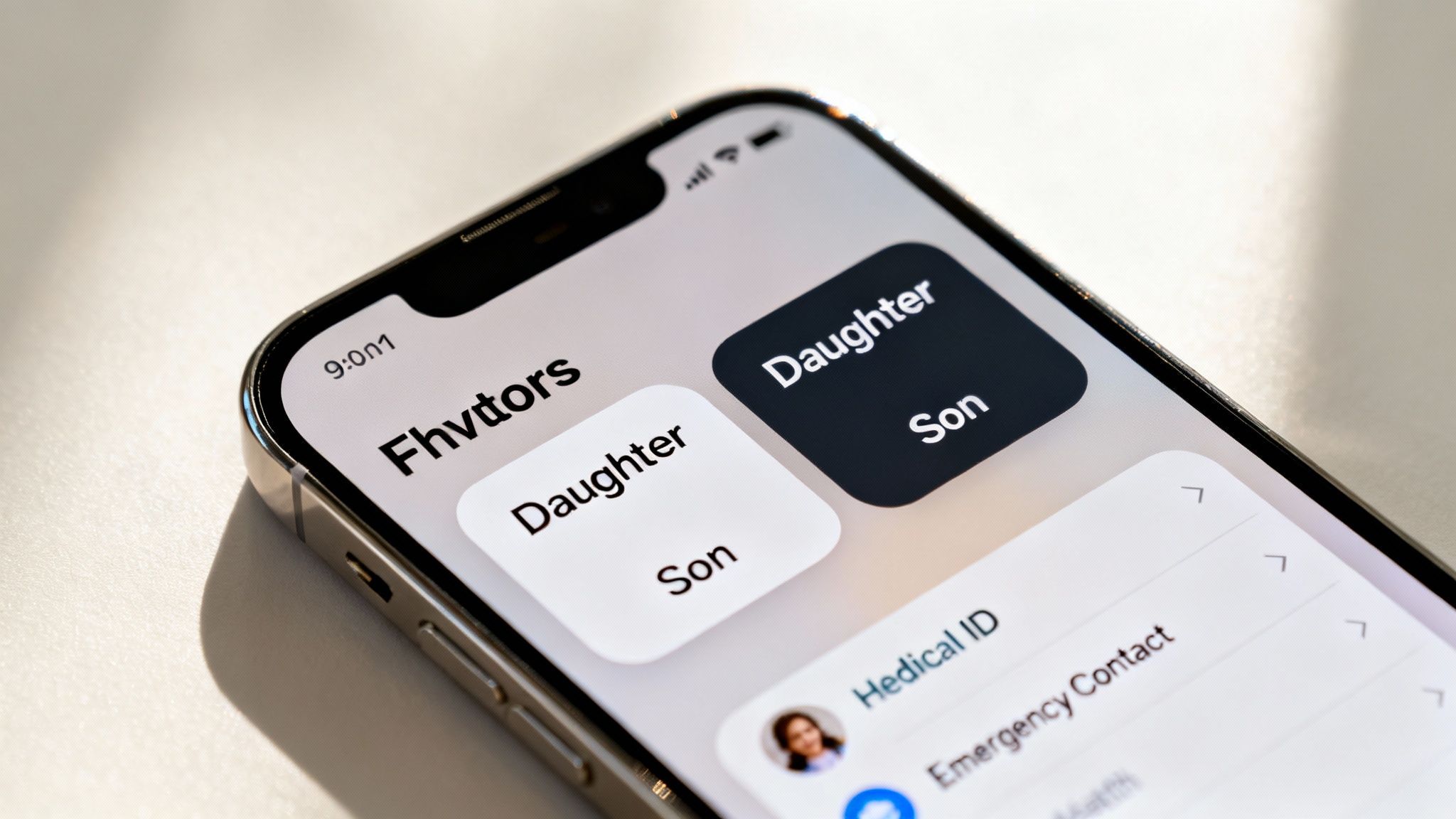
Adding someone is simple:
- Open the Phone app.
- Tap Favourites at the bottom of the screen.
- Tap the + symbol in the top-left corner.
- Select a contact and choose to add their mobile number for calls.
Set Up the Medical ID
The Medical ID feature is one of the most important safety nets on an iPhone. It gives first responders access to critical health information right from the lock screen, even if the phone is passcode protected. This is an essential step when preparing an easy to use refurbished iPhone for elderly UK users.
To set it up, go to the Health app. Tap the profile picture in the top-right corner, then select Medical ID. Tap Edit to start filling it out. Add key details like medical conditions, allergies, regular medications, and blood type. Most importantly, add your emergency contacts here.
Understand Emergency SOS
Emergency SOS is another vital tool that can quickly call emergency services and alert your designated contacts. On most iPhones, you can trigger it by pressing the side button five times in quick succession, or by holding the side button and one of the volume buttons together.
It's a good idea to check these settings. Go to Settings > Emergency SOS and make sure the emergency contacts you added to the Medical ID are showing up correctly here. Taking a few minutes to configure these features provides immense peace of mind.
Common Questions About iPhones for Seniors
Choosing a mobile for an older relative often brings up a few common questions. Here are answers to some of the most frequent queries we hear.
Which Refurbished iPhone Model Is Best for a Complete Beginner?
For someone who’s a newcomer to smartphones, the iPhone SE (either the 2nd or 3rd generation) is almost always my top recommendation. Its biggest advantage is the physical Home button with Touch ID. Many older users find this pressable button far more intuitive than the swipe gestures needed on newer models.
The SE is also compact and light, making it comfortable to hold. Despite its smaller size, it’s more than powerful enough for all the essentials—calls, messages, WhatsApp video chats, and browsing the internet.
Will the Battery on a Refurbished iPhone Last All Day?
This is a common and understandable worry. Any reputable seller will thoroughly test every device to make sure it meets high standards, and that includes battery health. A refurbished iPhone sold in ‘Like New’ or ‘Very Good’ condition from a trusted retailer will have a battery that easily lasts a full day with typical use.
Before you buy, always check the seller's policy on battery health. A good warranty, like the ones we offer on our warranties page, also provides extra peace of mind.
What if They Struggle to Use the iPhone After Setup?
Patience and simplicity are key. The most effective approach is to introduce just one or two functions at a time. Start with something simple, like making a call from the 'Favourites' list. Once they're comfortable with that, move on to sending a message. The key is to avoid overwhelming them with too much information at once.
A great tip is writing down simple, step-by-step instructions for key tasks on a notepad they can keep next to the phone. You could also schedule regular FaceTime calls to help them practise and let you troubleshoot any issues with them remotely. If you hit a snag, our guide on how to troubleshoot a used iPhone may have the answer.
Written by James Waterston — 24 years in the mobile phone industry from customer service to Sales Director of a global repair & recycling company; now running Used Mobiles 4 U for 8+ years. LinkedIn
Looking for a refurbished phone?
Shop professionally tested refurbished iPhones and Samsung phones with 18 month warranty, 30 day returns and free UK delivery.
Browse Refurbished Phones






