


How to Factory Reset a Google Pixel Before Selling It

29/06/2026

9 Mins
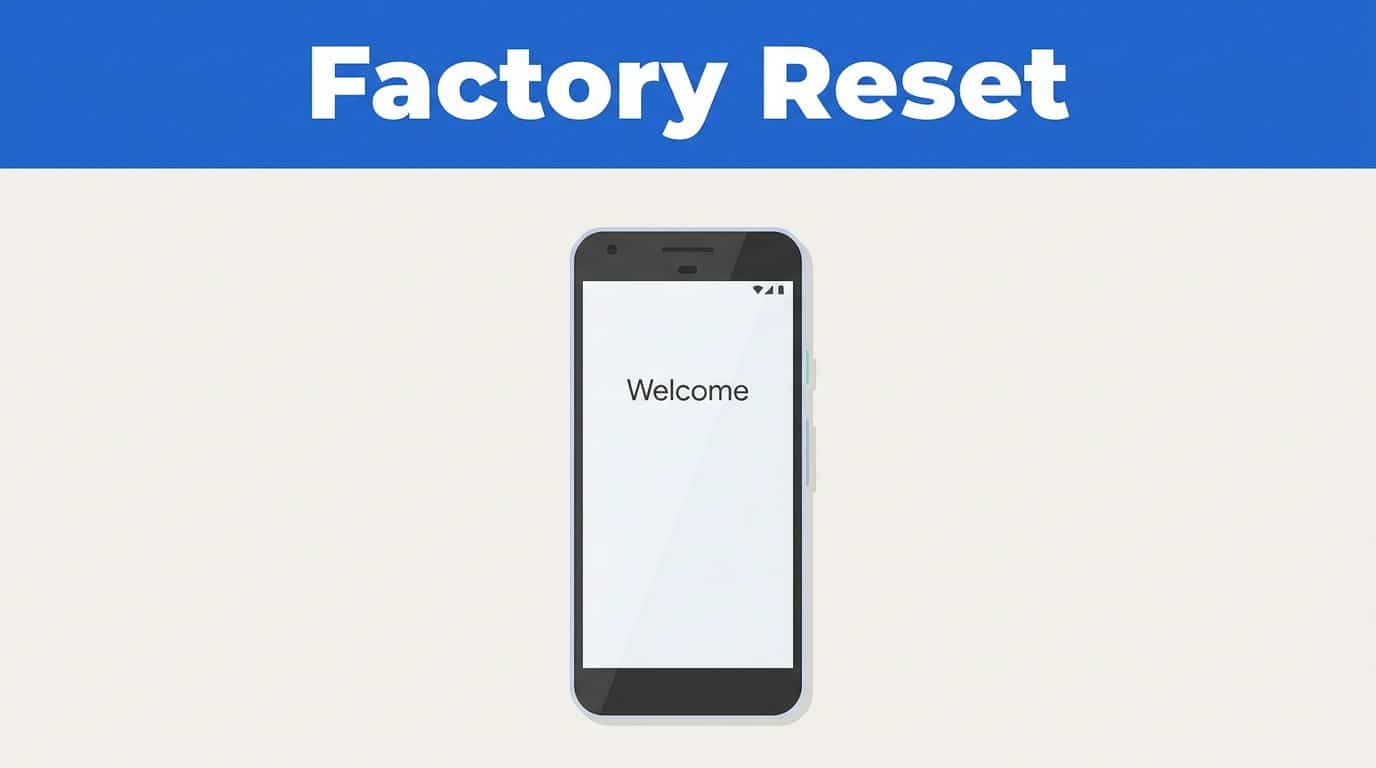
If you want to factory reset a Google Pixel before selling it, the safest move is to back up your data first, remove your Google account, and then wipe the device through the settings menu. That order protects your photos and files, and it prevents the next owner from encountering an activation lock.
Performing a factory reset on a Google Pixel is simple when the phone still works properly. The trouble starts when you skip a step, rush the process, or fail to secure your personal information before handing the device over.
Key Takeaways
- Prioritize Backups: Always secure your photos, contacts, and important files before initiating a reset, as the process permanently deletes all local data.
- Remove Accounts First: Sign out of your Google account and disable ‘Find My Device’ before wiping the phone to prevent triggering Factory Reset Protection (FRP) and locking out the next owner.
- Verify the Wipe: A successful reset is only confirmed when the device boots directly to the ‘Welcome’ screen; if it asks for previous account credentials, the device remains locked.
- Hardware Check: Beyond software, ensure the SIM card is removed and the device is fully charged to avoid interruptions during the restoration process.
The Short Version
- Make sure to back up your data, including photos, contacts, messages, and files, before you begin the process.
- Remove your Google account and any other signed-in accounts from the device.
- Turn off Find My Device and remember to remove your SIM card.
- Navigate to Settings, select System, tap on Reset options, and choose Erase all data.
- Verify that the phone restarts to the original Welcome screen, confirming the reset was successful.
Before We Reset Anything
A reset wipes the phone itself, but it does not replace a missing backup. Before you proceed, you must back up your data to ensure you do not lose important files. Utilizing Google backup is an effective way to keep the parts of the phone that matter most safe and accessible.
Pixels do not give us much room for error on storage. Many models have no microSD slot, so once we erase local data, that copy is gone. If the phone is already glitching due to software issues or persistent software bugs, we should secure our information now rather than waiting for a cleaner moment.
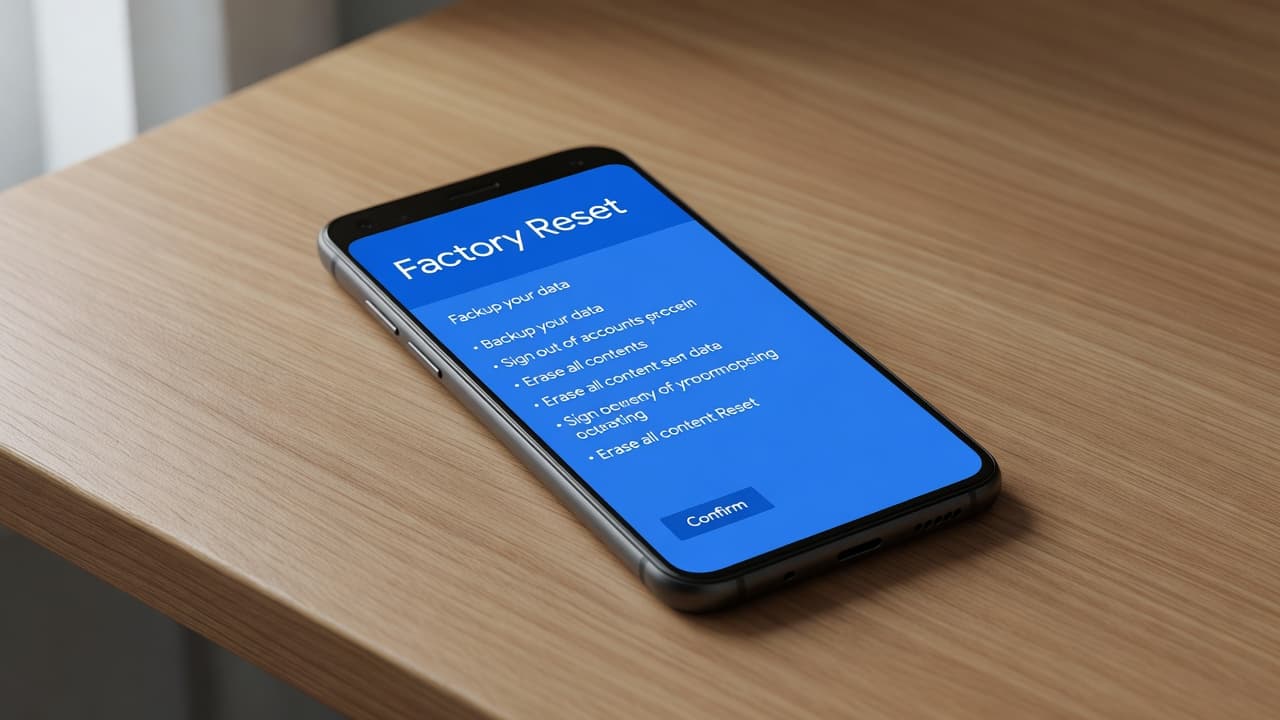
If we reset before removing the Google account, we can leave the phone locked for the next owner.
We should also sign out of anything that matters, including email, messaging apps, and banking apps. Returning the device to its original factory settings is the best way to protect your personal information before passing it on to someone else. Google’s own factory reset guide shows the standard path through the menus, and it is the best place to check if the wording looks slightly different on our model.
If we want to be extra careful before selling, Google’s wipe-before-selling advice backs up the same basic order, account removal first, and resetting second. By following these steps while wiping your device, you ensure a smooth transition for the next user.
How to Factory Reset a Google Pixel
If you are preparing to sell or trade in your device, following the correct steps to factory reset a Google Pixel is the most important part of the process. Here is the cleanest route to wipe your device when you still have full access to the phone.
- Charge the phone first. We want enough battery for the reset and the restart that follows. A phone dying halfway through a wipe is a nuisance we do not need.
- Open the settings app. Scroll to the system menu rather than tapping into random privacy options.
- Tap System. On most Pixels, this is where Google keeps the reset tools.
- Choose reset options. This is the menu that leads to a full wipe of your personal data.
- Tap erase all data. We should read the warning screen before we confirm. It clearly explains that choosing erase all data will remove your accounts, photos, and apps.
- Enter the pin or password. This confirms the wipe is really yours to authorize.
- Wait for the phone to restart. When it comes back on, it should land on the Welcome screen, not your old home screen.
If your screen is frozen and you cannot navigate the menus, you can perform a hard reset using the hardware buttons. By holding down the power button and the volume down button simultaneously, you can access recovery mode to wipe the device.
If the wording on the screen looks a little different, that is normal. Pixel menus move around slightly between Android versions, but the reset path stays very similar.
What We Check After the Wipe
A reset is only useful if the phone is properly clear. Wiping your device correctly is essential for security, ensuring that no personal information remains. Once the Pixel boots again, we look for a few simple signs that we managed to wipe data successfully.
- It opens on the Welcome screen.
- It does not ask for our old Google account.
- It lets us reach setup without errors.
- It still charges normally.
- The SIM tray is empty.
- The screen and buttons behave as expected after restart.
If the phone asks for the previous Google account during setup, we are not finished yet. That usually means the account was still attached when we performed the reset. Once you have cleared the device, you can easily restore your data on your new phone from a cloud backup.
We should also check the basics before we hand it over or post it off. A quick test call, a camera check, and a charging check can save a buyer dispute later on.
Common Mistakes That Leave Data Behind
The most common mistake is simple. We often fail to back up your data until it is too late. Once the reset is done, any missing photos or files are our problem, not the phone’s.
Another mistake is leaving the Google account active on the handset. This action can trigger Factory Reset Protection, which is the anti-theft lock designed to protect your device. While Find My Device is a helpful feature that allows for a remote reset if your phone is lost, it must be disabled before selling your device to ensure the next owner can use it. It is useful for security, but it becomes quite awkward if we are trying to sell the phone cleanly.
We also see people forget app logins. Messaging apps, cloud storage apps, and payment apps often need their own sign-out or transfer step. If we use the Pixel for work, we should double-check work profiles too.
Common slip-ups worth avoiding:
- Resetting before the backup is done.
- Leaving Find My Device switched on.
- Forgetting the SIM card.
- Selling the phone before checking the Welcome screen.
- Ignoring a password prompt that appears after the wipe.
A phone that resets cleanly but still asks for the old account is not ready to sell.
Our Experience Refurbishing This Model at Used Mobiles 4U
On the bench, Pixels usually give us a clear picture of their condition very quickly. Battery wear is the first thing we notice on older devices, especially if the phone has been used hard for maps, streaming, and camera work.
We also pay close attention to the USB-C port, because lint and worn sockets can make charging look worse than it really is. The camera app, fingerprint reader, and screen brightness are checked straight away, since those are the features buyers notice first. We also run diagnostics to identify any underlying software issues that might affect performance. If we encounter persistent software bugs, our technicians utilize a dedicated software repair tool to ensure the operating system is clean and fully functional before the device is listed.
The biggest difference between grades is often cosmetic rather than functional. A Pixel with light marks and a healthy battery can still make a good resale phone, while one with a bent frame, moisture signs, or unstable charging usually needs a closer look.
We see the same pattern across many refurbished smartphones UK buyers consider. A device can look fine after a reset, but still have tired internals. That is why a wipe is only one part of preparing it for sale.
If We Are Replacing the Phone
If we are moving on from the Pixel, we often compare the next handset against refurbished iPhones as well as other Android options. Many buyers looking at used iPhones UK stock are really asking the same question: which phone provides the best balance of value, battery life, and software support?
Browse Refurbished iPhones if you want a quick look at our current stock. Buyers comparing cheap refurbished iPhones with refurbished iPhone deals UK usually focus on the same criteria first, such as battery health, warranty length, and available storage.
Read Our Refurbished iPhone Buying Guide if you need help choosing between models. It is a sensible next step when you are trying to decide whether to stay with Android or switch to Apple.
If the Pixel is going and you want to offset the cost of the upgrade, Sell Your Old Phone is the obvious move. That process becomes much smoother once you successfully factory reset a Google Pixel, allowing you to confidently compare second hand iPhones UK listings with other refurbished smartphones UK options.
For many buyers, the best approach is to reset the device properly, sell it in clean condition, and then compare the next phone with a calm head. That keeps the decision focused on long-term value rather than panic buying.
Frequently Asked Questions
Will a factory reset remove my photos from Google Photos?
No, as long as your photos have been synced to your Google account, they will remain in the cloud and accessible once you log into a new device. However, any photos stored only locally on the phone will be permanently erased during the reset.
Why does the phone ask for an old Google account after a reset?
This occurs because Factory Reset Protection (FRP) is active, which is a security feature designed to prevent unauthorized use of a device. If the Google account was not removed from the settings menu before the reset, the device requires the original owner’s credentials to prove it was not stolen.
Can I use the physical buttons to reset the phone?
Yes, if your screen is unresponsive or you cannot access the settings menu, you can perform a hard reset using the recovery mode. You generally achieve this by holding the power and volume down buttons simultaneously, though the exact combination can vary slightly by model.
How do I know if I successfully wiped my Pixel?
The device is successfully wiped when it restarts and displays the initial ‘Welcome’ setup screen instead of your usual home screen. If the phone starts up and asks for a PIN or Google account to unlock it, the reset process did not complete correctly.
Conclusion
If the Pixel still switches on and we can access the settings menu, performing a factory reset Google Pixel is the most effective way to return your device to its original factory settings. This process only takes a few minutes, but following the correct order is vital: backup first, account removal next, and the final wipe last.
If your device has deep-seated errors or is unresponsive, you may need to use a software repair tool to restore functionality before completing the wipe. If the phone is locked, badly damaged, or missing important data, slow down and address those issues first. A clean reset is the final step before a sale, not the starting point.
This guide is based on the same rigorous checks we use when preparing devices for resale at Used Mobiles 4U, where a proper wipe matters just as much as cosmetic grade and battery health.
Written by James Waterston, 24 years in the mobile phone industry, now running Used Mobiles 4U. James Waterston on LinkedIn
Meta description: Learn how to factory reset Google Pixel phones safely before selling, with backup steps, account removal and a quick resale checklist for UK sellers.
Looking for a refurbished phone?
Shop professionally tested refurbished iPhones and Samsung phones with 18 month warranty, 30 day returns and free UK delivery.
Browse Refurbished Phones