





How to Move Everything from an Old iPhone to a New iPhone: A Super Simple Guide

23/10/2025

13 Mins
That super happy feeling you get when you open a brand-new iPhone is brilliant, isn't it? But before you start snapping pictures and downloading the latest games, you need to get all your important stuff—photos, contacts, messages—from your old phone onto the new one.
Luckily, you don't have to spend ages copying contacts one by one or worry about losing all your text messages anymore. Apple has made moving everything over really, really simple.
You definitely don’t need to be a computer whizz to figure out how to transfer your old iPhone to a new iPhone. It’s something millions of us in the UK do every year when we get a new phone. Thanks to some cool features from Apple, the whole thing is now easier than ever.
This guide will show you the most popular ways to do it, helping you pick the one that feels right for you. If you're moving to a second-hand iPhone, you might also find some extra tips in our guide on how to set up your second-hand iPhone without losing data.
Which Way to Move Your Stuff is Best for You?
To help you decide, here’s a quick look at the main options. Choosing the right one just depends on what you have with you and how you like to do things.
Each of these ways is for a slightly different situation, so one might be a better fit than another depending on what you've got. Let's look at how to do each one.
Using Quick Start for an Easy Move
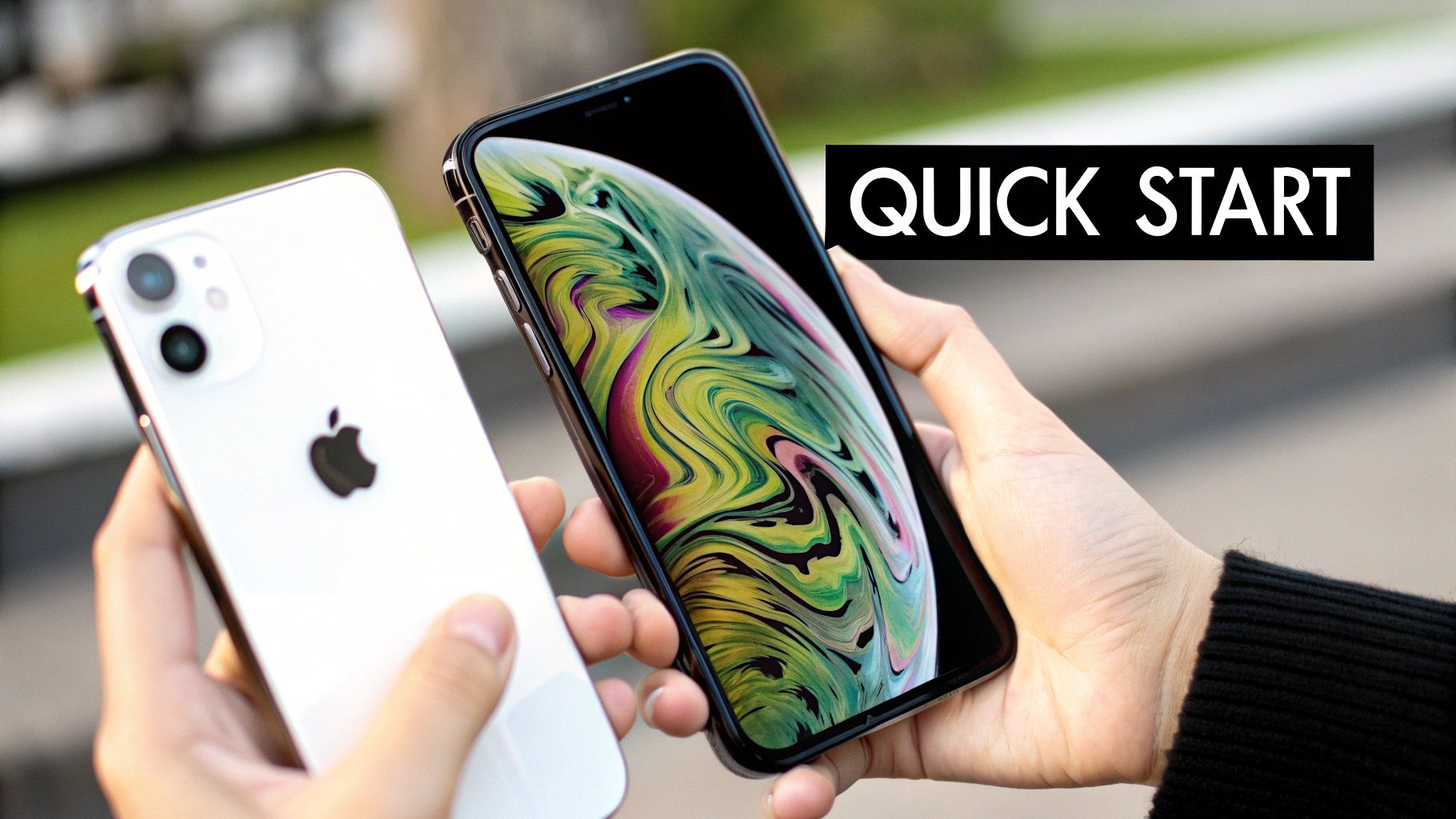
Ever wish your old and new iPhones could just have a quick chat and sort everything out themselves? That’s pretty much what Quick Start does. It feels like a bit of magic, and for most people, it's the simplest and fastest way to get your new phone ready.
If you have both iPhones in front of you, this is the way to go. You don't need a computer or to faff around with cables—just a decent Wi-Fi connection and a little bit of time.
Getting Ready for Quick Start
Before you begin, get both of your iPhones ready. It’s a good idea to plug them both into a charger, just to be safe. You don't want one to run out of battery halfway through!
You'll also need a few things handy:
- Your Apple ID and password. It’s always a good idea to have this written down somewhere safe.
- A stable Wi-Fi network that both phones can connect to.
- Bluetooth turned on for both your old and new iPhones.
Once you’re ready, turn on your new iPhone and place it right next to your old one. A screen should pop up on your old phone, asking if you want to set up the new iPhone with your Apple ID. Tap Continue, and the magic begins.
The Swirly Blue Pattern
A cool, swirly blue pattern that looks a bit like a galaxy will appear on your new iPhone's screen. Pick up your old iPhone and use its camera to scan this pattern, almost like you're taking a photo. This is how the two phones link up safely.
After a moment, your new phone will ask for your old iPhone’s passcode. Just type it in on the new phone to prove it’s really you. From there, it will help you set up Face ID or Touch ID.
Top Tip: Make sure your old phone has a recent version of the iPhone software (called iOS). If it’s very old, Quick Start might not work properly. You can quickly check for an update by going to Settings > General > Software Update.
Keeping your phone's software up to date is always a smart idea. You can learn more about the importance of iOS updates for refurbished iPhones in our guide, which explains why it keeps your phone safe and working with cool features like this.
Choosing How to Move Your Stuff
Next, you'll see a really important screen: Transfer Your Data. You get two main choices here, and this is a key step in moving everything across.
- Transfer Directly from iPhone: This option copies everything straight from your old phone to the new one, like they are talking to each other. This is often the fastest way, especially if your Wi-Fi isn't the best.
- Download from iCloud: This will download the latest copy of your old phone from your iCloud account (which is like a big online memory box). It's a great choice if you have very fast internet, but it can sometimes take longer.
For most people, I’d suggest choosing Transfer Directly from iPhone. It's usually quicker and doesn't need super-fast internet. After you’ve made your choice, just keep the two phones near each other and wait. The new phone will tell you how long it'll take. Time to grab a drink and let them get on with it!
Moving Your Stuff With An iCloud Backup
What happens if you can’t use Quick Start? Maybe you’ve already turned on your shiny new iPhone and zoomed past the first setup screens. Don’t worry, an iCloud backup is your best friend here. Think of it as a safe online box where Apple keeps a perfect copy of all your important stuff.
Using iCloud is a fantastic way to move your life from an old iPhone to a new one, and it's really popular here in the UK. With millions of us getting new phones every couple of years, it’s no surprise so many people use online backups to make the switch easy.
In fact, studies show that lots of people use online 'cloud' services to move their phone data. This way is trusted because it's both easy and safe. You can find out more by looking at the latest mobile usage statistics.
Making Sure Your Backup is Ready
First things first, let's go back to your old iPhone. The plan is to make a new backup so that none of your latest photos, messages, or game scores get left behind. Checking this is super easy.
On your old iPhone, just follow these simple steps:
- Connect to a strong Wi-Fi network. Backups can be quite big, so Wi-Fi is a must.
- Go into the Settings app.
- Tap on your name, right at the top.
- Next, tap on iCloud.
- Scroll down a little and choose iCloud Backup.
On this screen, you’ll see a message telling you when the last backup was made. If it was from today, you’re all set. If not, just tap Back Up Now and let it do its thing. It’s always a good idea to plug your phone into a charger while it's backing up, just in case.
Getting Your Stuff on The New iPhone
Now, it’s time to pick up your new iPhone. This next part is really important: you can only get your stuff from an iCloud backup when you first set the phone up. If you've already been playing around with your new iPhone, you’ll need to wipe it to get back to those setup screens.
If you need to start over, you'll have to reset your new iPhone. Don't panic! It’s perfectly safe and only takes a few minutes. You won't lose anything because all your stuff is waiting patiently for you in your iCloud backup.
If your new phone is already set up, you’ll need to go to Settings > General > Transfer or Reset iPhone > Erase All Content and Settings. This will take you back to the "Hello" screen, ready for a fresh start. For a bit more help on this part, our article on how to reset an iPhone to factory settings is very useful.
Once you’re on the setup screens, just follow the instructions until you get to the Apps & Data screen. This is where the magic happens.
Choose the option that says Restore from iCloud Backup. Sign in with your Apple ID and password, and then choose the newest backup you just made on your old phone.
After that, just sit back and relax. Your new iPhone will start downloading all your photos, apps, contacts, and settings from the internet. This can take a little while depending on your internet speed and how much stuff you have, but it’s a brilliant way to make your new iPhone feel just like your old one.
Using a Computer to Move Your Files
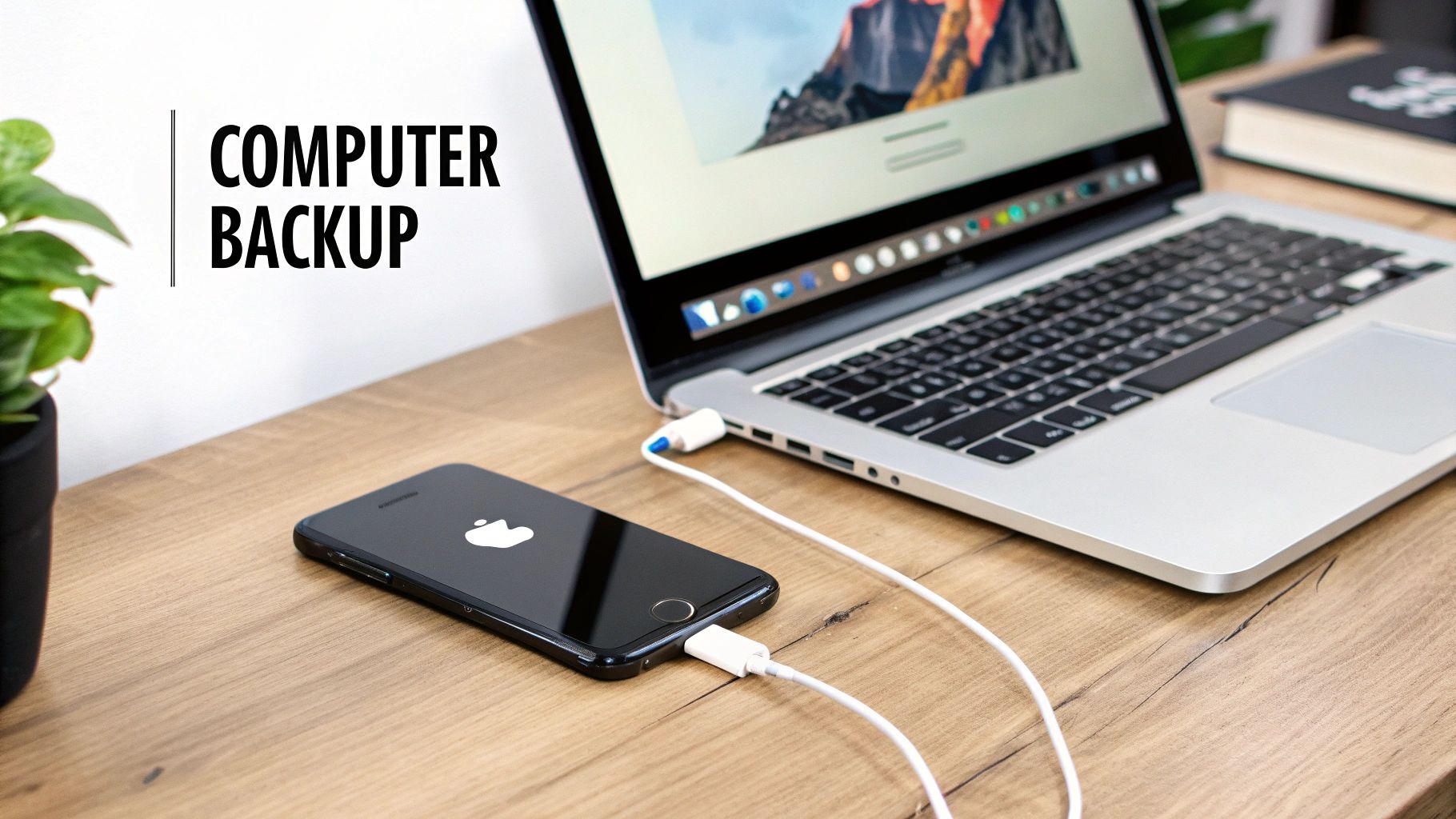
Sometimes, the old-fashioned way is the best. If your Wi-Fi is a bit slow, or you just prefer using a cable, using a computer to move your stuff is a brilliant choice. Think of it as moving house with a big, strong lorry instead of lots of small trips.
This method makes a complete copy—a backup—of your old iPhone right onto your computer. Then, you simply put everything from that backup onto your new phone. It’s a solid and simple process.
Getting Your Backup Ready
Depending on your computer, you'll use a different program for this job. Don't worry, they both work in almost exactly the same way.
- On a Mac computer: You’ll use Finder, which is the smiley face icon you see on your dock.
- On a Windows PC: You’ll need to have iTunes installed. If you don't have it, you can download it for free from Apple.
Once you're ready, grab your old iPhone and its charging cable. Plug one end into your phone and the other into your computer. Your iPhone will probably ask if you "Trust This Computer"—just tap Trust on the screen and type in your passcode.
Now, open either Finder or iTunes. You should see your iPhone pop up on the side or near the top of the window. Click on it to see all the details.
The Magic of an Encrypted Backup
On that main screen, you’ll see an option to back up your iPhone. But before you hit the "Back Up Now" button, there's one very important box to tick: Encrypt local backup.
You should definitely tick this box. It’s like putting a secret lock on your backup box.
An encrypted backup saves all your passwords, Wi-Fi settings, and Health data. This means when you move to your new phone, you won't have to sign back into all your apps like Netflix or Instagram. It saves you loads of time!
When you tick the box, your computer will ask you to create a password. Make sure it's one you'll remember, as you'll need it later to unlock your backup. After setting the password, click Back Up Now and let the computer do its thing.
Moving Everything to Your New iPhone
Once the backup has finished, you can unplug your old iPhone. Now, it's time for the exciting part. Grab your brand-new iPhone and connect it to the same computer with its cable.
If you’ve already started setting up your new phone, you'll need to reset it first to see the restore option. But if it's fresh out of the box, just follow the steps on the screen until you get to the Apps & Data screen. From there, choose Restore from Mac or PC.
Your computer will then show you a screen to set up the new phone. Choose Restore from this backup, pick the brand-new backup you just made, and type in that secret password you created.
The computer will start copying everything over. Just leave the phone plugged in, and soon enough, your new iPhone will be a perfect copy of your old one. If you run into any problems, our guide on how to troubleshoot your used iPhone has some great tips that can help.
Final Checks After Your Move is Complete
So, the move is finished! Your new iPhone should now be a perfect copy of your old one, with all your precious photos, apps, and contacts safely moved over. But before you get too carried away, we’re not quite done.
There are just a few little jobs left to do to make sure everything is working perfectly. Think of this as your final checklist before the real fun begins.
Once your apps have finished downloading, you might see that you need to sign back into some of them, like your banking app or Netflix. This is a normal safety step to make sure it’s really you using the new phone. Just open the apps one by one and put in your username and password.
Reconnecting Your Digital Life
After signing back into your favourite apps, there are a couple of other important connections to sort out. These are the little things that make your iPhone so useful every day.
Here are the key things to check off your list:
- Apple Pay: For safety, your bank cards aren't moved over automatically. You'll need to open the Wallet app and add your debit and credit cards again. It only takes a minute.
- Apple Watch: If you have an Apple Watch, you'll need to pair it with your new iPhone. Your new phone should ask you to do this, so just follow the simple steps on the screen.
- Important Apps: It's worth opening apps like WhatsApp just to make sure all your chats are there. Usually, they move over perfectly, but it’s always good to double-check.
It's amazing how much we rely on our phones. In the UK, younger people use their phones a lot, and with over 33 million people on Instagram, moving lots of photos and videos is very common. This makes these final checks really important for a smooth switch. You can read more about how people in the UK use their mobiles by checking out these mobile phone usage statistics.
Getting Your Old iPhone Ready for its Next Adventure
This is probably the most important final step. Before you sell, trade in, or give away your old iPhone, you must wipe all your personal information from it. This keeps your photos, messages, and private stuff safe from other people.
Wiping your old phone is like handing back the keys to a house after you've moved all your furniture out. You wouldn’t leave your personal things behind for the next person, and the same goes for all your phone data.
First, sign out of your Apple ID by going to Settings and tapping your name at the top. Then, go to Settings > General > Transfer or Reset iPhone and choose Erase All Content and Settings. This will completely wipe the phone, making it safe to pass on.
For a more detailed guide, you can follow our instructions on how to wipe your data when trading your old phone in.
Common Questions About Moving iPhones
Moving everything from your old iPhone to a shiny new one can feel like a big job. It's completely normal to have a few questions buzzing around in your head before you start.
To help you feel more confident, we've answered some of the most common worries we hear about.
How Long Does it Take to Move Everything?
This is a bit like asking "how long is a piece of string?", as it really depends on how much stuff you have on your old phone.
If your old iPhone is pretty empty, a direct Quick Start move can be surprisingly fast, often finished in just 15-30 minutes. But if your phone is full to the top with years of photos, videos, and big apps, it will take longer. For a very full iPhone, you might be waiting for an hour or even a little more.
Top Tip: Whichever way you choose, a strong and steady Wi-Fi connection is your best friend for a speedy move. If your internet is a bit slow, using a direct cable or the "Transfer Directly from iPhone" option in Quick Start will be your fastest choice.
Will My WhatsApp Chats Move to My New iPhone?
Yes, they absolutely should! This is a big worry for a lot of people, but luckily, WhatsApp has made this pretty easy. All your conversations are usually saved in your normal iCloud backup, so they get moved over with everything else.
To be extra safe, though, it's a brilliant idea to do a quick manual backup right before you start. Here's how:
- Open WhatsApp on your old iPhone.
- Go to Settings (the little gear picture in the bottom corner).
- Tap on Chats, then Chat Backup.
- Just tap Back Up Now to save a fresh copy of all your chats to iCloud.
That way, when you open WhatsApp on your new phone and sign in, it will find this perfect, up-to-date backup and put everything back just as you left it.
What If I Don’t Have Enough iCloud Storage?
This is a really common problem. Apple gives everyone 5GB of iCloud storage for free, which can fill up very quickly, especially with photos and videos. If you see a message saying there's not enough space to make a backup, don't panic!
Apple has a clever trick built into the phone just for this situation. They will give you temporary, unlimited iCloud storage completely free to help you move to your new iPhone.
On your old phone, go to Settings > General > Transfer or Reset iPhone. You should see an option to get started, which will give you all the temporary space you need. This free storage lasts for 21 days, giving you plenty of time to get your new phone set up and all your stuff moved over.
Ready to upgrade but don't want to pay brand-new prices? At Used Mobiles 4 U, we offer a huge range of brilliant refurbished iPhones that are fully tested and come with a 18 Month Warranty. Find your next perfect phone and save money by visiting us at https://usedmobiles4u.co.uk.
Looking for a refurbished phone?
Shop professionally tested refurbished iPhones and Samsung phones with 18 month warranty, 30 day returns and free UK delivery.
Browse Refurbished Phones






