





How to Wipe a Phone Before Recycling It: A UK Guide
This guide shows you exactly how to wipe a phone before recycling it, ensuring your personal data is protected. We'll cover backing up your information, signing out of accounts to avoid locking issues, and performing a full factory reset.
Following these steps will give you peace of mind that your old mobile is completely clean and ready for its next life.
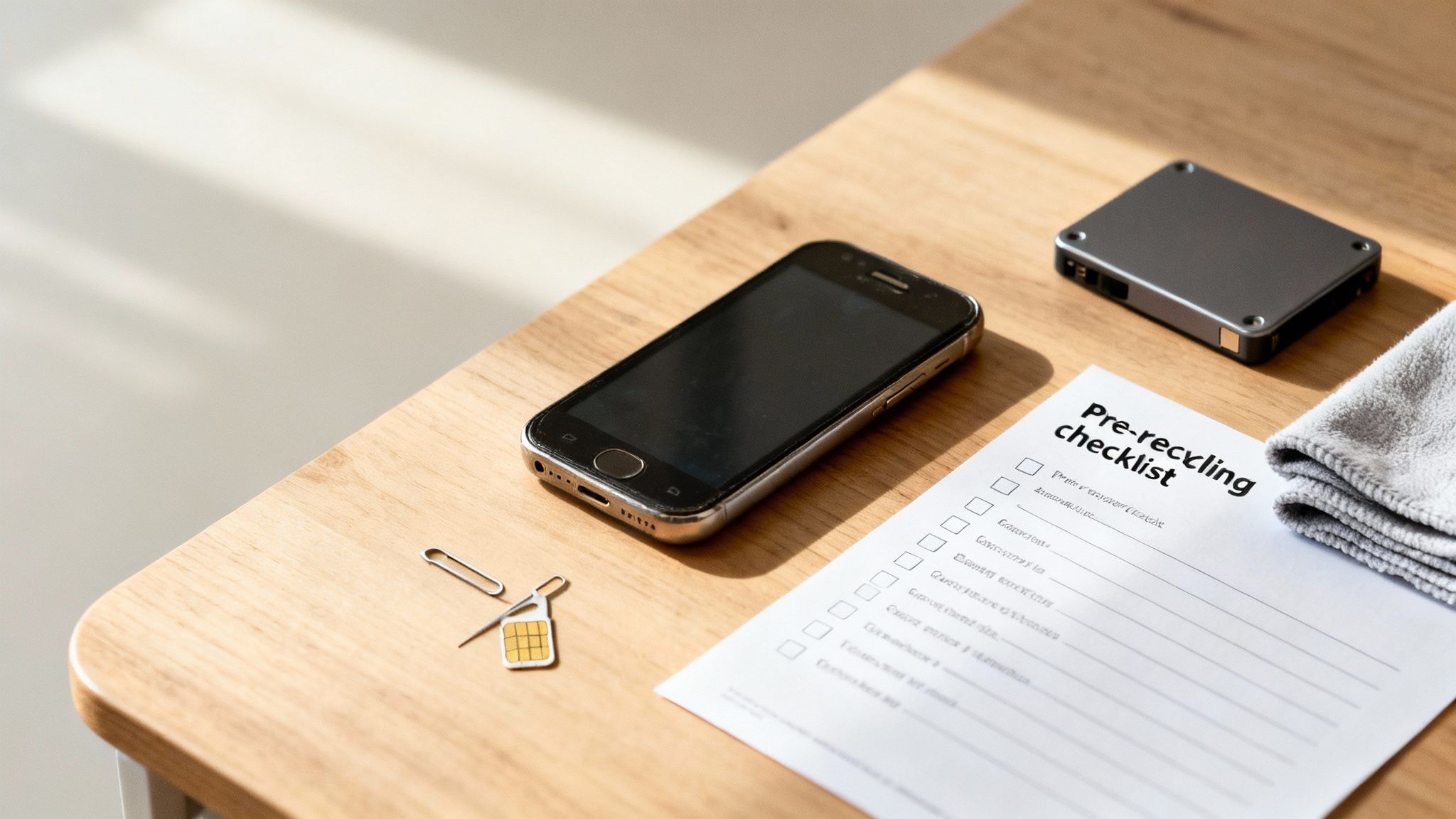
Your Essential Pre-Recycling Checklist
Before you send your old mobile on its way, taking a moment to prepare it correctly is vital. It’s not just about protecting your privacy; it’s also about ensuring the phone can be refurbished and reused, which is far better for the environment.
Think of it as a digital handover, making sure none of your personal history goes with the device. Many old phones sit in drawers across the UK because people worry about the data left on them. This clear checklist removes that uncertainty.
Key Steps for a Secure Wipe
Every step here plays a specific role in protecting your data. It’s a bit like packing up a house before you move – you take your valuables and leave the rest clean for the next person.
Here’s a quick rundown of the essentials:
- Back Up Your Data: This is your safety net. Before you delete anything, you must save your photos, contacts, and important files.
- Sign Out of Key Accounts: This is vital. It disables security features like Apple’s Activation Lock or Google’s Factory Reset Protection. If you forget this, the phone could be useless for the next person.
- Perform a Factory Reset: This erases your settings, apps, and personal files from the phone's internal storage, returning it to its original state.
- Remove SIM and Memory Cards: Don't forget the physical items. These cards contain personal information and need to come out before the phone leaves your hands.
Getting these steps right ensures you've done everything needed to properly wipe a phone before recycling it. For a detailed walkthrough for Apple devices, our guide on how to prepare an iPhone for sale offers extra tips.
Written by James Waterston — 24 years in the mobile phone industry from customer service to Sales Director of a global repair & recycling company; now running Used Mobiles 4 U for 8+ years. LinkedIn
1. Safeguard Your Data with a Full Backup
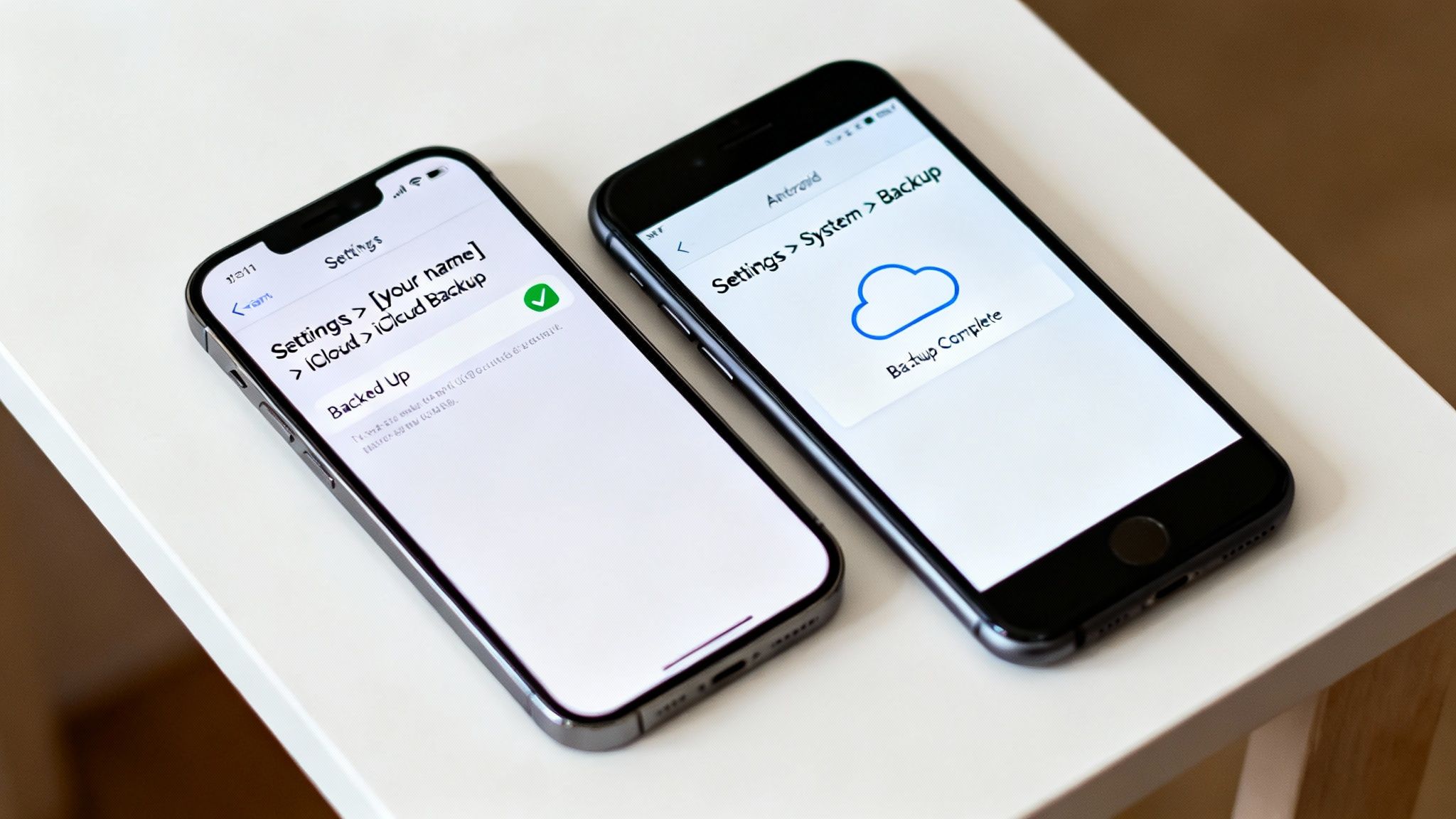
Before you think about wiping your old mobile, the absolute first thing you must do is back it up completely. This is the only way to be certain that all your photos, contacts, and messages are tucked away safely.
It’s an easy step to forget, but skipping it can mean losing years of memories you simply can’t get back. A backup is a non-negotiable part of learning how to wipe a phone before recycling it.
Backing Up Your iPhone
If you're an iPhone user, Apple gives you two straightforward options: a wireless backup to iCloud or a local backup to a computer. iCloud is usually the easiest as you can set it to run automatically.
To start an iCloud backup:
- Connect to a stable Wi-Fi network.
- Go to Settings > [your name] > iCloud.
- Tap on iCloud Backup.
- Check that the ‘Back Up This iPhone’ toggle is on, then tap Back Up Now.
If you prefer keeping a local copy, you can use a Mac or PC. On newer Macs, you’ll use Finder; for older Macs and PCs, you’ll use iTunes. Just plug in your iPhone, open the app, find your device, and click ‘Back Up Now’. If you're setting up a new device, our guide on how to transfer data from an old iPhone to a new one has more detailed steps.
Warning: Always check your backup
Before moving on, make sure your backup finished successfully. In iCloud, you'll see the date and time of the last successful backup right under the ‘Back Up Now’ button. Rushing this part is how precious data gets lost.
Backing Up Your Android Mobile
For Android users, the process is just as simple, with most backups handled through your Google Account. This saves your app data, contacts and calendars to Google Drive.
The exact path can differ depending on the manufacturer, but you'll generally find it here:
- Go to Settings > System > Backup.
- Make sure the ‘Back up to Google Drive’ (or similar) option is switched on.
- Tap Back up now to start it manually.
Many phone makers also include their own backup tools. Samsung users, for example, can use Samsung Smart Switch to create a full backup. It's always worth checking your phone's settings for any brand-specific tools.
Nailing this step ensures your data is safe before you continue.
Written by James Waterston — 24 years in the mobile phone industry from customer service to Sales Director of a global repair & recycling company; now running Used Mobiles 4 U for 8+ years. LinkedIn
2. Sign Out of All Accounts to Prevent Lock Issues
Once your data is safely backed up, the next job is to disconnect yourself from the device. This is a critical step when you wipe a phone before recycling it.
If you leave your accounts linked, security features can stay active, causing problems for the phone's next owner. It can make the phone completely unusable for them and a real headache for you.
Deactivating Locks on Your iPhone
For iPhone users, the main thing to watch for is a security feature called Activation Lock. It links to 'Find My' and is designed to stop anyone else using your iPhone if it's lost or stolen.
To turn it off, you must sign out of your Apple ID and iCloud account before you reset the device.
- Go to Settings > [your name] > Find My.
- Tap Find My iPhone and toggle it off. You'll need to enter your Apple ID password to confirm.
- Go back to Settings > [your name], scroll to the bottom and tap Sign Out.
If you skip this, the Activation Lock remains tied to the phone. Even after a factory reset, the phone will still ask for the previous owner's Apple ID, making it unusable.
Removing Your Google Account on Android
Android phones have a similar feature known as Factory Reset Protection (FRP). It's there to stop thieves from wiping and reusing a stolen phone.
If you factory reset the phone without removing your Google account first, the new user will be forced to enter your login details to get past the setup screen.
The steps can look a little different depending on the brand, but you can usually remove the account here:
- Go to Settings > Accounts and Backup > Manage accounts.
- Tap on your Google Account and select Remove account. You will likely need to confirm with your phone's PIN or password.
A Quick Example: We recently had a customer, Chloe from Bristol, trade in her perfectly good Samsung Galaxy S22. She had performed a factory reset but forgot to remove her Google Account. When our technicians tested the phone, they were blocked by the FRP lock, which delayed her payment while we helped her fix it.
Signing Out of Other Apps
While your Apple or Google account is the main priority, it’s good practice to manually sign out of other sensitive apps, such as banking, social media, and messaging apps. A factory reset should wipe them, but signing out first guarantees no login data could possibly remain.
Written by James Waterston — 24 years in the mobile phone industry from customer service to Sales Director of a global repair & recycling company; now running Used Mobiles 4 U for 8+ years. LinkedIn
3. Perform a Factory Reset for a Final Wipe
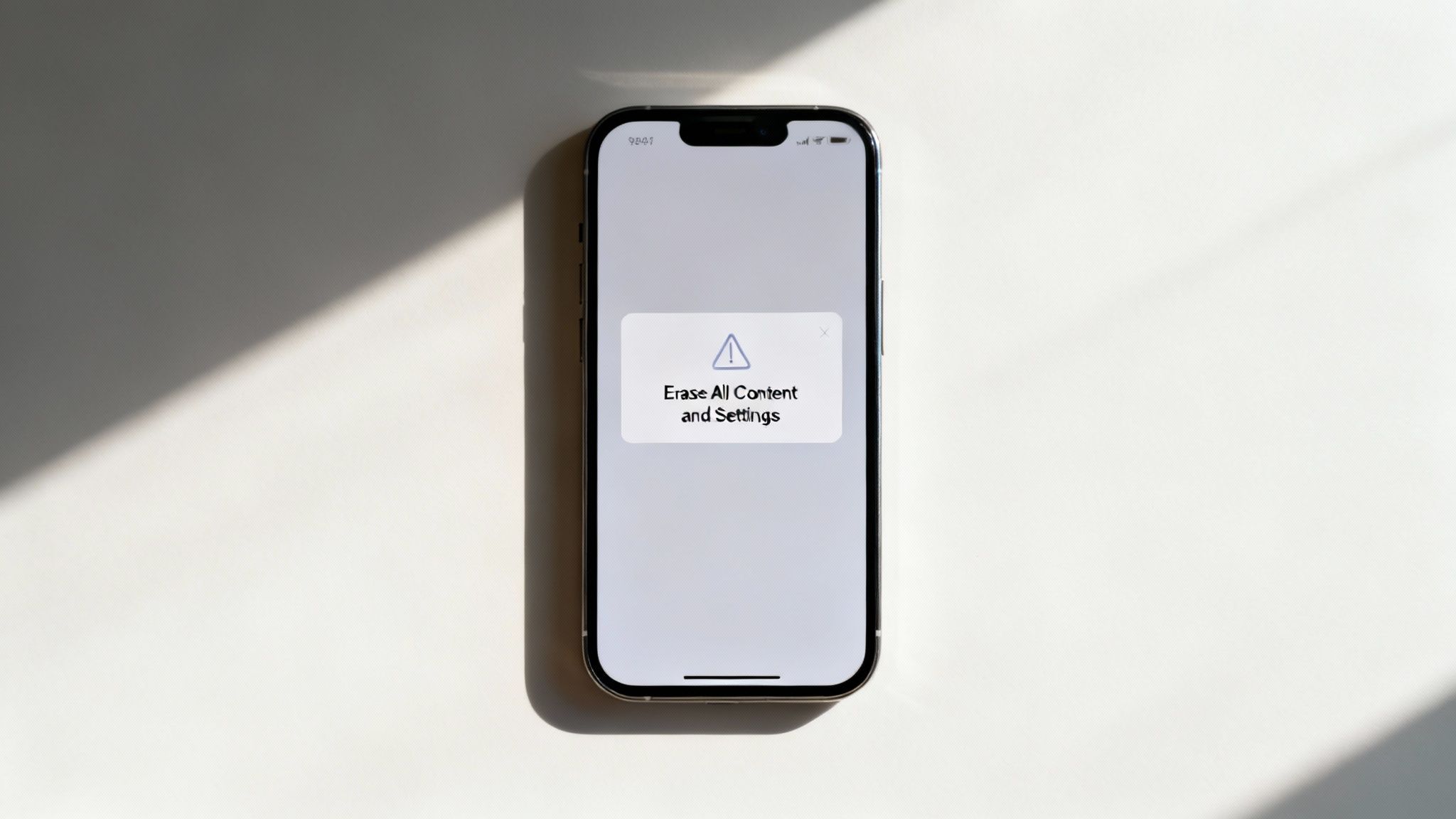
Now that your data is backed up and your accounts are disconnected, it's time for the factory reset. This action erases all personal information from the mobile, returning it to its original state.
This is the core of how to securely wipe a phone before recycling it. It’s the digital equivalent of scrubbing the device completely clean.
Wiping Your iPhone
Apple makes this process very simple. The option you’re looking for does exactly what it says—it erases everything. This is irreversible, so this is your last chance to check your backup is complete.
To factory reset your iPhone:
- Open the Settings app.
- Go to General > Transfer or Reset iPhone.
- Tap on Erase All Content and Settings.
- You’ll be asked for your passcode and possibly your Apple ID password to confirm.
Once you’ve confirmed, the iPhone will get to work. When it restarts, you'll see the "Hello" setup screen—proof the wipe was a success. For a more detailed walkthrough, see our guide on how to reset an iPhone to its factory settings.
Modern iPhones use powerful hardware encryption. When you perform a factory reset, you destroy the unique key that makes the data readable. Without this key, all that data is just a jumble of digital noise, making it practically impossible to recover.
Wiping Your Android Mobile
The path to factory resetting an Android phone is very similar, though menu names can vary by brand. The principle is the same: a complete wipe of all your personal data.
Here’s the typical route for most Android devices:
- Go into Settings.
- Scroll down and tap on System > Reset options.
- Choose Erase all data (factory reset).
- The phone will show a summary of what’s about to be erased. Tap Erase all data to confirm.
You’ll need to enter your PIN or password to authorise the reset. The phone will reboot and land on the initial welcome screen, ready for its new owner.
Just like iPhones, modern Android phones are encrypted out of the box. The built-in reset function is powerful and secure enough for almost everyone, giving you complete peace of mind.
Written by James Waterston — 24 years in the mobile phone industry from customer service to Sales Director of a global repair & recycling company; now running Used Mobiles 4 U for 8+ years. LinkedIn
4. Final Physical Checks Before Sending It Off
You’ve done the digital heavy lifting, but don't pack up the phone just yet. A few simple physical checks are the final piece of the puzzle.
These last steps ensure no personal hardware is left behind. Your SIM and any memory cards are the keys to your mobile life—they need to come with you.
Remove Your SIM and Memory Cards
First, take out your SIM card. It links your phone number and network plan to you personally. You'll usually need a small SIM ejector tool (or a straightened paperclip) to pop open the tray on the side of your phone.
Next, check for a microSD card. You won't find one on an iPhone, but many Android models have a slot for expandable storage.
A factory reset usually only cleans the phone’s internal memory. Any photos or documents on your microSD card will still be there unless you remove it.
Forgetting this is an easy mistake. I recall a customer, Mark from Cardiff, who sent us his old Android. He’d done a perfect factory reset but left his 64GB memory card inside, full of family photos. Our process caught it, but it’s a good reminder to always double-check.
Verify the Wipe Was Successful
Once the cards are out, power the phone back on one final time. You are looking for the original welcome screen, which prompts you to select a language. If you see this setup screen, you've nailed it.
Here's a quick checklist for these final actions:
- Locate the SIM tray on the side of the mobile.
- Use an ejector tool or paperclip to pop it open.
- Remove your SIM card and keep it safe.
- Check for and remove any microSD card.
- Power the phone on to confirm you see the welcome/setup screen.
As a last touch, give the phone a gentle wipe-down with a microfibre cloth. Now, your phone is truly ready for its next adventure.
Written by James Waterston — 24 years in the mobile phone industry from customer service to Sales Director of a global repair & recycling company; now running Used Mobiles 4 U for 8+ years. LinkedIn
Choosing a Reputable UK Recycling Service
You’ve followed all the steps for how to wipe a phone before recycling it. Now you’re at the final hurdle: where to send it. Not all recycling services are equal, and your choice here ensures your device is handled ethically.
A reputable service will either give the device a second life through refurbishment or ensure it’s broken down for materials in an environmentally sound way.
What to Look for in a UK Recycler
In the UK, the best recyclers are transparent about what they do. Refurbishment and reuse is by far the better environmental option.
When looking, check for services that are open about their compliance with UK regulations. This includes:
- WEEE Compliance: The company must follow the Waste Electrical and Electronic Equipment directive, which governs how e-waste is managed.
- Environment Agency Registration: A trustworthy recycler will be registered with the Environment Agency as a handler of electronic waste.
- Data Security Policies: They should clearly state their policy on data destruction. A good service will perform its own certified data wipe as an extra layer of security.
Why It Matters: Think of a responsible recycler as your safety net. Choosing a certified UK company ensures your old phone doesn't contribute to the global e-waste problem.
Refurbishment vs. Raw Material Recycling
Many services break phones down for materials. While better than landfill, the most sustainable choice is to give the device a second life. Specialist companies, like ourselves, focus on refurbishment to extend a device's useful life.
Opting for a service that prioritises reuse is a powerful way to support the circular economy. You can find out more about how to recycle your mobile phone in the UK through our dedicated programme.
The UK has a significant e-waste problem. Taking a few minutes to check your chosen recycler ensures your hard work is matched by a responsible final step. You can read more about e-waste statistics on WasteDirect.co.uk.
Written by James Waterston — 24 years in the mobile phone industry from customer service to Sales Director of a global repair & recycling company; now running Used Mobiles 4 U for 8+ years. LinkedIn
Your Top Questions Answered
When it comes to wiping a phone, a few common questions always pop up. Let's clear up any confusion so you can move forward with confidence.
Is a Factory Reset Really Enough to Wipe My Phone?
For the vast majority of modern smartphones, yes. If you have an iPhone from the last decade or a recent Android phone, a standard factory reset does the job perfectly.
These devices use powerful, built-in encryption by default. When you perform a reset, the process effectively throws away the unique encryption key. Without that key, all the data on the phone is just unreadable gibberish, making it practically impossible to recover.
What if My Phone's Screen Is Broken and I Can't Wipe It?
This is a common problem. If the screen is shattered but the phone still powers on, you might be able to connect it to an external monitor with an adapter (like a USB-C to HDMI cable) and use a Bluetooth mouse to navigate the menus.
If that’s not an option, it's vital that you use a recycling service that offers certified data destruction. Reputable companies have the tools to securely wipe the data once they can get the device working. For more on this, check out our guide on troubleshooting a used iPhone.
Will Taking My SIM Card Out Delete My Data?
No, removing your SIM card won't touch any of the data stored on the phone itself. The SIM mainly holds information about your mobile account, like your phone number, and perhaps a few old contacts.
You should always remove it for security before you sell or recycle your phone, but it has no effect on the photos, apps, or files saved to your phone's internal storage.
Ready to find a great value, reliable refurbished mobile? At Used Mobiles 4 U, every device comes with a 12-month warranty and free next-day delivery. Explore our full range of certified refurbished phones at https://usedmobiles4u.co.uk.
Written by James Waterston — 24 years in the mobile phone industry from customer service to Sales Director of a global repair & recycling company; now running Used Mobiles 4 U for 8+ years. LinkedIn







