





How to Change Your Ringtone on an iPhone
Tired of hearing the same default iPhone ringtone everywhere you go? This guide will show you how to change it, from picking one of Apple's free built-in sounds to creating your own custom tune from a song. Following these simple steps is one of the quickest ways to personalise your mobile and make it feel truly yours.
This guide will walk you through everything you need to know about how to change your ringtone on an iPhone, whether you're using a brand-new device or a trusty refurbished model.
Your Guide to Personalising iPhone Ringtones

Whether you’ve just unboxed a new iPhone or given a second life to a quality refurbished model, tweaking the sounds is a great first step. That familiar jingle can get a bit tired, and switching it up adds a welcome personal touch.
We'll cover all the options so you can find the method that suits you best. While many people are happy with the great selection of tones Apple includes, your options don't stop there. You can also dive into Apple's Tone Store to buy specific tracks or sound effects, or even get creative and craft a custom ringtone from a song you already own.
A Quick Look at Your Ringtone Options
Before you start, it’s helpful to see the different ways you can get a new ringtone. Each approach has its own perks, depending on whether you want something quick and free or a completely personalised sound. This table gives you a quick summary.
| Method | What It Involves | Best For |
|---|---|---|
| Use Pre-Installed Tones | Choosing from Apple's built-in sound library in your Settings. | A fast, free, and simple way to change your sound. |
| Purchase from the Tone Store | Buying official tones via Settings from Apple's large catalogue. | Finding specific songs or sound effects with minimal effort. |
| Create a Free Custom Tone | Using the free GarageBand app to turn a song file into a ringtone. | Making a unique, personal ringtone without any cost. |
From a quick five-minute change to a more involved creative project, you have plenty of choices for making your iPhone’s sound your own.
Why Bother Changing Your Ringtone?
Personalisation is about more than just a nice sound; it can be very practical. For instance, one of our customers, David, recently bought a refurbished iPhone SE for his elderly mother. He wanted to make sure she could easily tell her mobile apart from others in her house. By setting her ringtone to a classic, memorable tune, he made it much simpler for her to recognise when she was getting a call.
A distinct sound can also help you identify who is calling without even glancing at your screen. You can set one tone for your family and a completely different one for work calls, helping you prioritise in an instant. This guide is for everyone, from first-time iPhone users to those who just want to dig a bit deeper into their device’s features.
Selecting a New Default Ringtone and Alert Sound

The quickest way to ditch the default iPhone sound is to pick from one of the many tones Apple pre-installs on your device. It’s the perfect first step to making a phone feel like it's truly yours, especially if you've just unboxed a refurbished mobile.
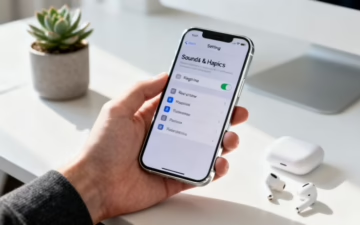
Getting there is straightforward. Just open up the Settings app from your home screen, then follow this path: Settings > Sounds & Haptics > Ringtone.
Inside this menu, you'll see a section called "Sounds and Haptic Patterns." Tapping on Ringtone brings up a list of all the available sounds. Your current one will have a tick next to it; simply tap another name like "Apex" or "By the Seaside" to hear a preview. Once you find one you like, just tap it and go back—your iPhone saves the choice automatically.
Customising Your Alert Sounds
Your ringtone is only half the story. You can also give other notifications their own unique sound, which is incredibly useful for knowing what’s happening without glancing at your screen.
Back in the Sounds & Haptics menu, you'll see separate options for key alerts:
- Text Tone: For new messages.
- New Mail: For incoming emails.
- Calendar Alerts: For your event reminders.
The process is exactly the same as changing your ringtone. This is a brilliant way to distinguish between an urgent text and a routine email. If you’re looking for more ways to make your device your own, check out our guide on the top apps to install on a refurbished phone.
A feature many people miss is the ability to change the vibration pattern, or haptics, that goes with your ringtone. At the top of the ringtone list, tap on Haptics. You can pick from several pre-set patterns or even create a custom one by tapping your finger on the screen. This lets you create an alert you can feel, which is ideal for knowing your phone is ringing when it’s on silent in your pocket.
Assigning Specific Ringtones to Your Contacts

While a new default ringtone is a nice touch, assigning unique sounds to specific people is an incredibly practical feature. You can instantly tell who’s calling—be it your partner, your boss, or your child's school—just from the sound your iPhone makes.
This simple layer of personalisation lets you prioritise important calls without glancing at your screen. Let's walk through how to set a custom ringtone for an individual contact. First, open your Contacts app, find the person you want to set a tone for, and tap on their name. In the top-right corner, tap the Edit button.
Setting a Custom Ringtone and Text Tone
Once you're in editing mode, scroll down until you find the Ringtone and Text Tone fields. By default, both will say "Default," meaning they use the standard sounds you picked in Settings > Sounds & Haptics.
To change the ringtone for this specific person:
- Tap on the Ringtone field.
- This brings up the same list of ringtones you’ve seen before.
- Choose any sound from the list to set it just for this contact.
- Once you’ve picked one, tap Done in the corner to save your change.
You can follow this exact same process for the Text Tone field as well. It’s brilliant for knowing who's messaged you without having to pull your mobile out of your pocket every five minutes.
For example, a customer of ours, Sarah, recently bought a refurbished iPhone for her son. She wanted a way to instantly recognise calls from his school. By setting a distinct, gentle ringtone just for the school's number, she ensures she never misses an important call but isn't startled by a loud noise during her workday.
It’s worth mentioning that if you're having trouble with contacts after switching devices, you may need to double-check your settings. Our guide on how to transfer data from an old iPhone to a new one has some helpful pointers to make sure everything carries over correctly.
How to Create a Custom Ringtone for Free with GarageBand

If the built-in sounds and paid tones aren't quite right, creating your own ringtone is the best way to personalise your iPhone. Using Apple’s free GarageBand app, which comes pre-installed on most iPhones, you can turn a snippet of your favourite song into a custom alert.
This process lets you take any sound file you own and convert it into a ringtone, all directly on your mobile. It’s surprisingly simple, even if you’ve never used a music creation app before. Just make sure the song you want to use is legally yours—either bought from iTunes or from a CD you own—and is already downloaded to your mobile's Files or Music app.
Getting Started with Your Track in GarageBand
First, open the GarageBand app. You’ll be greeted by a list of instruments; swipe through them until you find the Audio Recorder and tap it. Don't worry, we're not recording anything; this just opens a blank audio track.
Next, you need to switch to the timeline view. Tap the icon at the top left that looks like a brick wall. This changes the view from the live recorder to the track editor, which is where we need to be. Now, it's time to bring in your song:
- Tap the loop icon (a small lasso) at the top right.
- Select the Files or Music tab, depending on where your song is saved.
- Browse for your song, then press and hold the file and drag it onto the empty track.
The waveform of your song should now appear, ready for editing.
Trimming and Preparing Your Ringtone
This is the most important part: trimming your audio to a usable length. An iPhone ringtone must be under 40 seconds, but aiming for under 30 seconds is best practice. This also ensures it works for text alerts.
To trim the clip, drag the start and end handles of the audio region. You can pinch to zoom in on the waveform for more precise edits. Play it back a few times to make sure you’ve captured the exact part of the song you want. For a truly unique alert, you can even compose a unique tune in GarageBand.
Important: Before you export, there's one last crucial step. Tap the small '+' icon on the far right of the timeline to open the 'Song Sections' menu. Tap on Section A, turn off 'Automatic', and then manually set the length to 8 bars. This is roughly 30 seconds and the perfect length for a ringtone project in GarageBand.
If you've just switched devices, getting your music across can sometimes be a challenge. Our tips on how to transfer all your data to a new iPhone can be useful for getting your audio files in the right place.
Exporting Your New Ringtone
With your clip trimmed and ready, it’s time to export it. Tap the downward-facing arrow in the top-left corner and select My Songs. This saves your project and takes you back to the GarageBand file browser.
Find your project (it will probably be called 'My Song'), then press and hold it until a menu appears. Tap on Share. On the next screen, choose Ringtone. Give your new ringtone a name and tap Export. GarageBand will confirm the export was successful, and you can then tap Use sound as… to immediately set it as your default ringtone, text tone, or assign it to a specific contact.
If you don't set it right away, your new creation will be waiting for you at the top of the list in Settings > Sounds & Haptics > Ringtone. Learning how to change your ringtone on an iPhone this way opens up endless possibilities for personalisation.
Troubleshooting Common Ringtone Problems
So, you’ve followed all the steps, but your iPhone is stubbornly not cooperating. Maybe your new custom ringtone is missing, your phone just vibrates, or the volume is too quiet. Don't worry—these are common issues with straightforward solutions, especially if you're getting to grips with a refurbished iPhone.
Ringtone Not Playing or iPhone Only Vibrates
This is one of the most frequent problems. You’re expecting to hear your new tune, but all you get is a buzz or silence. Before digging into complex settings, let's check the basics.
- Check the Ring/Silent Switch: Look at the small switch on the left-hand side of your iPhone. If you can see an orange line, your mobile is in silent mode. Flick it back towards the screen to turn the sound on.
- Is Do Not Disturb or a Focus Mode Active? Swipe down from the top-right corner of your screen to open the Control Centre. If the crescent moon icon or another Focus mode (like Work or Sleep) is highlighted, your calls are being silenced. Tap the icon to turn it off.
- Is Bluetooth Connected? If your iPhone is connected to headphones or a speaker, the ringtone might be playing through that device. Turn off Bluetooth temporarily in Settings > Bluetooth to see if that solves it.
Low Volume or Custom Ringtone Not Appearing
Another common issue is a ringtone that plays but is barely audible. Or, after all your hard work in GarageBand, your custom sound is nowhere to be found. For low volume, go to Settings > Sounds & Haptics and check the Ringtone and Alert Volume slider is turned up.
A known quirk, particularly after an iOS update, is that custom ringtones can temporarily vanish. This usually happens because the update re-indexes system files. If you made the tone with GarageBand, simply re-exporting it should make it reappear in your list. A customer of ours, Ben, ran into this on his refurbished iPhone 12. He simply re-opened GarageBand, exported the project again, and it was back in his sound list straight away.
If you’re still wrestling with software glitches, you might find some other helpful tips in our guide on how to fix a freezing iPhone. Sometimes, a quick restart is all it takes.
Your iPhone Ringtone Questions Answered
Got a few more questions about personalising your iPhone's sounds? You're not alone. Here are some quick answers to the most common queries we see, whether you're a long-time user or just starting with a refurbished mobile.
Why Did My Custom Ringtone Vanish After an iOS Update?
This is a surprisingly common issue. Sometimes, a major iOS update can make custom ringtones disappear because the update process re-organises your sound files.
The most reliable fix is to re-add the ringtone. If you created it on your phone with GarageBand, it's very easy—just re-export the file from the app. This action nudges it back into your sound library, and it should reappear under Settings > Sounds & Haptics > Ringtone.
Can I Use a Song from Spotify or Apple Music as a Ringtone?
Unfortunately, the direct answer is no. You cannot turn a track straight from a streaming service like Spotify or Apple Music into a ringtone. This is due to Digital Rights Management (DRM), which protects the files from being copied.
To create a custom ringtone from a song, you need to own the audio file. That means you’ll have to have purchased the track from a place like the iTunes Store or have the file from a CD you own. The key is having the actual .mp3 or .m4a file on your device.
What's the Maximum Length for an iPhone Ringtone?
An iPhone ringtone can be up to 40 seconds long. However, alert tones—for texts, emails, and calendar reminders—have a shorter limit of 30 seconds.
Because of this, it's good practice to keep any custom audio clips you make under the 30-second mark. This ensures your new sound will work perfectly as either a full ringtone or a shorter alert.
How Do I Delete Custom Ringtones I Don't Want Anymore?
Cleaning up your ringtone list is simple, but you can only remove tones you've added yourself, not the standard, built-in ones.
To delete a custom tone, follow these steps:
- Go to Settings > Sounds & Haptics > Ringtone.
- Find the custom ringtone you want to remove from your list.
- Swipe left on its name.
- A red Delete button will appear. Tap it, and the tone will be removed.
Written by James Waterston — 24 years in the mobile phone industry from customer service to Sales Director of a global repair & recycling company; now running Used Mobiles 4 U for 8+ years. LinkedIn







