





How to Switch From Android to iPhone: A Practical Guide

01/02/2026

10 Mins
Thinking of moving from an Android mobile to an iPhone? This guide will show you how to do it smoothly. We'll walk you through the steps using Apple's "Move to iOS" app and other simple methods, making sure your photos, contacts, and messages come with you, especially if you're setting up a used or refurbished iPhone.
Preparing for a Smooth Switch
Moving from the familiar world of Android to an iPhone can feel like a big step. You likely have years of photos, contacts, and WhatsApp chats that you don't want to lose.
This guide provides clear, practical steps for UK users, especially if you've just bought a refurbished iPhone. We’ll show you exactly how to switch from Android to iPhone, covering everything from backing up your data to the final setup.
For example, a customer named Sarah recently bought a refurbished iPhone 12 from us after her Samsung had served its time. By following these steps, she moved her entire photo library and all her contacts over without any problems.
Our goal is to help you avoid common issues and keep your data safe. First, let's get a quick overview of your options.
Data Transfer Methods at a Glance
Each method is useful, and sometimes a combination works best. In the next sections, we'll explain exactly how to use them.
What to Do Before You Switch Phones
Taking a few minutes to prepare your Android device can save you a lot of hassle. Before you start the transfer, it's essential to back up your old mobile.
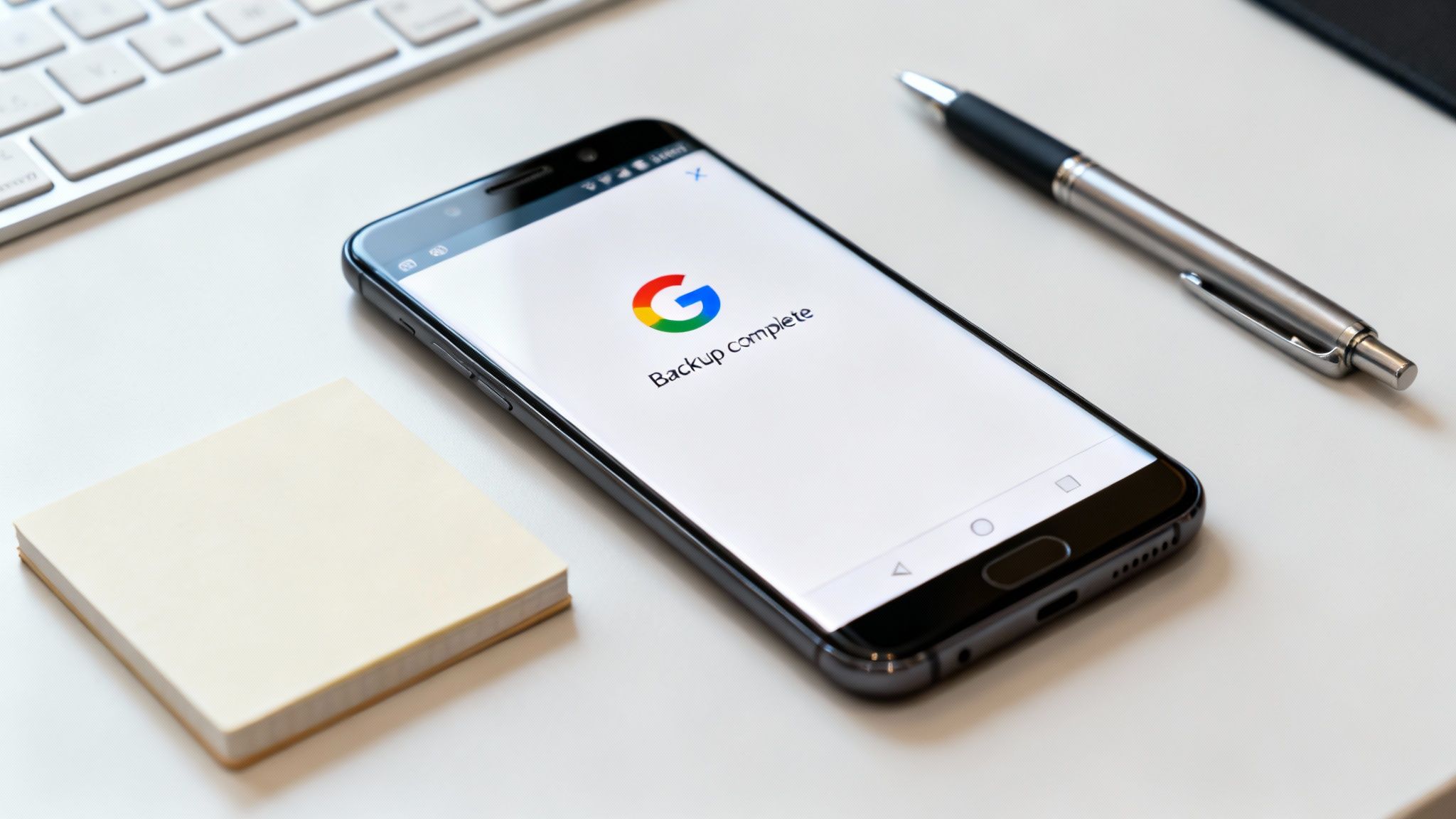
Warning: Always back up your data before starting any transfer process. This is your safety net if anything goes wrong, ensuring you don't lose important information.
Secure Your Data with a Google Backup
Your Google Account is the best tool for this. Most Android mobiles are set to back up automatically, but it's wise to check and run a manual backup right before you start the move.
Here’s how (the exact path might differ slightly depending on your phone's manufacturer):
- Open Settings > Google > Backup.
- Check the "Last backup" date. If it’s not recent, tap Back up now.
This process saves key data tied to your Google Account, including app data, call history, contacts, device settings, and SMS messages.
Tidy Up Your Contacts and Photos
To avoid losing contacts, make sure they are saved to your Google Account, not just on your phone's storage or SIM card. You can check this in your Contacts app settings, usually under an option like "Default account for new contacts."
For photos and videos, Google Photos is an excellent tool.
- Install Google Photos from the Play Store if you don't have it.
- Open the app, tap your profile picture, and go to Photos settings > Back up.
- Enable Backup and choose your quality. "Storage saver" offers unlimited storage of slightly compressed images, while "Original quality" uses your Google Account's storage allowance (usually 15 GB for free).
Let the app upload your camera roll. Make sure you’re connected to Wi-Fi and your phone is charging, as this can take some time.
Have a Quick Digital Clear-Out
Before you back everything up, take ten minutes to uninstall apps you no longer use and delete old files from your Downloads folder. A lighter load means a quicker transfer.
Once you’re ready to sell or trade in your old mobile, you'll need to wipe it properly. Check our guide on how to safely wipe your data from an old phone to ensure your personal information is completely removed.
Using The Move to iOS App for a Direct Transfer
If you're wondering how to switch from Android to iPhone, Apple’s ‘Move to iOS’ app is the most direct method. It creates a temporary wireless connection between your two mobiles to copy over most of your important data.
This method is only available during the initial setup of your iPhone. If you’ve already set up your iPhone, you would need to reset it to get this option back. Go to Settings > General > Transfer or Reset iPhone > Erase All Content and Settings. Be aware this will wipe the iPhone completely.
Starting the Transfer Process
First, install the free Move to iOS app from the Google Play Store on your Android phone. Begin setting up your new iPhone and follow the on-screen instructions until you reach the "Apps & Data" screen.
From the list of options, select Move Data from Android. Your iPhone will display a ten-digit or six-digit code.
Now, open the Move to iOS app on your Android mobile. Agree to the terms and proceed until it asks for the code showing on your iPhone. Enter it to connect the two devices.
What Does Move to iOS Transfer?
Once connected, your Android will show a "Transfer Data" screen. Here you can choose what to bring over.
The app typically transfers:
- Contacts
- Message history (SMS)
- Photos and videos from your camera roll
- Mail accounts
- Calendars
- Free apps (it will find matching apps on the App Store and add them to your download queue)
Select everything you want to move and tap 'Continue'. Leave both phones alone while the transfer is in progress, as using them could interrupt the process.
Common Problems and How to Solve Them
Sometimes the transfer can get stuck. If this happens, a few simple checks can often fix it.
Troubleshooting Tips:
- Keep Both Phones Plugged In: A full data transfer uses a lot of battery. Connect both to a charger to prevent them from switching off.
- Stay Close: Keep the phones right next to each other to maintain a strong connection.
- Check Network Settings: On your Android phone, temporarily switch off mobile data to ensure it stays connected to the iPhone's temporary Wi-Fi network. Also, turn off any battery-saving modes that might interfere with the app.
If it still fails, restart both devices and try the process again.
Once the transfer is complete, tap 'Done' on your Android device and continue setting up your Apple ID on your iPhone. This is a great starting point for anyone learning how to switch from Android to iPhone.
For more help, you might find our guide on data transfer from cheap Android phones to used iPhones useful.
How to Manually Transfer WhatsApp and Other Key Data
The ‘Move to iOS’ app is a good start, but it doesn't always transfer everything perfectly. For many people, losing their WhatsApp history is the biggest concern.
Fortunately, there are reliable manual methods to make sure everything important makes the move. These steps are your safety net.
Moving Your WhatsApp Chat History
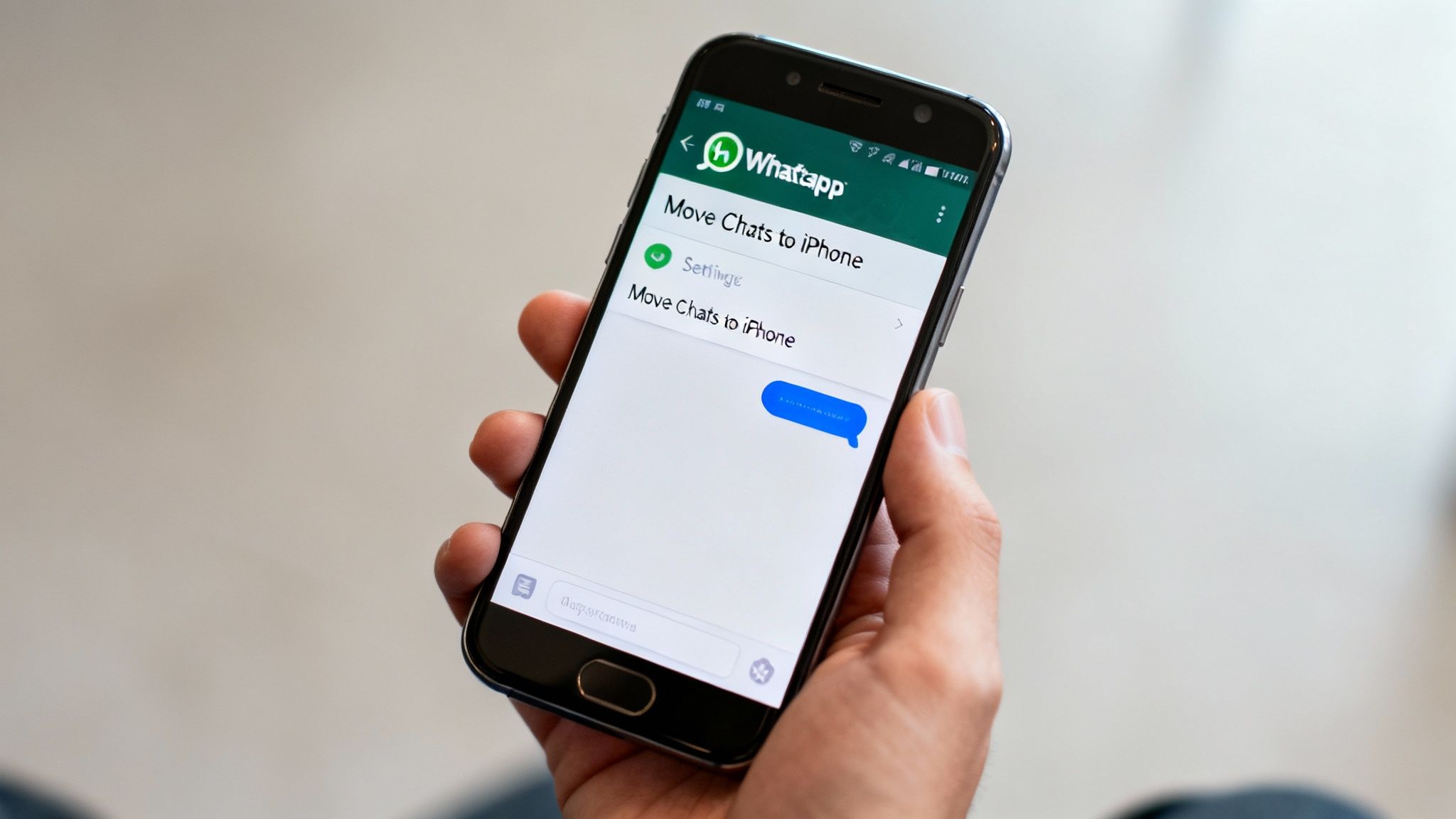
WhatsApp now has an official feature to transfer your chat history from Android to iPhone. It moves everything—chats, photos, and videos.
Before you begin:
- You must use the same phone number on your new iPhone.
- The iPhone must be new or factory reset, as the transfer is part of the Move to iOS process.
- Both phones must be plugged in and connected to the same Wi-Fi network.
Here’s what to do on your Android phone:
- Open WhatsApp and go to Settings > Chats > Move Chats to iPhone.
- Tap Start.
- Now, on the Move to iOS app on your Android, select WhatsApp from the "Transfer Data" screen.
- Once the transfer is complete, install WhatsApp on your iPhone from the App Store. Log in with the same phone number, and it will prompt you to restore your chat history.
Using Your Google Account for Everything Else
If the Move to iOS app missed something or you decided not to use it, your Google Account is an excellent alternative for syncing contacts, calendars, and emails.
Here’s how to set it up on your new iPhone:
- Go to Settings > Mail > Accounts > Add Account.
- Choose Google and sign in.
- Make sure the toggles for Mail, Contacts, and Calendars are all switched on.
Your iPhone will now keep this information in sync with your Google Account. For more tips on setting up a pre-owned device, our guide on how to set up your second-hand iPhone without losing data can help.
Accessing Photos and Files
If you backed up your photos to Google Photos, getting them on your iPhone is simple. Just download the Google Photos app from the App Store and sign in.
Your entire photo and video library will be available in the app. The files stay in the cloud, so they won't use up storage on your iPhone unless you download them. This is a great solution if you've chosen an iPhone with less storage.
For other documents, cloud services like Google Drive or Dropbox work the same way. Install the app, log in, and your files will be ready to access.
Getting Settled on Your New iPhone
Your data is transferred, but the switch isn't complete until the new device feels like your own. This final stage is about customising settings and getting Apple’s services working.
Setting Up Your Apple ID and iCloud
Your Apple ID is your key to the Apple ecosystem, used for the App Store, iCloud, and more. If you didn't create one during setup, now is the time.
Go to Settings and tap Sign in to your iPhone at the top. Follow the steps to create a new Apple ID. You will also be prompted to set up iCloud, which is essential for backups and syncing data. You get 5 GB of storage for free.
Activating iMessage and FaceTime
Two popular features of the iPhone are iMessage and FaceTime.
To activate them, go to Settings > Messages and ensure the iMessage toggle is on. Then, go to Settings > FaceTime and turn that toggle on as well. Your iPhone will now automatically use iMessage (blue bubbles) when you chat with other Apple users.
Finding and Installing Your Favourite Apps
You will need to re-download your apps from the Apple App Store. Any apps you paid for on Android will need to be purchased again, as the Google Play Store and App Store are separate.
Open the App Store and search for the apps you used on your old phone. For services like Spotify, Netflix, or your banking app, just download them and log in with your existing details.
Tweaking Your Settings
An iPhone operates a little differently from an Android device. Spending some time in the Settings app can help you get things just right.
Key areas to look at:
- Notifications: Go to Settings > Notifications to manage how and when apps can send you alerts.
- Privacy & Security: In Settings > Privacy & Security, you can control which apps have access to your location, photos, microphone, and more.
- Face ID / Touch ID: If you skipped this during setup, go to Settings > Face ID & Passcode (or Touch ID & Passcode) to secure your phone with your face or fingerprint.
Sorting Your SIM and Mobile Plan
If you have a physical SIM card, use the SIM tray tool (or a paperclip) to insert it into your iPhone. It should automatically connect to your UK network, like EE, O2, or Vodafone.
If you are using an eSIM, you will likely have a QR code from your network provider. Go to Settings > Mobile Data > Add eSIM and scan the code to activate it.
Choosing a Refurbished iPhone and What to Do with Your Old Android
Deciding how to switch from Android to iPhone is often a good time to consider which iPhone model you want. A refurbished model is a smart choice for several reasons.
The main benefit is the cost saving. You get a high-quality Apple device without the new price tag. It's also a more environmentally friendly choice, as it extends the life of a perfectly good phone. When you buy from a trusted seller, you still get the security of a full 18 Month Warranty.
We have a full guide on where to buy quality refurbished iPhones if you want more information.
What to Do with Your Old Android Mobile
Once you’re set up on your iPhone, don't let your old Android gather dust. You can sell it to make your switch even more affordable.
Our 'Sell Your Tech' programme offers a fair price for your old mobile, which you can put towards the cost of your refurbished iPhone. This ensures your old tech is responsibly reused or recycled.
If you're interested in other eco-friendly options, it’s good to know how to recycle old cell phones properly.
A Few Common Questions Answered
Here are some quick answers to the questions we hear most often from people making the switch.
Do my paid apps transfer from Android to my new iPhone?
No, they don't. The Google Play Store and Apple App Store are separate, so you will need to repurchase any paid apps. However, subscriptions like Spotify or Netflix are linked to your account, not your device. Just download the app and sign in.
What if the 'Move to iOS' app gets stuck?
If the transfer freezes, give it a few minutes. If it's truly stuck, restart both phones and try again. Make sure both devices are plugged in, connected to Wi-Fi, and sitting next to each other. If it continues to fail, you can skip it and use your Google Account to manually sync your contacts, calendar, and photos after setup.
Can I switch back to Android if I don't like iOS?
Yes. This is why we recommend backing up your Android to your Google Account before you start. If you decide the iPhone isn't for you, you can sign in to a new Android phone with your Google Account, and it will restore your core data.
Written by James Waterston — 24 years in the mobile phone industry from customer service to Sales Director of a global repair & recycling company; now running Used Mobiles 4 U for 8+ years. LinkedIn
Looking for a refurbished phone?
Shop professionally tested refurbished iPhones and Samsung phones with 18 month warranty, 30 day returns and free UK delivery.
Browse Refurbished Phones






