


How to Transfer Contacts to Your New Mobile: A Quick Guide

04/04/2026

13 Mins

Getting a new mobile, especially a quality refurbished one, is always exciting. But then comes that sinking feeling: how do you get all your contacts from your old phone to your new one? This guide will show you how to move your contacts safely, whether you're switching between iPhones, Androids, or a mix of both.
For most people, the quickest and safest way is using a cloud service. That means your iCloud account for iPhones or your Google Account for Android mobiles. We'll walk you through exactly how to do it, along with a few other methods if cloud syncing isn't an option.
Your Guide to Moving Contacts Without the Headache
This guide gives you clear, practical steps to get your contacts moved over without losing a single number. We’ll kick things off with the cloud-based methods for both iPhone and Android, as we recommend these to almost everyone who buys a phone from us at Used Mobiles 4 U. It's simply the most reliable way to ensure every bit of information—from phone numbers to birthdays and addresses—makes the journey to your new device.
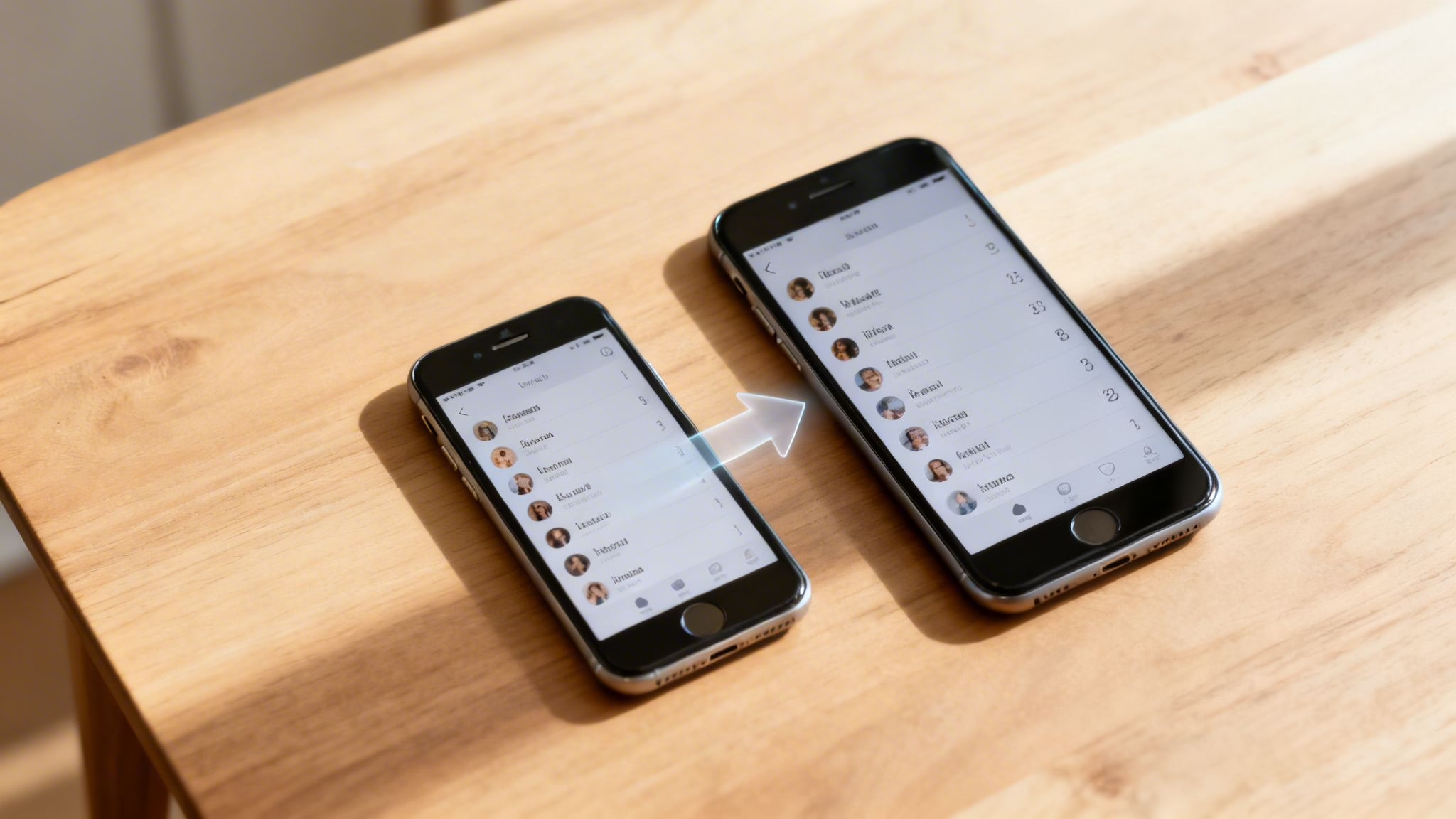
We'll also walk you through other solid options, just in case the cloud isn't for you. By the end of this, you’ll have your entire address book set up and ready to go on your new mobile.
Why a Little Prep Goes a Long Way
We often see customers who've just picked up a fantastic refurbished iPhone 13 or a Samsung Galaxy S22, buzzing with excitement to get started. But in the rush, they haven't thought about how to move their contacts across. A few minutes of planning can save you a lot of hassle.
Before you start, just ask yourself a couple of quick questions:
- Where are your contacts right now? Are they synced to an account like Google or Apple, saved directly on the phone, or stored on your SIM card? Knowing this points you to the best method.
- What kind of phones are you moving between? Transferring from an iPhone to an iPhone is a bit different than going from Android to Android, or making the switch from Android to iPhone.
- Do you have a stable Wi-Fi connection? The easiest methods all rely on Wi-Fi to sync your data wirelessly and smoothly.
A Technician’s Tip: Before you do anything else, back up your old phone. This is your safety net. If anything unexpected happens during the transfer, a recent backup ensures none of your important information is lost for good.
Contact Transfer Methods at a Glance
To help you decide which path to take, here’s a quick comparison of the most common methods. For most people, cloud syncing is the clear winner for its simplicity and reliability.
While a SIM card transfer is fast, it often only moves names and numbers, leaving behind photos and email addresses. For a complete transfer, cloud sync is unbeatable.
Transferring Contacts from iPhone to iPhone with iCloud
If you’re moving from one iPhone to another, whether it’s a shiny new model or a top-quality refurbished one, iCloud is by far your best option. It’s built right into every iPhone and makes shifting your contacts list completely seamless. Forget fiddling with cables or third-party apps—this method is all wireless and almost foolproof.

This is the first thing we recommend to pretty much every customer buying a refurbished iPhone from us. We recently had someone buy a ‘Like New’ iPhone 14 Pro, and by checking a single setting on their old mobile, all their contacts appeared on the new one before they’d even finished their first cup of tea.
Check Your iCloud Sync Settings First
Before you do anything else, it pays to double-check that your old iPhone is actually saving your contacts to iCloud. It usually does this by default, but a quick look can save you a headache later on.
Grab your old iPhone and go through these steps:
- Open the Settings app.
- Tap on [your name] at the top.
- Go into iCloud.
- In the 'Apps Using iCloud' section, tap Show All.
- Scroll down until you find Contacts and make sure the toggle next to it is green and switched on.
If it's already on, brilliant! Your contacts are synced. If you’ve just switched it on, give it a few moments to sync up while you're connected to Wi-Fi.
Pro Tip: Don't just stop at contacts. For a truly smooth switch, our detailed guide on how to transfer everything from an old iPhone to a new one covers moving your photos, apps, and personal settings as well.
The Magic of the New iPhone Setup
Once you've confirmed your contacts are syncing on your old device, the hard part is over. When you turn on your new iPhone for the first time, the setup process will ask you to sign in with your Apple ID.
Make sure you use the exact same Apple ID and password that you use on your old iPhone.
As soon as you’re signed in and connected to Wi-Fi, your new phone will automatically start pulling all your synced data down from iCloud—including your contacts. There’s no extra step needed. They’ll simply begin appearing in your Contacts app within minutes.
This is the most reliable way to get up and running. If you want to dive deeper, you can read Apple’s official guidance for exporting contacts from their support page.
Moving Your Contacts Between Android Mobiles
If you’re an Android user, your Google Account is the golden ticket to a painless contact transfer. Most Android phones, like the popular Samsung Galaxy or Google Pixel models we stock, are built to automatically back up your contacts to the cloud. This little feature makes moving to a new device incredibly straightforward.
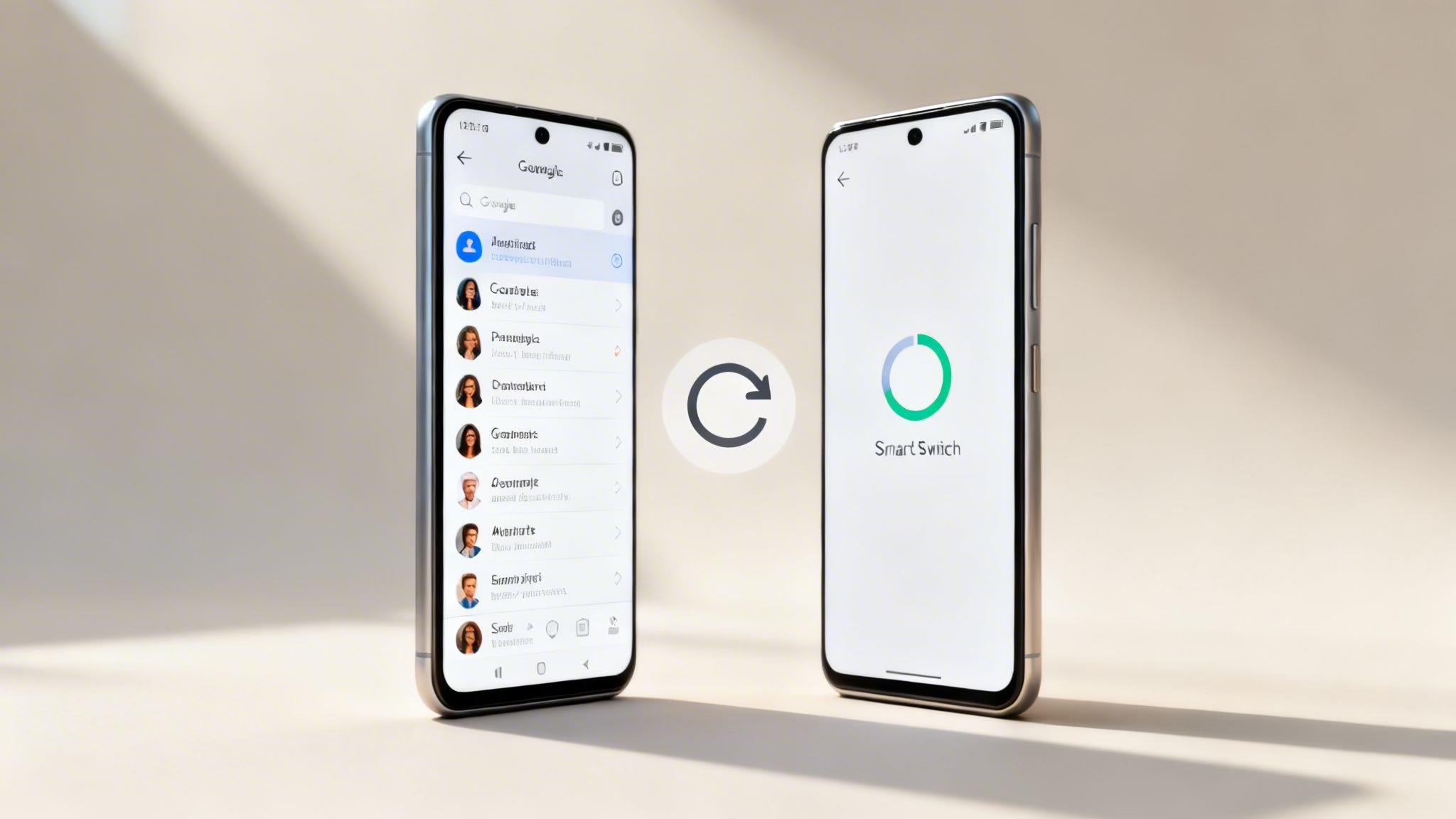
I’ll walk you through how to double-check that this sync is active on your old mobile. Once you've confirmed it, all you need to do is sign into the same Google Account on your new phone, and your contacts will appear. We'll also take a look at Samsung's own Smart Switch tool, which is a brilliant piece of kit for anyone moving between Samsung devices.
Check Your Google Sync Is Working
Before you power down your old phone for good, it’s vital to make sure your contacts are actually being saved to your Google Account. It’s a simple check that can save you a world of frustration.
The path is pretty much the same on most Android phones:
- Open your Settings app.
- Go to Accounts (or Passwords and accounts).
- Tap on your Google Account.
- Select Account sync.
- Make sure the toggle next to Contacts is on.
With this enabled, your phone keeps an up-to-date copy of your address book in the cloud. When you log in on your new handset, they’ll all be there waiting for you.
Using Samsung Smart Switch
If you're moving from one Samsung to another, you have to try the Smart Switch app. It’s a dedicated tool designed by Samsung to make transferring everything from contacts to photos completely effortless.
We recently helped a small business owner who had bought a batch of our refurbished Samsung A-series phones for his team. He was worried about the time it would take to set them all up, but after a quick demo of Smart Switch, he had everything moved over in minutes without needing any IT support.
You can simply download the app on both phones, connect them with Wi-Fi or a USB-C cable, and choose what to move. You can learn more about Android-to-Android data transfers in our dedicated guide.
How to Transfer Contacts Between iPhone and Android
Switching between an iPhone and an Android phone used to feel like a real headache, but these days it’s surprisingly straightforward. Your Google Account is the key that unlocks a smooth transfer, no matter which way you're going.
We walk parents through this all the time, especially when they're buying a first refurbished iPhone for a teenager who’s only ever known Android. Getting it wrong causes a lot of frustration, so it pays to get the steps right from the start.
From iPhone to a New Android Mobile
If you're making the leap from an iPhone to an Android device, the first job is to get your iPhone contacts talking to your Google Account. It’s a simple, one-time setup that makes everything else fall into place automatically.
On your iPhone, here’s the path to follow:
- Go to Settings.
- Scroll down and tap on Contacts.
- Select Accounts, then choose Add Account.
- Tap Google and sign in with your email and password.
- Make sure the Contacts toggle is switched on.
Once that’s done, your iPhone will sync its entire address book with Google. Now, when you fire up your new Android phone, just sign in with that same Google Account. All your contacts will be there waiting for you.
From Android to a New iPhone
Going the other way—from Android to a shiny new or refurbished iPhone—is just as easy, thanks to a clever little app from Apple itself.
Technician’s Insight: The best tool for this job is Apple's own 'Move to iOS' app. It’s free on the Google Play Store and is built specifically for this transfer. It doesn't just move contacts; it can also bring over your calendar, messages, and photos, which really helps make the switch feel less like a massive chore.
First, you'll need to install the 'Move to iOS' app on your old Android phone. Then, during the initial setup of your new iPhone, you’ll reach a screen called 'Apps & Data'. From there, simply choose the 'Move Data from Android' option and follow the instructions that pop up on both phones.
If you're planning this move, our dedicated guide on how to switch from Android to iPhone has even more detailed tips to make sure it’s a completely seamless transition.
Alternative Methods When Cloud Sync Is Not an Option
So, what happens if you can't use iCloud or your Google Account? Maybe your old phone's Wi-Fi is on the blink, or you simply prefer not to use the cloud. Don't worry. There are still a couple of reliable, old-school ways to get your contacts moved over.
These methods are a bit more hands-on, but they’re brilliant fallback options when cloud syncing just isn't possible. They ensure you won't leave any important numbers behind.
Using Your SIM Card
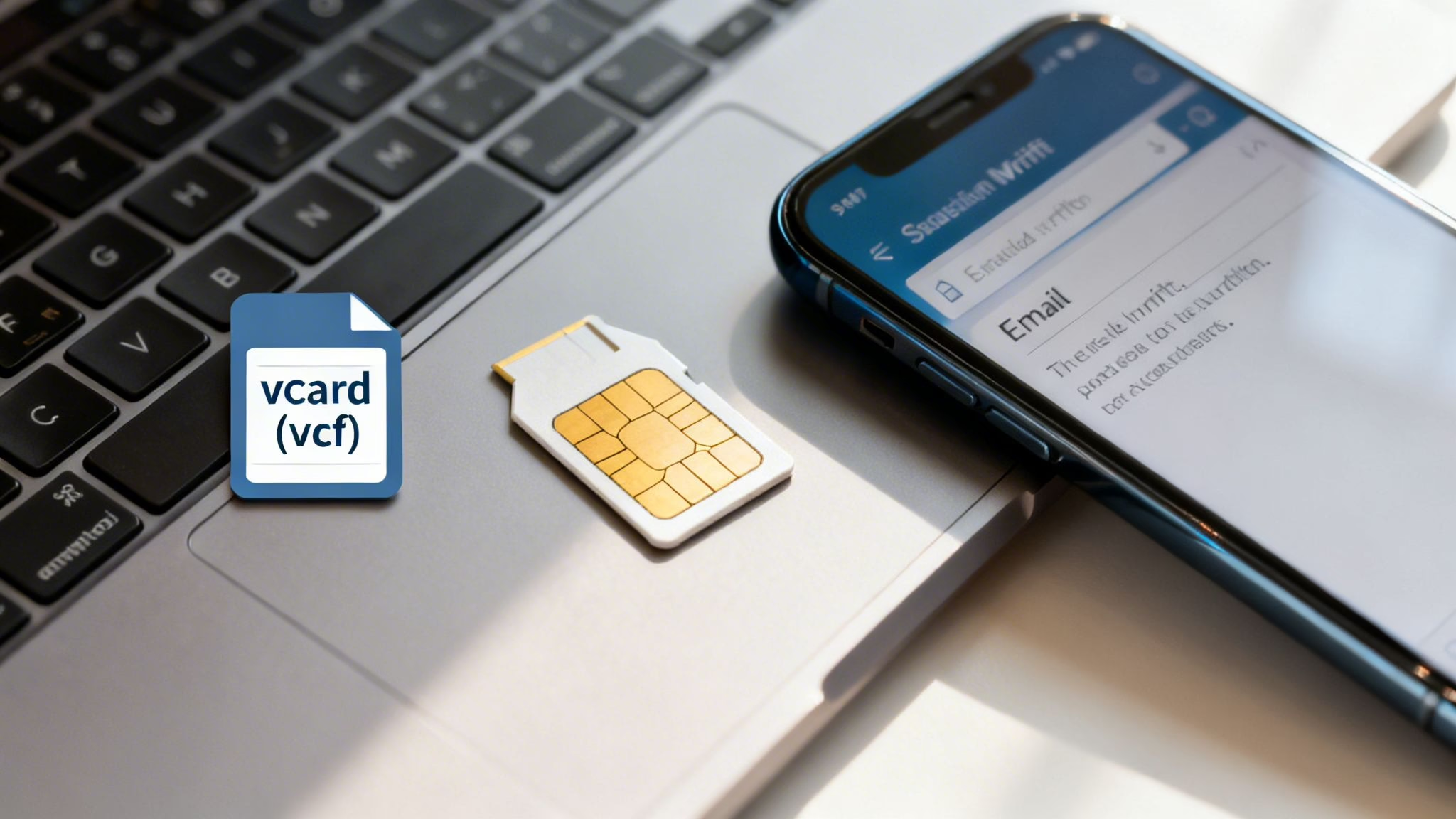
One of the classic methods is to use the SIM card itself. You copy contacts from your old phone’s memory to the SIM, pop it into your new device, and import them. It's wonderfully straightforward and requires no internet connection.
There is a catch, though. SIM cards can only store names and a single phone number. Any extra details you've saved—like email addresses, birthdays, or profile photos—will be left behind. It’s a solid plan B, but it’s not a complete solution.
You can find more details in the Uswitch mobile guide on transferring contacts.
Exporting a VCF or vCard File
For a more complete offline transfer, your best bet is to export your entire contacts list as a single file. This is known as a VCF file, or a vCard, and it bundles all your contact information—names, numbers, emails, and more—into one portable file.
This method is a real lifesaver in tricky situations. Just the other day, we helped a customer whose old phone had a broken Wi-Fi chip, so cloud services were out of the question.
Real-World Scenario: We walked them through exporting a vCard file from their old phone onto their laptop with a USB cable. From there, it was as simple as emailing the file to themselves. On their new phone, they just opened the email, tapped the attachment, and all their contacts imported instantly. Job done.
Creating a vCard file is surprisingly easy. On your old phone, open the Contacts app and look for the menu (usually three dots in the corner). From there, you'll want to find an Import/Export or Share option and choose to Export to .vcf file or Share all contacts.
Once you have that file, you can move it across in a few different ways:
- Email: The easiest method for most. Just attach the file to an email and send it to yourself.
- Bluetooth: A great cable-free option if both phones are next to each other.
- Computer Transfer: Move the file to your PC or Mac, then transfer it to the new phone via a USB cable.
This approach keeps all your contact details intact and is the perfect workaround when you're facing connectivity issues.
Backing Up Your Old Phone Is Your Safety Net
Before you move your contacts to a new phone, there’s one absolutely essential first step: back up your old mobile. Honestly, think of it as your digital safety net. If the transfer hits a snag—and sometimes it does—a recent backup means you won’t lose any of your precious contacts, photos, or messages.
When you get a phone from a trusted refurbisher like us, it arrives completely data-wiped and ready to go, just like a new device from the factory. That clean slate is great, but it means you need a solid plan to get your information from your old phone onto it safely.
Your Pre-Transfer Checklist
We always tell our customers to run a full backup before they get started. It’s a simple step that gives you complete peace of mind, especially if you’re planning to trade in your old device afterwards. A little preparation really does go a long way.
For a completely smooth transition, we also recommend going through our guide on how to get your iPhone ready to sell. It covers all the crucial steps, like backing up properly and securely wiping your data.
A Technician's Final Check: Before you trade in your old mobile with our 'Sell Your Tech' programme, do a final double-check. Make sure your backup is complete and that you’ve successfully signed out of all your accounts. It protects your privacy and makes the whole process seamless for everyone.
This one action—creating a backup—is the single most important thing you can do. It turns a potentially stressful task into a straightforward one, because you know your data is secure no matter what.
Frequently Asked Questions About Transferring Contacts
We get asked plenty of questions about this at the counter, especially by customers setting up their new refurbished phones. Let's clear up a few of the most common worries.
Will I Lose Contact Details Like Addresses or Birthdays?
This is a great question, and the answer really depends on how you transfer your contacts. If you use a cloud service like your Google Account or Apple's iCloud, you're in safe hands. All the extra bits you've saved—like postal addresses, birthdays, and notes—will come across perfectly. It’s why we always recommend this method.
However, if you go the old-school route and use your SIM card, you'll almost certainly lose that extra information. SIM cards are really just designed to hold a name and a primary phone number, nothing more.
What if I Have Duplicate Contacts After the Transfer?
Don't panic! This happens all the time. It’s usually because you had the same contact saved on your old SIM card and in your cloud account, so both copies arrived on your new phone. Thankfully, it’s an easy fix.
Both iOS and Android have built-in tools to help you tidy up the mess:
- On Android: Open your Contacts app and look for a ‘Merge & fix’ option. It’s usually tucked away in the menu and does a great job of finding and combining duplicates.
- On iPhone: The Contacts app is quite clever and often spots duplicates automatically. If it does, you’ll see a ‘Duplicates Found’ link appear right at the top of your contact list.
While backing up your old phone ensures your data is safe, securing your online presence on a new device is just as important. Using services like temporary phone numbers can boost your privacy when signing up for new apps without sharing your personal number.
Can I Transfer My Contacts Without Wi-Fi?
Yes, absolutely. If you don't have a reliable internet connection, you still have a couple of solid options. The first is using your SIM card, which moves basic contact details without needing any internet at all.
Your other option is to export your contacts as a VCF file (it's a universal format for contact cards) and send it to your new phone using Bluetooth. Some manufacturer apps, like Samsung's Smart Switch, even let you transfer everything directly with a cable, like a USB-C to USB-C or a Lightning to USB-C cable.
If you're still deciding on your next mobile, feel free to browse our range of quality refurbished phones at Used Mobiles 4 U. Our UK team is always here to help you find the right device.
Written by James Waterston — 24 years in the mobile phone industry from customer service through to Sales Director of a global repair and recycling company. Now running Used Mobiles 4 U for over 8 years.
LinkedIn:
https://uk.linkedin.com/in/james-waterston-9039a21a
Looking for a refurbished phone?
Shop professionally tested refurbished iPhones and Samsung phones with 18 month warranty, 30 day returns and free UK delivery.
Browse Refurbished Phones