


Transfer Data Samsung Galaxy to a Refurbished Phone Safely

12/08/2026

9 Mins

Use Samsung Smart Switch to transfer contacts and photos, along with messages and personal settings, to a refurbished Samsung Galaxy. For a safe transfer, prepare both phones first, use a cable for a large transfer, and leave the source handset untouched until you’ve checked everything.
Wireless transfer works well for smaller amounts of data. However, a wired connection is usually more stable when you have years of photos, videos or messages to move.
The Short Version
- Install or update the Smart Switch app on the old Android phone and the new Samsung device, the refurbished Galaxy you’re setting up.
- Use a data-capable USB cable for a large transfer, rather than a charge-only lead.
- Keep both phones unlocked, charged and close together during the process.
- Sign in to Google, Samsung and other accounts afterwards, as synced data and app logins may not copy.
- Back up WhatsApp separately before wiping the source phone.
- Never erase the source phone until contacts, photos, messages and important files appear on the Galaxy.
Moving Data to a Galaxy with Smart Switch
The search phrase “transfer data Samsung Galaxy” covers several routes, but Samsung Smart Switch is the recommended starting point. The Smart Switch app is normally pre-installed on newer Galaxy phones, and you can download it through the Google Play Store or Galaxy Store when needed.
It works with a broad range of compatible devices, including Android phones and iPhones, but is primarily designed to move content to a Galaxy rather than a non-Galaxy destination. Samsung’s official Smart Switch transfer instructions explain the available transfer methods.
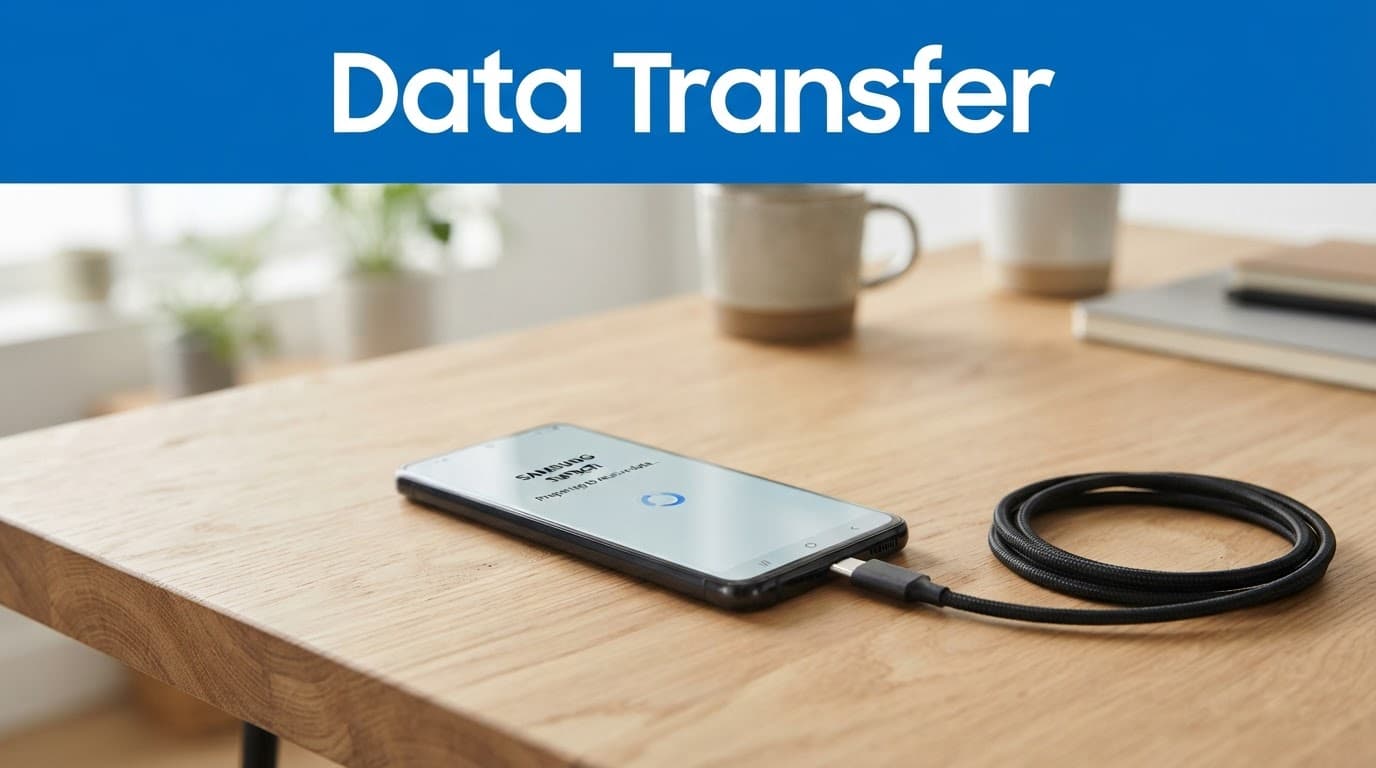
Wireless data transfer uses Wi-Fi Direct between the phones, so neither handset needs to use the home Wi-Fi connection. We recommend a USB cable transfer for large galleries and multi-gigabyte moves because it reduces interruptions and makes the process easier to diagnose.
How to transfer data to Galaxy: quick steps
- Charge both phones and remove any thick cases that could prevent the cable fitting properly.
- On the refurbished Galaxy, open Smart Switch and select Receive data.
- Choose Galaxy/Android or iPhone/iPad, depending on the source phone.
- On the old Android phone, open Smart Switch and select Send data. An iPhone normally connects by cable.
- Choose Cable or Wireless, then follow the screen instructions and accept the permission prompts on both phones.
- Select the content you want to move and check the estimated storage requirement before starting.
- Wait for the transfer to finish, then open your contacts, gallery and messages on the Galaxy before resetting the old phone.
Samsung’s current app listing requires at least 500MB of free internal memory space on both phones. That’s the app minimum, not the total space needed for transferred files. The current Android app listing supports Android OS version 6.0 or later, while older Samsung support pages show lower minimums for some methods. Updating both phones and keeping the system software version current improves compatibility.
Moving Data from Android to a Galaxy
Android-to-Galaxy transfers are usually the simplest. Compatible devices include Samsung, OnePlus, Xiaomi and Google Pixel phones. The Smart Switch app can move photos, contacts, messages, apps and call log data from many Android models.
Choose a wired connection when moving a large gallery or several gigabytes of documents. Recent phones can use USB-C to USB-C, while older models may need the original cable and a suitable Samsung USB connector. Make sure the cable supports data, not only charging.
For a smaller transfer, select Wireless on both phones. Keep the handsets close, unlock them when prompted and avoid using either one until the process finishes. If you need more detail, our Android-to-Android data transfer guide covers the same Smart Switch process with additional preparation advice.
Google Account contacts may not appear as copied files. If they were synchronised to Google, they should return when you add the same account to the refurbished Galaxy. We recommend checking contacts.google.com and the old phone’s account settings before starting. This confirms which account holds the master copy.
Moving Photos, Contacts and Messages from an iPhone
For an iOS device to Galaxy transfer, open Smart Switch on the new Samsung device and choose Receive data, followed by iPhone/iPad. A direct cable connection is normally the clearest route. Depending on the iPhone and Galaxy ports, you may need a USB-C to Lightning cable or an adapter.
Unlock the iPhone and approve the Trust This Computer or accessory prompt if it appears. Smart Switch can usually bring across contacts, calendar entries, photos, videos, call history and text messages. Apple Music downloads, DRM-protected content, passwords and some app data require separate treatment.
You can also import data through an iCloud backup. If photos exist only in iCloud, you’ll need the Apple ID and password used by the old iPhone. The process can take longer in this case. Samsung’s Smart Switch support page explains the available transfer routes.
WhatsApp data transfer needs extra care. Back up chats within WhatsApp and follow the app’s own transfer instructions before wiping the iPhone. Banking apps, password managers, passkeys and two-factor authentication apps normally require fresh sign-in or reactivation on the Galaxy.
What Smart Switch Transfers, and What It Doesn’t
Smart Switch can usually move:
- Contacts, call log data, calendars, SMS and MMS messages.
- Photos, videos, documents and DRM-free music.
- Some installed apps, wallpapers, alarms and device settings.
- Notes, email accounts and selected Samsung features, depending on the source phone.
- Certain Samsung data, such as Secure Folder or Samsung Pass, where the source and receiving software support it.
Some information returns after account sign-in as part of a complete backup and restore, rather than a direct file copy. Google, Samsung and other cloud services may synchronise their own data once you log in.
Expect to set up banking apps, payment cards, passwords, eSIMs and some security features manually. Encrypted app databases may not transfer, and DRM-protected media cannot simply be copied to a different platform.
Before deleting anything, compare the old and new phones. Open several recent photos and a few older ones, search for older messages, check contact groups and confirm that important documents open properly. Our guide to transferring contacts to a new phone is useful when the address book appears incomplete.
Fixes for Failed or Incomplete Transfers
When a transfer fails, the symptom usually points towards the cause.
- The phones cannot find each other: unlock both screens, check the system software version and update Smart Switch. Turn off the mobile hotspot and keep the phones within a short distance. On Android, make sure Smart Switch is installed on both devices.
- The USB connection keeps dropping: try another known-good data cable, avoid a USB hub and inspect the ports for compacted lint. Clean carefully with an appropriate non-metal tool, because cleaning cannot repair worn connector contacts.
- The transfer stops part-way through: restart both phones, free more storage and retry in smaller groups. Move photos first, then documents and other files. Don’t erase the old phone after a partial transfer.
- The Galaxy reports insufficient space: 500MB is only the app’s minimum requirement. Check the available internal memory space, including room for the data itself, temporary transfer files and future updates.
- Contacts or app data are missing: sign in to the relevant Google, Samsung or Apple account. Then reinstall affected apps and complete their own restore process.
- A backup appears corrupted: create a fresh backup from the source phone and repeat the backup and restore process, leaving out the file category that repeatedly causes the failure. External storage can help when the phone’s internal storage is nearly full.
If a refurbished Galaxy asks for the previous owner’s Google account during setup, stop there. Data transfer cannot bypass Factory Reset Protection, so the seller must remove the old account properly before you can use the phone.
Backing Up and Restoring with Smart Switch PC
Samsung Smart Switch for Windows or Mac can back up a Galaxy to a computer, then restore that backup to another Galaxy. This is a separate computer-mediated backup and restore route. Install the current desktop application, connect the old Galaxy with a data cable, choose Backup, then connect the refurbished Galaxy and select Restore.
The exact minimum Windows or macOS version can change with the installer, so use Samsung’s current desktop support information rather than an old blog post. In practical terms, you need a supported computer, enough disk space for the backup, administrator access and a reliable cable.
An iPhone Finder or iTunes backup is still useful as a safety copy. However, it isn’t a direct restore format for a Galaxy. For an iPhone-to-Samsung move, Smart Switch through a cable or iCloud is usually the better route.
Our Experience Refurbishing This Model at Used Mobiles 4U
One thing we regularly notice with refurbished Samsung Galaxy phones is that preparation often causes transfer problems. The Smart Switch software is not always at fault. A phone may charge normally but still have a USB-C port with compacted lint or worn contacts. This can interrupt a long wired transfer.
Before resale, our technicians check charging, USB data connection, Wi-Fi, Bluetooth, mobile signal, speakers, microphones, cameras and full-screen touch response. We also look for lifted screens, uneven gaps, bent housings and signs of liquid exposure. A phone that looks clean can still have damage from a hard previous drop.
We securely wipe returned devices and check that they are ready for a new owner. Our refurbished stock is supplied with clear grading, a minimum 85% battery health standard, an 18-month warranty and 30-day returns. Those details matter because a successful data transfer is only useful if the receiving phone is reliable afterwards.
What We Commonly See
- Buyers usually choose a refurbished Galaxy when they want more storage or a better screen without paying new-phone pricing.
- The main concern is often battery performance, followed by whether the USB-C port stays connected during charging and data transfer.
- Customers moving from another Samsung phone normally prefer a cable because it brings across a large amount of content quickly.
- People changing from an iPhone often need the most help with WhatsApp, passwords, banking apps and iCloud-only photos.
- The biggest difference between cosmetic grades is appearance. A few marks matter less than stable charging, a straight frame and working cameras.
Frequently Asked Questions
Can I transfer data to a refurbished Samsung Galaxy?
Yes. Samsung Smart Switch can move contacts, photos, videos, messages, call history and some apps from a compatible Android phone or iPhone to a refurbished Galaxy.
Is a cable better than wireless transfer?
A USB cable is usually more stable for large galleries, videos or multi-gigabyte transfers. Wireless transfer is suitable for smaller amounts of data when both phones are close, unlocked and charged.
Will Smart Switch transfer WhatsApp, passwords and banking apps?
WhatsApp needs its own backup and transfer process, while banking apps, password managers and passkeys normally require fresh sign-in or reactivation. Check each app before wiping the old phone.
What should I do if contacts or photos are missing?
First, sign in to the relevant Google, Samsung or Apple account because synchronised data may return after account setup. Then retry the transfer in smaller groups and check that the receiving Galaxy has enough internal storage.
When can I erase the old phone?
Do not reset it until you have checked recent and older photos, contacts, messages, documents and important apps on the refurbished Galaxy. Keep the source phone available until you have confirmed that backups and account sign-ins work.
Conclusion
Smart Switch is a sensible starting point for moving data to a refurbished Samsung Galaxy. Use a cable for a large transfer and wireless for a smaller move. Handle WhatsApp, banking apps and cloud accounts separately.
The process suits moves from Android or iPhone, provided the original phone remains available until the receiving Galaxy has been checked. Don’t wipe it until your photos, contacts and key apps are confirmed. If the Galaxy remains linked to a previous owner’s account, or the original phone has no working backup route, contact the seller before continuing.
This guide reflects the checks we make when preparing refurbished Galaxy phones for resale, including secure wiping, battery condition and USB-C testing.
Written by James Waterston, 24 years in the mobile phone industry, now running Used Mobiles 4U. View James Waterston’s LinkedIn profile
Meta description: Learn how to transfer data Samsung Galaxy owners need from an old phone to a refurbished phone using Smart Switch, USB or Wi-Fi, plus iPhone migration steps and fixes for missing apps or chats.
Looking for a refurbished phone?
Shop professionally tested refurbished iPhones and Samsung phones with 18 month warranty, 30 day returns and free UK delivery.
Browse Refurbished Phones