


Wireless Ethernet Adapter: Your UK Guide for 2026

19/07/2026

11 Mins
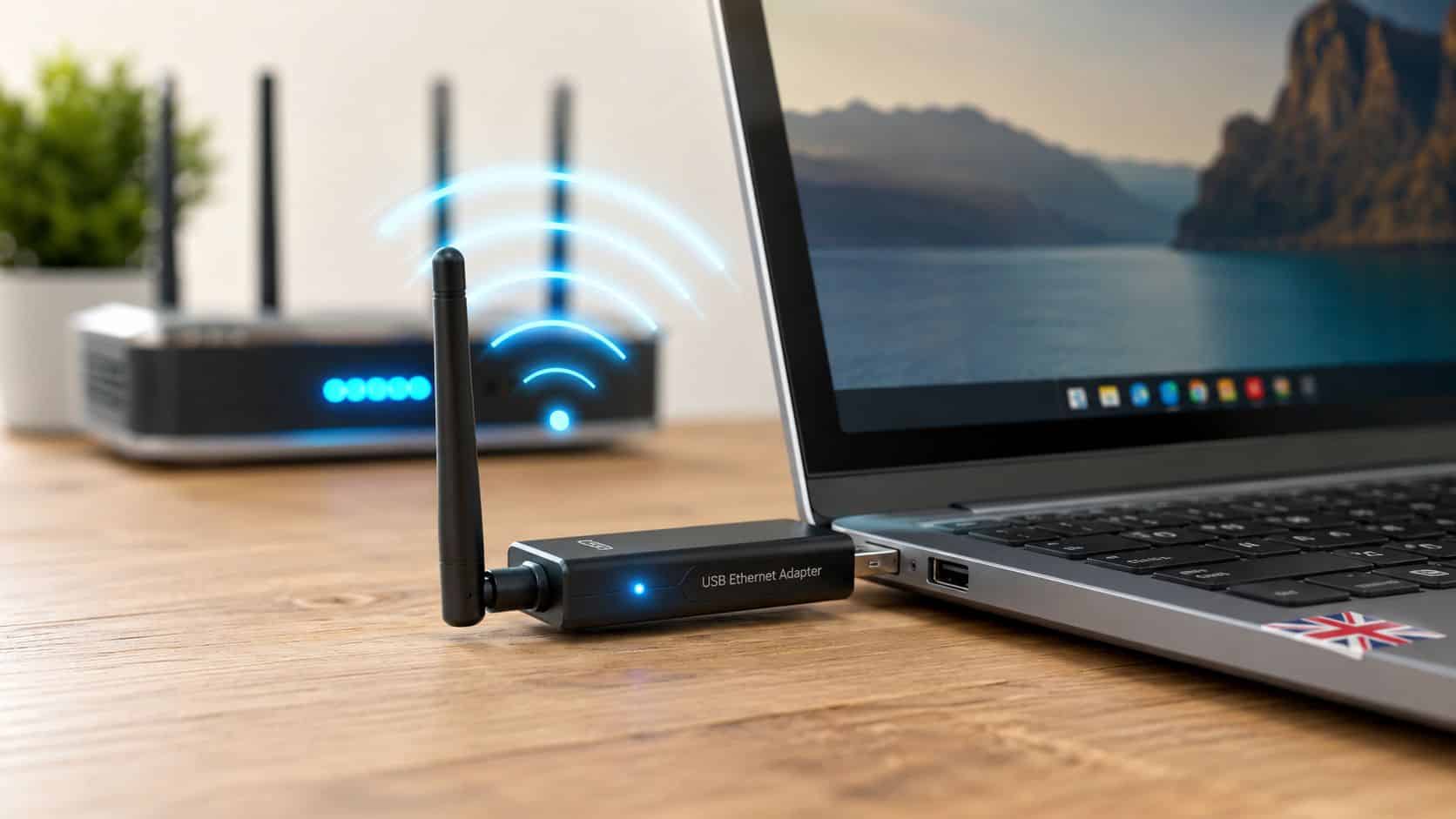
If your old laptop, console or smart TV won’t connect properly to your new broadband, a wireless ethernet adapter is usually the easiest fix. It adds Wi-Fi to a device that’s missing it, replaces a failing internal wireless card, or helps older kit make better use of faster UK internet.
You don’t always need a new machine. Quite often, you just need the right little adapter plugged into the right port.
In Plain English What Is a Wireless Adapter?
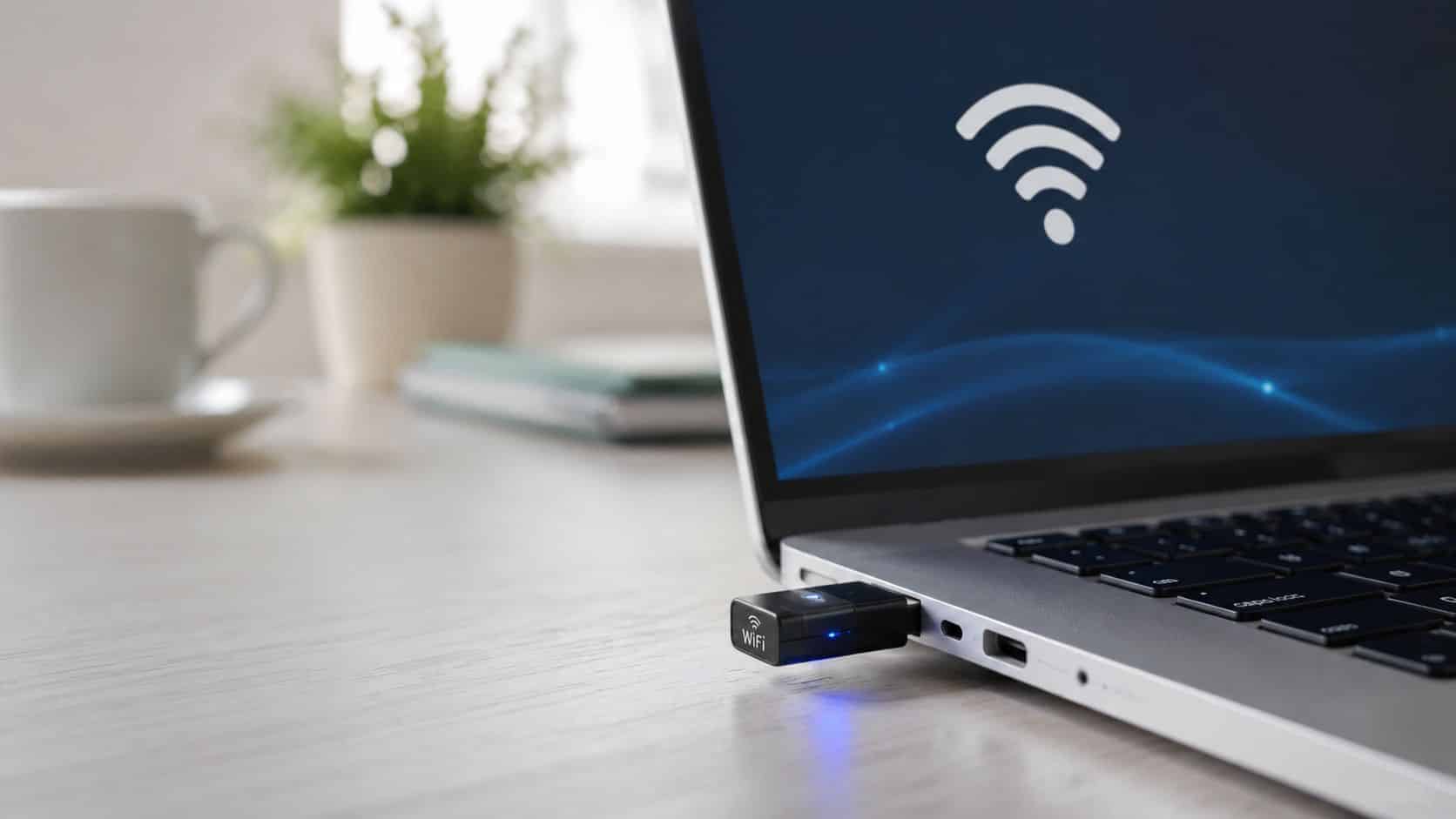
A wireless ethernet adapter is a small device that gives something Wi-Fi when it doesn’t already have it, or when the built-in Wi-Fi has become weak, unreliable or outdated. Most people know the USB version for laptops and desktops, but some adapters are used the other way round, to get an Ethernet-only device onto your wireless network.
The simplest way to think of it is this. It’s like giving an older device a new way to talk to your router. Instead of being stuck with a cable, no connection at all, or a tired old wireless chip, the device gets a fresh network link.
In Plain English
- For old laptops: Plug it in and add Wi-Fi if the internal card has failed or never worked well.
- For desktops: It avoids running a long Ethernet cable across the room.
- For older consoles and TVs: The right type can help Ethernet-only kit join a wireless network.
- For slower devices: A newer adapter can improve stability and usable speed if the original wireless hardware is dated.
- For refurbished tech: It keeps perfectly usable devices in service for longer, instead of replacing them too soon.
Practical rule: If the device itself still does what you need, poor Wi-Fi alone usually isn’t a good enough reason to scrap it.
That matters more now because UK broadband has moved on quickly. Homes and offices have faster lines, stronger routers and more connected devices than they did a few years ago, so older kit can become the weak point. If you want a broader look at network upgrades and enhanced network performance and security, that gives useful context on why ageing client devices often need help even when the broadband itself is fine.
When You Might Need a Wireless Ethernet Adapter
The most common reason is simple. The broadband has improved, but the device hasn’t.
That shows up all the time with older laptops, hand-me-down desktops, used consoles and smart TVs that still work perfectly well apart from one annoying thing. They either can’t see the network properly, keep dropping off, or only have Ethernet and no built-in Wi-Fi at all.
The laptop still works, but the Wi-Fi doesn’t
A common example we see is an older Windows laptop that’s fine for email, web browsing, schoolwork and streaming, but the internal wireless is patchy. It connects in one room, struggles in another, and sometimes disappears after waking from sleep.
In that situation, a USB wireless ethernet adapter is often the neat answer. You avoid opening the machine, hunting for a matching internal card, or spending money on a repair that doesn’t add much value to the laptop itself.
The TV or console only has Ethernet
This is the part many people miss. A wireless ethernet adapter isn’t always about adding Wi-Fi to a computer. It can also mean bridging an Ethernet-only device onto your wireless network.
That matters because 34% of UK households own at least one Ethernet-only device, such as an older smart TV or games console, while only 12% of UK tech blogs address Ethernet-to-WiFi adapter setup, as noted in this UK wireless adapters guide.
- Older smart TVs: Good screen, good picture, no usable wireless option.
- PS3 and Xbox 360 era consoles: Still fine for casual gaming or media playback, but often awkward to place near the router.
- Desktop PCs in back rooms: Too far from the router for a tidy wired setup.
For older home tech, the adapter often saves the device from being blamed for a problem that’s really just a connectivity problem.
It suits refurbished buyers especially well
If you buy used or refurbished tech, this matters even more. A wireless adapter can extend the life of an older laptop or media device without forcing a full replacement. That fits the same thinking as keeping a good refurbished handset in service for longer, or using features like wifi calling on refurbished phones to make older devices work better in real homes.
It’s a practical fix, not a glamorous one. But it often gives the best result for the least hassle.
How to Set Up a USB Wi-Fi Adapter Quick Steps
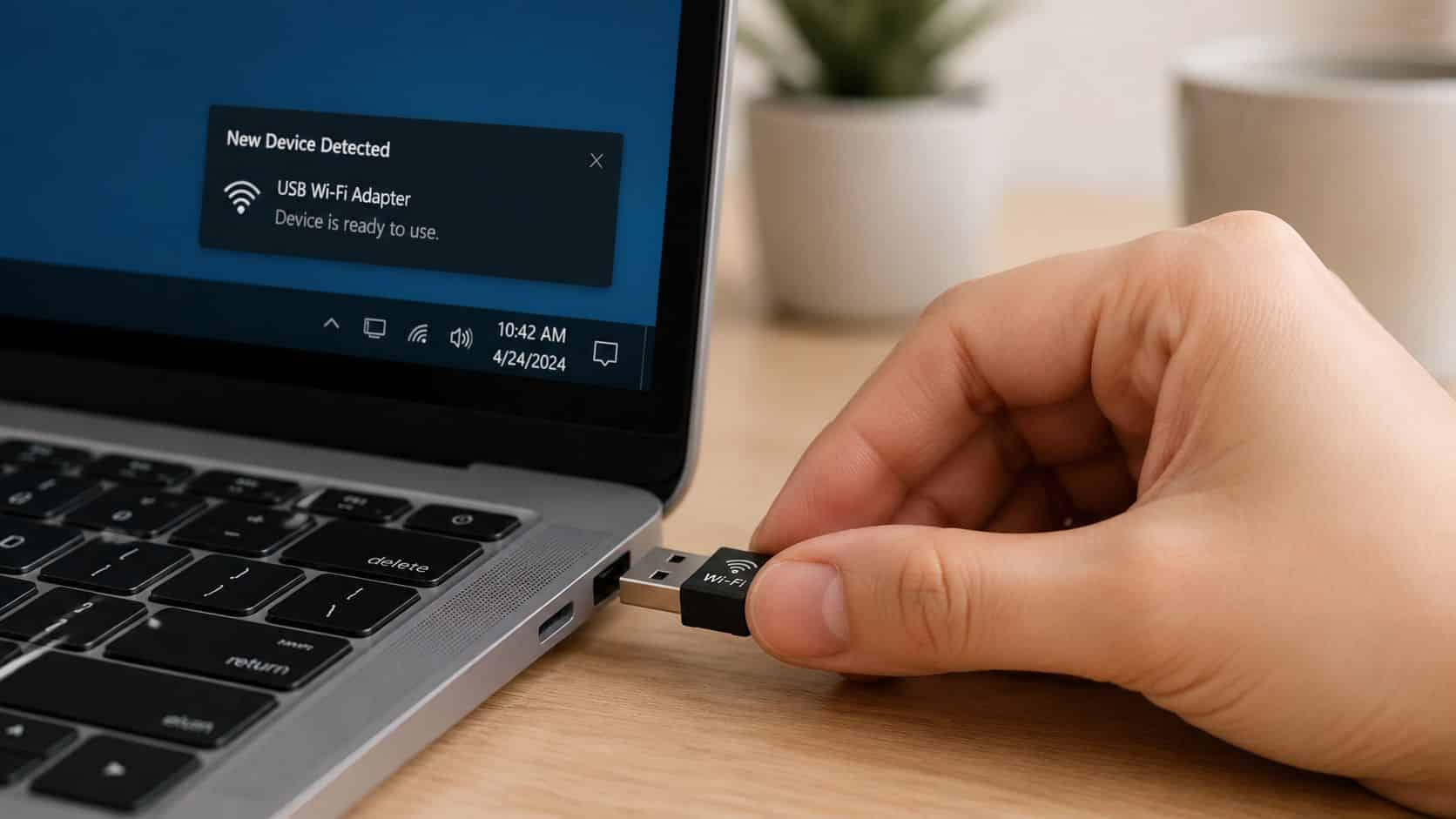
Most USB adapters are straightforward to set up. On many Windows laptops, it’s plug in, wait a moment, then join your Wi-Fi network.
How to Set Up a USB Wi-Fi Adapter Quick Steps
- Shut down any downloads first. If the old Wi-Fi is still partly working, pause updates or file transfers before you swap over.
- Plug the adapter into the correct USB port. If it’s a USB 3.0 adapter, use a blue USB 3.0 port where possible. That gives the adapter the best chance of reaching its proper speed.
- Wait for Windows to detect it. Many adapters install automatically. Give it a minute or two before assuming anything has gone wrong.
- Open the Wi-Fi list in Windows. Select the wireless icon near the clock, choose your home network, then enter the password.
- If it isn’t recognised, install the driver manually. Use the included driver media if you have it, or download the correct driver from the manufacturer on another device and transfer it across.
- Restart the laptop or PC once the driver is installed. This often clears the odd glitches that appear on older machines.
- Test it from where you actually use the device. Don’t just check it next to the router. Try the sofa, desk or bedroom where it normally lives.
- Move the adapter if needed. If speeds are poor, try a front USB port or a short USB extension lead to improve its position.
Mac and console notes
Macs can be simple or fussy depending on the adapter and the macOS version, so it’s worth checking compatibility before buying. Consoles and Ethernet-only devices are different again, because you may need a bridge-style adapter rather than a standard laptop USB dongle.
Small setup mistake, big effect. The most common one is plugging a faster adapter into a poor USB port and then assuming the adapter is the problem.
If you’re replacing a broken internal card on an older laptop, back up your files first. A wireless fix shouldn’t touch your data, but any time you’re working around an ageing machine, it’s sensible to have a copy of what matters.
What Our Technicians See With Wi-Fi on Older Laptops
One thing we regularly notice on older laptops is that the machine itself is still perfectly usable, but the internal Wi-Fi has become the weak link. The owner says it’s slow everywhere, yet the phone beside it works fine on the same broadband.
Our technicians often see the same pattern. The laptop connects, then drops. Or it only performs decently when it’s very close to the router. Sometimes the internal card still technically works, but it’s so inconsistent that the machine feels worse than it really is.
Our Experience Refurbishing This Model at Used Mobiles 4U
When we refurbish laptops and mobile devices, we look at the practical faults first, not just whether a machine powers on. Wi-Fi stability, charging, ports, speakers, camera function, keyboard wear, battery condition and thermal behaviour all matter because those are the things that affect daily use.
One thing we regularly notice is that heavy-use machines often show the same clues. Loose USB ports, worn palm rests, tired batteries, bent hinges, missing feet and intermittent wireless. The cosmetic grade can tell part of the story, but not all of it. A clean lid doesn’t always mean a clean history.
Our technicians often see laptops where replacing the internal Wi-Fi hardware is possible, but not sensible. On some models it means opening the whole base, dealing with fragile clips, routing tiny antenna leads and then hoping there isn’t a second issue causing the fault. In those cases, an external adapter is often the better answer because it’s quicker, easier to reverse and usually less frustrating for the owner.
- Battery health matters too: A weak battery can make older laptops behave oddly under load, including random sleep or disconnect complaints that people initially blame on Wi-Fi.
- Ports need checking: If the USB port is loose or damaged, even a good adapter won’t behave properly.
- Grade differences are real: Heavier-used devices are more likely to have port wear, previous repair signs or pressure damage around the screen and hinges.
- Repair versus replace logic: If the laptop is still responsive for your daily jobs, we’d usually lean towards the adapter route. If the laptop is slow in every area, Wi-Fi alone won’t save it.
What Buyers Usually Ask Us
- Will an adapter make an old laptop fast again? Only in network terms. It can improve connection quality, but it won’t fix a weak processor, failing storage or too little memory.
- Is it better than replacing the internal card? Often, yes. Especially on older budget laptops where labour and parts don’t make much sense.
- Can setup problems be mistaken for hardware failure? Absolutely. We often recommend basic cleanup and software checks first, including these steps for laptop restoration if the whole machine has become cluttered or unstable.
If the laptop still suits the job, fix the connection and keep using it. If the whole machine is struggling, save the adapter money and put it towards something better.
Choosing the Right Adapter for Your UK Home
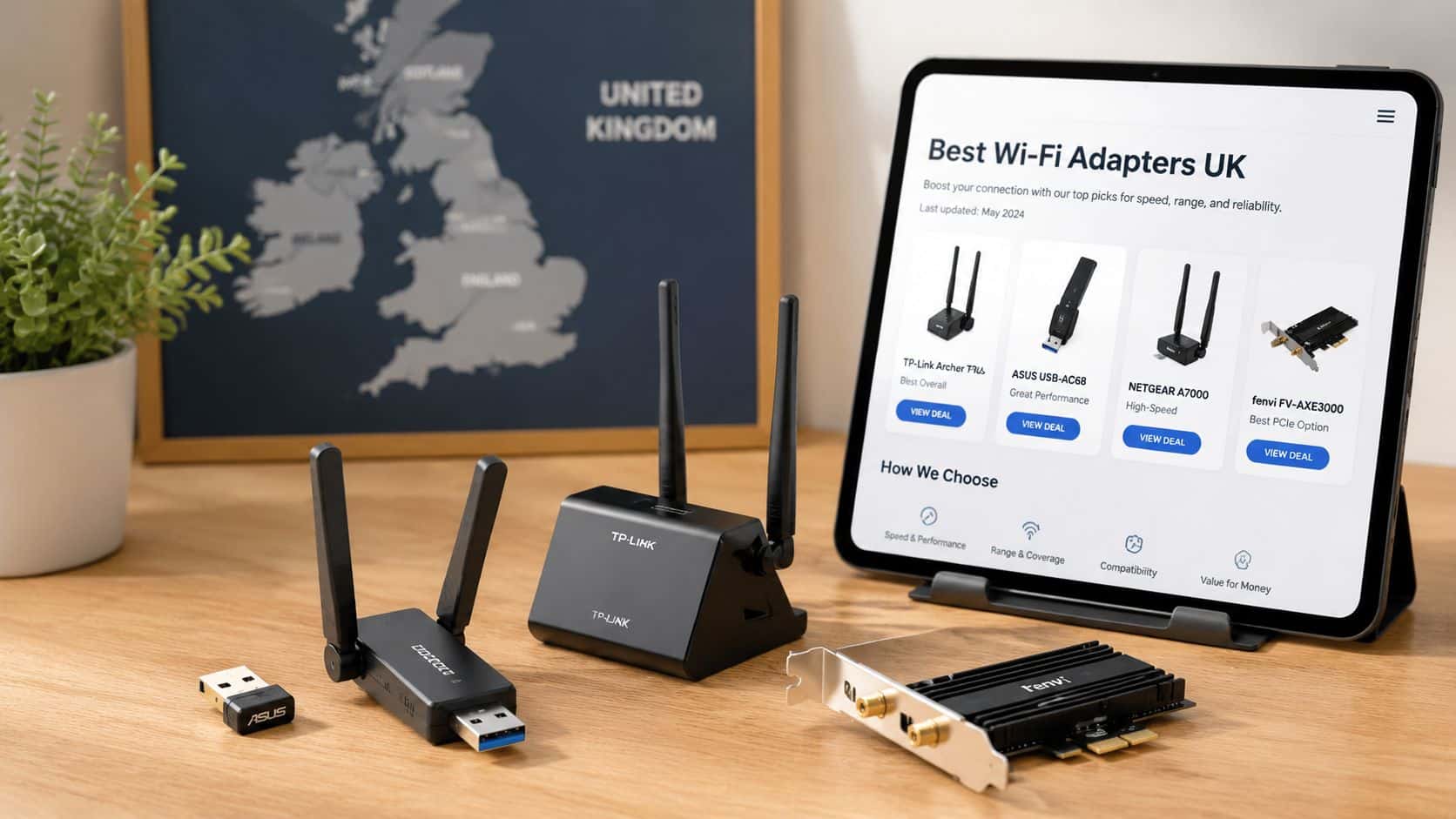
Not every wireless ethernet adapter suits every room, router or device. The best choice depends less on the marketing on the box and more on where the device sits, how far it is from the router and how modern the rest of your setup is.
Start with the Wi-Fi standard
For most homes, a Wi-Fi 5 adapter is the sensible middle ground. It’s widely supported, easy to find and fast enough for a lot of real-world broadband use without getting expensive.
That matters because in typical UK homes, 802.11ac adapters can deliver sustained throughput of 450–520Mbps at 10m, but throughput can drop by 35% at 15m because of building materials common in UK properties, which is why external antennas can make a real difference, as shown in this 802.11ac adapter performance document.
USB size matters more than people think
Nano adapters are tidy. They’re fine if the laptop sits near the router, or if you just want basic browsing and light use. They’re also less likely to get knocked when left plugged in.
Larger adapters with antennas are usually the better choice for desktops, back rooms, upstairs bedrooms or older UK houses with thicker walls. They aren’t as neat, but they’re often far more forgiving when signal conditions aren’t ideal.
- Nano adapter: Best for convenience, short range and casual use.
- Adapter with external antenna: Better for distance, thicker walls and more stable streaming or downloads.
- USB 3.0 model: Worth choosing if your computer has the proper port and your broadband is relatively fast.
Match it to the home, not just the device
A small flat near the router can get away with almost any decent adapter. A Victorian terrace or a house with the router tucked away in the hall is less forgiving. In those homes, a stronger adapter with better placement usually matters more than chasing the latest branding.
Broadband availability is no longer the main issue in much of the UK. If you’re also comparing the device itself, this Expert guide to refurbished laptops helps when the problem turns out to be the machine rather than the network add-on.
Choose based on the actual job
Choose a compact USB adapter if:
- You use the laptop close to the router: Short-range use doesn’t need much hardware.
- You want something discreet: Good for travel or a laptop that goes in a bag often.
- Your use is light: Web, email, school portals and occasional streaming.
Choose an adapter with antenna if:
- The room gets weak signal: This is the better bet in older UK homes.
- The desktop stays in one place: You can prioritise performance over neatness.
- You stream, download or work on calls often: Stability matters more than size.
Real recommendation. For most people trying to rescue an older laptop or desktop at home, a Wi-Fi 5 USB 3.0 adapter with a proper external antenna is the safest buy. It’s rarely the prettiest option, but it usually causes fewer complaints later.
Common Problems and Simple Fixes
Most adapter problems are boring rather than serious. The good news is that boring problems are often fixable in a few minutes.
The connection is slow
If you’re using an older 2.4GHz adapter, local interference is often the issue. In urban UK areas, 802.11n adapters can drop from a theoretical 300Mbps to 90–120Mbps because of congestion from neighbouring 2.4GHz devices, as shown in this Wi-Fi 4 throughput reference.
- Try a different USB position: Front ports or a short extension lead can improve signal instantly.
- Prefer 5GHz if the adapter supports it: It often avoids the busiest 2.4GHz clutter.
- Move the device slightly: Even a small change in angle or placement can help.
If your use includes live video, stream monitoring or similar tasks, practical bandwidth demands matter. This piece on internet for reliable public webcams gives a decent real-world reminder that connection stability matters as much as headline speed.
The computer doesn’t recognise the adapter
This usually comes down to drivers. Older Windows laptops can be especially awkward if the adapter is much newer than the operating system.
- Install the correct driver manually: Don’t rely on a generic one if the maker provides a proper version.
- Try another USB port: Some ports supply power better than others on ageing laptops.
- Restart after installation: It sounds basic, but it still solves a lot.
The Wi-Fi keeps dropping out
This can be a power setting issue rather than a network issue. Windows sometimes puts USB hardware to sleep too aggressively, especially on older laptops trying to save battery.
- Turn off USB power saving: Check Device Manager and Power Options.
- Update the adapter driver: Older bundled drivers can be flaky.
- Rule out wider device issues: If other things are acting up too, use this guide to resolve mobile device difficulties and general tech faults so you don’t chase the wrong problem.
A bad Wi-Fi experience doesn’t always mean a bad adapter. Very often it means bad placement, old drivers or a crowded 2.4GHz band.
Our Verdict Is a Wireless Adapter Worth It?
Yes, usually. If you’ve got a decent older laptop, desktop, console or smart TV that’s being held back by poor connectivity, a wireless ethernet adapter is one of the simplest upgrades you can make.
It suits people who want to extend the life of older electronics, especially refurbished or second-hand devices that still have plenty of use left in them. It’s also a sensible fix when the internal Wi-Fi has become unreliable and you don’t want the hassle of opening the machine.
It won’t suit every situation. If the device is slow, unstable and worn out in general, a better connection won’t change that. In that case, replacement is the smarter route.
Demand for these products isn’t going away either. The UK Wi-Fi Adapter Card market is projected to reach USD 10,534.46 Million by 2031, up from USD 6,390.51 Million in 2023, reflecting growing demand for connectivity across devices, as noted in this UK Wi-Fi adapter market projection.
If the device still does the job, fix the Wi-Fi and carry on. If the machine is tired all round, skip the patch and move on to something better.
Meta description: Wireless ethernet adapter guide for UK buyers. Learn what it does, when it helps old laptops and consoles, and how to choose the right one.
Written by James Waterston, 24 years in the mobile phone industry from customer service through to Sales Director of a global repair and recycling company. Now running Used Mobiles 4U for over 8 years.
LinkedIn: James Waterston
If your current device is more trouble than it’s worth, have a look at Used Mobiles 4 U for fully tested refurbished phones, laptops and tablets with clear grading, UK support, warranty, secure data wiping and the sort of practical advice that helps you buy the right replacement rather than the most expensive one.
Looking for a refurbished phone?
Shop professionally tested refurbished iPhones and Samsung phones with 18 month warranty, 30 day returns and free UK delivery.
Browse Refurbished Phones