


How to Adjust Screen Brightness on Any Device

21/07/2026

9 Mins
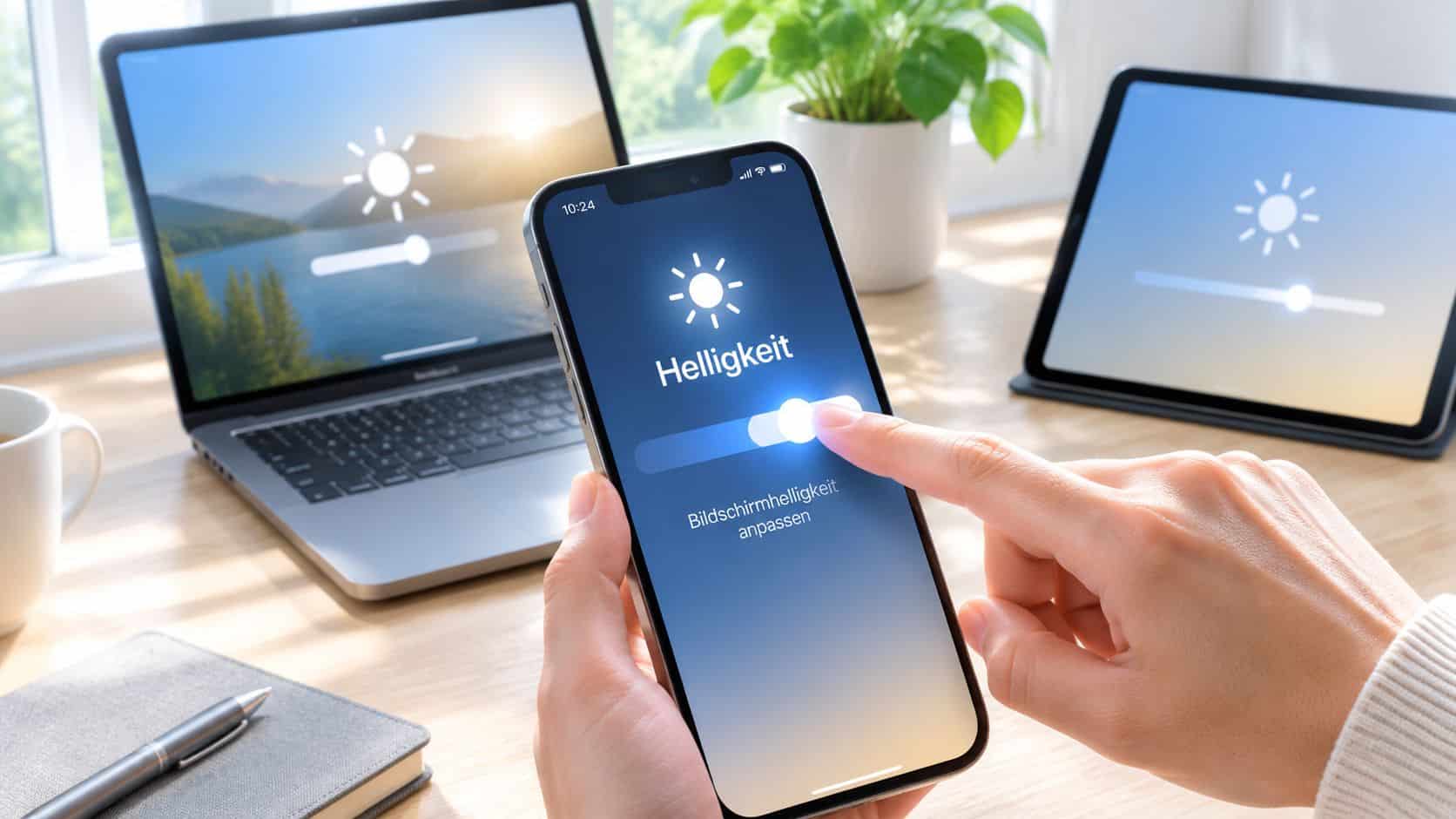
If your screen suddenly feels too bright, too dim, or keeps changing on its own, start with the quick settings panel first. On most phones and tablets, one swipe brings up the brightness slider, and the full Display settings give you the extra controls that usually solve the problem.
Sometimes the slider works straight away. Sometimes it doesn’t, especially on older or refurbished phones where the light sensor, screen replacement quality, or auto-brightness setting is part of the issue.
Finding Your Brightness Controls Fast
For most devices, how to adjust screen brightness is simple once you know the two places to check. First, open the quick settings area. That’s the fastest way to drag the brightness slider up or down. Second, go into your main settings and look for Display, Screen, or sometimes Accessibility.
If the slider changes but the screen still looks wrong, turn automatic brightness off for a moment and test it manually. That quickly tells you whether the phone is following the room light sensor, or whether the display itself may have a fault.
Practical rule: If brightness keeps changing when you don’t want it to, check auto-brightness before assuming the screen is faulty.
The Short Version
- iPhone X and newer: Swipe down from the top-right corner, then move the brightness slider.
- iPhone 8 and older: Swipe up from the bottom edge to reach the brightness slider.
- Samsung Galaxy: Swipe down from the top for the Quick Panel, then adjust brightness. If the screen still feels harsh at night, try Extra dim in Accessibility.
- Other Android phones: Swipe down once or twice for quick settings, then use the slider. For deeper control, open Settings > Display.
- Tablet users: The same pattern usually applies. Quick panel first, full settings second.
- If brightness won’t settle: Turn off adaptive or auto-brightness and check again in normal indoor light.
- If a refurbished phone seems too bright even at minimum: That can point to a sensor issue or a replacement screen behaving differently from the original panel.
How to Adjust Screen Brightness on Mobiles and Tablets
Most people don’t need a deep menu. They just need the right swipe. The exact movement matters, especially on older iPhones and used handsets where customers often assume the control has gone missing.
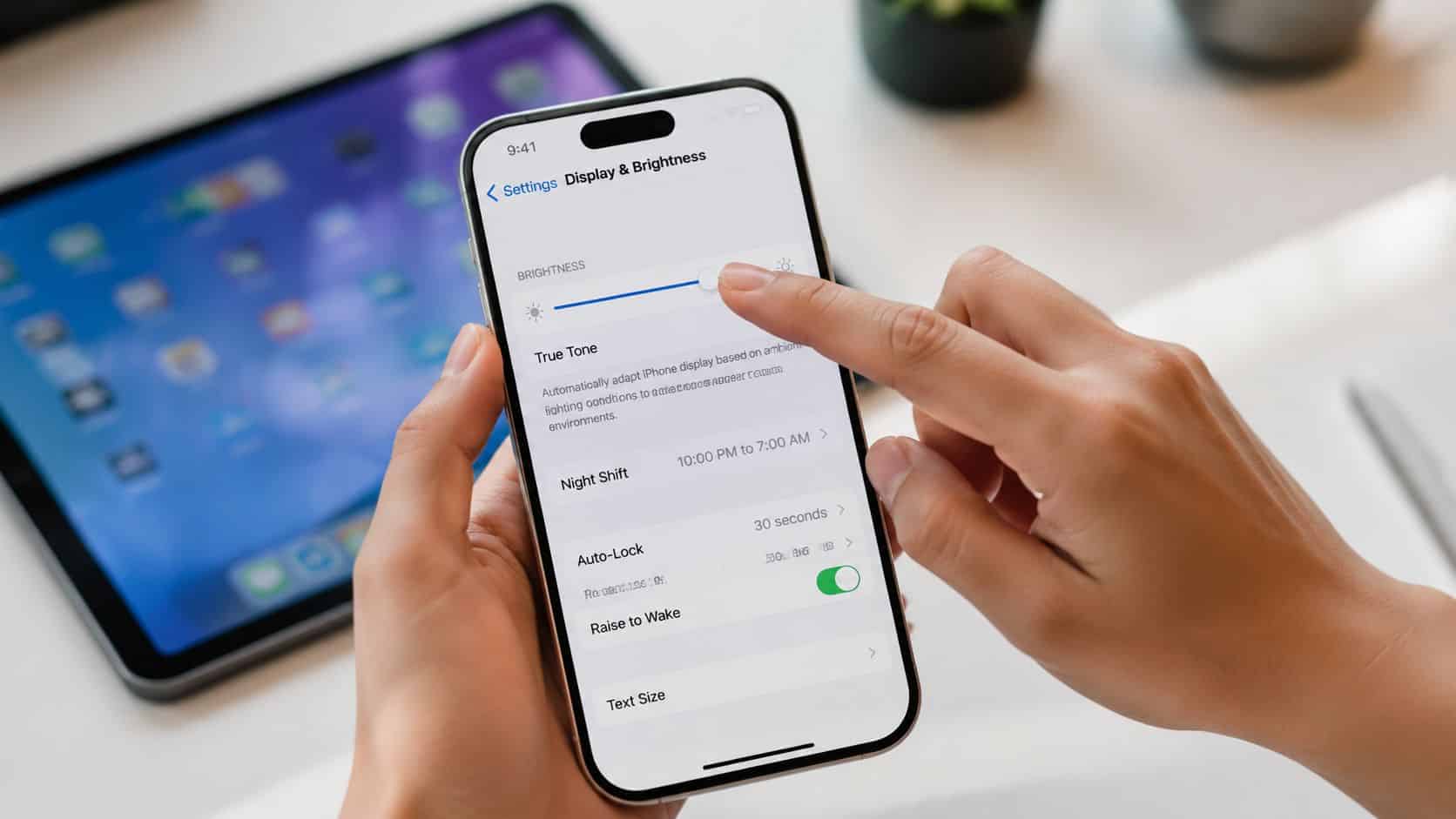
How to adjust screen brightness on iPhone
Apple split the gesture depending on the model. On iPhone X or later, including iPhone 11 to iPhone 15 models sold in the UK, you swipe down from the top-right corner. On iPhone 8 or earlier, you swipe up from the bottom edge.
Once Control Centre is open, drag the brightness bar up or down. If you want the longer route, go to Settings > Display & Brightness. That’s also where you can check appearance settings if the screen feels harder on your eyes in the evening.
If you’re sorting more than display settings on a used iPhone, a good companion read is mastering iPhone cellular settings, especially if you’ve just moved to a different network or SIM-free handset.
For anyone using an iPhone 13, it’s also worth taking a look at these tips if you want to get more from the phone beyond the screen controls. You can discover iPhone 13 value tips and sort a few common setup niggles at the same time.
How to adjust screen brightness on Samsung Galaxy phones
On Samsung, swipe down from the top of the screen to open the Quick Panel. On some models you may need a second swipe to fully expand it. Then drag the brightness slider to where it feels comfortable.
For the main setting, go to Settings > Display. If standard brightness control still feels too strong at night, Samsung has a genuinely useful extra layer called Extra dim. You’ll find it in Settings > Accessibility > Extra dim, with its own intensity slider.
If a Samsung still feels bright on minimum, try Extra dim before assuming the panel is faulty. It often solves the problem in bed, on the sofa, or in a dark room.
How to adjust screen brightness on other Android phones
Most Android phones follow the same basic layout. Swipe down from the top to open quick settings, then move the brightness slider. If you don’t see it straight away, swipe down again to expand the panel.
For permanent settings, open Settings > Display. You’ll usually find brightness, adaptive brightness, dark theme, and other screen comfort options there. Wording changes a bit by brand, but the route is usually close enough that you won’t be hunting around for long.
How to adjust screen brightness quick steps
- Unlock the device: Make sure you’re on the home screen or a normal app screen.
- Open quick settings: Swipe down from the top, or on older iPhones swipe up from the bottom edge.
- Find the brightness slider: It’s usually marked by a sun icon.
- Drag to test: Move it down in a dim room, then back up in daylight so you can tell whether it’s responding properly.
- Open full display settings: Go to Settings > Display or Settings > Display & Brightness.
- Switch auto-brightness off briefly: This helps you check whether the phone or tablet is overriding your manual setting.
- Try extra comfort settings: Use Dark Mode, Night Shift, Blue Light Filter, or Extra dim if the panel is uncomfortable rather than simply too bright.
Adjusting Brightness on Windows and macOS
Plenty of people move between a phone and a laptop all day, so it helps to sort both. On Windows laptops, the quickest route is usually the brightness keys on the keyboard. If that doesn’t work, open the quick settings area from the taskbar and use the brightness slider there. You can also check Settings > System > Display.
On a MacBook, use the brightness keys on the keyboard or open Control Centre from the menu bar. Then drag the display brightness control. For deeper options, open System Settings and look under Displays.
If you work across two screens, it’s worth sorting the whole setup properly rather than fighting mismatched brightness every evening. This guide to connecting dual monitors on Windows or Mac is a sensible place to start.
One useful reminder from the phone side carries over here as well. Samsung’s Extra dim setting sits separately from normal brightness, under Accessibility, so if you use a Galaxy phone alongside your laptop, don’t assume the main slider is the only control available.
Beyond the Slider Auto-Brightness, Eye Strain and Battery Life
Brightness isn’t just about seeing the screen. It affects comfort, battery use, and even your electricity bill if you’re doing the same thing across office displays or home monitors.
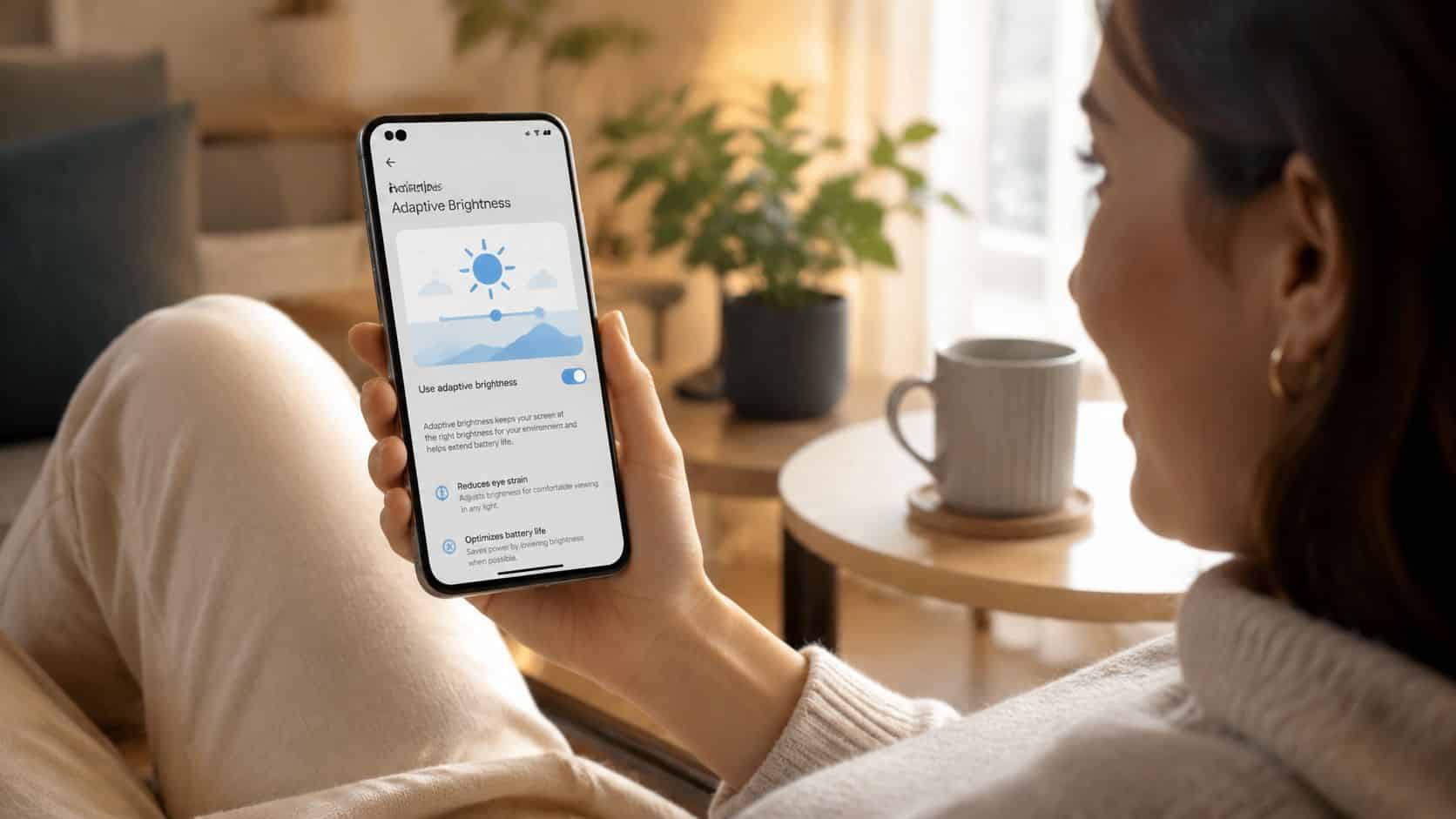
Auto-brightness is helpful until it isn’t
When it’s working properly, auto-brightness saves fiddling. The phone reads the room light and adjusts for you. In normal use, that’s convenient. In repair work, though, it’s also one of the first things to switch off when diagnosing a screen complaint.
At night, lower is usually better. In the UK, average internet-connected screen time is about 6 hours and 38 minutes per day, so screen comfort matters more than people think. The same source also notes clinical recommendations for nighttime device use that include lowering brightness to the minimum level needed, using a Blue Light Filter, and switching on Dark Mode to reduce ocular strain.
What actually helps in daily use
- Dark Mode: Good for reducing glare in the evening, especially if bright white backgrounds are what’s bothering you.
- Night Shift or Blue Light Filter: Useful if the screen feels harsh late at night. Warmer tones are often easier to live with.
- Manual brightness in a dark room: Better than relying blindly on auto mode if the phone keeps overcorrecting.
Don’t leave a phone on factory-bright settings if it feels uncomfortable indoors. A lot of devices ship brighter than they need to be for normal home use.
Brightness and power use
On larger screens, brightness has a direct energy cost. The BBC covered work around reducing monitor brightness to 50%, noting that maximum brightness can use up to twice the power of lower settings, and that lower brightness reduces electricity use and carbon output using the UK government emissions factor of 0.26155kg CO2e per kWh in the same report on display power use and dark mode behaviour. It’s a small setting change, but it adds up on screens left on all day. You can read that in the BBC’s screen brightness and power coverage.
If eye comfort is the bigger issue than the screen itself, some people also benefit from specialist eyewear rather than endlessly tweaking settings. This overview of lenses to alleviate digital eye strain is a useful extra read if you spend long hours switching between phone and computer.
Battery questions come up a lot with used iPhones, especially where display complaints and battery complaints overlap. If that’s on your mind, it helps to know what cover applies and what counts as normal wear. You can check the warranty on refurbished iPhone batteries before deciding whether the issue is settings, ageing battery behaviour, or a bigger repair job.
Our Experience with Screens on Refurbished Phones
Brightness problems on a refurbished phone are not always user error. One thing we regularly notice is that older devices can feel oddly bright even when the slider is already low. On some handsets, that comes down to a tired ambient light sensor, sensor drift, or a replacement screen that doesn’t behave quite like the original panel.
That matters more on used phones than most guides admit. Refurbished UK devices, especially older models, can feel too bright even at 0% because of degraded OLED sensors or disabled adaptive brightness sensors, which is a real quirk noted in discussion around display behaviour on older hardware from refurbished devices with sensor drift.
Our Experience Refurbishing This Model at Used Mobiles 4U
Our technicians often see the same pattern on older iPhones and Samsung models. The screen works, touch works, colours look acceptable, but brightness control feels off compared with a cleaner original unit. That’s why screen testing can’t stop at “does it turn on”. It needs checking at low brightness, high brightness, indoors, and under changing light.
Battery health also affects how people judge a screen. A weak battery can make customers think the display is the whole problem because they’re constantly turning brightness up and down to get through the day. On the bench, we check charging, Face ID or equivalent front sensor behaviour, camera function, speaker output, and whether automatic brightness responds normally when the phone moves between darker and brighter conditions.
Grade differences matter too. A Good-grade phone may have more visible wear around the frame or glass, and that can come with heavier previous use. That doesn’t mean it’s a bad buy, but it does mean the finer details, like sensor consistency and prior screen work, need closer inspection.
What We Commonly See
- Auto-brightness that hunts around: Usually more annoying than a total failure. The screen keeps shifting when the room light hasn’t really changed.
- Very bright minimum setting: More common on older OLED-based phones and some replacement screens.
- Uneven display feel: The panel may look acceptable in daylight, then become harsh or patchy in a dim room.
- Heavy-use clues: Scratches around charging ports, worn buttons, and signs of previous repair often go hand in hand with display quirks.
- Repair versus replace decisions: If the screen is poor quality or the front sensor system isn’t behaving properly, replacement can make more sense than endless setting changes.
A common example we see is someone lowering brightness again and again, thinking the phone is just “too sharp”, when the real issue is a poor replacement display or a sensor that’s no longer reading the room properly.
For buyers, the practical takeaway is simple. Don’t just check that the display lights up. Check whether it dims smoothly, whether auto-brightness behaves sensibly, whether the front sensors work properly, and whether the screen remains comfortable at night. If you’re looking to buy refurbished iPhones, those are the checks that separate a decent used phone from one that becomes irritating after a week.
If your current phone only needs a settings fix, keep it and adjust it properly. If the brightness still feels wrong after that, especially on an older refurbished handset, it’s often a sign to repair carefully or replace with a better-tested unit. For buyers who want a phone that’s been checked properly, with clear grading, battery standards, warranty, and UK support, have a look at Used Mobiles 4 U.
Verdict: Learning how to adjust screen brightness is easy. Knowing when a brightness problem is actually a hardware or refurbishment issue is the part that saves money and frustration. If the phone responds normally after a few setting changes, you’re fine. If it still looks wrong at minimum brightness, keeps shifting on its own, or feels harsh compared with similar models, it’s worth getting it checked before you live with it.
Written by James Waterston, 24 years in the mobile phone industry from customer service through to Sales Director of a global repair and recycling company. Now running Used Mobiles 4U for over 8 years.
LinkedIn: James Waterston
Meta description: How to adjust screen brightness on iPhone, Samsung, Android, Windows and Mac, plus practical advice on refurbished phone screen issues.
Looking for a refurbished phone?
Shop professionally tested refurbished iPhones and Samsung phones with 18 month warranty, 30 day returns and free UK delivery.
Browse Refurbished Phones