





How to Transfer Data to a Refurbished iPhone: A 2026 Guide

23/06/2026

7 Mins
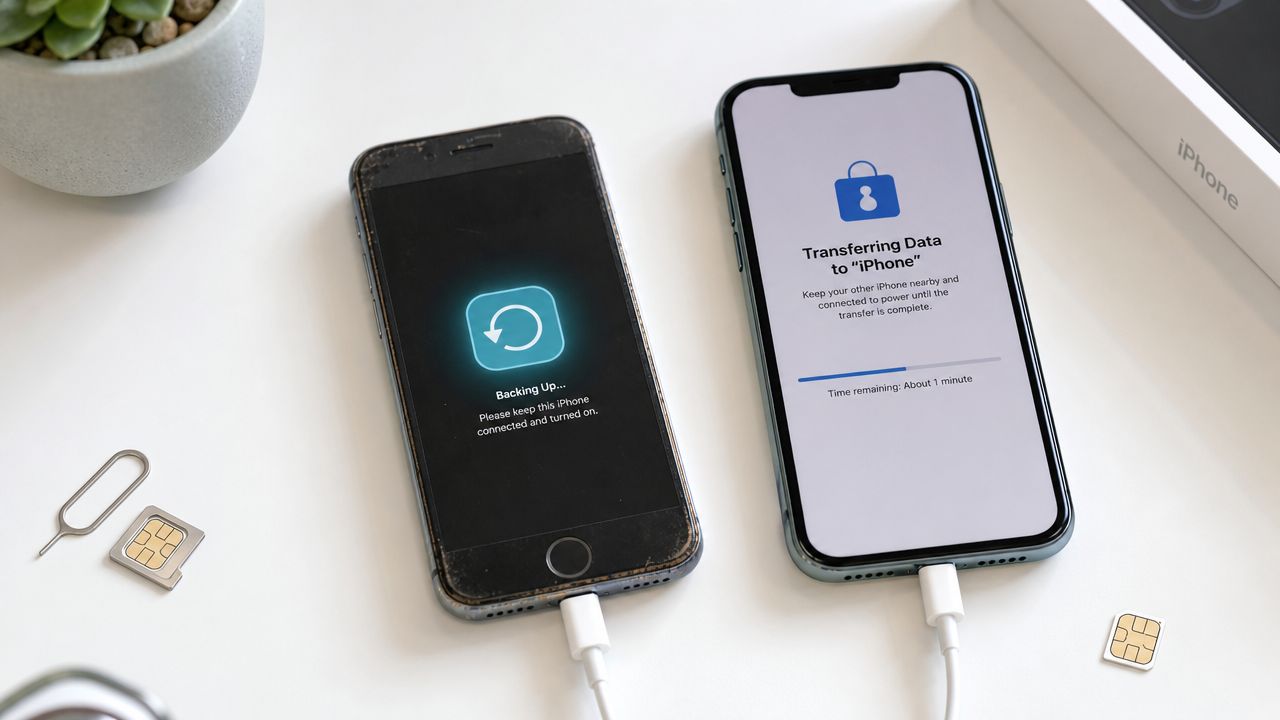
Moving your data to a refurbished iPhone is usually very straightforward. The easiest method is Apple's Quick Start, which transfers everything by placing your old and new iPhones next to each other. If you don't have your old phone, restoring from an iCloud backup is just as effective.
The Short Version
- Best Method: Use Apple's Quick Start if you have both iPhones. It's the simplest way.
- No Old Phone? Use an iCloud Backup. You'll just need your Apple ID and Wi-Fi.
- From Android? Use Apple's 'Move to iOS' app from the Google Play Store.
- Always: Back up your old phone first, and keep both devices plugged in during the transfer.
How to Transfer Data — Quick Steps
Before starting, make sure both phones are charged (or plugged in), connected to stable Wi-Fi, and you know your Apple ID password. A backup of your old phone is your best safety net.
- Turn on your new refurbished iPhone and place it next to your old one.
- Wait for the "Set Up New iPhone" prompt to appear on your old phone's screen.
- Confirm your Apple ID, then follow the on-screen instructions to hold your new iPhone up to the camera.
- Enter your old iPhone's passcode on the new device when prompted.
- Follow the steps to set up Face ID or Touch ID.
- On the "Transfer Your Data" screen, choose "Transfer from iPhone". This starts the direct transfer.
- Keep both devices close to each other and connected to power until the transfer is complete.
Using Quick Start for an iPhone-to-iPhone Transfer
Apple's Quick Start is the best way to move everything from your old iPhone to one of our refurbished Apple iPhones. It basically clones your old device, making the new one feel familiar straight away.
To get going, just turn on your new refurbished iPhone and place it next to your old one. A pop-up should appear on your old phone’s screen, prompting you to set up the new device. From there, it's a matter of following the clear on-screen instructions.
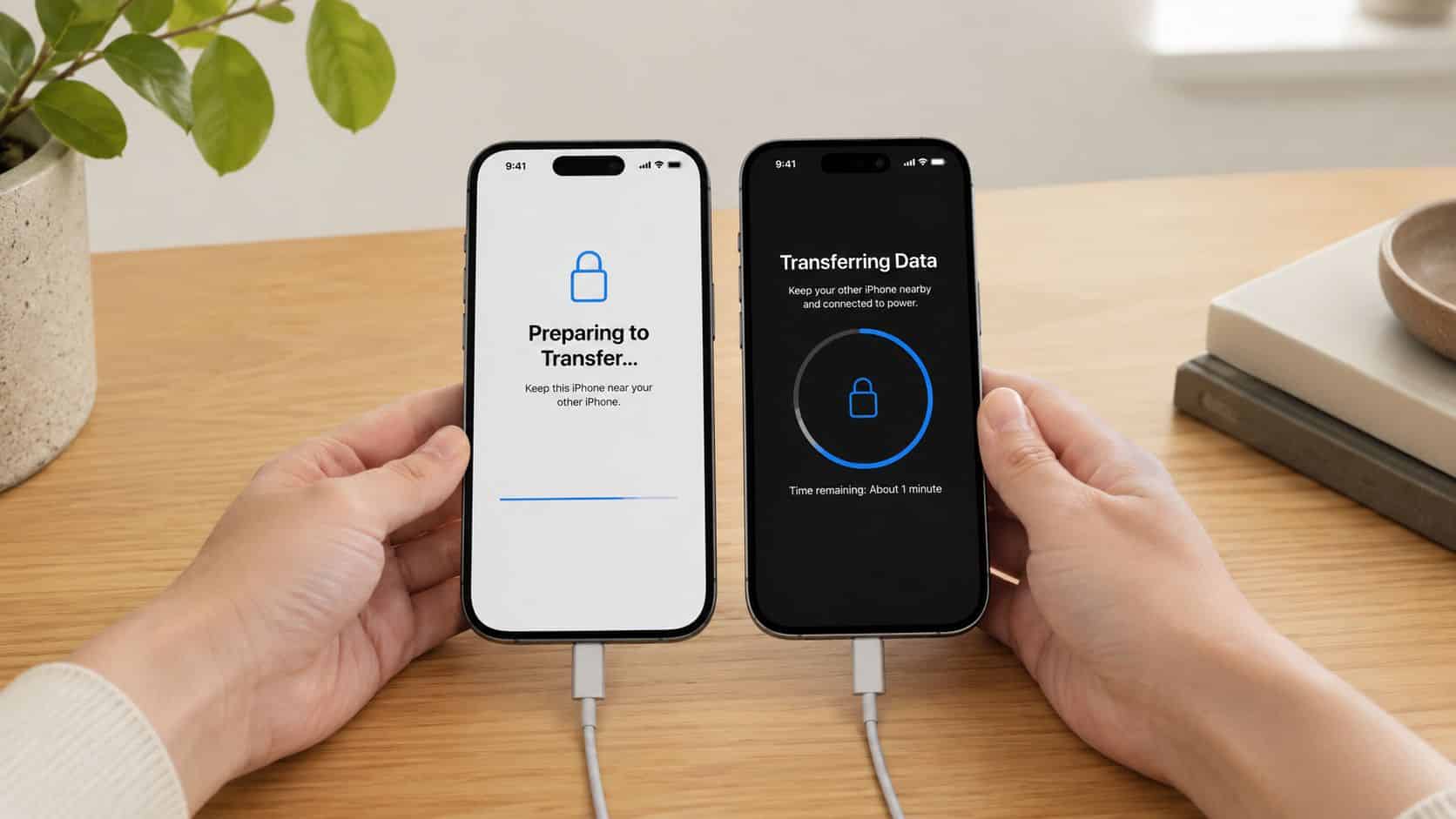
A common mistake we see is a phone’s battery dying mid-transfer. We always tell customers to plug both iPhones in before they begin. The process can take anywhere from 15 minutes to over an hour, depending on how much data you have.
The devices need to be near each other with Wi-Fi and Bluetooth turned on for it to work. This is brilliant for refurbished phone buyers because you don't need a computer. The process also guides you through transferring your phone number, offering to convert your physical SIM to an eSIM. If you need more detail, have a look at our complete guide on transferring iPhone content.
A common example we see is a customer upgrading from an old iPhone with a weak battery. They start the transfer, but the old phone dies halfway through. Keeping both devices plugged in avoids this simple but frustrating problem entirely.
Alternative Ways to Move Your Data
Quick Start is fantastic, but it’s not your only option. If your old phone is lost, broken, or you’re switching from Android, you’ve still got solid, reliable methods.
The most common situation we come across is someone upgrading because their old iPhone no longer works. In this case, an iCloud backup is your best friend.
Restoring from an iCloud Backup
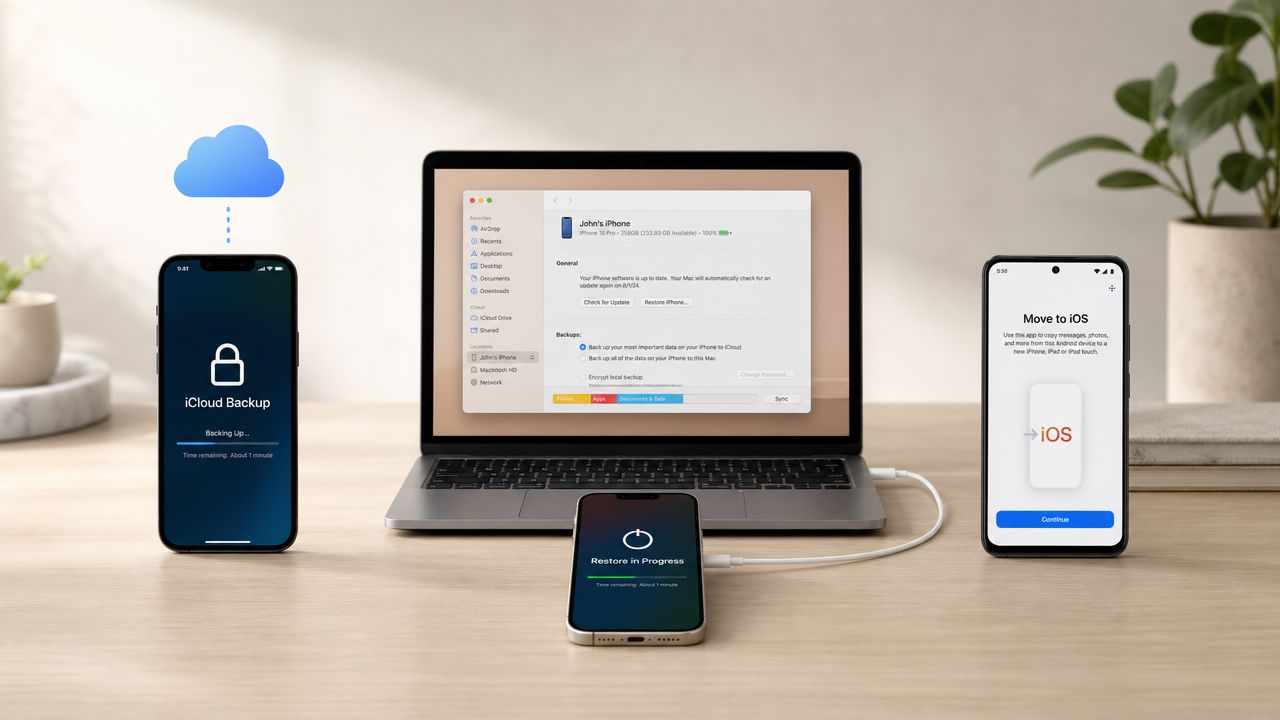
Using an iCloud backup is the safest fallback when your old device isn’t available. During your new iPhone’s setup, simply choose “Restore from iCloud Backup” when you reach the ‘Apps & Data’ screen. Once you sign in, your phone will start downloading everything in the background. It’s vital to keep the iPhone connected to Wi-Fi and power while it works.
Using a Mac or PC to Restore
If you have slow Wi-Fi or just prefer a wired connection, using a computer is a great alternative. It’s often much faster for people with huge photo libraries. You'll use Finder on a modern Mac, or the Apple Devices app on a Windows PC.
First, connect your old iPhone to your computer and start a full backup. Make sure you select “Encrypt local backup”—this is absolutely crucial, as it’s the only way to save your passwords and Health data. Once the backup is finished, connect your new refurbished iPhone and follow the on-screen prompts to “Restore from this backup.”
Moving from an Android Phone
Switching from Android to a refurbished iPhone is easier than it used to be. Apple provides a free app called ‘Move to iOS’, which you can download from the Google Play Store onto your Android device.
During the initial setup of your new iPhone, look for the “Move Data from Android” option on the ‘Apps & Data’ screen. Open the app on your Android phone, enter the code that appears on your iPhone, and then choose the content you want to bring across. This will transfer your contacts, message history, photos, videos, and calendars.
What We Check Before Resale at Used Mobiles 4U
To make sure your data transfer goes off without a hitch, the refurbished iPhone itself needs to be in perfect working order. A lot of setup problems aren't actually caused by the transfer process, but by the handset you're moving to.
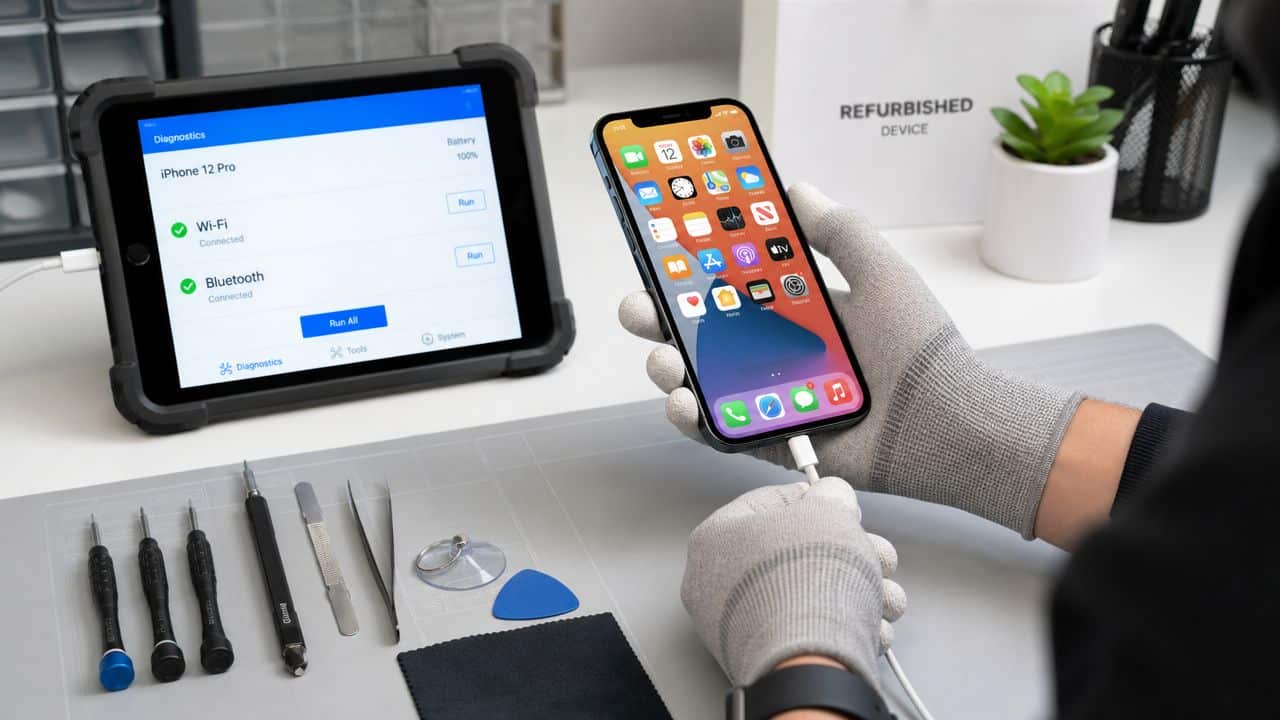
Before any device is listed for sale, our technicians confirm it’s completely wiped and free from any Activation Lock. This is the single biggest cause of setup failure we see from phones bought elsewhere. You can see every step in the Used Mobiles 4U Refurbishment Process.
Here’s what our hardware checks focus on for a smooth setup:
- Wi-Fi and Bluetooth: We check for a strong, stable connection, which is essential for both Quick Start and iCloud restores.
- Charging Port: The Lightning or USB-C port is tested to ensure it maintains a solid connection, preventing interruptions during a wired transfer.
- SIM/eSIM Functionality: Every phone is confirmed to be fully unlocked and SIM-free, so activating your UK network is hassle-free.
This commitment means you can be confident that when your phone arrives, it's ready for your data—without any unwelcome surprises.
Our Experience Refurbishing iPhones at Used Mobiles 4U
When we refurbish iPhones, our goal is to ensure they work just like new, especially during critical moments like setting them up. One thing we regularly notice is that issues during data transfer are rarely due to a fault with the refurbished phone itself, provided it has been properly tested. The most common culprits are a poor Wi-Fi signal, a dead battery on the old phone, or forgetting an Apple ID password.
Our technicians always perform a final factory reset as the last step before packaging. This ensures the phone arrives with the "Hello" screen, ready for you to begin the setup process. We also verify that the device is removed from Apple's Find My network, which prevents any Activation Lock problems. This simple check saves customers a huge amount of trouble, as a locked phone is unusable. Any phone we sell comes with a minimum 85% battery health, which is more than enough to handle the setup, though we still advise plugging it in.
Common Data Transfer Problems and How to Fix Them
Even with good preparation, things can sometimes hit a snag. In our experience, it’s rarely a sign of a faulty refurbished iPhone; more often, it’s a small, fixable issue.
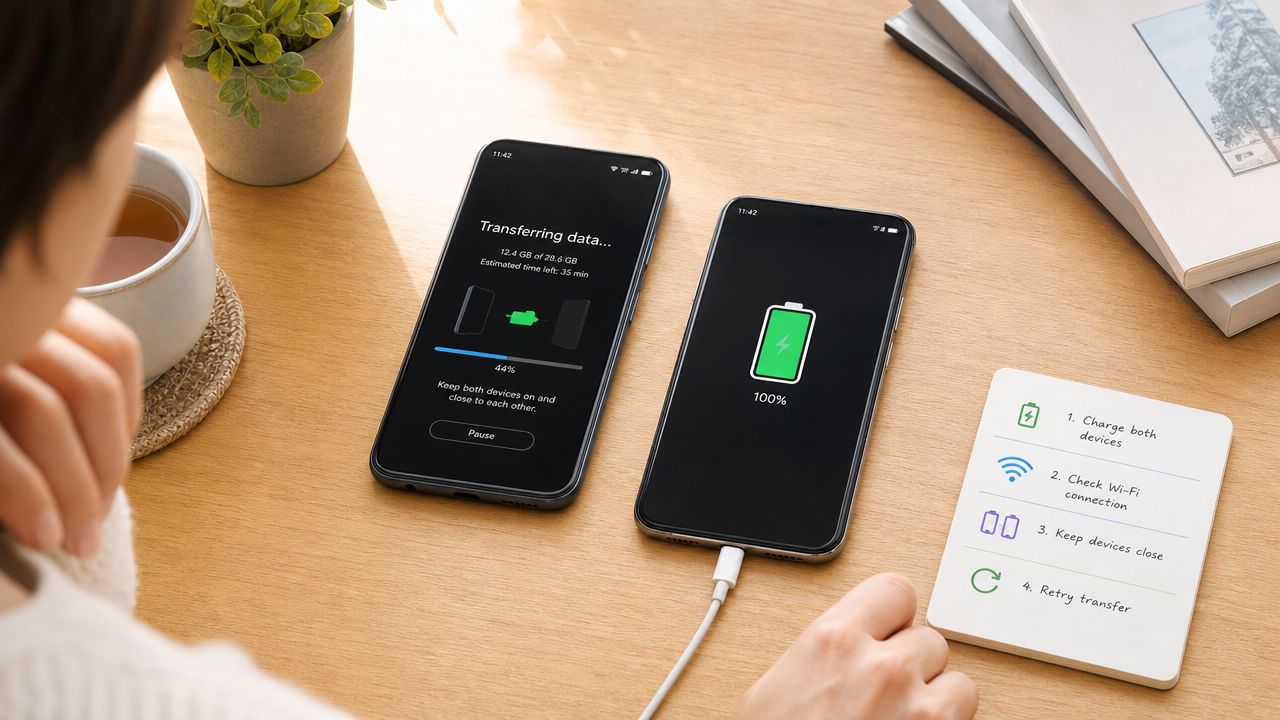
The Transfer Stalls or Takes Forever
If the progress bar gets stuck, especially on "1 minute remaining," be patient. If it hasn't budged for more than 20 minutes, it’s probably a connection issue.
- Check your Wi-Fi: Make sure you're on a stable home network. If you can, move closer to your router.
- Restart both phones: Power both phones off and on again, then try the Quick Start process from the beginning.
- Go wired: If wireless methods keep failing, using a Mac or PC to do a wired restore is a very reliable backup plan.
'Move to iOS' from Android Fails
The ‘Move to iOS’ app has one golden rule: you must use it during the initial setup of your new iPhone. If you've already reached the home screen, it won't work. You’ll need to erase the iPhone and start again by going to Settings > General > Transfer or Reset iPhone > Erase All Content and Settings. Also, make sure Wi-Fi is stable on both devices.
Apps Are Missing or Won't Download
After a restore, you might see greyed-out app icons with "Waiting…" underneath. This is normal. If they seem stuck, just tap on an icon to pause and then tap it again to resume. If that doesn't work, it could be a payment issue or a forgotten password for your Apple ID. Head into Settings and make sure you're signed in correctly. Our iPhone passcode recovery guide has some useful tips.
Is It Worth It?
Absolutely. Knowing how to transfer data to a refurbished iPhone properly makes the whole experience smooth and painless. By using Apple's built-in tools like Quick Start or iCloud Backup, you can have your new-to-you phone set up exactly like your old one in under an hour. As long as you follow the simple prep steps—backing up, charging your devices, and using good Wi-Fi—the process is reliable and straightforward.
The key is to buy from a trusted retailer that guarantees the phone has been professionally tested and wiped, removing any risk of Activation Locks or hardware faults causing problems.
Written by James Waterston — 24 years in the mobile phone industry from customer service through to Sales Director of a global repair and recycling company. Now running Used Mobiles 4U for over 8 years.
LinkedIn: https://uk.linkedin.com/in/james-waterston-9039a21a
Looking for a refurbished phone?
Shop professionally tested refurbished iPhones and Samsung phones with 18 month warranty, 30 day returns and free UK delivery.
Browse Refurbished Phones






