


How to Get More Storage on Phones, Tablets and Laptops

09/08/2026

9 Mins
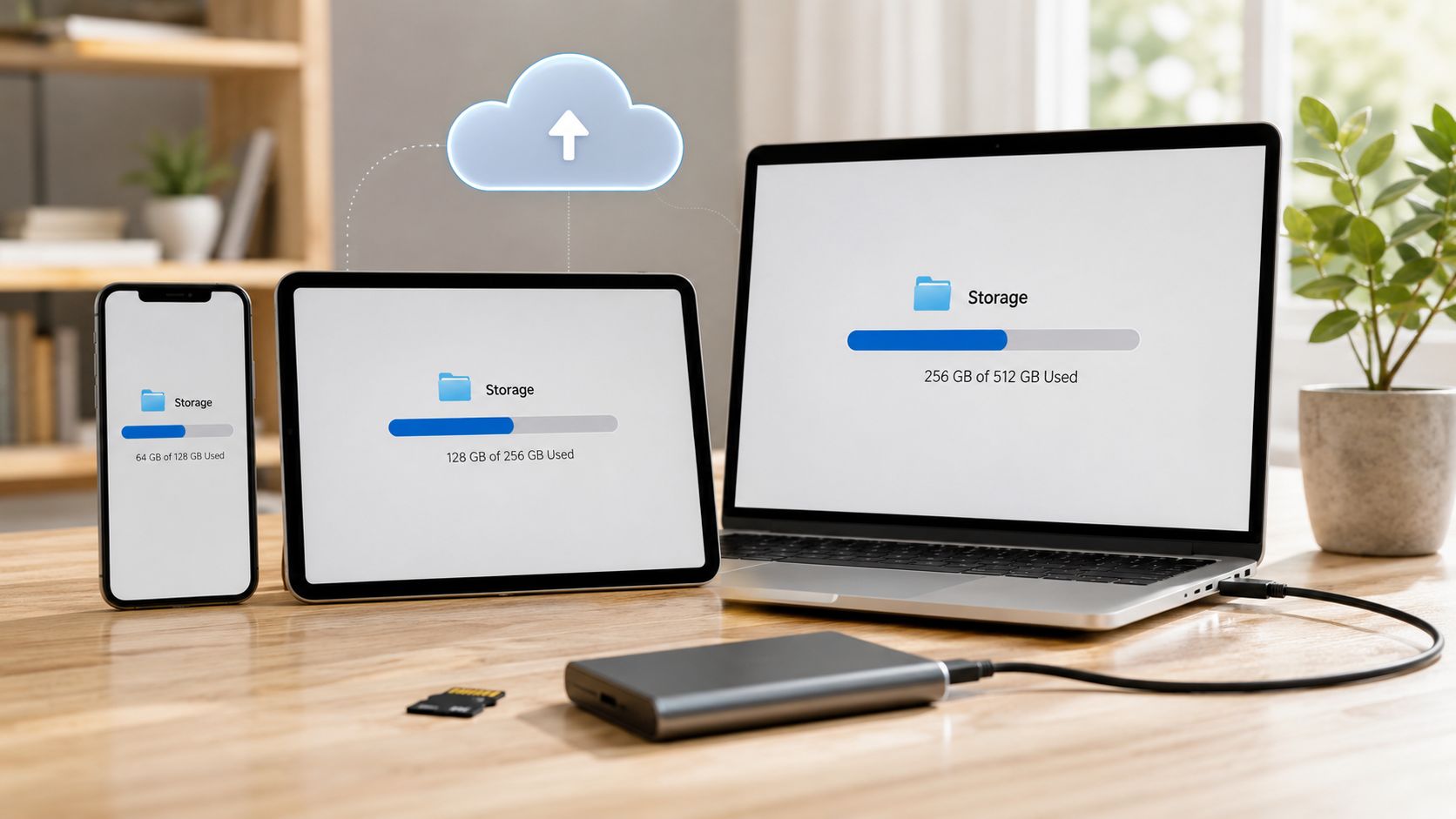
You've got a phone that keeps nagging you about storage, and deleting a few photos hasn't fixed it. That usually means the problem isn't just clutter, it's that the device has run out of sensible headroom.
Quick Answer Before You Start Tinkering
A customer walks in with the same complaint all the time, the phone is “full” even though they've already deleted pictures. The fix is usually simple, check what's using space, remove the biggest items first, then decide whether cloud storage, an SD card, or a higher-storage replacement makes more sense.
- Check first, don't guess, because storage bars hide the culprit.
- Offload the biggest files, usually photos, videos, downloads and chat media.
- Upgrade only if needed, because on some refurbished phones the gap between the advertised capacity and the usable space is bigger than people expect. For a quick overview of storage choices on used Apple handsets, our Used Mobiles 4 U storage guide is a useful place to start.
On the bench, I'd treat this as a decision problem, not just a cleanup job. If the phone is recent and capable, you can usually free enough space without spending anything. If it's a refurbished 64GB or 128GB model and you're constantly back at square one, that's often a sign to move up rather than keep fighting it.
Check What Is Using Your Storage
Before you delete anything, open the storage screen and look at the breakdown. That's the step people skip, then they wonder why the phone still feels full after they have removed a dozen apps.
iPhone, Android and Windows each hide space in different places
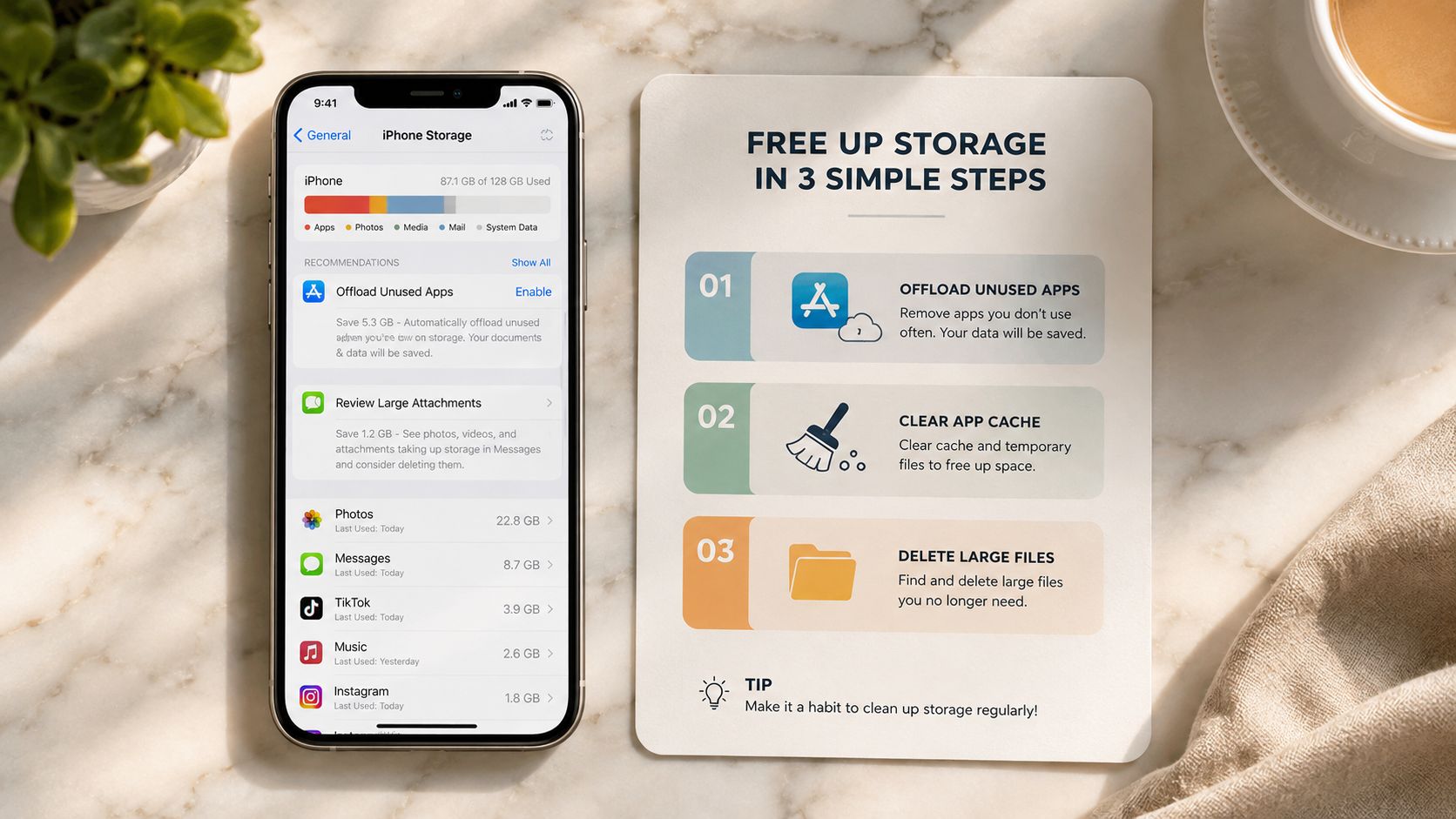
On iPhone, go to Settings > General > iPhone Storage. That screen shows which apps and media categories are taking the most room, and it also helps you spot System Data, which is the label that often confuses customers.
On Android, use Settings > Storage. Samsung Galaxy and Motorola phones may phrase the breakdown a little differently, but the point is the same, you want to see the largest categories first instead of deleting blindly. On Windows 10 or 11, check Settings > System > Storage and look at the categories before you start emptying folders.
Practical rule: if you can't see what is full, you are only guessing. Guessing usually leads to deleting the wrong files and keeping the actual problem.
A refurbished handset can also look tighter than you expected because the operating system and preinstalled software take their share first. That is why a phone sold as a certain capacity rarely gives you that full amount in day-to-day use.
If you are using a laptop and the drive options are greyed out, this Windows disk extend grayed out guide is handy for understanding why the setting will not always behave the way you expect.
Before you buy a replacement phone, compare the storage tiers against how you use the device. Our compare 64GB 128GB 256GB refurbished iPhones page is useful if you are deciding whether the smaller tier is really enough.
What Usually Fills a Phone First
The biggest space hogs are rarely the things people think about first. It's usually media, chat attachments and cached app data that push a phone over the edge.
The usual offenders we see on refurb stock
Photos and videos are the obvious ones, especially when the phone is used for lots of short clips, family albums or social media uploads. High-resolution video is a much bigger problem than ordinary pictures, and once someone starts filming more in 4K or leaving long clips in the camera roll, storage goes quickly.
WhatsApp and Messenger media are another common culprit. People often delete the message thread and assume the attachments have gone too, but the media library and backups can still hold a lot of space.
Downloads, offline playlists and maps come next. These build up over time because they feel temporary, until they aren't temporary any more.
App caches from streaming and social apps can also grow large. You don't always see them until you inspect the storage screen properly, which is why the built-in breakdown matters so much.
A lot of older advice tells people to “just clean up files”, but modern phones fill faster because the data itself is heavier now. Cameras capture larger files, apps store more in the background, and AI features add yet another layer of local data for the device to manage.
If a customer keeps clearing space every month, the device might be too small for how they actually use it. That's not a discipline problem, it's a capacity problem.
For refurbished buyers, this matters even more on lower-capacity models. A cheaper handset can look good on the listing, but if it ships with the smallest storage tier, you may spend more time managing files than using the phone.
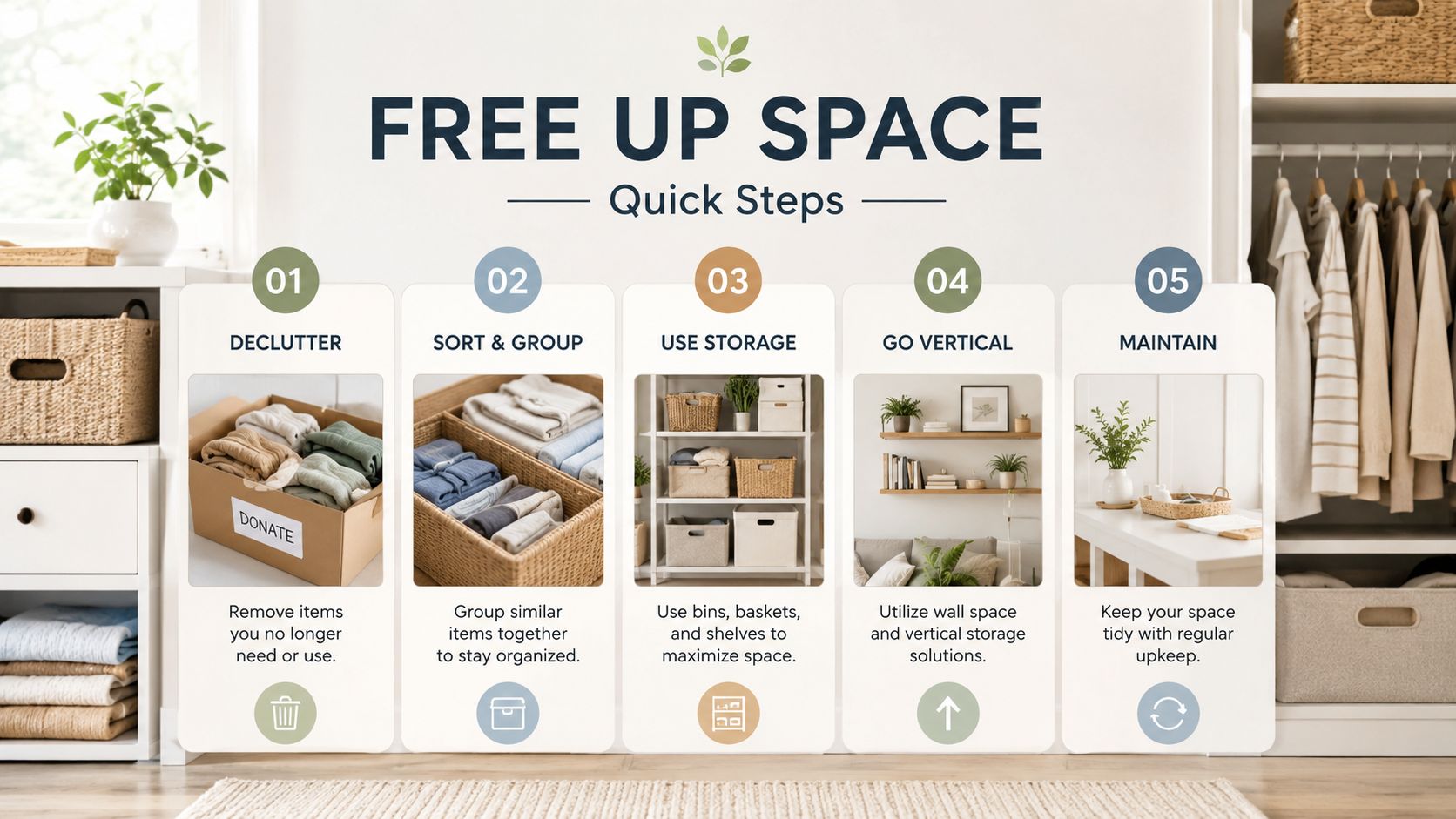
How to Free Up Space, Quick Steps
Start with the safest changes first. Back up anything you care about before deleting photos, videos or chats, because cloud sync can fool people into thinking a file is safely copied when it's paused or incomplete.
Open the storage screen and sort by size. On iPhone use Settings > General > iPhone Storage. On Android use Settings > Storage. Delete the biggest items first, not the smallest.
Remove apps you don't use. On iPhone, tap the app from storage and choose Offload App or delete it. On Android, go to Settings > Apps and uninstall the large apps you barely open. Keep your important logins or notes backed up before you do this.
Tackle chat media next. In WhatsApp, check storage management and clear large attachments from individual threads. Back up chats if you rely on them, because once media is gone locally, it may not be easy to recover.
Sort out photos and videos. Move the largest clips to cloud storage or a computer, then delete them from the device only after you've confirmed the backup. People most often get caught out with paused sync here.
Empty Downloads and browser data. In Safari, Chrome or your phone's browser, clear downloaded files and cached web data. Keep passwords and saved tabs in mind before wiping everything.
Reboot the device after cleanup. A restart lets the operating system reclaim space properly and can make the storage screen update more accurately.
Check the storage screen again. If the phone still feels cramped after the obvious clean-up, the problem is probably not clutter, it's capacity.
The safest habit is to remove what you've already confirmed is backed up, not what you hope is backed up. That one detail saves a lot of grief at the counter.
For a deeper walk-through on deleting what's sitting in iPhone storage, see our iPhone storage guide from Used Mobiles 4.
Cloud Storage, SD Cards and External Drives Compared
Once local cleanup stops helping, there are only a few sensible ways forward. In practice, you're choosing between paying to move files elsewhere, using removable storage, or buying a device with more built-in room.
The real trade-offs
Cloud storage is the cleanest option for most phone users because it keeps files available without filling the handset. Apple's iCloud+ and Google's paid storage paths are the standard escalation route once the free space is gone, and Google Drive's desktop flow makes the upgrade process straightforward for people already using that ecosystem. The catch is simple, cloud storage is a recurring cost, and it doesn't automatically wipe local copies unless sync settings are set properly.
MicroSD cards are still useful on supported Android phones. They're cheap, easy to move between devices, and good for photos, videos and downloaded media, but most modern Samsung flagships have dropped the slot, so you can't assume the feature is there just because the phone is Android.
External drives are the best answer for laptops and a decent option for phones and tablets if you don't mind extra cables or adapters. USB-C drives work well on newer Android phones and many laptops, while Lightning accessories are still relevant for older Apple kit. They're brilliant for moving files, but they're fiddly if you want something you can forget about.
If you're weighing that against a laptop upgrade, our advantages of SSD for laptops page explains why storage speed and capacity both matter there. For UK buyers managing phone fleets, the storage conversation also overlaps with IT support and device handling, which is why a practical resource like Technovation LLC's 2026 guide can be useful context when you're thinking beyond a single handset.
A Common Scenario We See at the Bench
A customer comes in saying they've deleted photos, cleaned up a few apps and still get the storage warning every week. When we check the phone, the issue is usually buried in chat media, offline downloads and cached app data.
The fix often starts with WhatsApp storage management, because that's where a surprising amount of clutter hides. After that, a small cloud plan gives them breathing room for photos and backups, but even then the phone may still feel cramped if it started life as a low-capacity model.
At that point, the conversation changes. If the handset is a 64GB device and the customer keeps filling it no matter how tidy they are, the honest answer is usually to move up to a larger refurbished model rather than keep patching the same problem.
That's the moment people realise they weren't failing to organise their phone. The phone was the wrong storage tier for the way they use it.
When It Is Smarter to Trade Up Than Keep Cleaning
I get a bit blunt here, because repeated cleanup is often a false economy. If you're constantly deleting things just to keep the phone usable, you're doing maintenance that never really ends.
The warning signs are usually obvious
If the phone keeps throwing low-storage alerts, it's telling you the margin is gone. If the battery is already tired, the case is heavily worn or the operating system support is getting old, then spending effort on storage workarounds rarely gives you a satisfying result.
A refurbished handset with a bigger internal drive often makes more sense than years of cloud subscriptions. You pay once for the headroom, then stop micromanaging every photo and video. That's especially relevant in the UK refurbished market, where buyers often start with smaller storage tiers to save money up front.
A sensible rule is simple, if your day-to-day use includes lots of photos, video, offline media and app data, buy more storage than you think you need. It's cheaper than buying a smaller phone and trying to force it to behave like a larger one.
Our view: if you're fighting storage every month, the phone is undersized. A bigger refurbished model is usually the cleaner long-term fix.
Choose cleanup, cloud or replacement
- Choose cleanup and cloud if: the phone is recent, the battery is fine and you mostly need a bit of breathing room.
- Choose a microSD or external drive if: your handset supports it and you mainly want cheap file offloading.
- Choose a higher-storage refurbished phone if: you're tired of deleting, the battery is worn, or the device can't keep up with your real habits.
At Used Mobiles 4 U, we stock refurbished phones in different storage configurations, so you can pick a model that fits how much you keep on-device. That's the better answer for a lot of buyers than endlessly trimming the same handset.
Written by James Waterston, 24 years in the mobile phone industry from customer service through to Sales Director of a global repair and recycling company. Now running Used Mobiles 4 U for over 8 years. LinkedIn: James Waterston on LinkedIn
If you want a phone with more breathing room instead of another week of deleting videos, take a look at the refurbished stock at Used Mobiles 4 U. We test devices properly, wipe data securely and list storage options clearly, so you can choose a phone that fits your real use rather than just the number on the box.
Looking for a refurbished phone?
Shop professionally tested refurbished iPhones and Samsung phones with 18 month warranty, 30 day returns and free UK delivery.
Browse Refurbished Phones